Additional Settings
Use Additional Settings to tailor this display's resolution options, menu appearance and connection behavior. It also contains the identity and recovery tools for transferring or resetting a saved display setup. Most preferences save immediately; transfer, reapply and reset actions have their own confirmations.
Where to find it: Settings > Displays > [display] > Additional Settings….
For a BetterDisplay virtual screen's linked desktop, the sheet contains only resolution-range and physical-dimension fields. Its remaining groups apply to ordinary display records, with further hardware requirements for some actions.
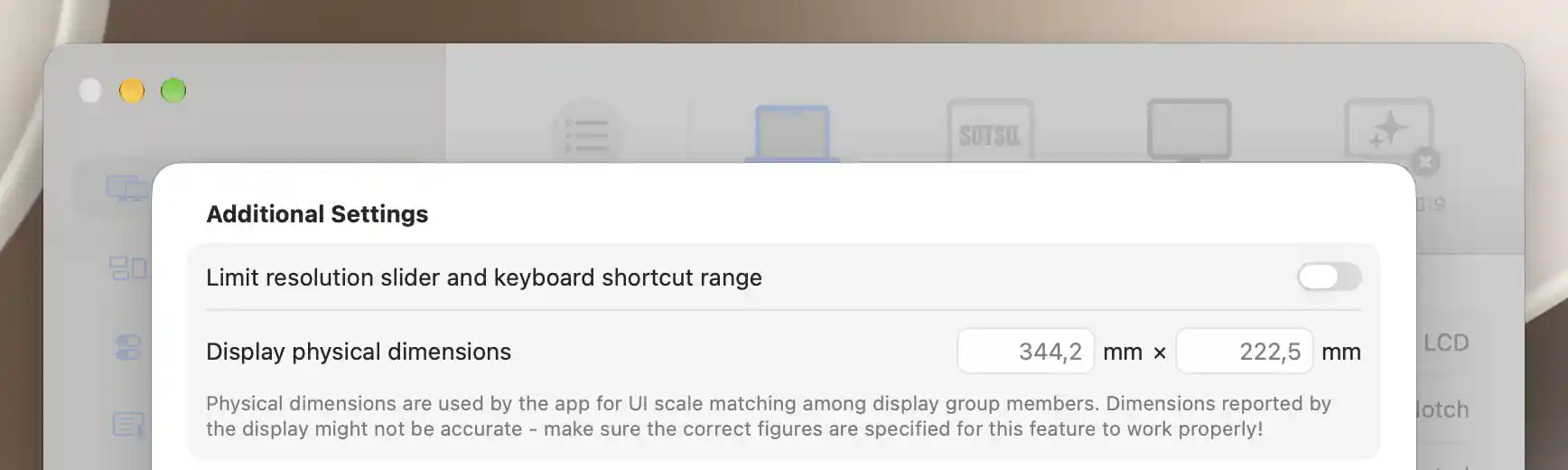
With resolution limits off, the slider uses the available display modes.
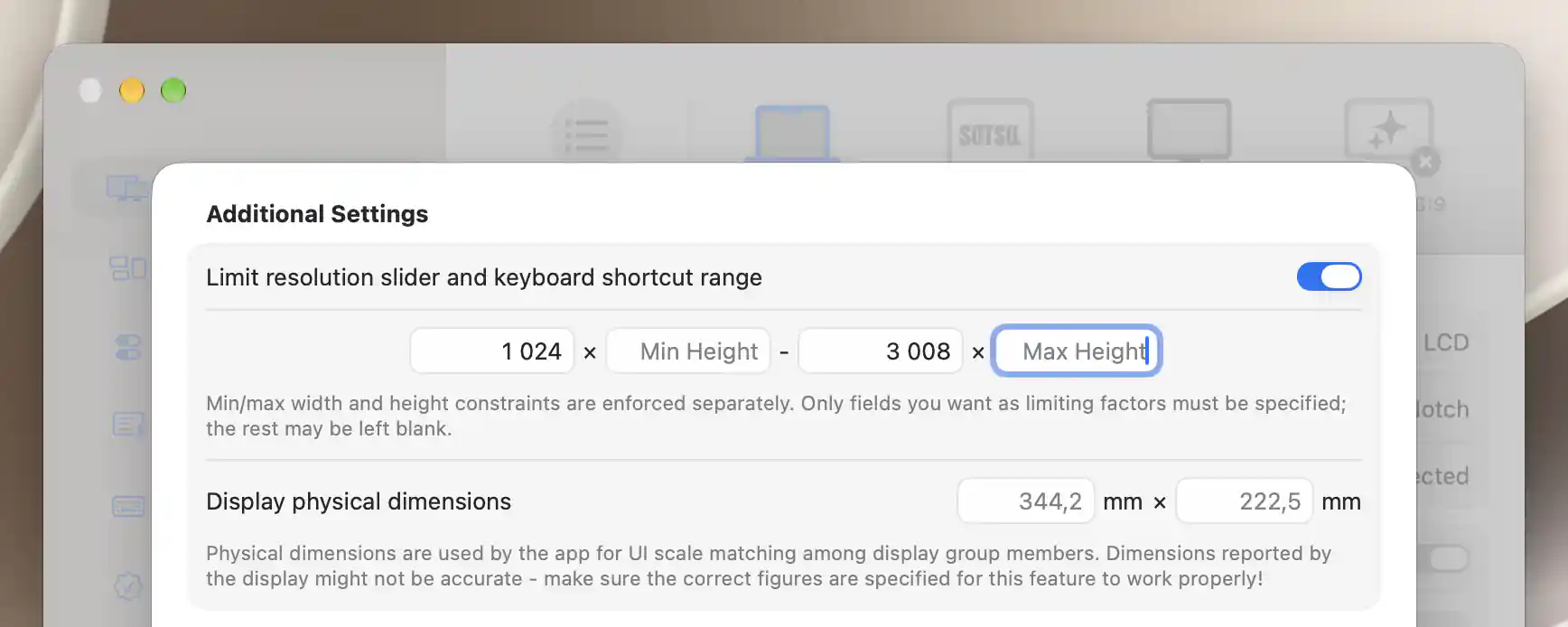
Width limits narrow the resolution slider without changing the current display mode.
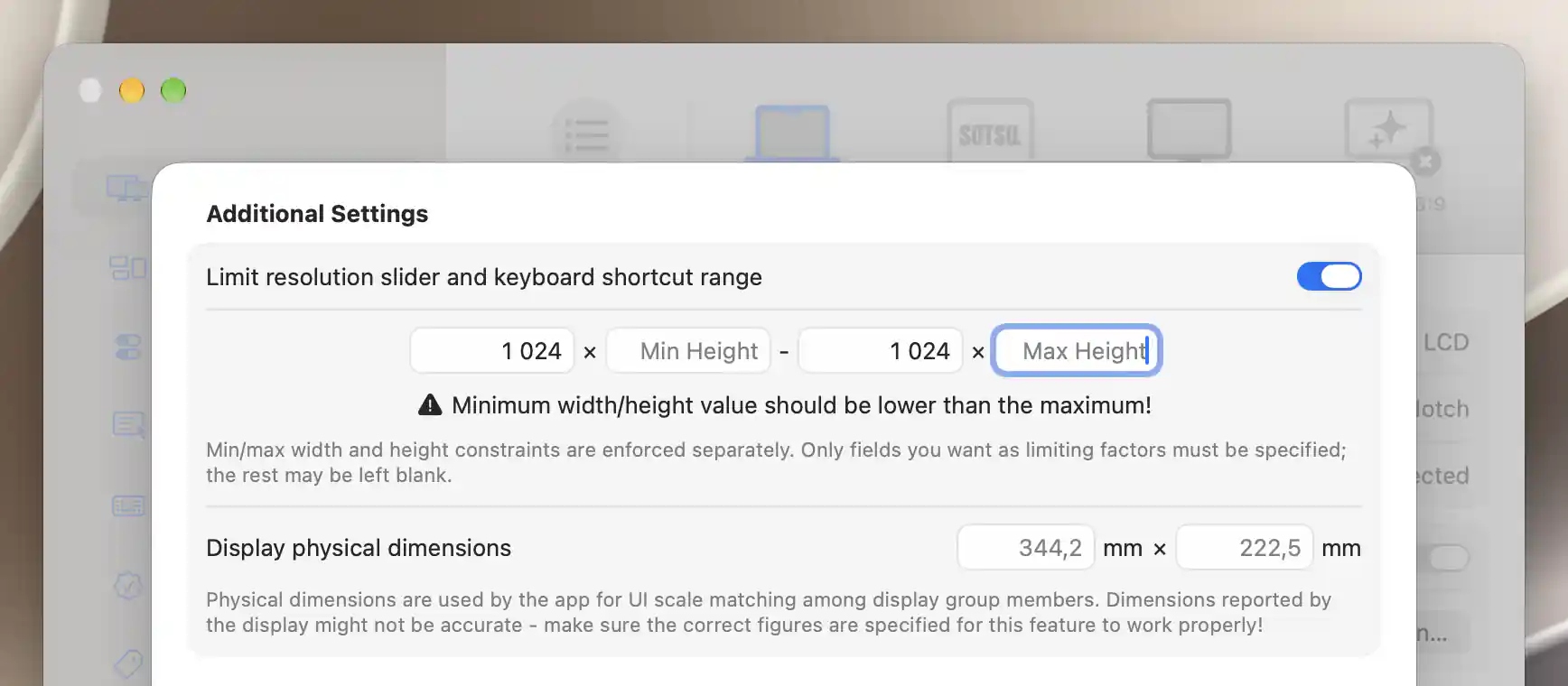
The warning identifies contradictory minimum and maximum limits.
Resolution range and physical size
Limit the slider's choices
Limit resolution slider and keyboard shortcut range is off by default. Turn it on to reveal Min Width, Min Height, Max Width and Max Height. These bounds restrict the logical resolution choices used by the slider and its adjustment shortcuts. They do not create or remove macOS modes, and the current mode stays in the slider even if it falls outside the bounds.
Width and height are constrained separately. Leave a field blank if you do not want that dimension to limit the range. Edits update the slider as you type.
A minimum equal to or above its maximum produces Minimum width/height value should be lower than the maximum! A gap below 100 in either constrained dimension produces a recommendation for more leeway. These warnings help you spot contradictory or narrow bounds; they do not correct the values automatically.
Correct the reported physical size
Display physical dimensions takes the panel's unrotated width × height in millimeters for UI-scale matching between group members. It does not change desktop pixel dimensions.
The placeholders show effective detected or calculated sizes. Enter accurate positive values if those sizes are wrong, or clear an override to return to that automatic basis. When only one dimension is supplied, the app derives the other from the native aspect ratio where possible, then uses detected dimensions or fallback assumptions.
Press Return or leave a field to commit the value. Escape restores an uncommitted edit.
Menu Appearance & Behavior
Name and icon
Custom displayed name changes the name used by BetterDisplay without renaming the display system-wide. Custom displayed icon SF Symbol name takes an SF Symbol name, such as face.smiling.
Browse… opens the symbol picker. Search by a name or related term and select a symbol to apply it immediately. Remove clears the custom icon, and Done closes the picker. Clearing a custom name or icon restores its ordinary value.
Menu ordering and icon visibility
Custom ordering string replaces the displayed name as the alphabetical sorting key in the app menu. This changes the display's position in the list without changing its name.
Hide menu bar icon when no other displays are present, off by default, hides the app's menu-bar icon when only this display and other displays marked the same way are present. It is separate from hiding this display's own menu section.
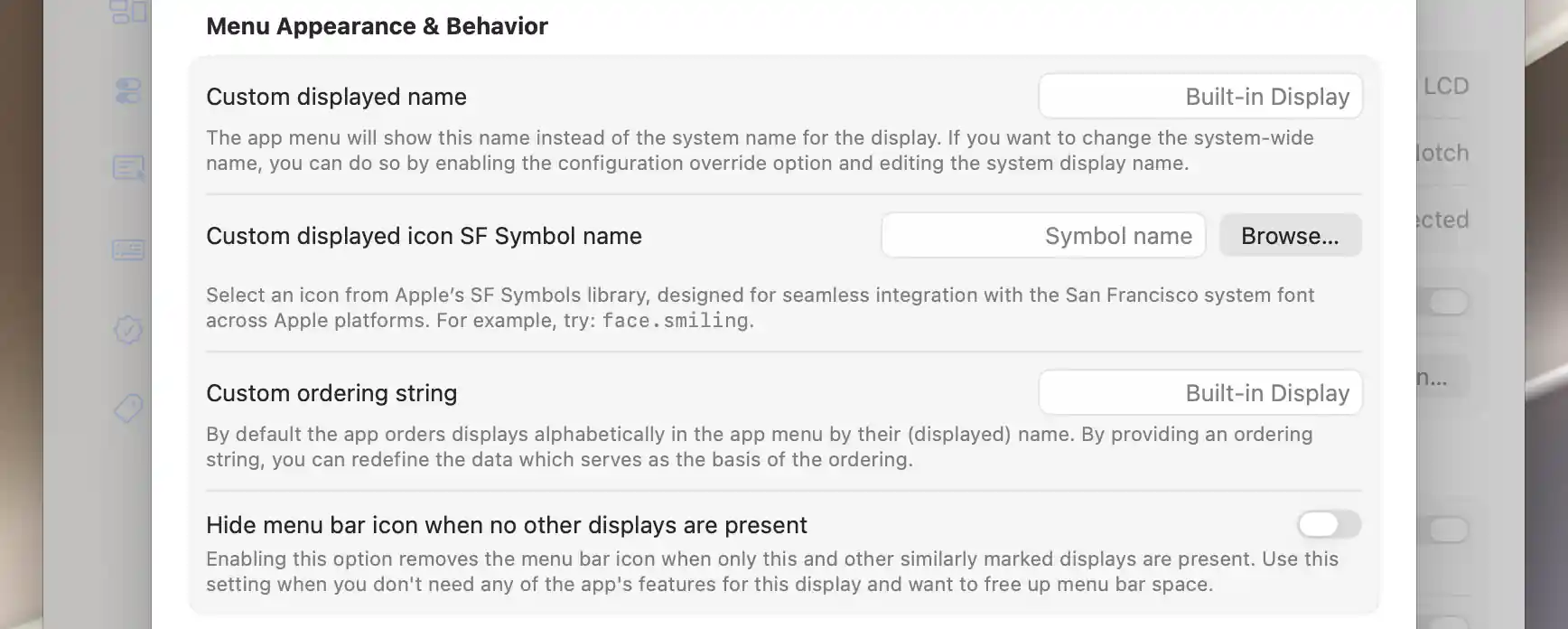
Customize the displayed name, icon and ordering independently of the system display name.
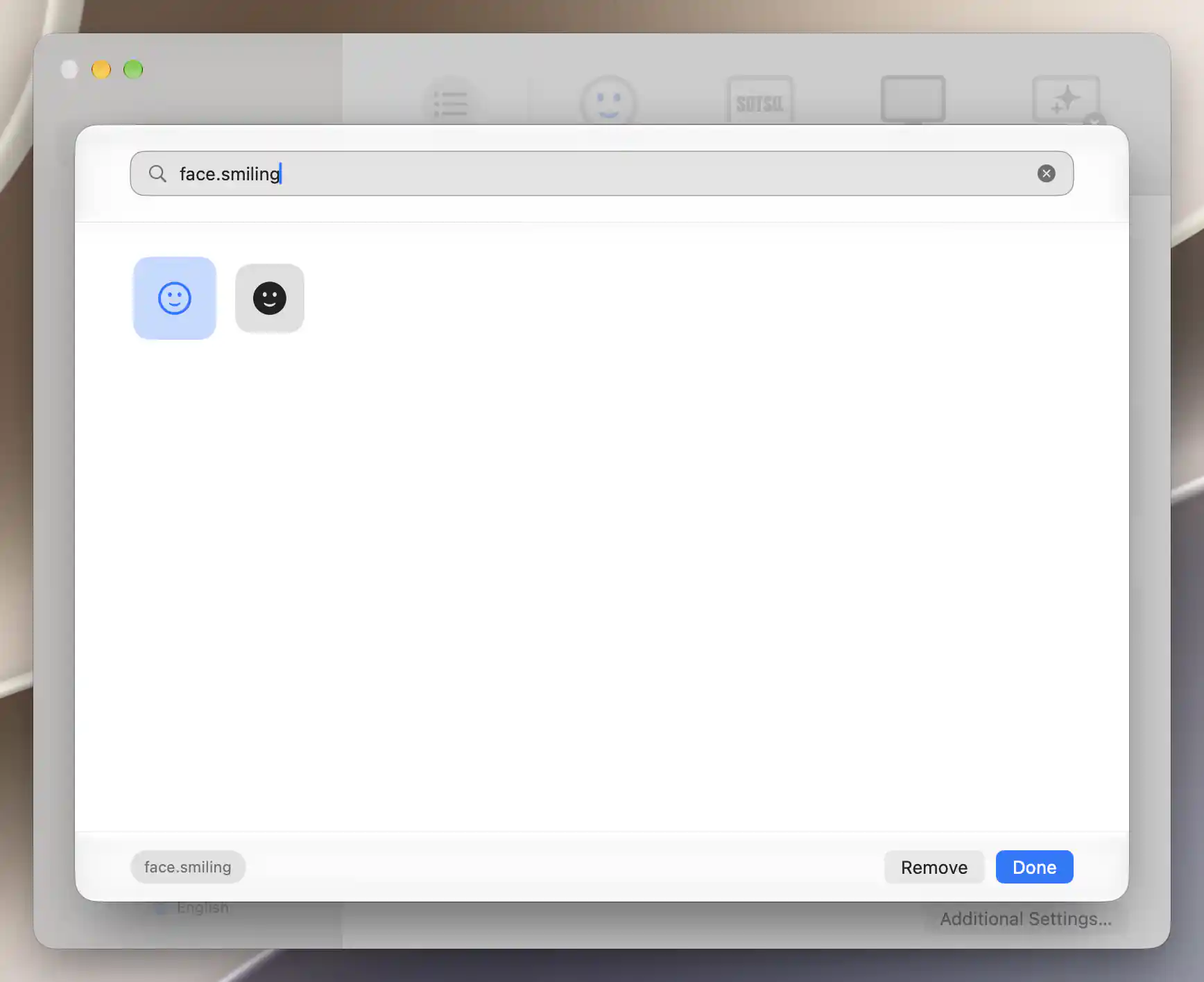
Search the symbol library and select an icon for the display.
Display Connections
Display menu on/off switch behavior decides what the display header's switch does. Global menu settings must also show the header and switch for this choice to be visible in the App Menu.
| Choice | Effect |
|---|---|
| Default | Uses the connection action when available. This is the initial choice. |
| Connect/Disconnect | Uses soft connection/disconnection with its normal availability and safety checks. |
| DDC Power Off | Sends the supported DDC power-off action to a connected display. It cannot guarantee turning the display back on by software. |
| Screen Control | Uses the available screen/backlight controller to turn its screen state on or off. |
| Disabled | Hides this display's header switch. |
An unsupported method can hide the switch. DDC power-off and DDC screen-control actions use their applicable confirmations; powering off the main or only display has a different warning from an ordinary secondary display.
Keep an app-disconnected display disconnected
Aggressive disconnect is offered for non-system-virtual displays when connection management is enabled. It starts off. If BetterDisplay previously disconnected the display, the option attempts to disconnect it again when it is detected or physically reconnected.
Exclude an external display from the built-in rule
Ignore for built-in display auto-disconnect is shown for an external display with connection management enabled and starts off. It prevents that external display from triggering the global rule that disconnects the built-in screen when an external screen connects. See the global connection page for the rule and its safety restrictions.
Reinitialize Display
On Apple silicon, a non-system-virtual display offers Reinitialize this display on wake and Reinitialize this display on unlock. Both start off and request reinitialization after the corresponding event to help recover a misbehaving connection.
The operation itself requires an external display with an available framebuffer connection. A visible checkbox on a built-in screen does not make reinitialization supported. Reinitialization attempts the automatically applied custom EDID when that feature is enabled and available; otherwise it uses factory EDID.
Reset a VMM7100 adapter first
When either reinitialization option is on, Reset all VMM7100 devices before wake or unlock reinitialization for this display appears if a VMM7100 adapter is detected or the reset option was already enabled. It starts off and resets all detected VMM7100-based USB-C-to-HDMI devices.
Enable the corresponding reinitialization option for every attached display that needs recovery after that reset. Otherwise, those displays may require a manual power cycle.
Unexposed refresh-rate protection
Unexposed refresh rate switch for Configuration Protection appears in this same hardware-specific group and starts on. It allows protection to use an unexposed configured refresh rate when no appropriate standard mode is available. It does not enable protection by itself. Turn it off if attempts to protect a refresh-rate setting cause problems.
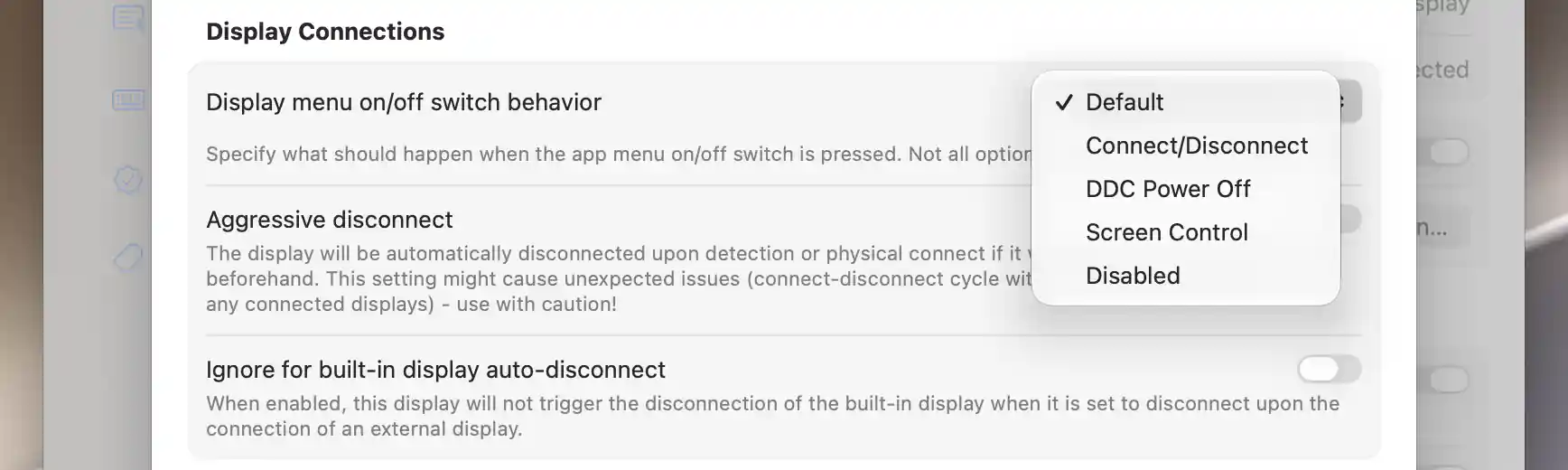
Choose which action the display header’s on/off switch performs.
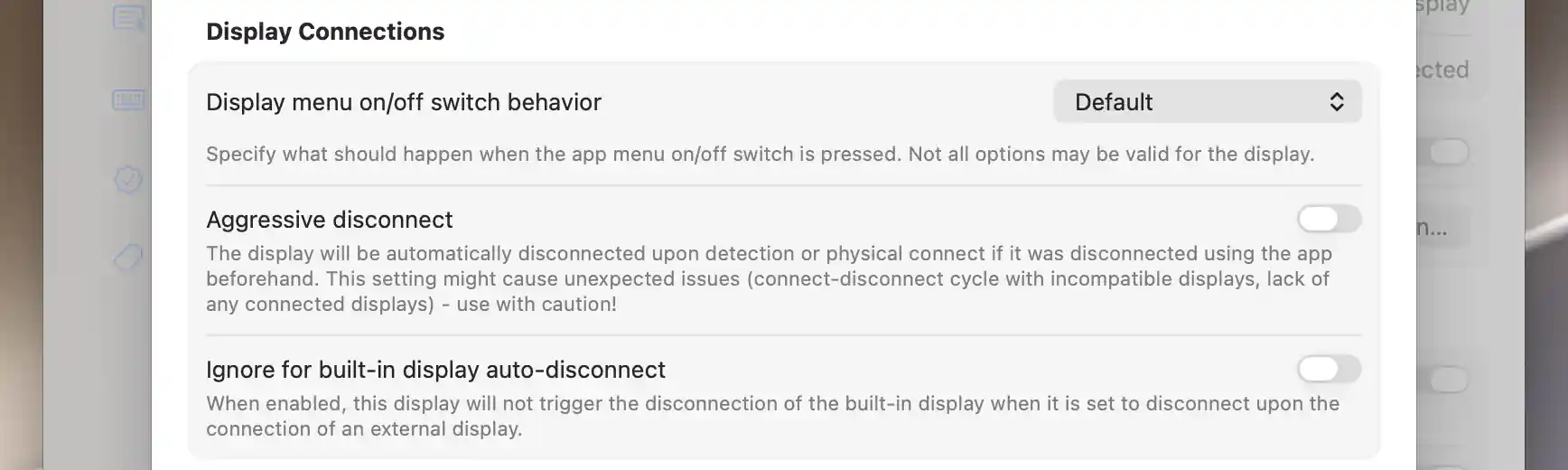
Per-display connection preferences can refine the global connection rules.
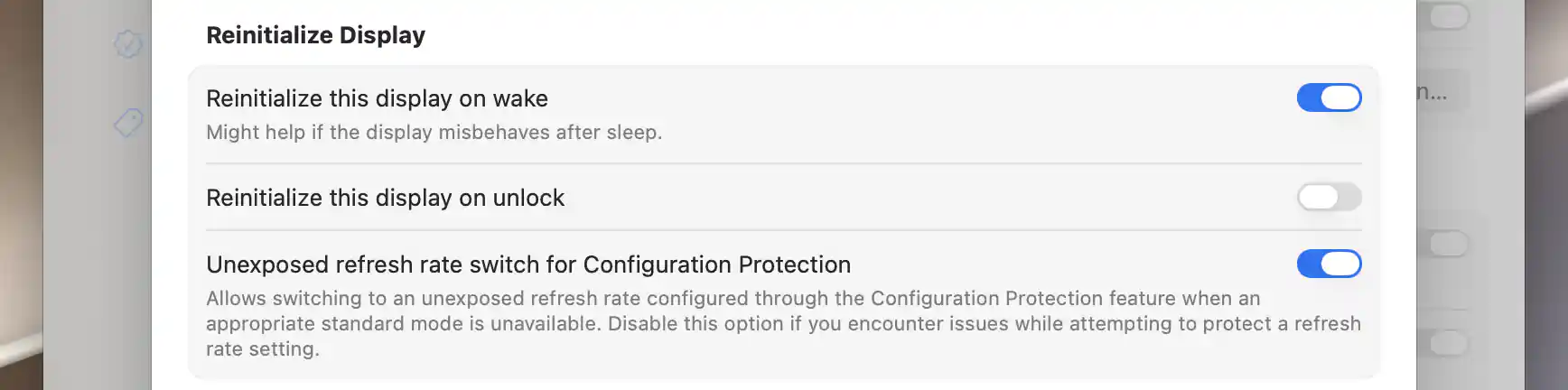
Wake and unlock reinitialization are configured separately.
Display Identification & Settings Transfer
Match a detected display to its settings
Display identification method determines how a newly detected screen is matched to this saved record. Display identification explains the difference between a device's saved identity and its current connection.
System UUID match (recommended) uses macOS identification. A newly added display may inherit the global default. Some third-party virtual displays use basic identifiers when no explicit global method is set.
Other choices let you use broader or more detailed matches:
- Basic (match vendor, model, serial), Match vendor, model, name, Match vendor, model, Match vendor, serial, and Match name only compare the named identifiers.
- Basic + extended identifiers adds product name, alphanumeric serial and manufacture date. Basic + extended + port and Basic + extended + location also tie matching to hardware connectivity. The port choice is Apple-silicon-only.
- Full EDID match compares available EDID data, falling back to system UUID if either record lacks it.
A broad match can conflate similar displays. A strict match can treat the same monitor on a changed connection as a new display. Changing the method can therefore disassociate saved preferences rather than automatically migrate them.
Transfer a saved setup
Transfer display settings lists other disconnected records by name and tag ID. Select the old record whose settings should replace those of the current display. This can help after an identification change or after importing settings from another installation.
The Transfer Display Settings alert offers Cancel and Transfer. It warns that the current settings will be replaced, the old disconnected entry will disappear, and the operation cannot be undone.
Transfer reuses the old saved record for the current display identity; it does not merge preferences. Existing virtual-screen associations to the destination record are removed. Relationships attached to the reused old record can follow its retained tag, so recheck associations and group membership afterward.
If the source record you need is not listed, close the sheet and recheck the display list before reopening it.
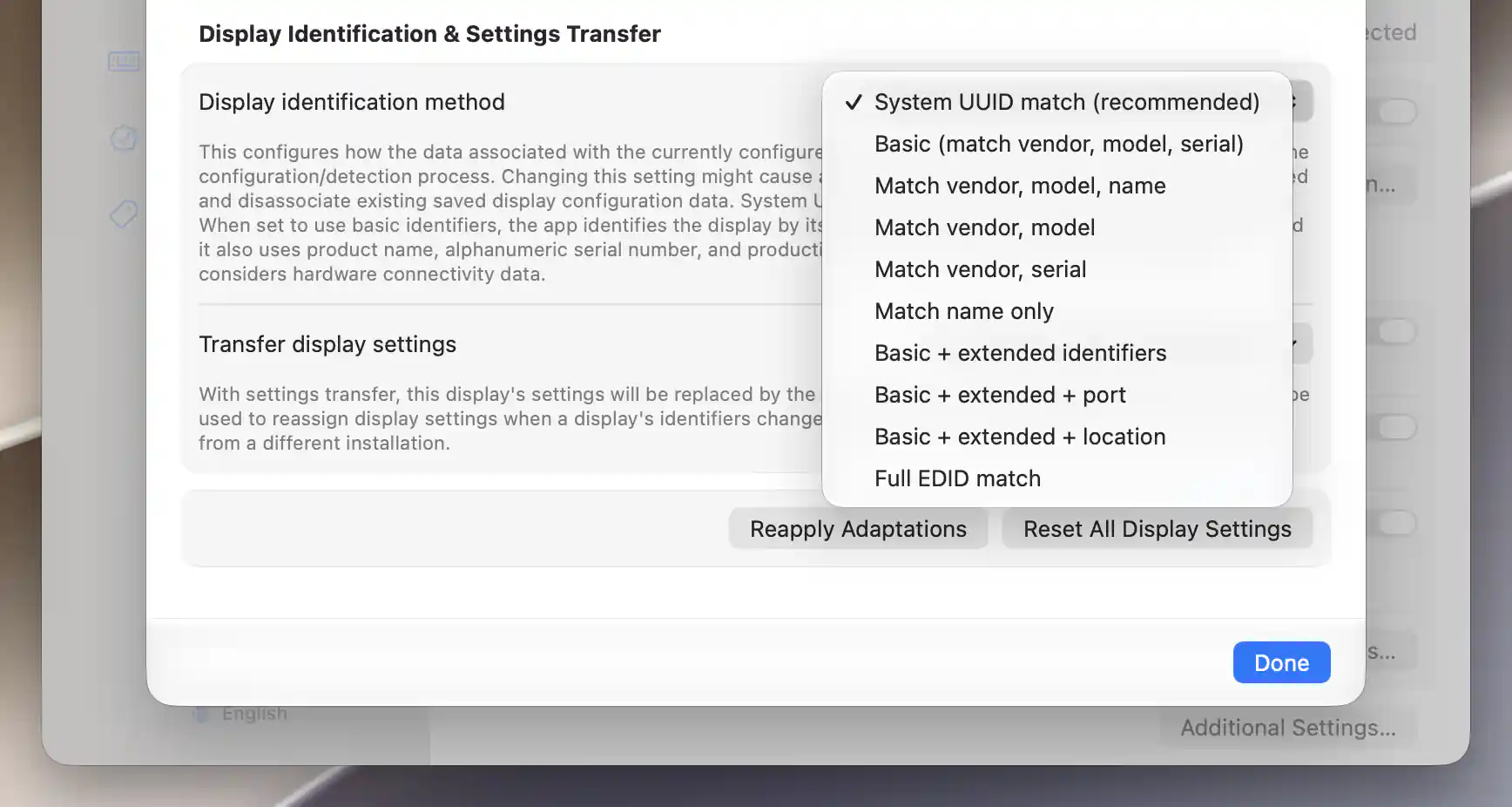
Identification methods determine how detected displays are matched to saved settings.
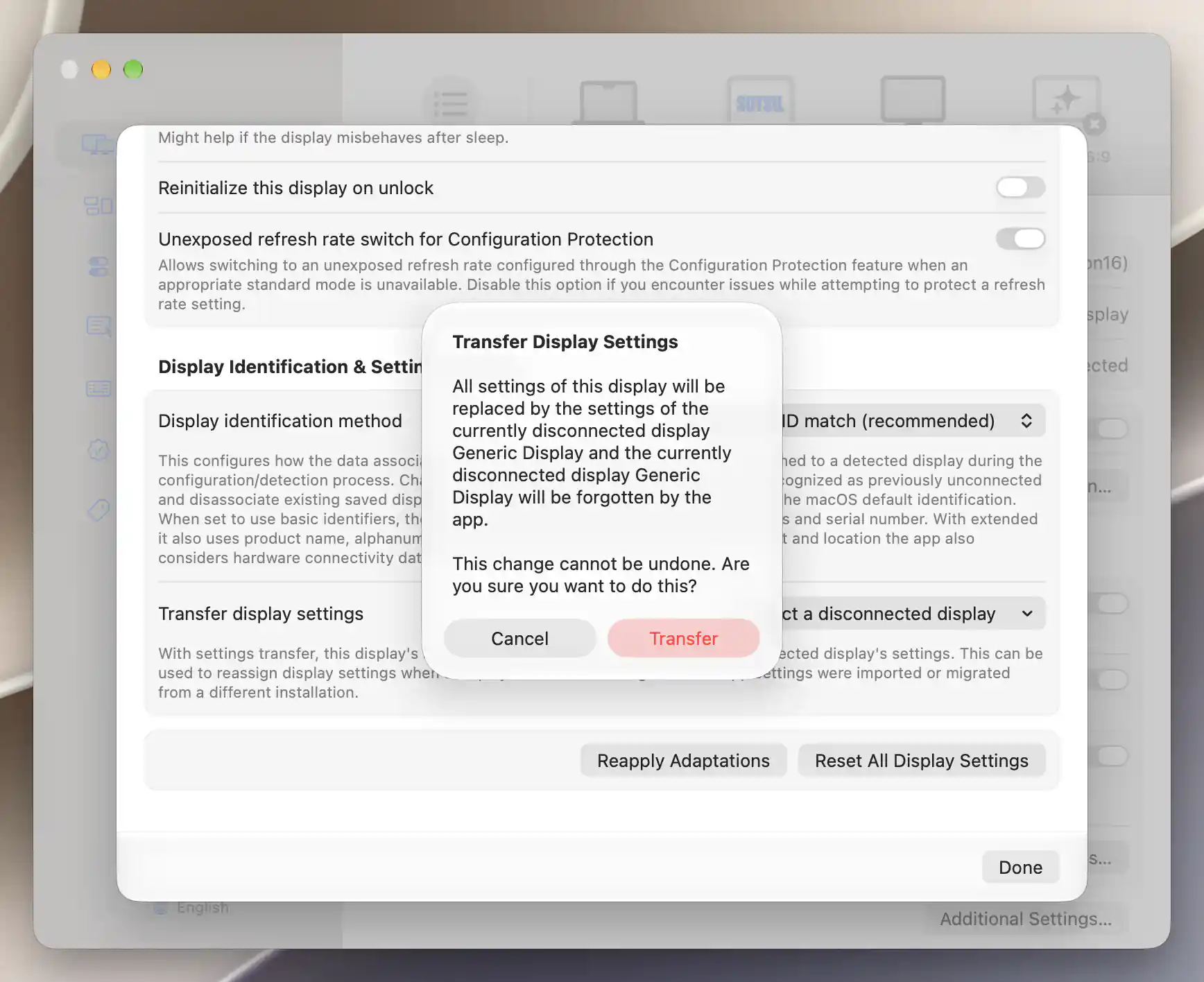
Review the irreversible replacement warning before transferring a saved setup.
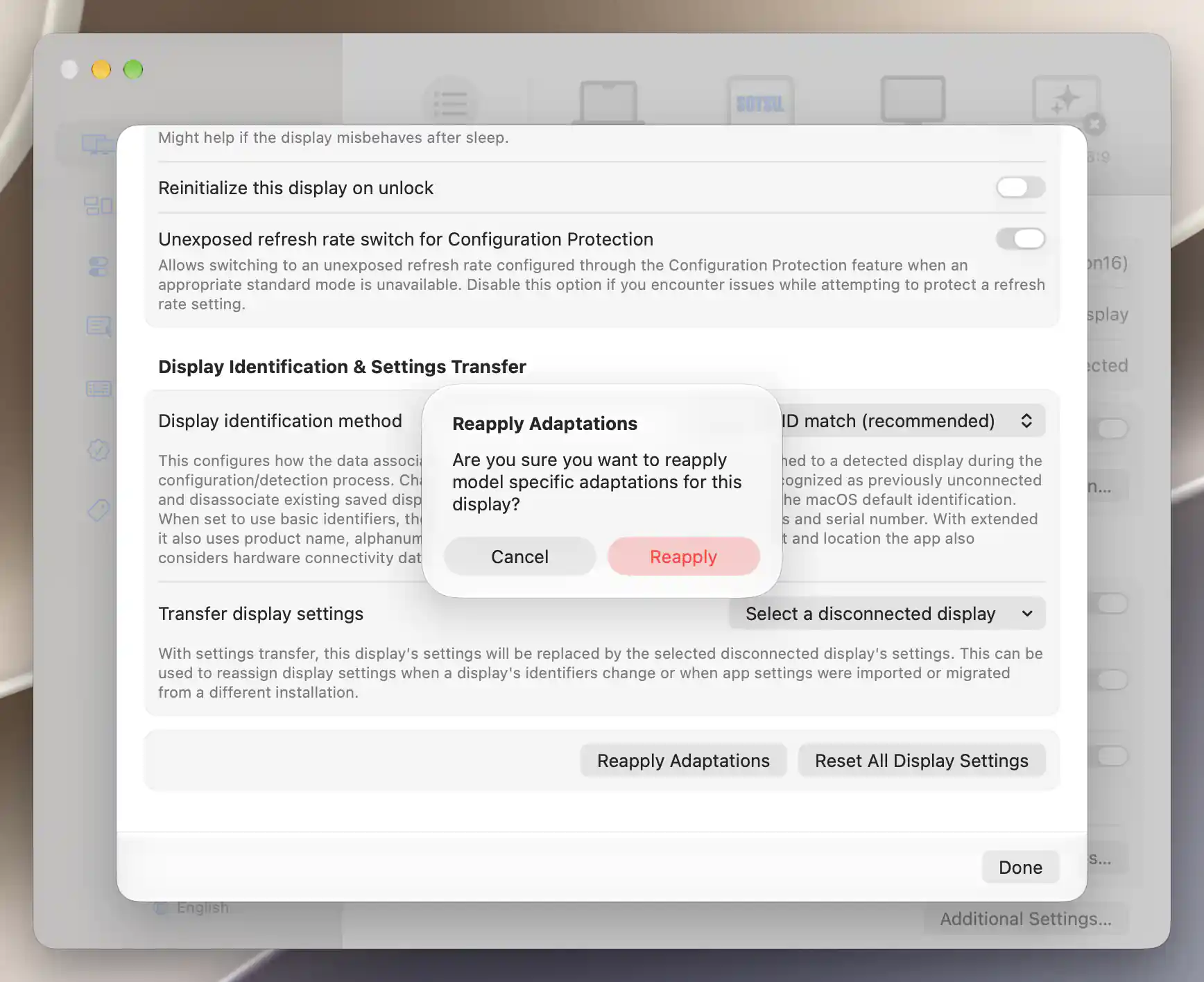
Reapplying model-specific adaptations requires confirmation.
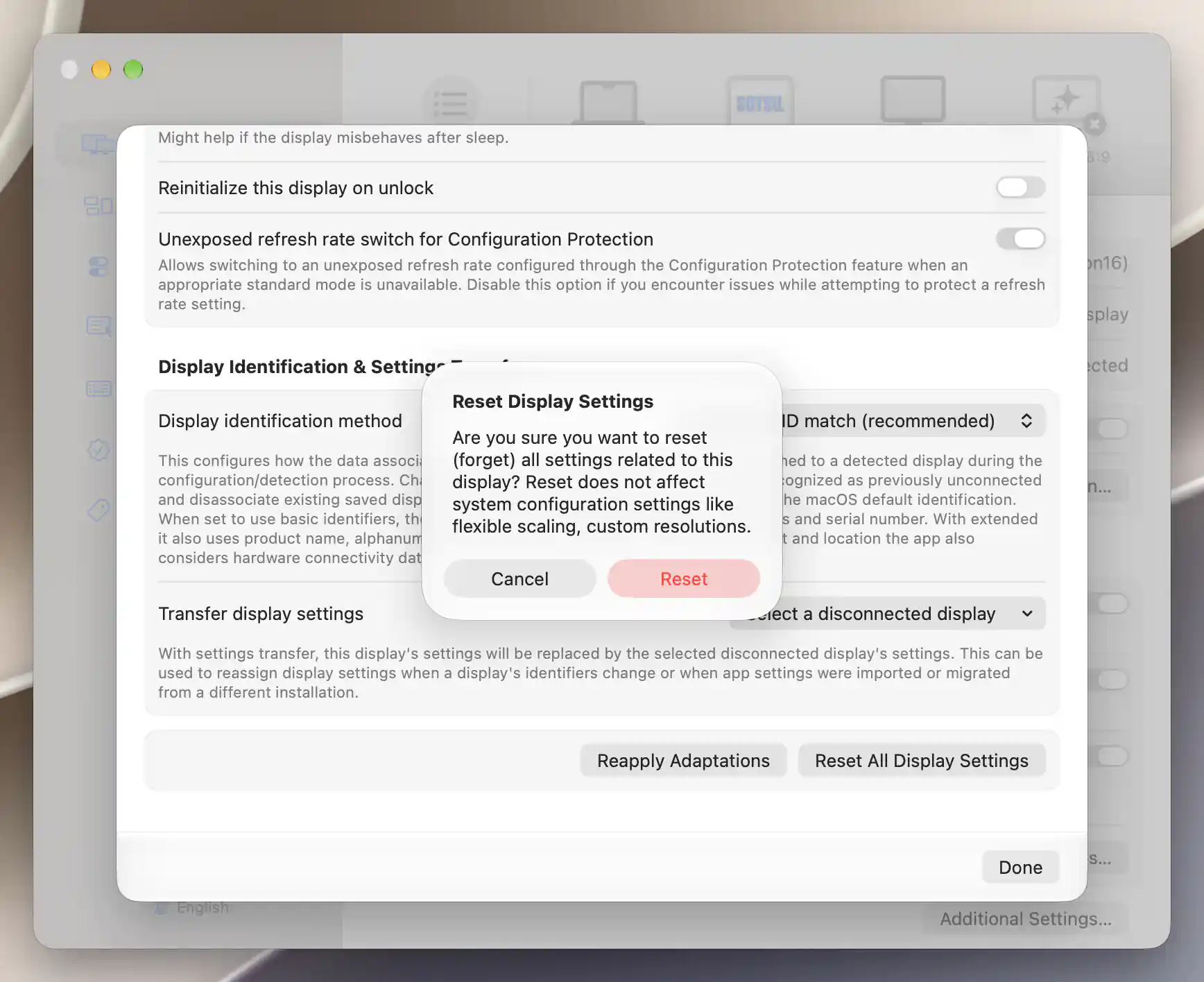
Resetting an individual display has its own confirmation.
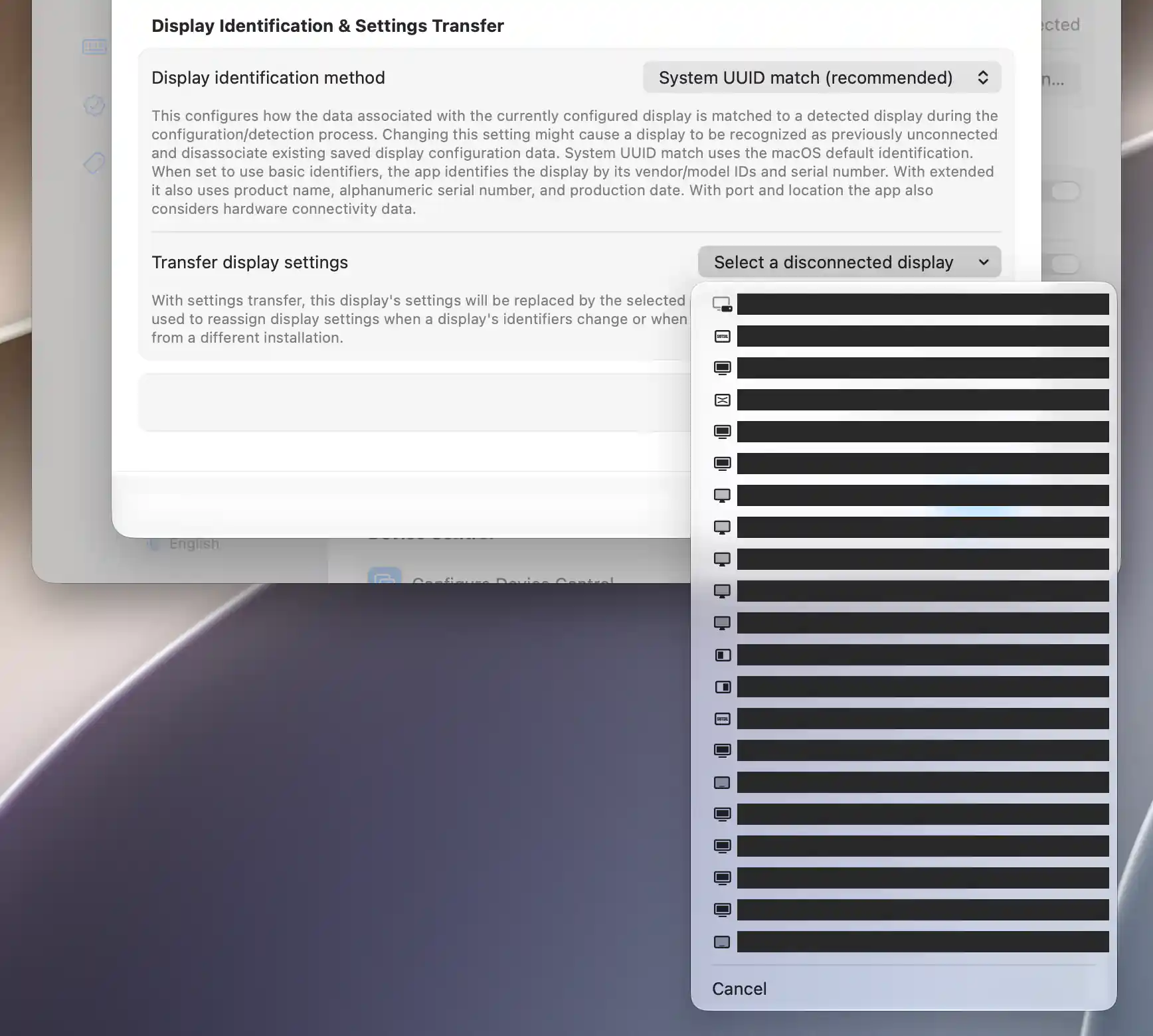
The transfer menu lists remembered disconnected displays; names and tag IDs are hidden here for privacy.
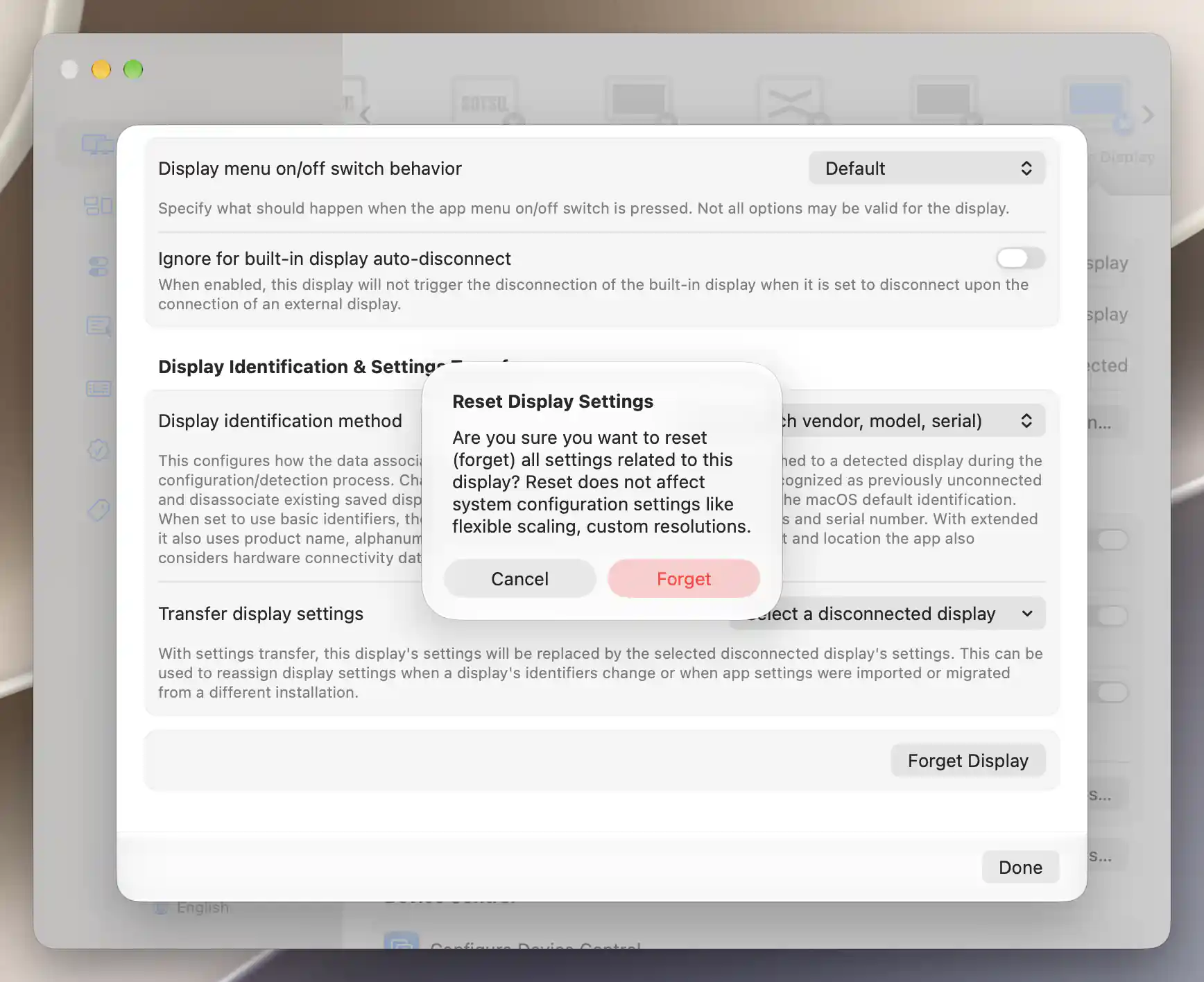
Forgetting an offline display removes its saved BetterDisplay settings.
Reapply, reset and forget
Reapply model-specific adaptations
Reapply Adaptations appears when adaptation records exist. Its Cancel / Reapply confirmation clears applied, failed, pending and opted-out adaptation records. The display is then reconfigured so eligible model-specific setup can run or be offered again.
This does not undo the adaptations first or remove groups they previously created. An existing group can prevent another group with the same name from being created.
Reset or forget the saved display record
Reset All Display Settings appears for a present record; Forget Display appears for a remembered absent one. The Reset Display Settings alert offers Cancel and Reset or Forget.
Confirming removes the saved record and its virtual-screen associations, then redetects available displays. A present screen may return with new default preferences. Forgetting an absent screen removes its remembered entry.
Additional information
This section explains which features require Pro and how availability differs between Mac platforms.
Features requiring Pro license
- Aggressive disconnect and Ignore for built-in display auto-disconnect, with connection management enabled.
- Unexposed refresh rate switch for Configuration Protection.
- Automatically applied custom EDID used during reinitialization; without available Pro features, reinitialization uses factory EDID instead.
Ordinary limits, appearance, identity matching, transfer and reset preferences are not independently Pro-gated. Selecting a header-switch behavior does not bypass the chosen action's own requirements; logical connection/disconnection retains its normal licensing and recovery exceptions.
Platform compatibility
Resolution limits, physical dimensions, appearance and identity/recovery preferences are available on both Apple silicon and Intel Macs, with the display-type limits described above.
Wake/unlock reinitialization, its VMM7100 reset option, the unexposed-refresh protection option and Basic + extended + port are Apple-silicon-only. Actual reinitialization also requires an external, non-system-virtual display with an available framebuffer connection. Choosing a visible option does not establish support for the action.