OSD
The on-screen display (OSD) is the brief visual feedback that appears when you change brightness, volume or another setting with the keyboard. It helps you see what changed without opening the app menu. BetterDisplay's own styles can also offer a slider, letting you start an adjustment with a key and finish it with the pointer.
Where to find it: Settings > Keyboard > OSD.
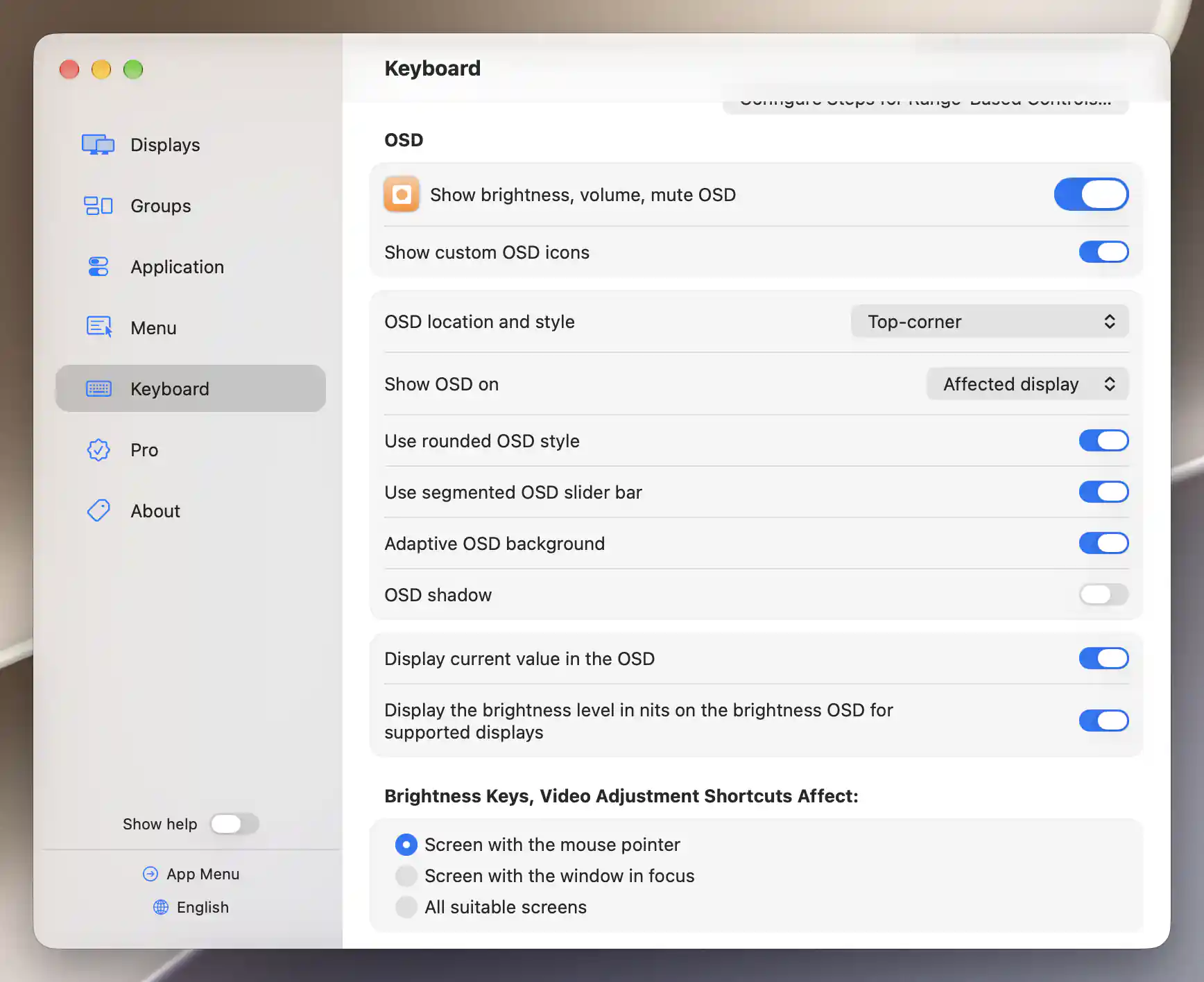
Top-corner placement exposes the target-display choice alongside rounded, segmented and current-value options.
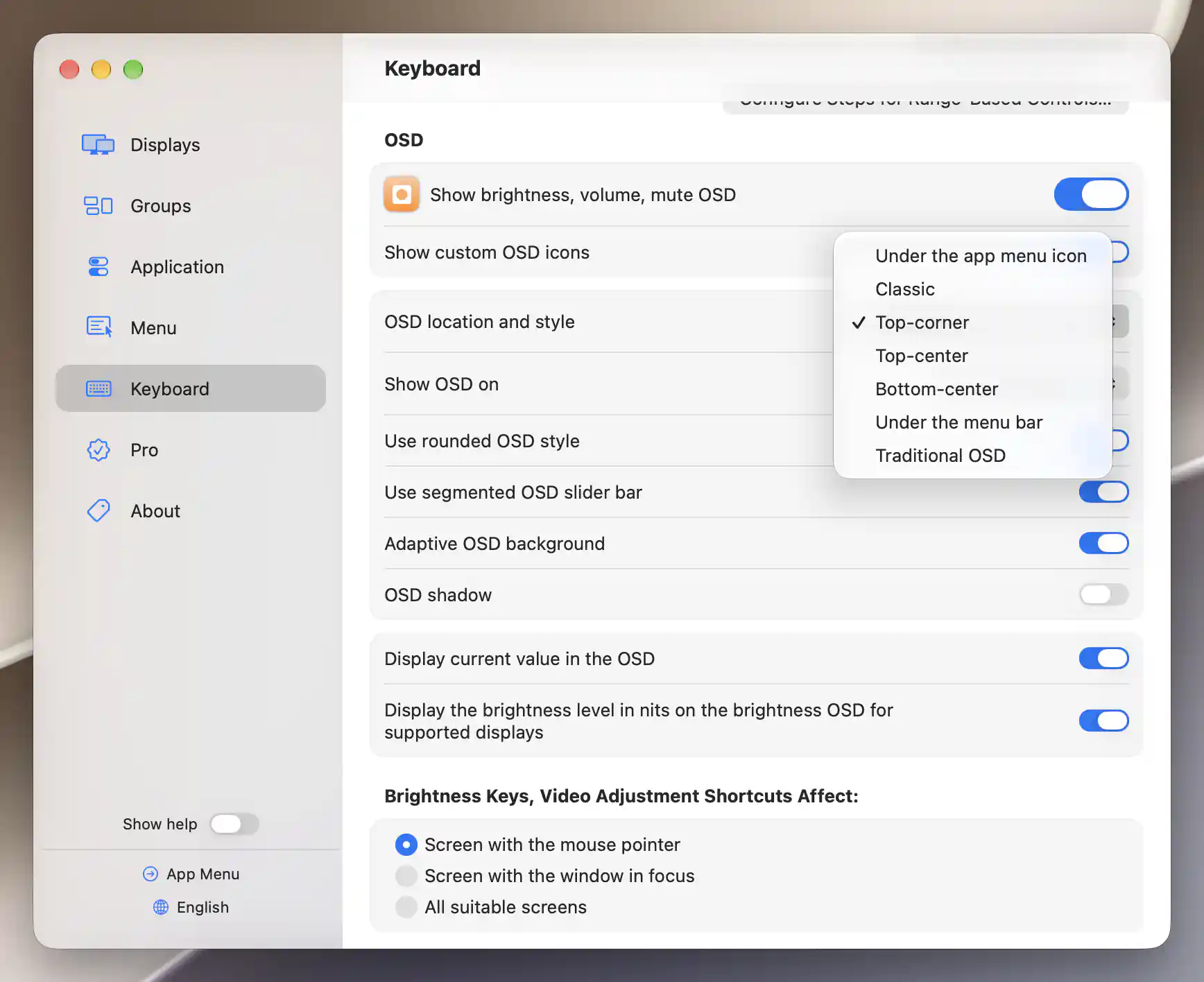
The style menu offers app-drawn placements, Classic and Traditional OSD.
Which feedback appears
For everyday brightness and audio feedback, leave Show brightness, volume, mute OSD enabled; it is on by default. Show custom OSD icons, also on by default, provides feedback for other shortcuts. You can turn off either kind if you prefer less visual feedback or use another app to display it.
A monitor may already show its own volume indicator. To avoid a second indicator on that display while keeping brightness feedback elsewhere, disable Show volume OSD with keyboard control in Settings > Displays > [display] > Volume Control…. This per-display preference also affects that display's mute feedback.
Location and style
Choose a style by where you want feedback to appear and whether you want BetterDisplay's interactive design. Under the app menu icon is the default and keeps the feedback near the app. The other app-drawn choices let you place it at a familiar screen edge, while the system styles use macOS brightness and audio feedback.
| Choice | Behavior |
|---|---|
| Under the app menu icon | Places feedback beneath the visible BetterDisplay menu-bar icon; falls back to the active display when that icon cannot be used. This is the default. |
| Classic | A larger square, app-drawn OSD near the bottom center, in the style of earlier macOS releases. |
| Top-corner | Places feedback in the upper trailing corner: right in a left-to-right menu-bar layout, left in a right-to-left layout. |
| Top-center | Centers feedback near the top of the chosen screen. |
| Bottom-center | Centers feedback near the bottom of the chosen screen. |
| Under the menu bar | Places feedback below the menu bar, toward its right edge when the app icon is visible; otherwise uses the active screen's center. |
| System OSD | Offered on macOS 26. Uses system brightness/volume feedback, which may show an incorrect device name or value on that macOS version. |
| Traditional OSD | Uses the original system brightness/volume OSD rather than BetterDisplay's interactive design. |
The two system styles support brightness and volume/mute feedback, but cannot show arbitrary custom icons. If you had saved System OSD on macOS 26, BetterDisplay uses Under the app menu icon for that saved choice on macOS 27 and later.
For app-drawn styles other than the two menu-anchored choices, Show OSD on lets you choose the screen as well as the location. Affected display, the default, keeps feedback with the display being adjusted. Active display follows the focused screen, and Main display keeps it on your main display. This is useful when you want to see feedback on one screen while adjusting another: OSD placement does not change the adjustment's target.
Appearance and values
App-drawn styles let you choose how much information is visible and how the feedback looks against your desktop. Appearance is a preference; value reporting still depends on what the adjusted control can supply.
- Use rounded OSD style uses the recent rounded design without the display/device title and close button. Classic keeps its larger dimensions with rounder corners.
- Use segmented OSD slider bar divides the bar into 16 segments while the pointer is not hovering over it.
- Adaptive OSD background adapts the background to its surroundings. Turning it off follows system light/dark appearance. It is enabled by default.
- OSD shadow adds a soft shadow and is off by default.
- Display current value in the OSD is enabled by default. It provides a precise value and additional information where the control supplies it.
- Display the brightness level in nits on the brightness OSD for supported displays appears when current-value display is enabled and defaults to on. It requires a display/control that can supply brightness in nits; enabling it does not establish a display's luminance calibration.
Rounded and segmented styles default to on on macOS 27.2 and later, and off on earlier systems. All these choices persist across launches and take effect without an Apply button.
Interacting with feedback
When an app-drawn OSD offers an interactive slider, move the pointer over it and drag to continue adjusting the same control. Some feedback bars cannot be adjusted directly; those simply show the result of an operation.
The OSD normally fades after a short delay. Deliberately hovering over it or interacting can keep it visible while you work. A pointer that happens to be stationary underneath a newly appearing OSD does not necessarily hold it open. In the non-rounded design, a close button appears on hover when you want to dismiss it yourself.
For volume sliders, feedback sound accompanies completing an adjustment, rather than every intermediate position while you drag.
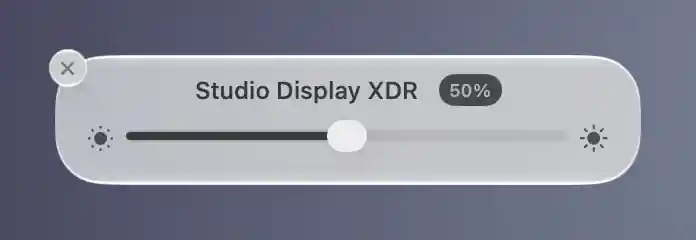
Hover over the app-drawn OSD to reveal its interactive brightness slider and close button.
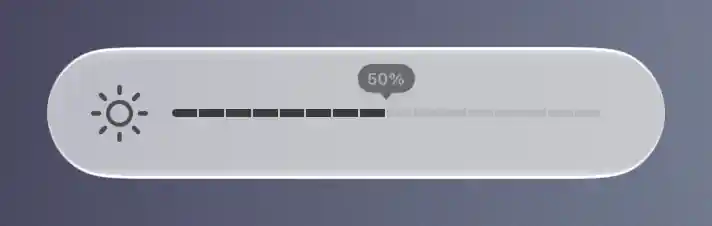
The rounded OSD shows a segmented brightness bar and the current value while idle.
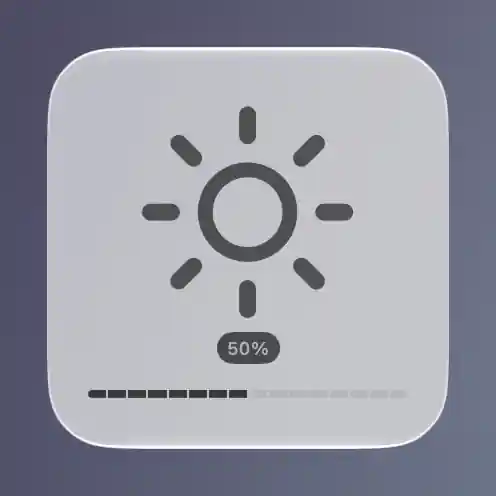
Classic places the brightness icon, current value and segmented bar in a larger square overlay.
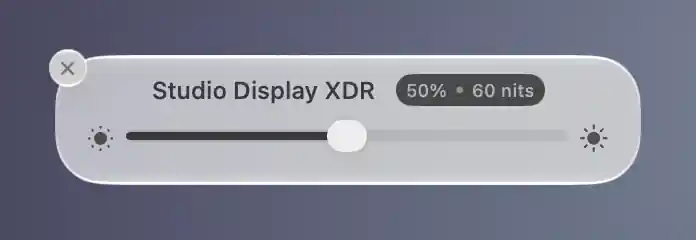
On a supported display, the brightness OSD can show a nits value alongside the percentage.
See Configure Steps for Range-Based Controls for logical increments and Target Displays for adjustment destinations. For per-display audio association, mute methods and the volume-overlay preference, see Volume Control.
Additional information
This section explains which features require Pro and how availability differs between Mac platforms.
Features requiring Pro license
The OSD preferences, styles and interactive feedback described here do not require Pro. A feature being adjusted through the OSD can still have its own license requirement.
Platform compatibility
All features described on this page are available on both Apple silicon and Intel Macs. Style availability and defaults also depend on macOS: System OSD is offered on macOS 26 and falls back to Under the app menu icon on macOS 27 and later. Rounded and segmented styles default to on from macOS 27.2 and off on earlier systems. Brightness values in nits require a display/control capable of supplying them.