Advanced Virtual Screen Settings
Use these settings to manage several virtual screens together or adapt their behavior around sleep, wake and display changes. A saved virtual-screen definition is separate from its active desktop: disconnecting removes the desktop but keeps the definition ready for later. This distinction matters when choosing between disconnecting, reconnecting and discarding screens.
Where to find it: Settings > Displays > Overview > Advanced Virtual Screen Settings….
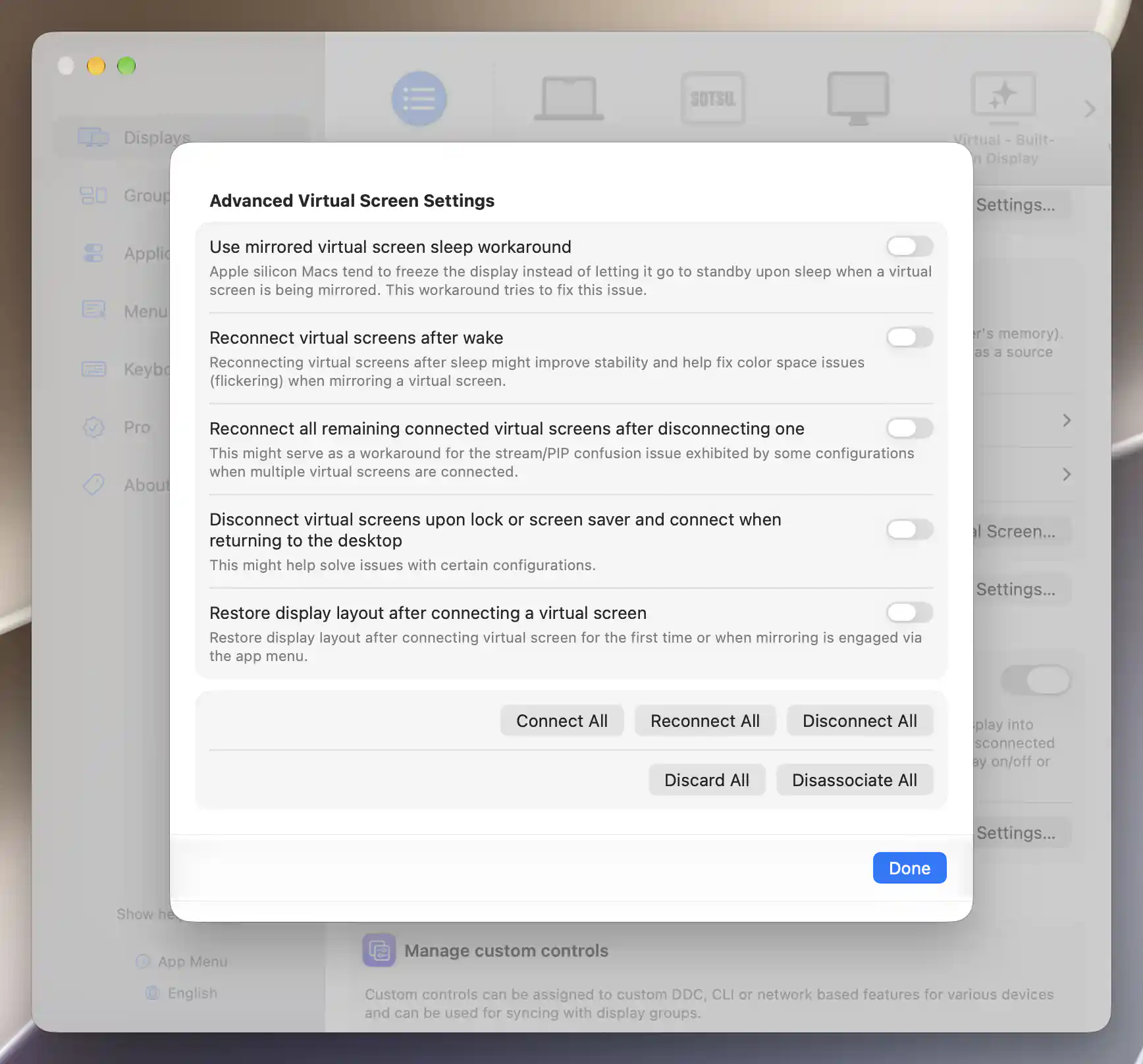
Lifecycle preferences and bulk actions apply across saved virtual screens.
Sleep, wake and layout
The normal behavior is to restore saved connected virtual screens at app startup; Safe Mode suppresses that automatic restoration. The options here address particular compatibility problems or help preserve your arrangement. They are saved without an Apply button, and you do not need to enable every workaround simply because it is available.
Restore display layout after connecting a virtual screen appears on Apple silicon and defaults to on. It preserves existing display positions and modes during a virtual screen's first connection, changes between normal and flipped aspect, and app-configured virtual-screen mirroring. A newly introduced virtual screen is placed beside the existing arrangement.
The remaining options default to off:
- Use mirrored virtual screen sleep workaround appears on Apple silicon. When a virtual screen is mirrored, it creates a temporary virtual display during sleep to work around configurations that freeze an image instead of letting the target enter standby.
- Reconnect virtual screens after wake cycles connected virtual screens after wake. This may improve stability or color-space flickering in mirrored configurations, but briefly interrupts their existing connections.
- Reconnect all remaining connected virtual screens after disconnecting one cycles the remaining screens. It can work around stream/PIP confusion in some multi-screen configurations; enabling it means disconnecting one screen can briefly interrupt others too.
- Disconnect virtual screens upon lock or screen saver and connect when returning to the desktop temporarily removes screens that were connected, then reconnects those screens on unlock or screen-saver exit. It does not deliberately connect every saved disconnected definition.
Connect, reconnect and disconnect
For everyday bulk management, choose an action by the connection state you want:
- Connect All attempts to connect disconnected definitions. It is disabled when all are already connected.
- Disconnect All removes connected virtual desktops while keeping their definitions. It is disabled when none are connected.
- Reconnect All cycles currently connected screens through disconnection and reconnection. It applies connection-time changes and briefly removes those desktops, but does not connect definitions that were already disconnected. It is disabled when none are connected.
An association can automatically control whether a virtual screen is connected. Connect All and Disconnect All skip screens managed this way, while still carrying out the request for eligible screens. If anything was skipped, a notice explains why those associated screens could not be manually connected or disconnected. Reconnect All includes association-managed screens that are currently connected.
Discard All
Discard All deletes the saved definitions, so choose it when you no longer want to keep those virtual screens. If you intend to reuse them, disconnecting is the better choice because it preserves their macOS display configuration. The button is disabled when there are no definitions.
The first confirmation, Do you want to discard all virtual screens?, offers Cancel to keep them or Discard to proceed toward deletion. If BetterDisplay finds generated factory color profiles for the screens, a second Remove Factory Color Profiles? prompt lets you decide what to do with those unused profiles:
- Skip discards the screens and leaves the profiles in place.
- Remove Color Profiles discards the screens and also requests profile removal, which requires administrator authorization.
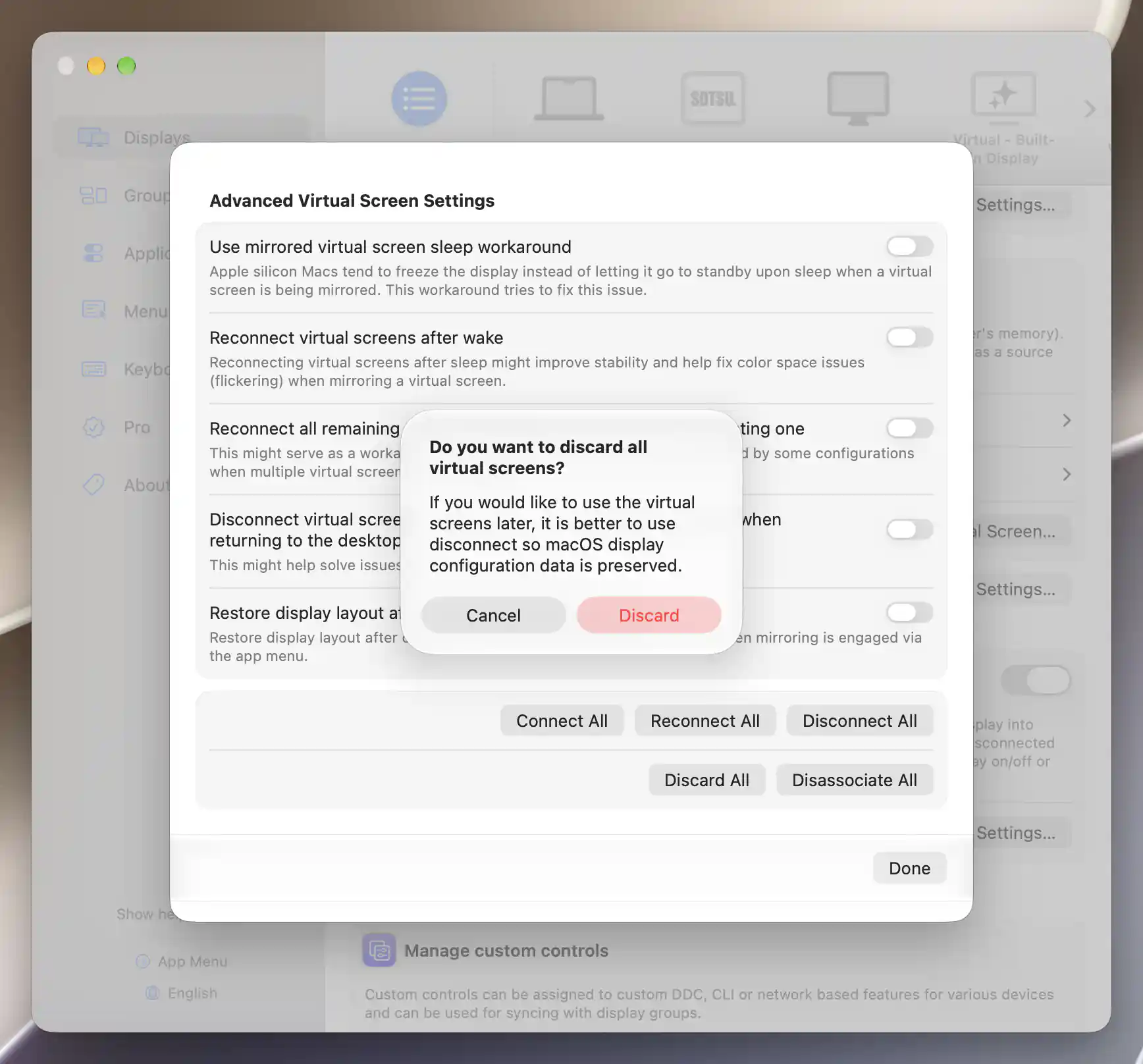
The first confirmation explains why disconnecting is preferable when you plan to reuse a virtual screen.
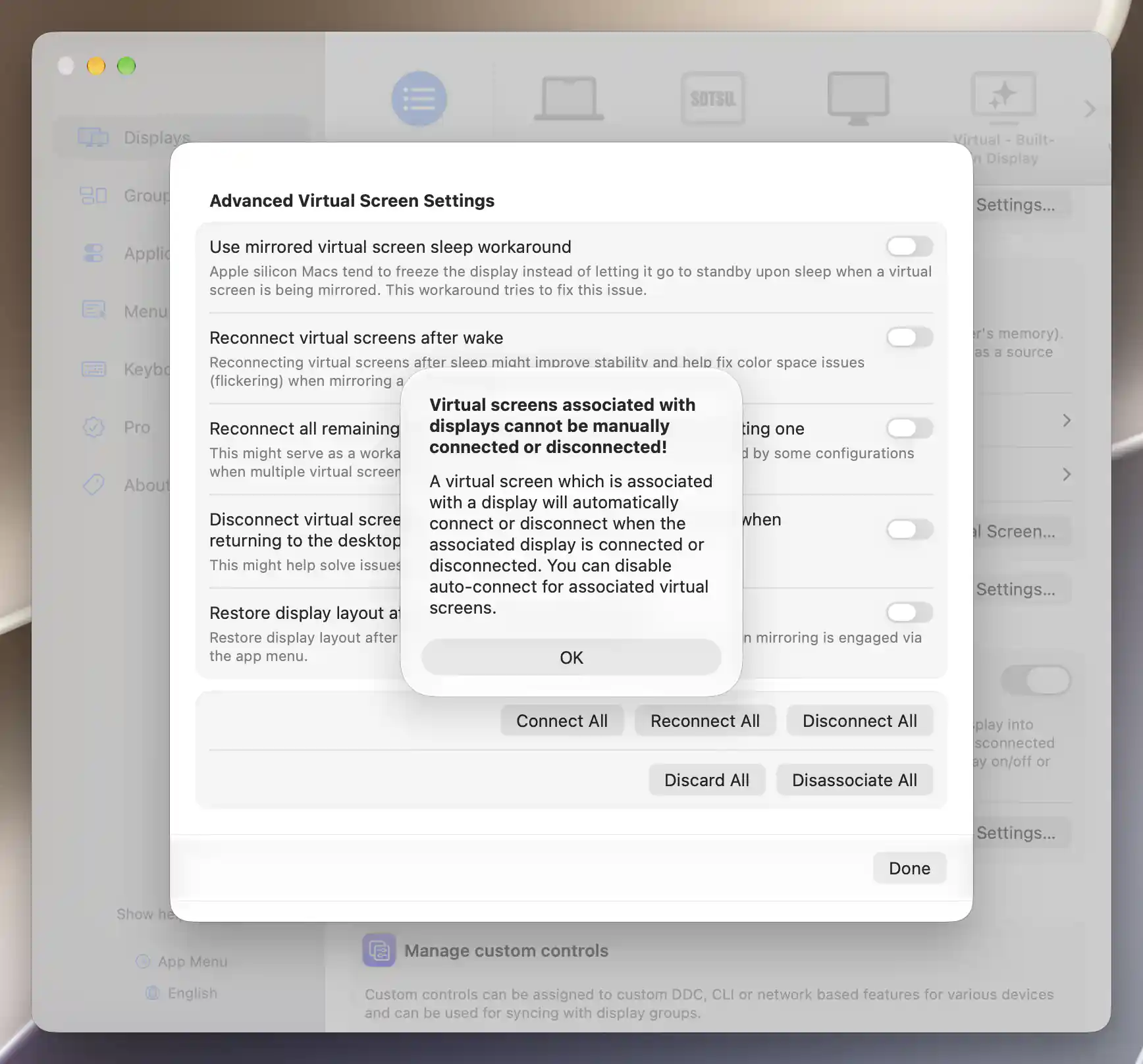
Bulk connection actions skip virtual screens whose connection is managed by an association.
Disassociate All
Use Disassociate All to remove every relationship between virtual screens and displays while retaining the screens themselves. It is enabled when at least one definition has an association, and its confirmation offers Cancel or Disassociate.
Connected virtual screens remain connected after disassociation. Their definitions, configured modes and current connections are retained; the operation removes the relationships rather than deleting or disconnecting the screens.
For one screen's connection, identity and discard options, see Virtual Screen. For physical-display connection policies, see Display Connections.
Additional information
This section explains which features require Pro and how availability differs between Mac platforms.
Features requiring Pro license
The lifecycle preferences and bulk management actions on this page do not themselves require Pro. Configuring associations and other advanced virtual-screen features has separate Pro requirements; those requirements are described on their owning pages.
Platform compatibility
The bulk actions and general reconnect preferences are available on both Apple silicon and Intel Macs. Use mirrored virtual screen sleep workaround and Restore display layout after connecting a virtual screen appear only on Apple silicon. Compatibility workarounds depend on the particular display configuration, and optional factory-profile removal requires administrator authorization.