Virtual Screen
A virtual screen gives macOS a desktop without a physical panel. This page lets you change its saved definition, choose which display modes it offers and connect or disconnect that desktop. The definition determines the available choices; you select the actual current mode separately in the app menu.
Where to find it: Settings > Displays > [virtual screen]. Create a definition first using Create New Virtual Screen.
A connected virtual screen can also have a linked display with its own settings. Those settings adjust the display instance, while the settings here describe the virtual screen that BetterDisplay creates.
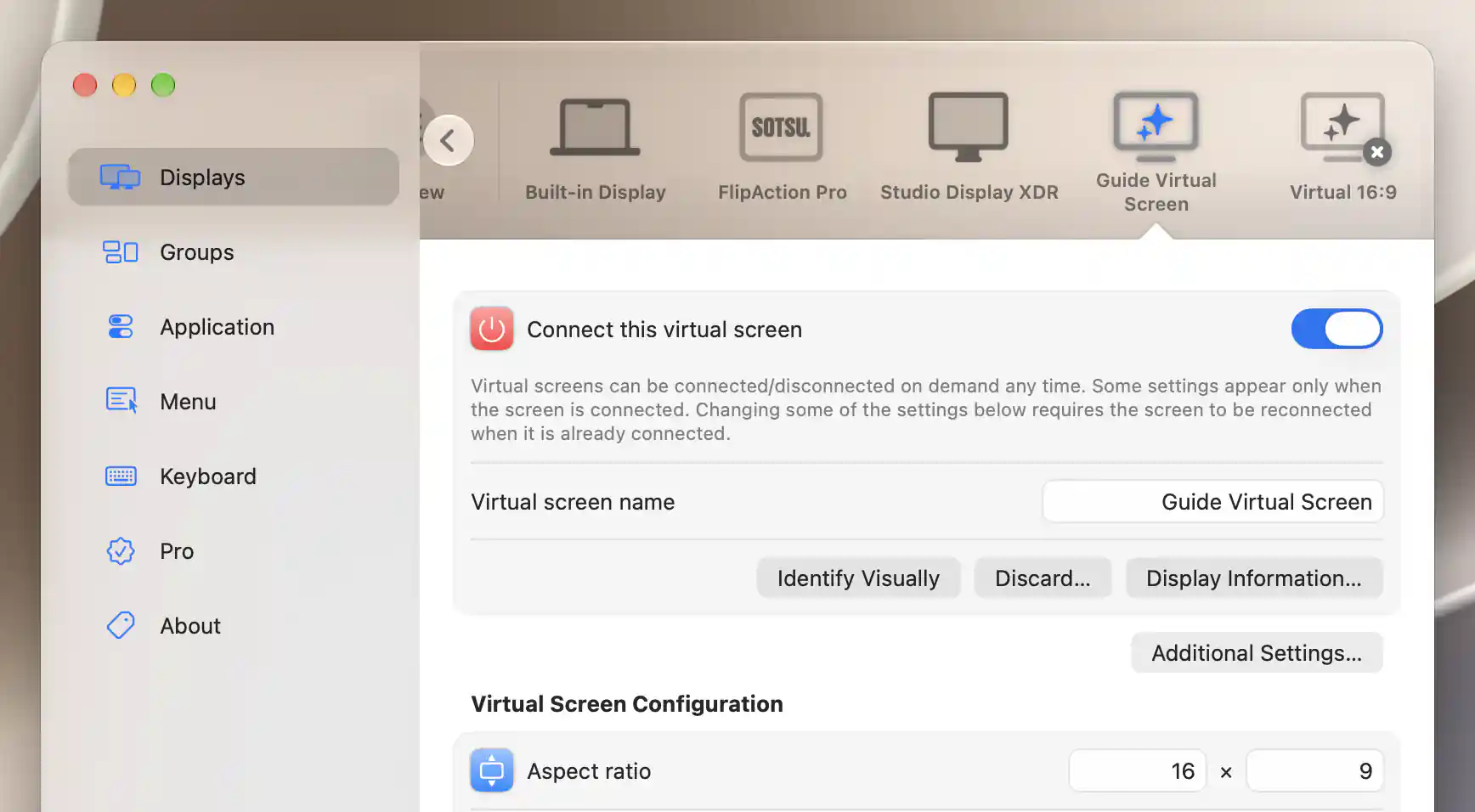
A virtual-screen definition keeps its connection and configuration together.
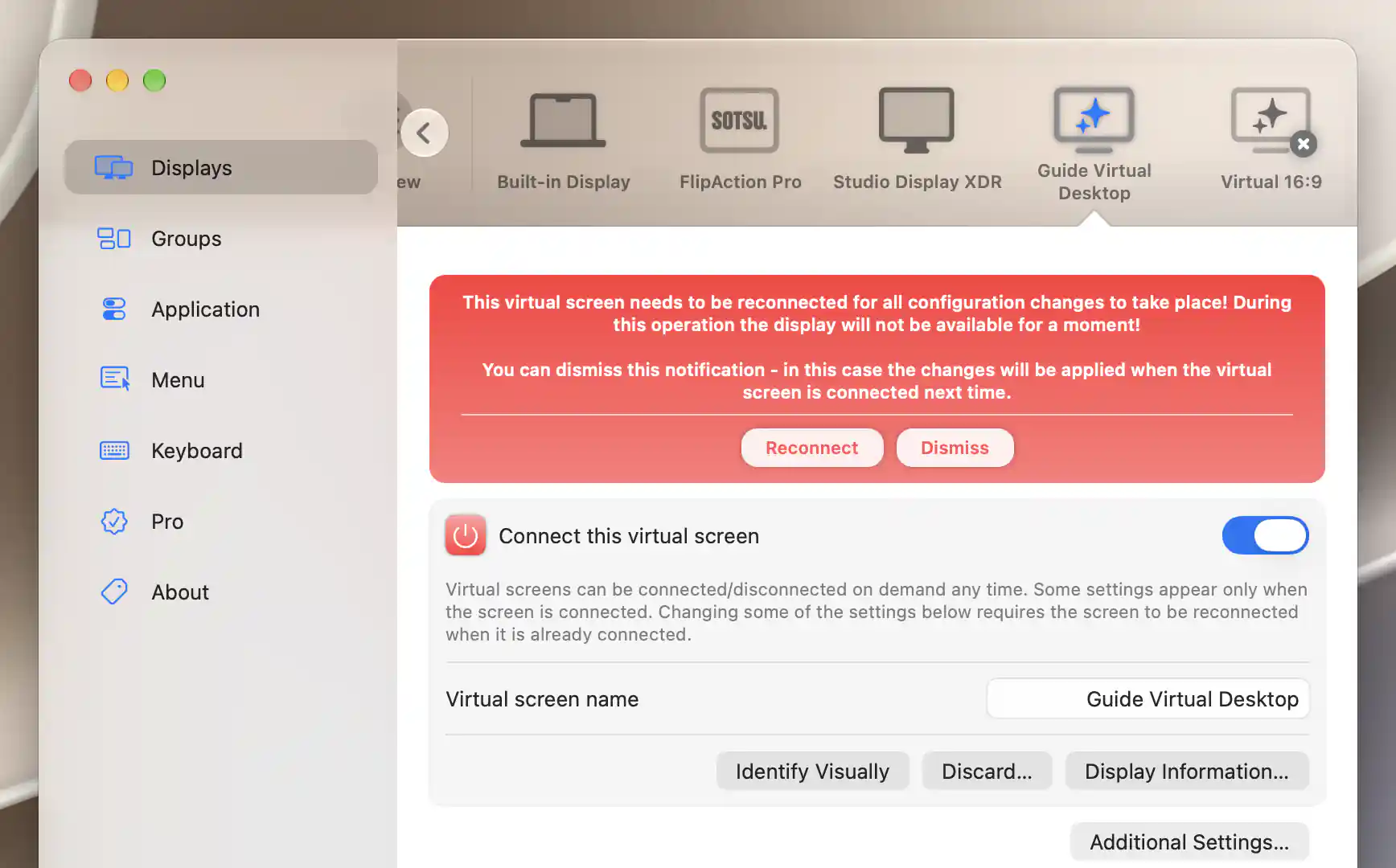
Changes to a connected virtual screen can wait until its next connection.
Connection, identity and information
Use Connect this virtual screen to make its desktop available to macOS. Turning the switch off removes the desktop but keeps the definition, so you can connect it again with the same saved configuration.
An association can take over this decision. If association settings enforce automatic connection or disconnection, using the switch produces an explanatory notice and returns it to the actual state. Open Associated Displays to change that policy. If an attempted connection fails, BetterDisplay reports Unable to connect virtual screen.
Naming and inspecting the desktop
Virtual screen name saves a custom name for the definition. Clear the field to return to the generated Virtual [aspect ratio] name.
Identify Visually highlights the linked desktop so you can recognize it; the button is disabled while disconnected. Display Information… opens information for the linked display, including a remembered linked display when available. It is disabled only when there is no linked display record.
Applying changes to a connected screen
Some changes affect how the desktop is created. If you make one while the virtual screen is connected, a red banner offers two choices:
- Reconnect briefly removes and recreates the desktop with the saved changes.
- Dismiss hides the notice. The changes remain saved and apply on a later connection; dismissing the banner does not discard edits.
Settings that only change menu presentation take effect without a connection cycle.
Additional Settings
This sheet separates the way the virtual screen appears in BetterDisplay from the identity macOS uses to recognize it. Presentation changes help you organize your menu; identity changes can make macOS treat the screen as a different display.
Menu appearance and ordering
Show in the app menu controls whether the virtual screen is listed. Hiding the entry does not disconnect its desktop.
Use Custom displayed icon SF Symbol name or Browse… to choose an SF Symbol. If the name is unrecognized, BetterDisplay uses the normal virtual-screen icon.
Custom ordering string supplies a different key for alphabetical ordering. By default, physical displays appear first and virtual screens afterward. An ordering string lets you mix virtual screens among physical displays without renaming them.
Display identity
Serial number, Vendor ID, and Model ID are hexadecimal identifiers: serial is a 32-bit value, while vendor and model are 16-bit values. Vendor ID also shows the decoded manufacturer code. Invalid text is normalized to a valid stored or default value rather than saved as a free-form identifier.
Changing any of these three identifiers changes how macOS recognizes the virtual display. On the next connection, macOS assigns a new system UUID and treats it as a new display, which can change the system display settings associated with it. This is different from simply renaming the definition. See Display identification.
Virtual screen tag ID is the read-only internal identity of the saved definition.
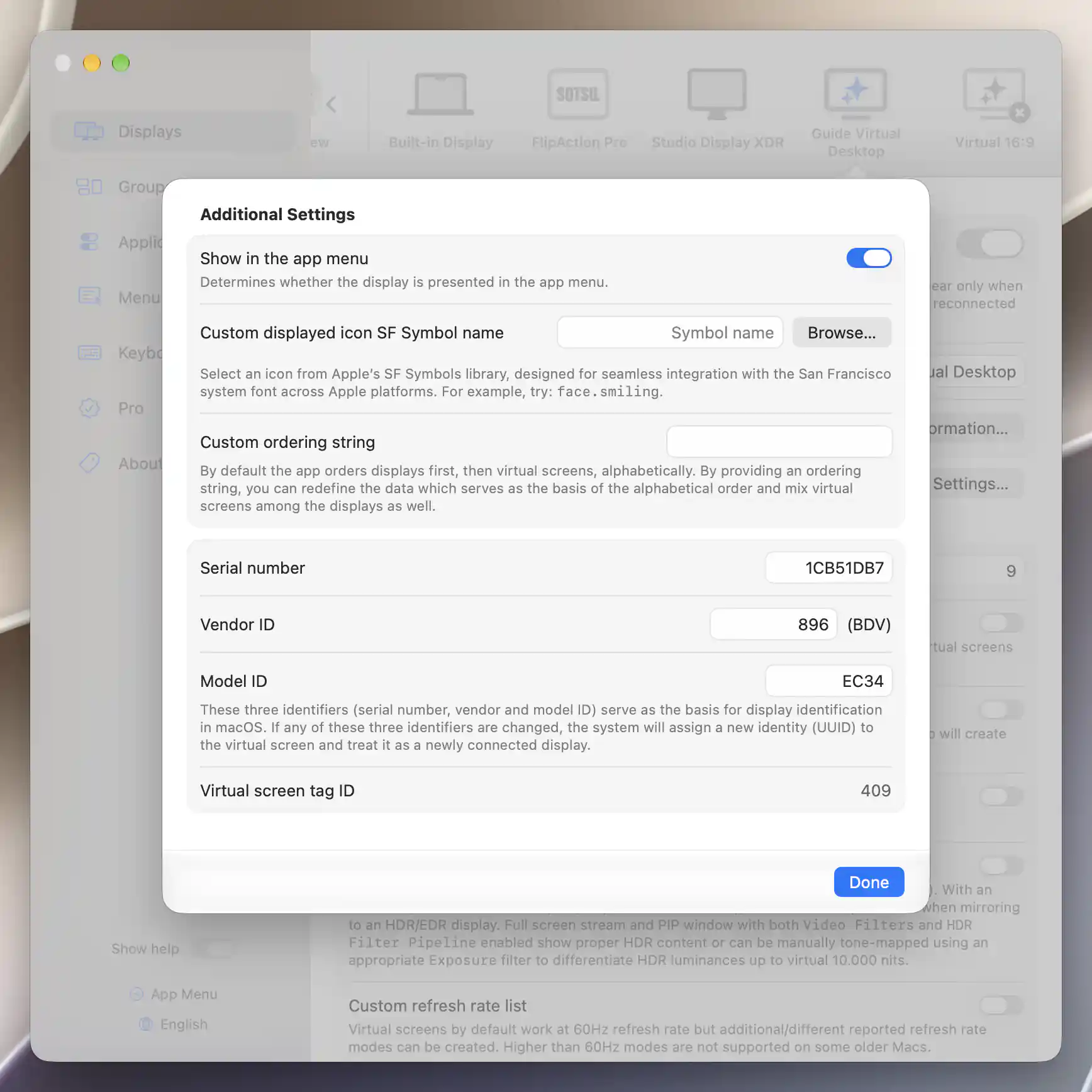
Menu presentation and system identity have separate settings.
Virtual Screen Configuration
Start by choosing the shape of the desktop and how its resolutions should be supplied. You can let BetterDisplay generate a range of sizes with the same shape, or provide your own list of dimensions. HDR and refresh-rate options then determine which kinds of mode are offered at those sizes.
Shape and generated resolutions
Aspect ratio sets the relationship between width and height. Its components are constrained to 1–16384, but they are proportions rather than final pixel dimensions. The default is 16:9 unless you created the screen from another preset or matched display.
Rotated orientation swaps width and height and defaults to off. For example, this lets a landscape definition provide a portrait-shaped desktop. It is disabled when associations are configured to follow a display's orientation. Changing the desktop's shape is distinct from rotating a stream's image by 90° or 270°.
Custom resolution lists
Use custom resolution list defaults to off, allowing BetterDisplay to generate modes that match the aspect ratio. Turn it on when you want to specify the sizes yourself. Add Custom Resolution adds a width/height row, and a row's trash button removes it. The starting custom list contains 1920 × 1080; your entries may use different aspect ratios.
For the underlying rendering method, see what flexible scaling and custom resolutions change.
Each row reports Invalid resolution (skipped), Multiple identical entries, or Resolution entry accepted. Missing or zero dimensions are flagged, and values above 16384 are reduced in the editor.
Very large resolutions
Enable resolutions over 8K (4K HiDPI) appears when the corresponding global limit extension is off. It defaults to off for a new definition. If the global extension is on, it applies here without a separate local switch.
The feature extends the range toward 16K. The current generator uses nominal mode-axis ceilings of 15360 with the extension and 7680 without it, and availability still depends on the Mac. Very large modes can cause stability issues; the extended range is not a promise that every large size will work on your system.
HDR modes
Enable HDR support lets the virtual desktop carry HDR content. It defaults to off. Enabling it advertises extended-luminance modes with 16 bits per component, alongside the normal 8-bit SDR modes unless you choose otherwise.
Use an HDR-compatible color profile; the interface recommends Display P3. Mirroring to a compatible HDR/EDR display can preserve HDR content. A virtual HDR capability does not create physical brightness on an SDR panel.
For full-screen stream or PIP presentation, proper HDR handling additionally needs Video Filters and HDR Filter Pipeline. Exposure filtering can tone-map virtual HDR values up to 10,000 nits. The HDR filter pipeline requires Apple silicon.
When HDR is enabled, Create HDR modes only removes the SDR alternatives, leaving more room in the mode list. This option defaults to off. With it on, you cannot switch HDR off through that virtual screen's app-menu mode selector; change the definition and reconnect to restore SDR alternatives.
Refresh rates
Custom refresh rate list defaults to off, giving 60 Hz modes. Enable it to supply other rates with Add Refresh Rate and remove entries with the trash buttons. Entries are constrained to 24–240 Hz. Duplicate stored rates are consolidated, and empty rows do not supply a rate. A custom list with no usable rate can leave no mode to connect.
Older Macs may not support rates above 60 Hz. These are advertised virtual refresh-rate modes: they do not promise that capture, streaming or a physical target will present frames at the same rate.
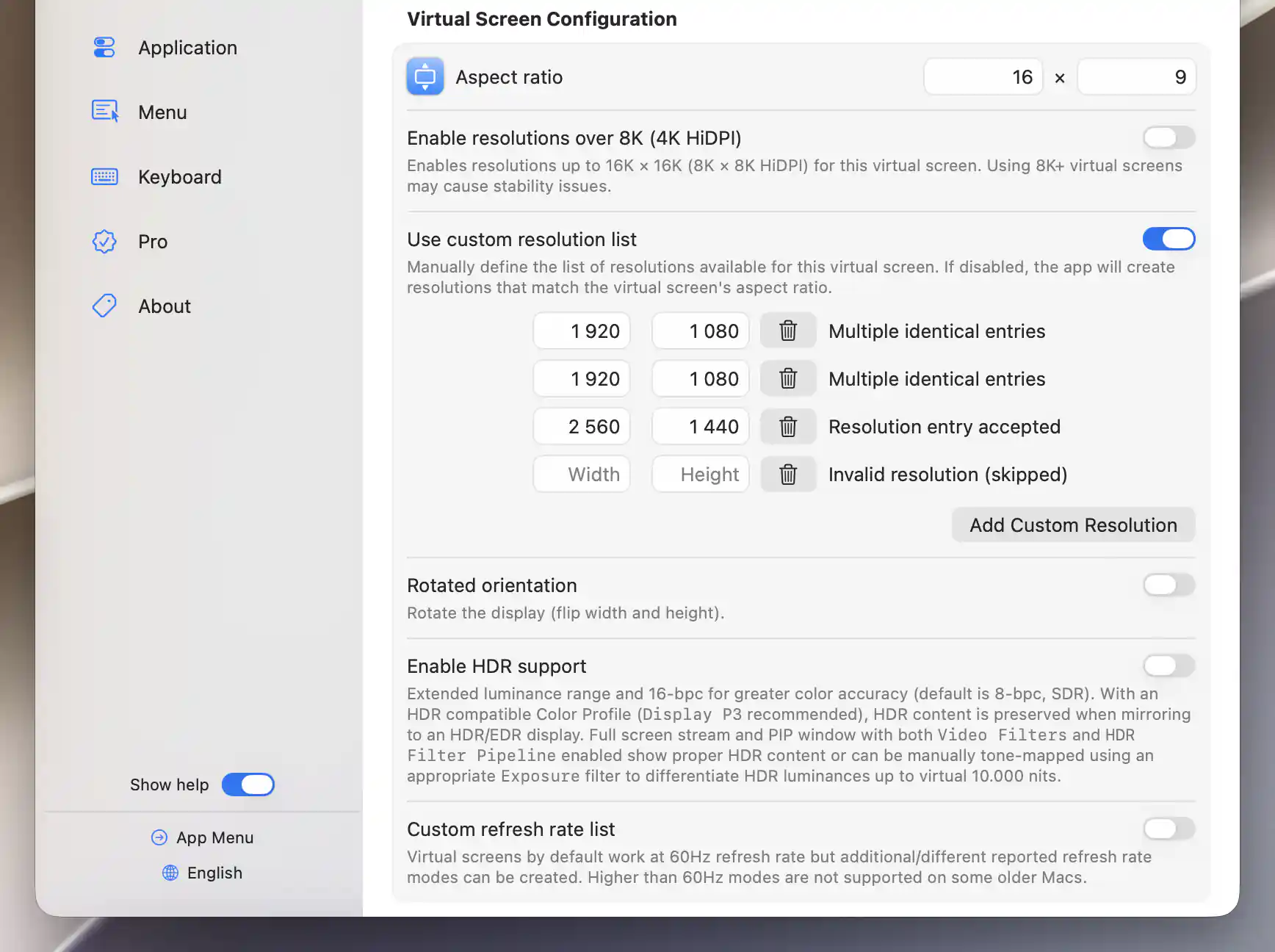
The custom list validates each resolution before connection.
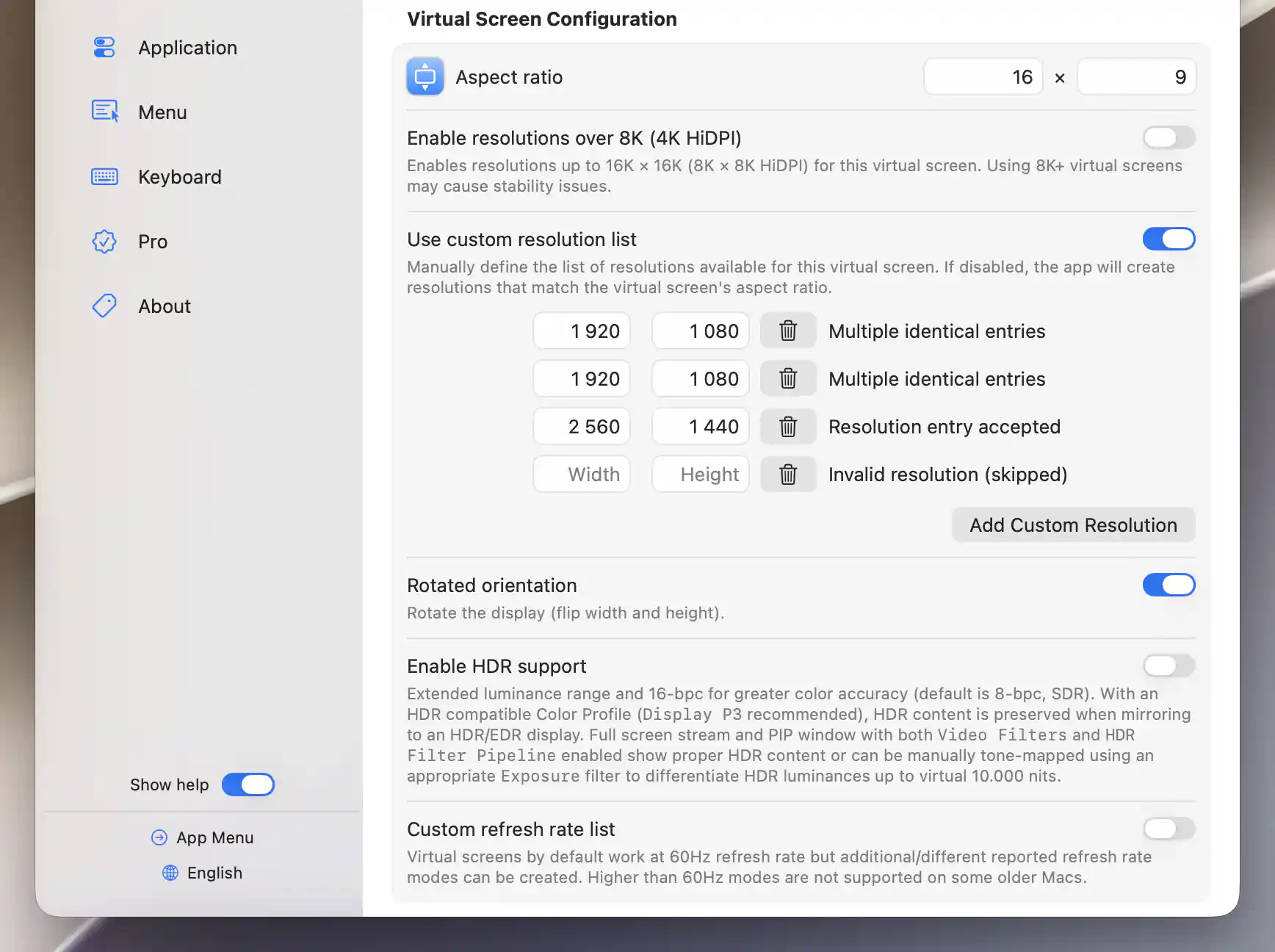
Rotated orientation swaps the dimensions when the virtual screen connects.
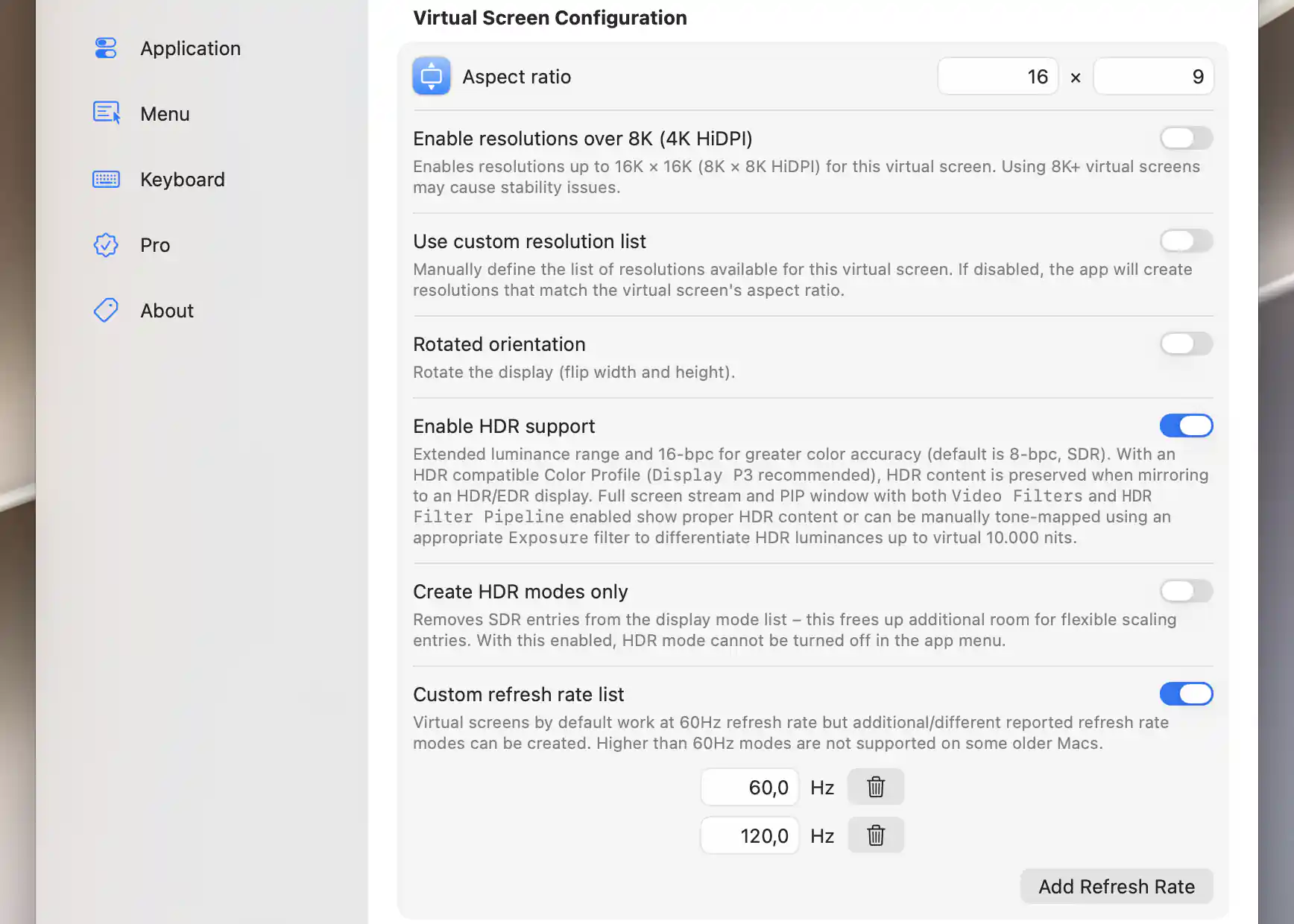
Generated resolutions can offer HDR and several advertised refresh rates.
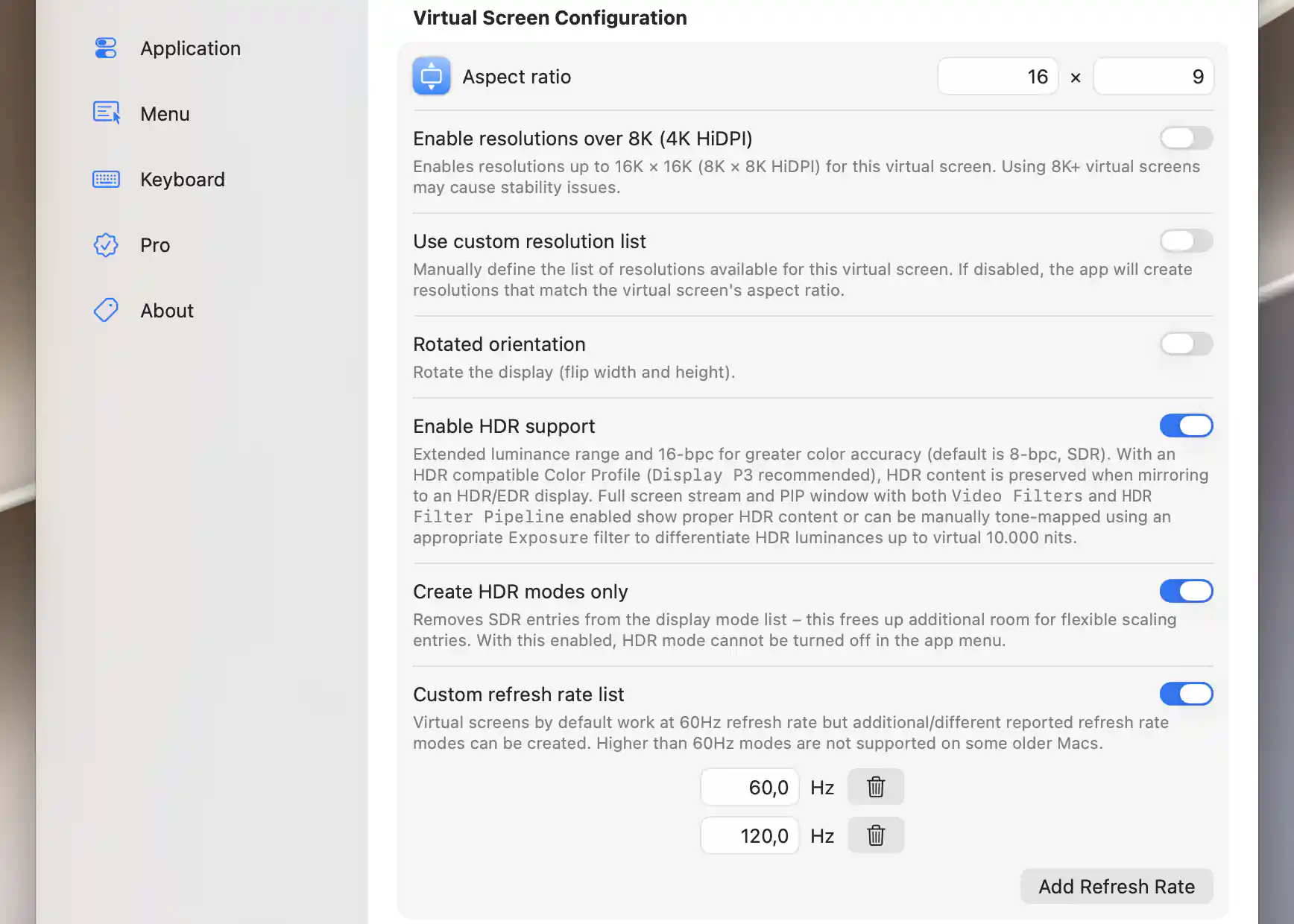
HDR-only mode definitions omit the SDR alternatives.
Additional Resolution Settings
These settings refine generated resolutions and the size macOS perceives. They are useful when you want a particular range of desktop sizes or finer steps between them.
Spacing and range
Resolution step multiplier controls the spacing between generated resolutions. A smaller multiplier gives finer spacing. The value is constrained to 1–16384, and creation may choose a preset-specific value.
Enable Limit resolution range to reveal optional minimum and maximum width and height fields. Each dimension is constrained independently; leave a bound blank if you do not need it. The form warns when a minimum is not below its maximum or when the interval has less than 100 pixels of leeway. Both the multiplier and range fields are disabled while Use custom resolution list is on.
A dense combination of sizes, refresh rates and SDR/HDR variants may exceed the generated mode budget: 100 entries with HiDPI or 200 without. BetterDisplay can reduce the list to fit, so not every requested combination necessarily survives.
HiDPI and reported size
Enable HiDPI resolutions defaults to on. It creates HiDPI and ordinary variants and can introduce a pixel-doubled ordinary mode for each option.
Reported diagonal size tells macOS how large to consider the virtual screen; it does not change a physical monitor. A blank field uses 24 inches, and entered values are constrained to 0.1–1000 inches. With custom modes of different aspect ratios, the effective reported size may differ.
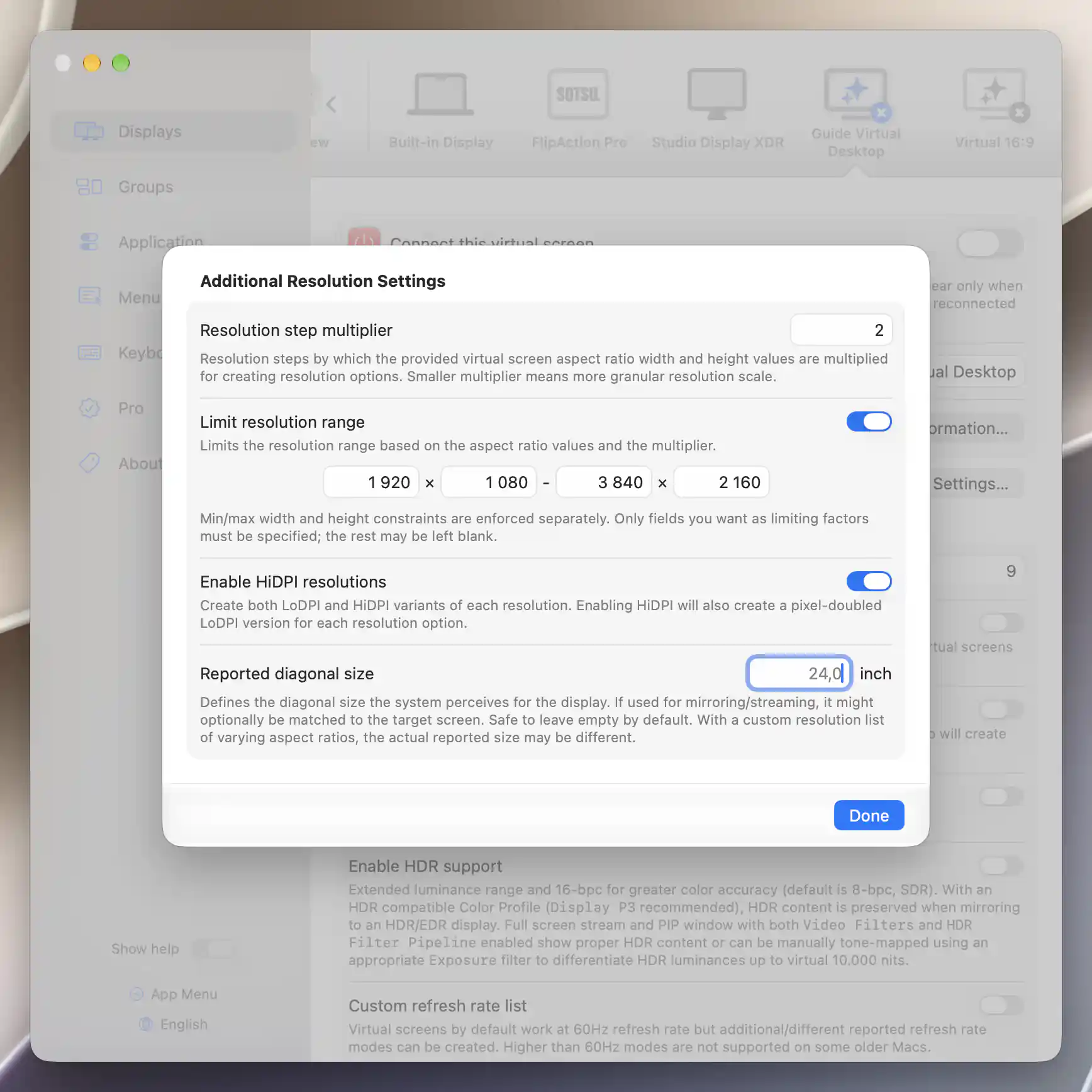
Generated modes can be bounded independently by width and height.
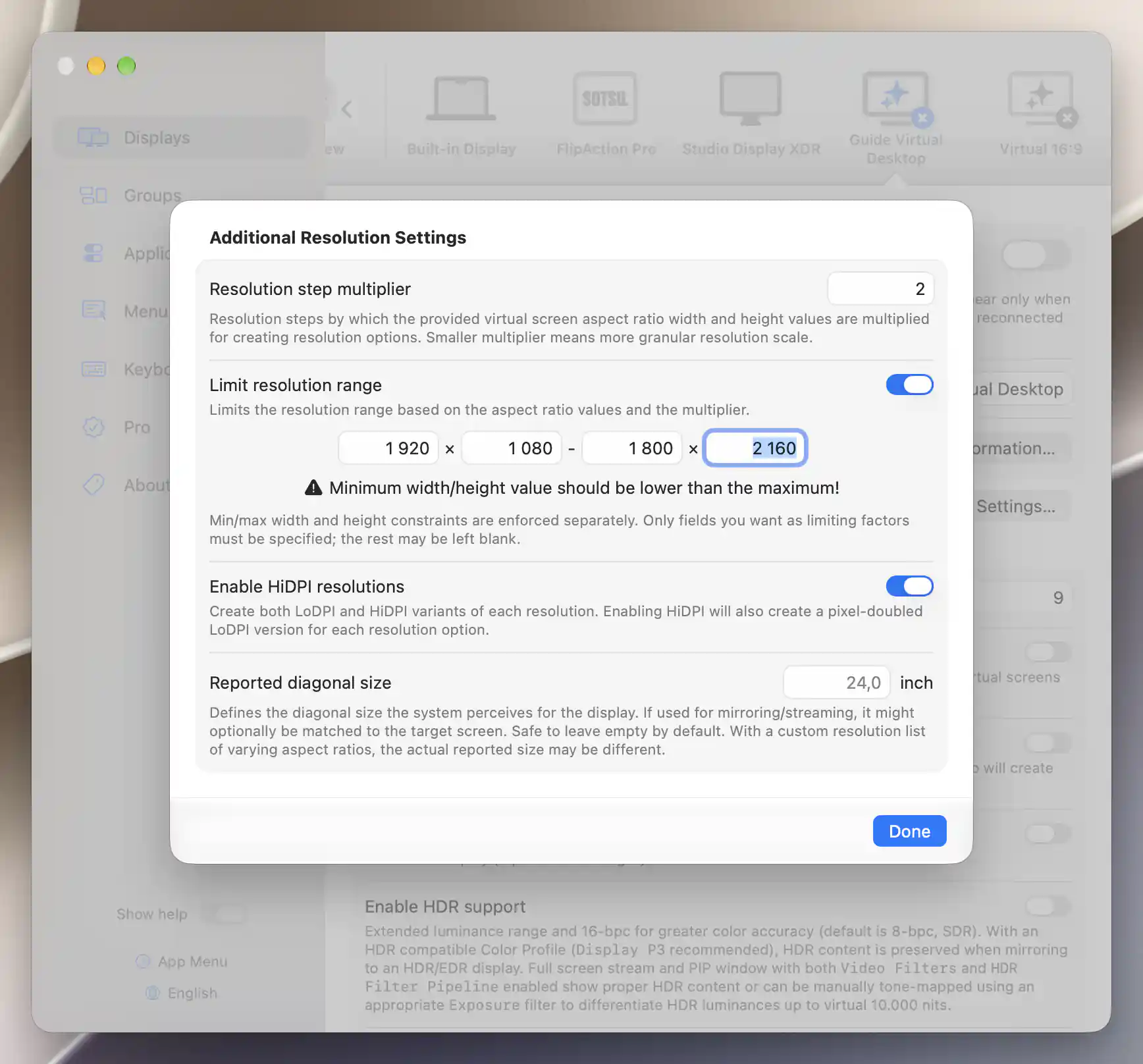
Contradictory bounds produce a warning before the virtual screen is connected.
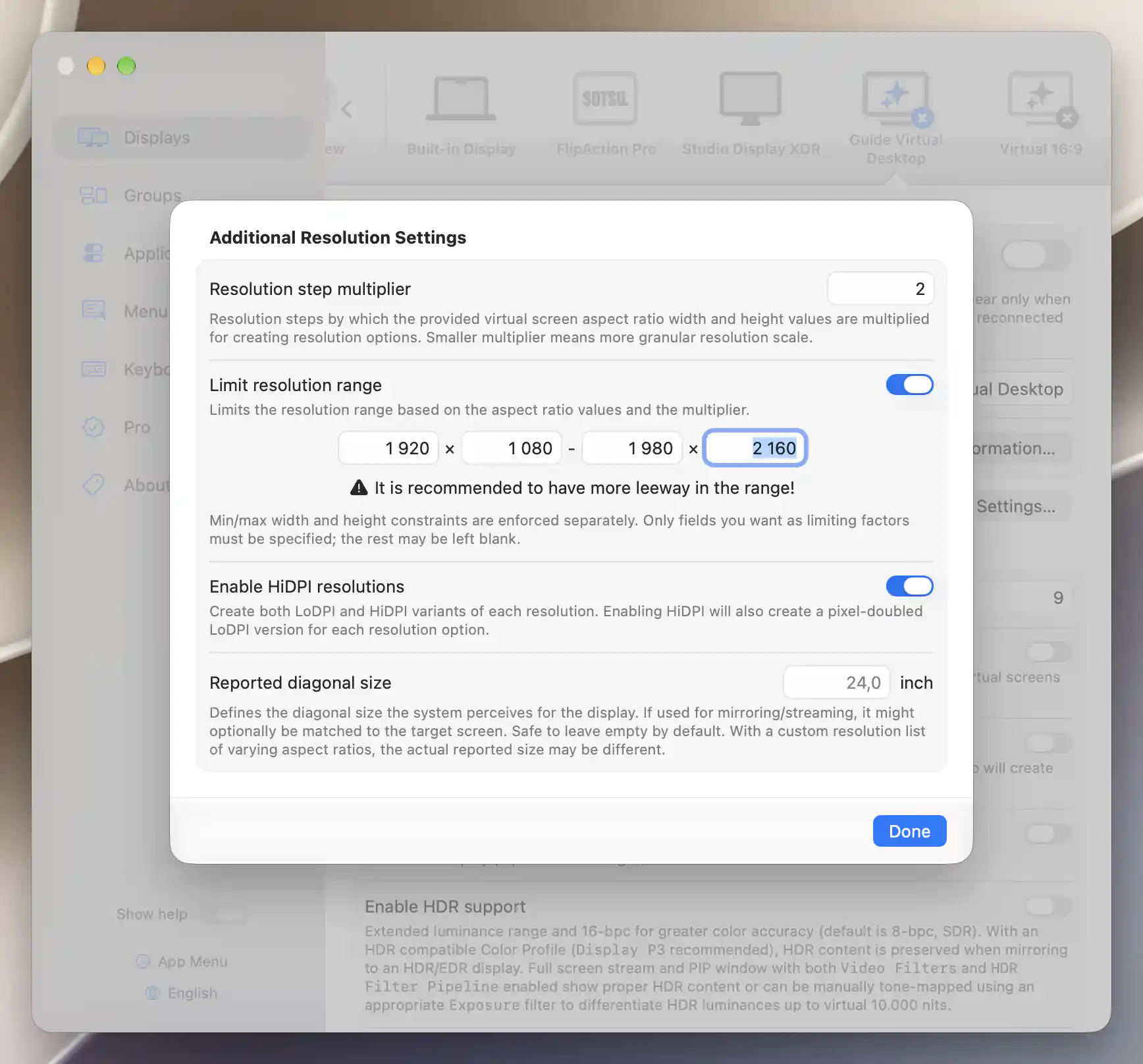
A narrow interval can leave too few useful generated modes.
Associated and linked display settings
Associated Displays controls automatic connection, mirroring, streaming and orientation. Use it when the virtual screen should follow the presence or configuration of another display.
When a linked display record exists, its General Settings and Display Control sections appear below the definition. These adjust the display instance's brightness, image adjustments and controllers, separately from the advertised modes configured above. The virtual-screen page does not append System Configuration or EDID editing sections.
Discard
Discard a definition when you no longer need its saved configuration. If you plan to reuse it, disconnect it instead: disconnection removes the desktop while keeping the definition.
Discard… asks Do you want to discard the virtual screen?. Choose Cancel to preserve it or Discard Virtual Screen to disconnect it and remove the saved definition.
When a factory color profile is known, Discard & Remove Color Profile also requests cleanup of that profile and needs administrator authorization. Otherwise, the message recommends removing the unused factory profile in System Settings.
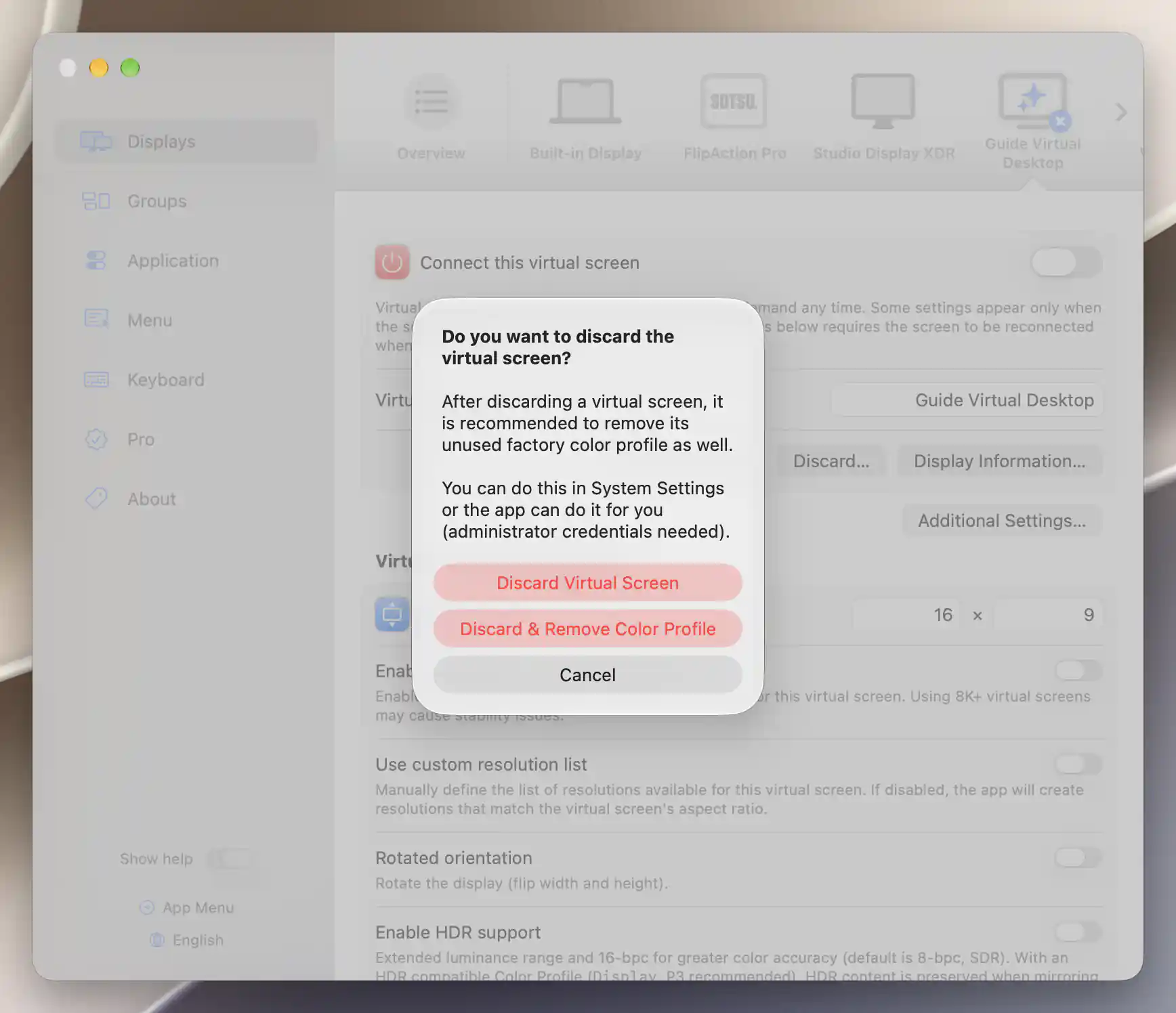
Discarding a virtual screen can also remove its generated factory color profile; Cancel preserves both.
Bulk operations are in Advanced Virtual Screen Settings.
Additional information
This section explains which features require Pro and how availability differs between Mac platforms.
Features requiring Pro license
- Custom naming and the serial, vendor and model identity fields.
- Aspect-ratio editing, custom resolution lists and rotated orientation.
- HDR support, HDR-only modes and custom refresh-rate lists.
- Resolution step multiplier, resolution range limits, HiDPI configuration and reported diagonal size.
- Individual association editing and the behavior options described in Associated Displays.
Basic connection, inspection and discard actions remain available without Pro. Menu visibility, icon and ordering settings, and the local over-8K switch also have no Pro requirement of their own. Features for a linked display have their own requirements.
Platform compatibility
Virtual-screen definitions and their configuration options are available on both Apple silicon and Intel Macs, subject to the Mac's supported modes and size limits. Some older Macs do not support virtual refresh rates above 60 Hz. Virtual HDR modes and physical HDR presentation are separate capabilities: the stream/PIP HDR filter pipeline described above requires Apple silicon and suitable presentation settings.