Individual group
Use an individual group to decide which displays belong together and when their shared behavior should run. Enabled is your saved permission for the group to run; active describes whether its members and current conditions actually allow it to do so. Keeping those two ideas separate makes it easier to understand a group that is enabled but doing nothing yet.
Where to find it: Settings > Groups > select a group from the horizontal selector or Overview.
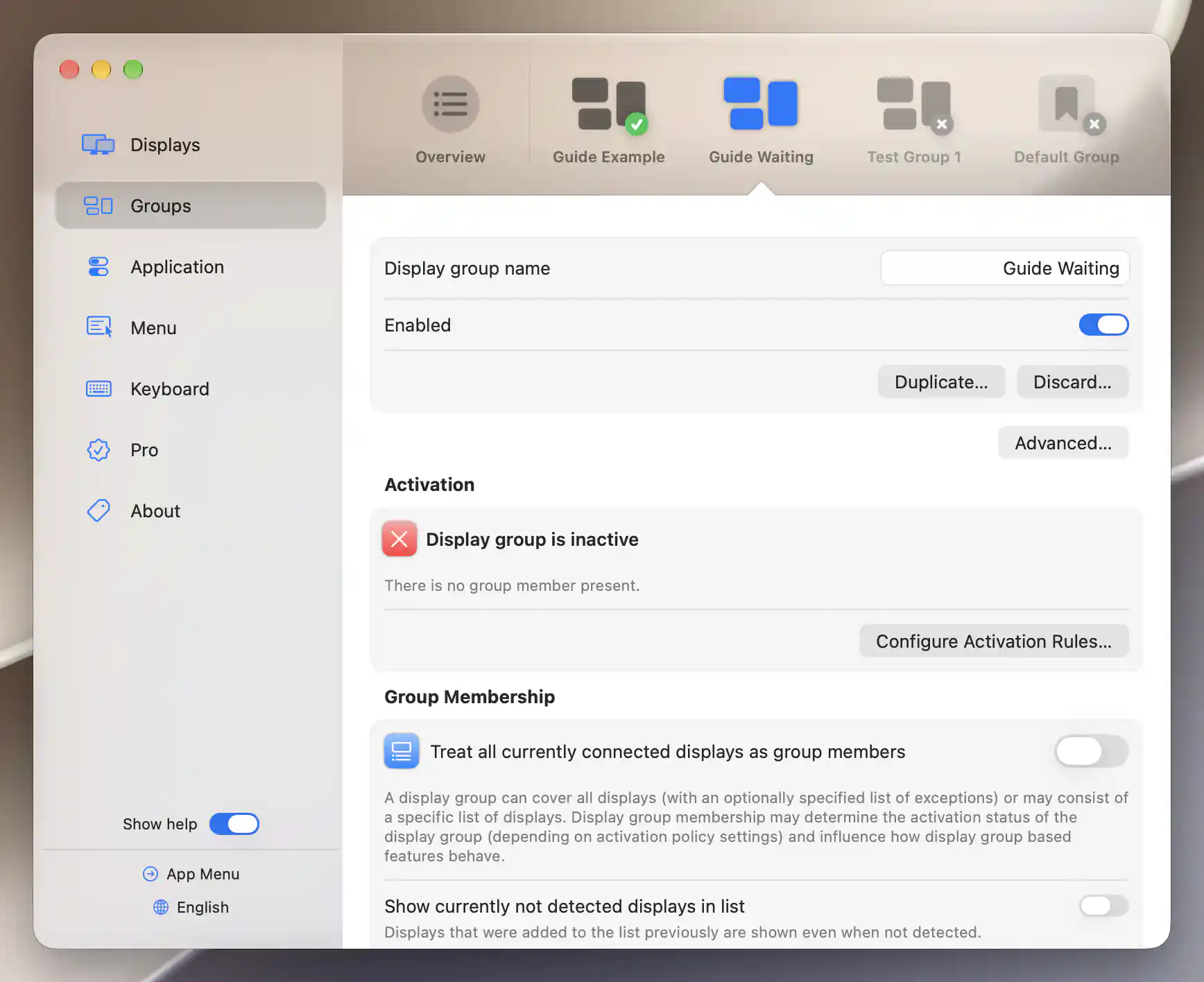
An enabled group remains inactive until its activation conditions are met.
Identity and saved configuration
Set Display group name to give the group a recognizable label in Settings and the App Menu. Leave the field empty to use a generated name.
Enabled allows the group to activate without removing any of its rules when you turn it off. Changes are remembered. BetterDisplay recalculates activation as the configuration or connected displays change.
Copy or remove a group
Duplicate… creates a disabled copy with an editable name. This lets you adapt a saved setup without having the copy take effect immediately.
Discard… opens Discard Display Group and warns that the group and all its settings will be removed. Select Discard to remove them, or Cancel to keep them. You cannot remove the Default Group, but you can disable it or make it inactive through its rules.
Icon and priority
In Advanced…, Custom displayed icon SF Symbol name lets you choose a different icon. Browse… opens the shared symbol picker. If the custom symbol is unavailable, the group uses its ordinary icon instead.
Activation rules
Start with the Activation section when you want to know why a group is or is not running. It reports Display group is currently active or Display group is inactive, followed by the current reason.
Configure Activation Rules… lets you choose the condition that best describes when this setup is useful:
- All configured group member displays are connected requires every remembered member of an explicit membership list to be connected, with at least one member present. With automatic all-connected membership, it needs at least one current member. This is the default rule.
- Any group member is connected is useful when one connected member is enough.
- At least two group members are connected requires two connected members.
- Synchronization, UI scale matching or layout protection displays are present looks for suitable participants in the configured, enabled feature rules. An empty synchronization or layout entry is not enough.
Rules based on feature participants
The last choice is useful when a group should depend on the displays needed by its features. In the current version, however, combining those features has particular consequences. If layout protection is enabled, an actionable layout or protected-main-display rule becomes necessary even when a synchronization or scale-matching pair is present.
An enabled synchronization rule with candidate targets but no accepted source can also replace an earlier scale-matching match. Check the displayed activation reason. If you want activation to be independent of layout availability, use one of the simpler member-count rules instead.
Other displays and exclusive groups
Only group members can be present prevents activation while a connected display outside the group is present. Exclusive display group keeps lower-priority groups from running while this one is active. It also prevents this group from activating while any higher-priority group is active.
Both options start on for new custom groups and off for the Default Group. A higher-priority active exclusive group blocks lower groups even when those lower groups are not themselves exclusive.
Changes in the sheet save directly; Done closes it. Enabling a group cannot override missing members or an incompatible exclusive group.
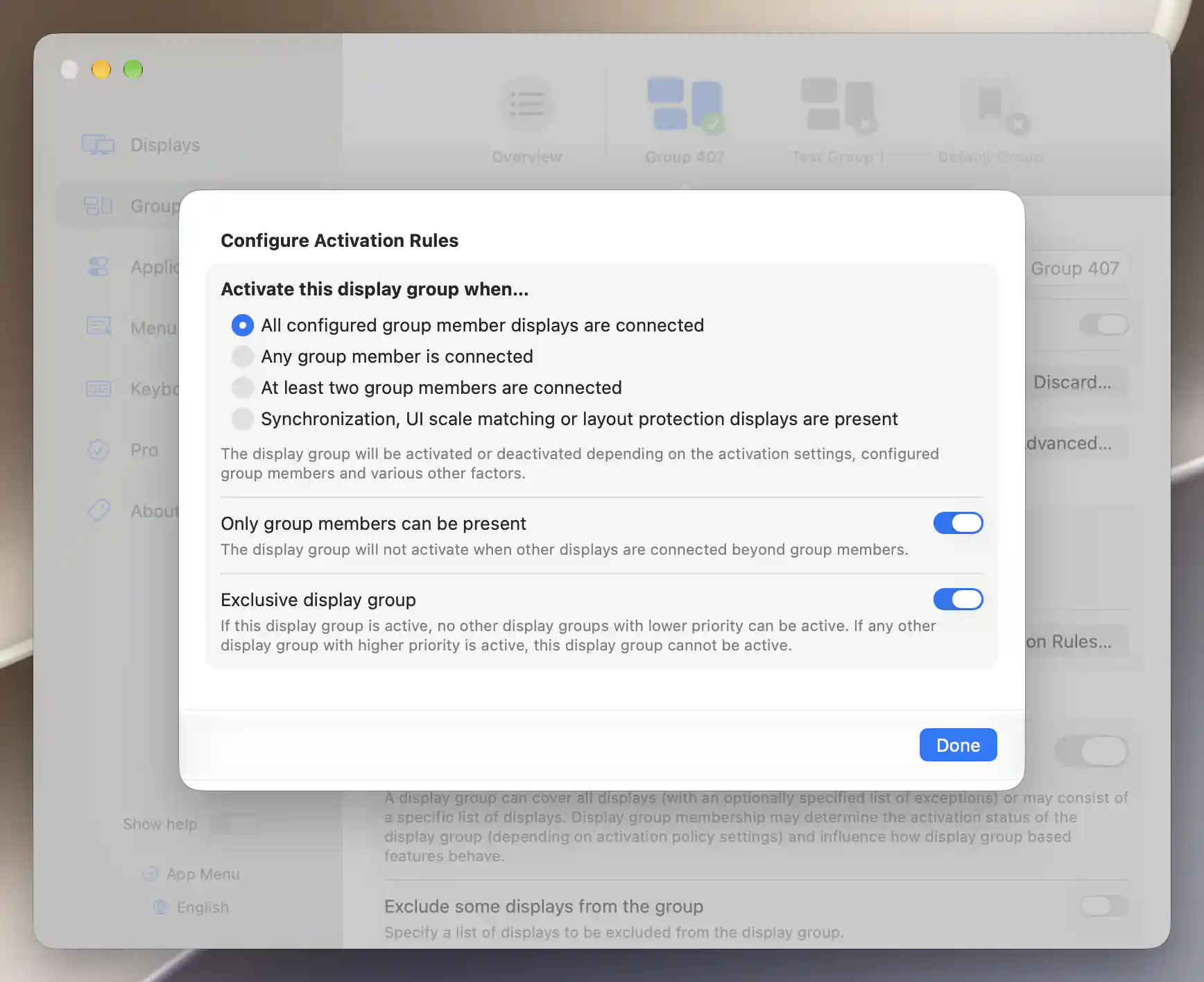
Activation rules determine when an enabled group can become active.
Membership
Membership defines the pool of displays that the group's features can use. Treat all currently connected displays as group members starts on, which avoids maintaining an inclusion list for every connection change. Use Exclude some displays from the group to make exceptions in that automatic mode.
Turn automatic membership off if you want to choose Member displays explicitly. The explicit list and the automatic mode's exclusions are separate ways to define membership; the exclusions are not applied to the explicit list. Saved membership survives disconnection.
Connected and remembered displays
Show currently not detected displays in list reveals remembered displays in the inclusion or exclusion editor. Already selected remembered entries remain visible so you can remove them. Showing an absent display in the list does not reconnect it.
Disconnected and remembered devices have status badges and less prominent icons. If no displays are detected, the pane explains that this may indicate an application or system error.
Toggle a row to include or exclude that display.
Membership and feature roles
A member does not have to participate in every feature. Each feature selects among the group's members for its own purpose: a synchronization source produces an adjustment and a target receives it, while a scale-matching watched display supplies the size to follow and an affected display changes resolution.
See Synchronization, Layout Protection and UI Scale Matching for their independent switches and participating-display choices.
Additional information
This section explains which features require Pro and how availability differs between Mac platforms.
Features requiring Pro license
- Activating custom groups; their Enabled switch in Settings is marked as a Pro feature.
- The Pro-controlled features configured within a group, including layout protection, UI scale matching and synchronization beyond its basic brightness option.
The Default Group can be enabled without Pro. Its basic brightness synchronization is also available without Pro; other feature and advanced-option requirements are explained on the relevant child pages. Licensing is one of the conditions that determines whether an enabled group is active.
Platform compatibility
All features described on this page are available on both Apple silicon and Intel Macs. Membership and activation depend on the connected displays; each group feature also has its own control, mode or participating-display requirements.