Groups
Use the Groups menu to turn saved display-group setups on or off without opening Settings. It shows which enabled groups are currently active and lets you reapply their layout protections immediately. The group's membership and priority rules still decide whether its behavior can run.
Where to find it: App Menu > Tools > Groups. Expand Tools or its more-options level if menu customization places Groups there.
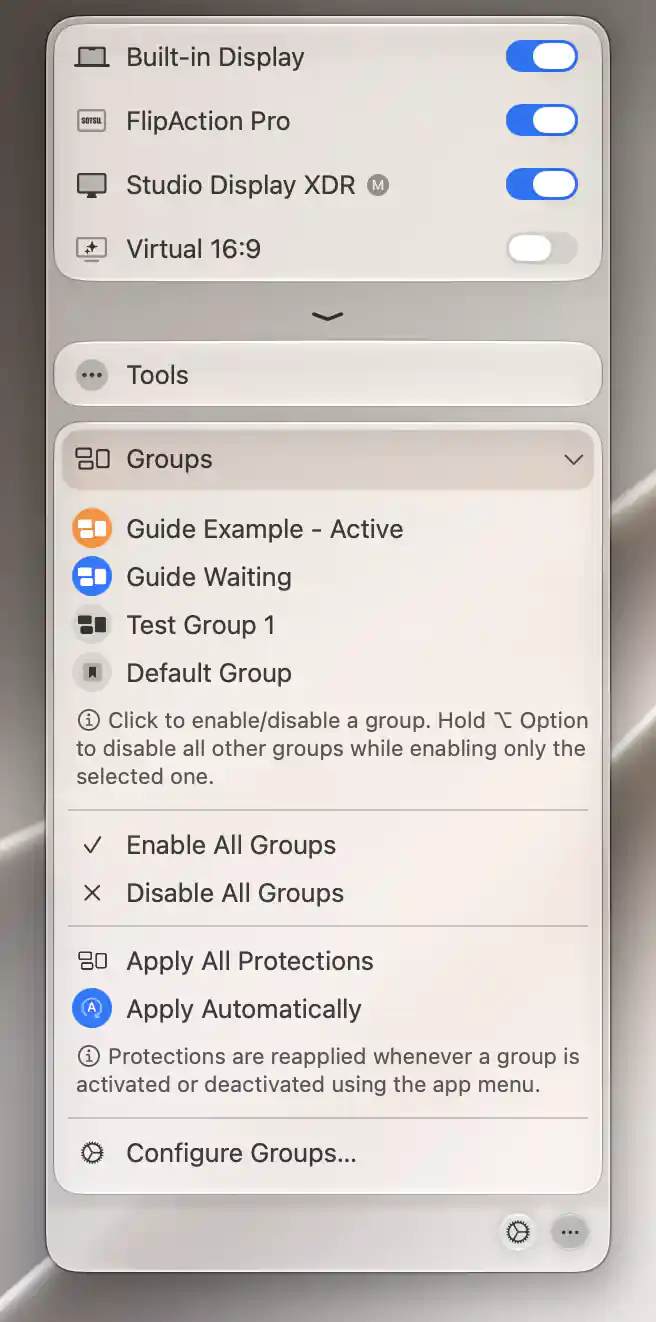
The Groups menu distinguishes active and enabled groups and provides shared activation and protection actions.
Enable versus active
Click a group to change its saved enabled state. The selection indicator follows that preference, while - Active and the active color show that the group's rules currently allow it to run. A missing member or a higher-priority exclusive group can keep an enabled group inactive.
Disabling a group keeps its members and feature configurations saved. Enabling it later makes it eligible to run under those same rules again. Groups are normally sorted by activation priority, highest first.
Change all groups together
Enable All Groups and Disable All Groups are available when more than one group is saved. Enabling all still respects activation conditions and exclusive-group priorities, so it does not necessarily make every group active.
Disabling all stops their group behavior without deleting the settings or reverting the current display arrangement.
Apply protections
Choose Apply All Protections when you want to restore the available positioning and protected-main-display rules from active groups now. It is disabled if no actionable rule is available. It does not turn on a disabled group's feature or reconnect a missing display needed by a rule.
Apply Automatically can do this after you change groups through this menu. It is a saved preference and starts off. When enabled, a change to a group's enabled state recalculates activation and then reapplies eligible layout protections. The menu's bulk enable/disable actions behave the same way.
Configure
Choose Configure Groups… to open Settings > Groups. This is where you edit names, members, activation priorities, synchronization, layout rules and UI scale matching.
An attached App Menu closes as Settings opens. A detached menu stays available.
See Individual group for the activation explanation and Layout Protection for the rules Apply All Protections uses.
Additional information
This section explains which features require Pro and how availability differs between Mac platforms.
Features requiring Pro license
- Enabling and activating custom groups.
- Enable All Groups and Disable All Groups.
- Apply All Protections and Apply Automatically.
The Default Group can operate without Pro, subject to its individual features' requirements. An already enabled custom group can be disabled through this menu without Pro. When Pro features are unavailable, custom groups cannot activate and the Default Group is shown first. Configure Groups… remains available.
Platform compatibility
All features described on this page are available on both Apple silicon and Intel Macs. Applying protections still needs active groups with connected, suitable participating displays and actionable rules.