UI Scale Matching
UI Scale Matching helps text and interface elements look a similar physical size across your displays. When a watched group member changes resolution, BetterDisplay can choose corresponding resolutions for other members. Screens of different sizes may need different pixel dimensions to produce that similar physical size.
Where to find it: Settings > Groups > group > UI Scale Matching. Open Advanced UI Scale Matching Settings… to choose watched and affected displays.
The group must be active and Enable UI scale matching must be on; it starts off. Matching needs usable physical display dimensions and suitable available modes. A dense selection of scaled resolutions gives it more choices.
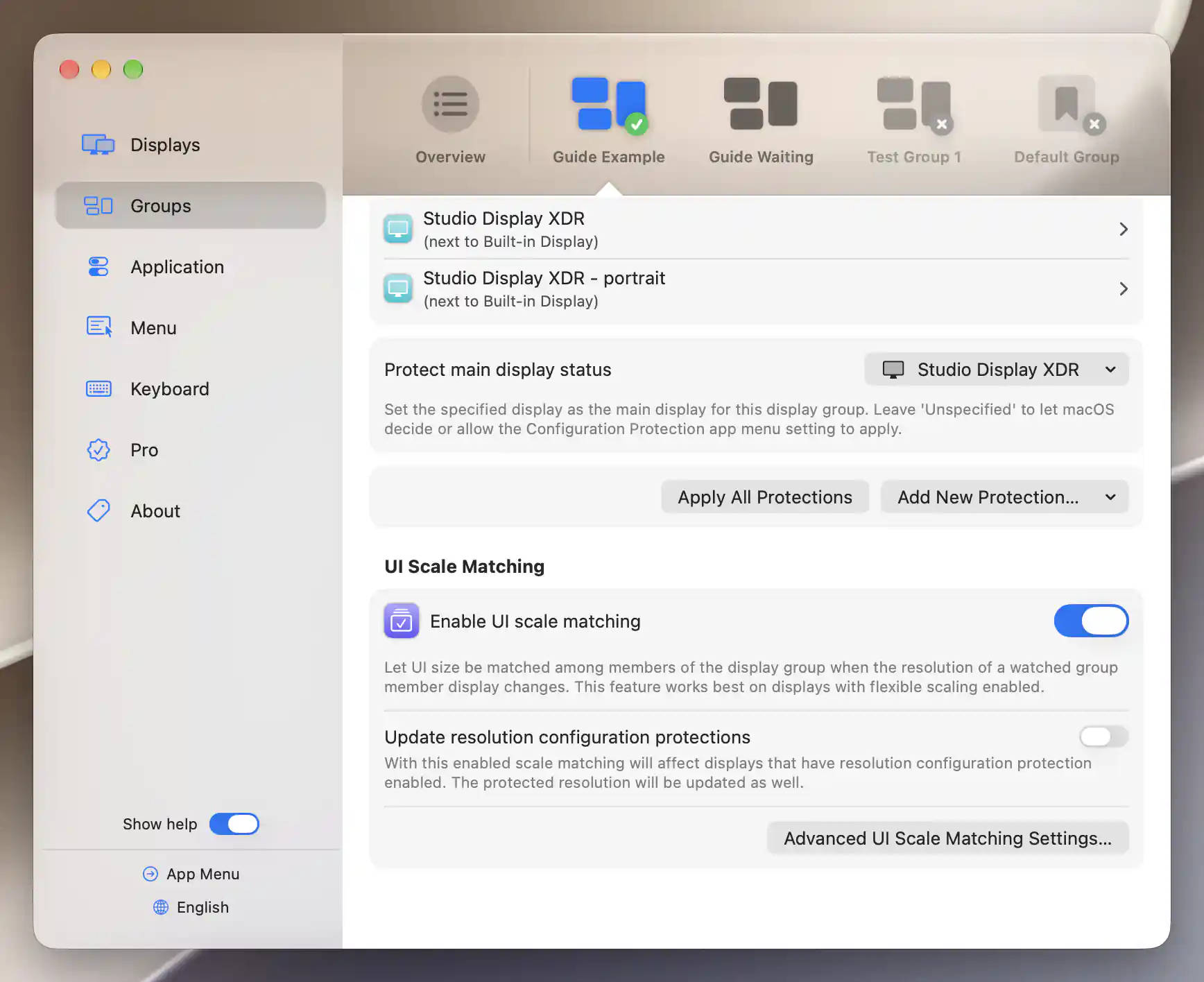
UI scale matching has its own switch, resolution-protection option and advanced settings.
For a step-by-step setup with one watched source, physical-size checks and a manual match, see Make text and interface elements a similar size across different displays.
What changes
Think of the two roles separately. A watched display supplies the physical interface scale to follow. An affected display receives a new resolution when a suitable mode is available. Both come from the group's members, but their lists can differ. The source is not changed by its own matching operation, and mirrored targets are skipped.
How the size is matched
BetterDisplay compares logical desktop dimensions with physical display dimensions and chooses a nearby target mode. Where available, it retains the target's current HiDPI state, refresh rate and bit depth.
For the rendering background and a practical comparison, see choosing a comfortable macOS scaling mode.
The match preserves the target's aspect ratio rather than forcing it to use the source's width × height. This is why two screens can show similar-sized text even when their resolutions differ.
Make sure the physical-dimension settings are credible. For a virtual screen, the reported diagonal size supplies the initial physical size, and the connected virtual display's physical-dimension override can modify it. Those values are reports used for the calculation, not measurements of a physical panel.
Resolution protection and saved changes
Update resolution configuration protections lets scale matching change a display whose resolution is protected, updating the protected value to the new mode too. It starts off. With it off, a target with protected resolution is left alone.
A successful matched mode becomes the current system configuration. Disabling scale matching later does not undo that change.
Advanced behavior
How close a match must be
Matching tolerance sets the permitted percentage difference between the ideal target size and an available mode. Leave the field empty to use 10%. Both dimensions must fall within tolerance.
If no suitable mode is close enough, the target stays unchanged. Matching chooses among available modes; it does not generate a new one.
Respond to outside changes and connections
Watch for resolution changes made outside of the app is off by default. Turn it on to react to detected changes made by macOS or other apps, alongside supported changes made through BetterDisplay.
If several watched displays imply conflicting modes for the same target during a configuration change, that target is skipped. Choosing one predictable watched display avoids ambiguous results.
With external watching on, Enforce UI scale match upon connecting a display becomes available. It starts off. When connection enforcement is enabled, a newly connected affected display is normally matched from a suitable existing watched member.
You can then enable Treat newly connected displays as possibly watched displays if a newly connected member should also be allowed to drive matching when it meets the watch rules. This option starts off too.
Watched displays
Watch all group members for resolution changes starts on. In that automatic mode, Watch virtual screens starts off, and Exclude some members from watch list lets you make exceptions.
Turn automatic watching off to select Watched group member displays explicitly. That explicit list is a separate selection mode: it is not further restricted by the hidden automatic virtual-screen switch.
Affected displays
Match UI scale of all group members starts on, with Update virtual screens as well off. Use Exclude some members from the list of affected displays to keep particular members unchanged in that automatic mode.
Turn automatic matching off to choose an explicit Affected displays list. Select any intended virtual screens directly in that list.
Edit either list
The editors include connected, disconnected and remembered group members. Show currently not detected displays in list reveals remembered choices, while selected remembered displays stay visible. A missing member cannot receive a mode change. If the group has no members, an explanatory message replaces the choices.
Option-click a display's name or icon to identify its screen. Use its switch when you want to change the list.
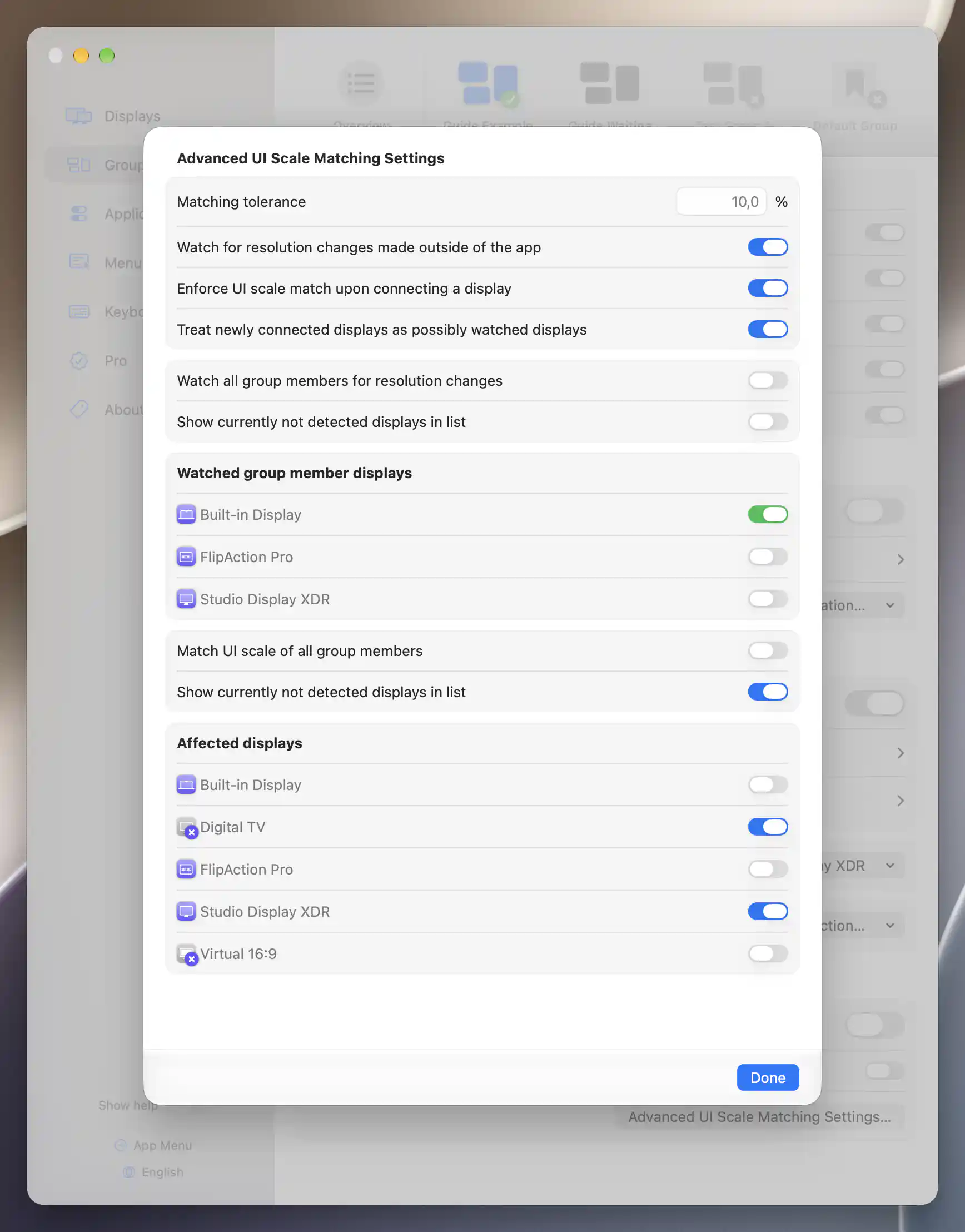
Built-in Display is selected as the watched source, with Studio Display XDR and the remembered Digital TV as matching targets.
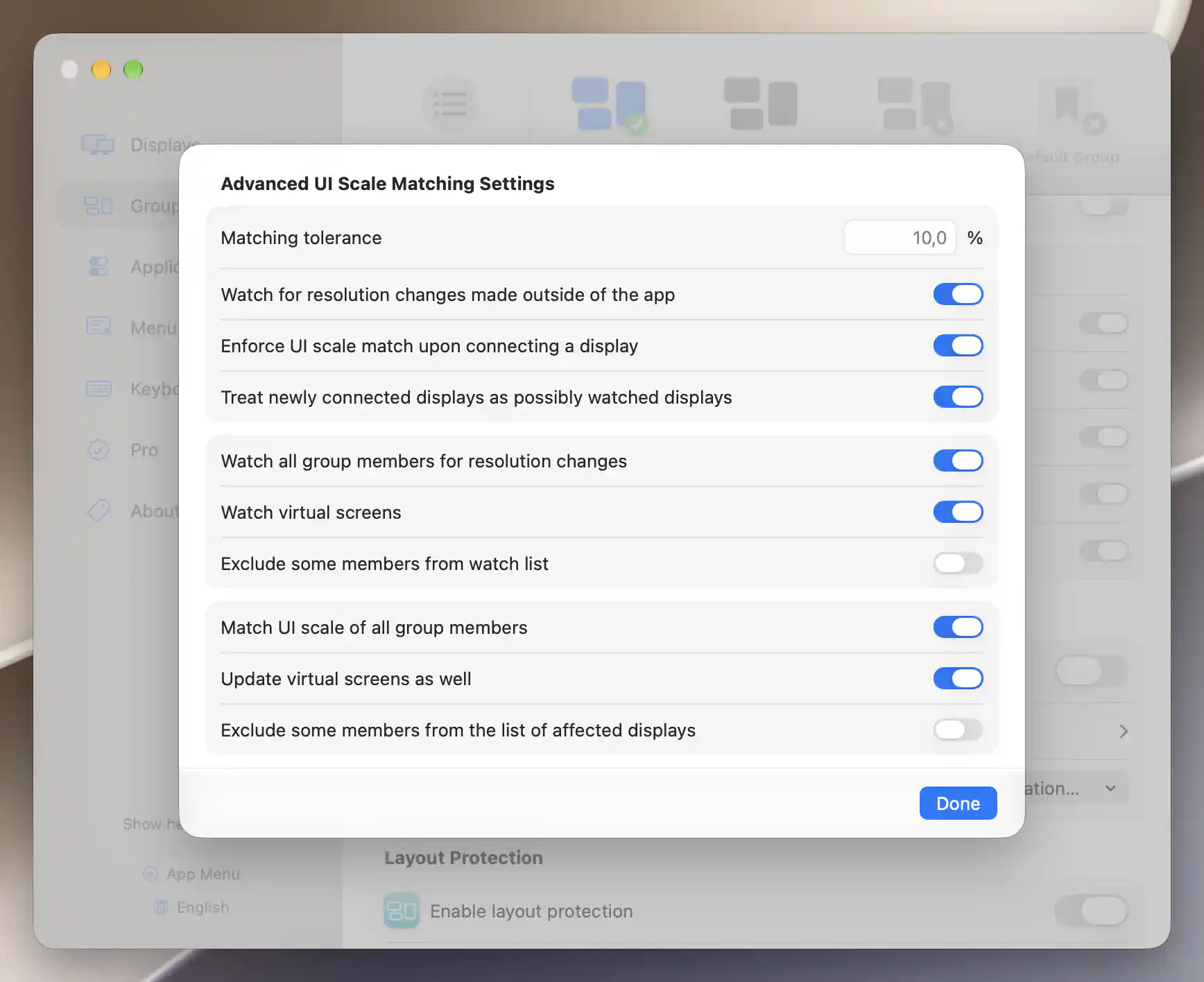
Automatic member lists can include virtual screens for both watching and matching UI scale.
See Individual group for activation, Layout Protection for arrangement, and Sliders for the Shift bypass.
Additional information
This section explains which features require Pro and how availability differs between Mac platforms.
Features requiring Pro license
- UI scale matching and its watched/affected display selection.
- Updating resolution protections to follow a match.
- Advanced tolerance, external-change and connection-matching options.
Platform compatibility
All features described on this page are available on both Apple silicon and Intel Macs. Matching still requires credible physical dimensions and suitable available modes on the participating displays. A missing member or a mirrored target cannot receive the described match, and the feature does not create new display modes.