Configure Steps for Range-Based Controls
Each press of a brightness or volume key moves the setting by a certain amount. This sheet lets you choose that amount, with a standard step for everyday changes and a smaller fine step for careful adjustment. The same settings apply to other range-based controls, such as contrast; they change the size of the request, rather than the number of levels your hardware can reproduce.
Where to find it: Settings > Keyboard > Configure Steps for Range-Based Controls….
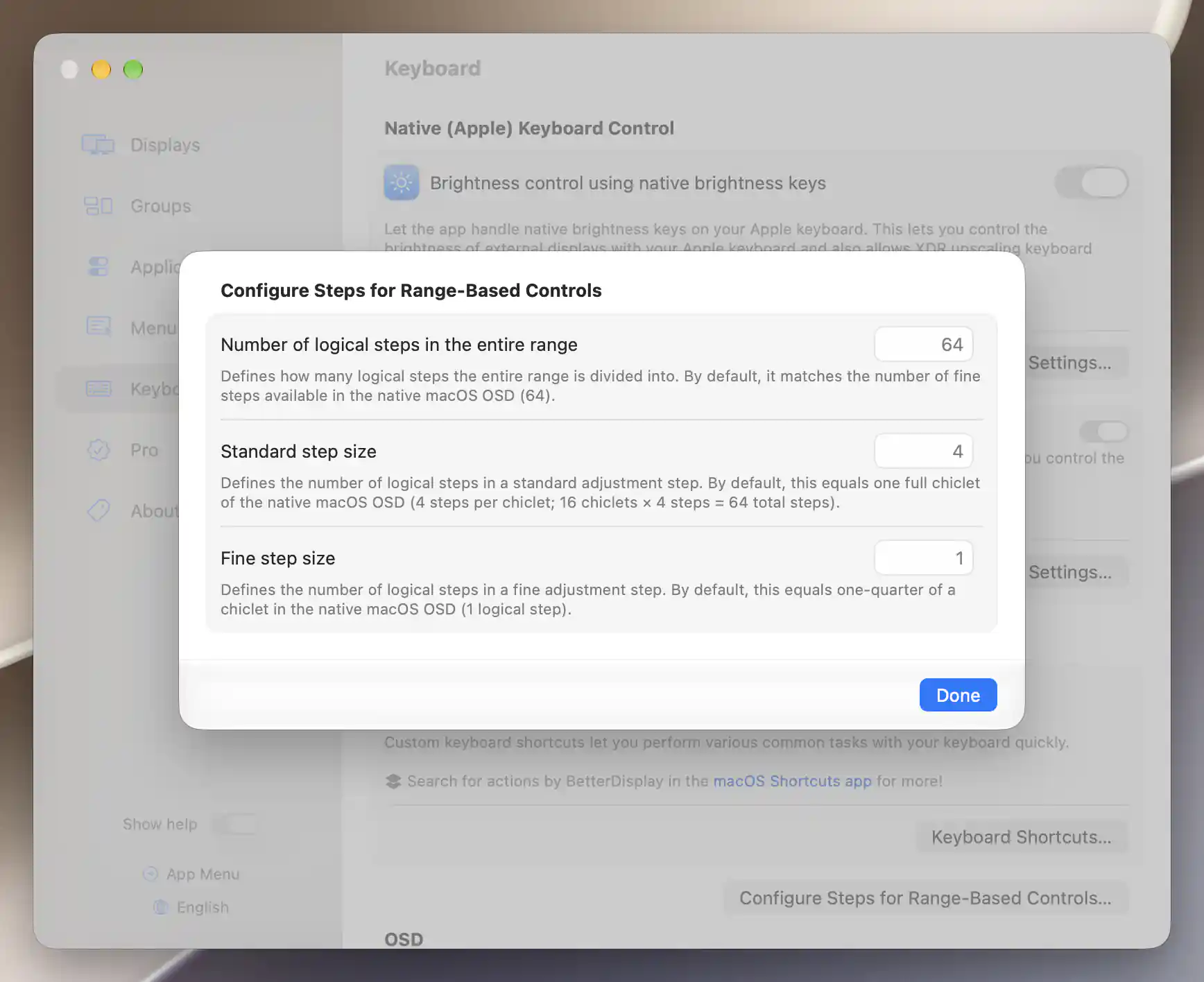
Empty fields show the defaults: 64 logical steps, a standard step of 4 and a fine step of 1.
Range and step sizes
Think of the full adjustment range as a ruler. Number of logical steps in the entire range sets how many equal intervals that ruler has; its default is 64. Standard step size and Fine step size then say how many of those intervals to move with one adjustment.
The defaults are 4 for a standard step and 1 for a fine step. With the default 64-interval range, this means one standard adjustment moves one-sixteenth of the full range, while one fine adjustment moves one-sixty-fourth. To make standard adjustments smaller without changing the fine step, for example, you can reduce the standard size from 4 to 2 and leave the other two fields unchanged.
The familiar segmented OSD has 16 segments, sometimes called chiclets. At the defaults, one standard step corresponds to one segment and one fine step to a quarter segment. These segments are a visual guide: changing the logical range does not add segments to the OSD.
Editing and restoring defaults
Enter a whole number in the field you want to change, then press Return or move to another field to save it. You can use Tab to move between the three fields. Your choices are saved independently and persist across app launches; there is no separate Apply button.
To restore a default, clear that field. The displayed default then takes the place of your override, without changing the other two settings.
Fine adjustment and physical limits
For native brightness and audio keys, hold Shift+Option when you want a fine change. If you have enabled Make fine scale default for those keys, the relationship is reversed: ordinary presses are fine and Shift+Option gives the standard size. Custom shortcut rows labeled fine scale always request the fine increment.
These settings describe a requested change, so the result also depends on the device. A monitor may round the request to a level it supports. A controller that offers only volume-up/down commands cannot promise an exact fine increment at all. Increasing logical precision therefore does not guarantee finer physical output.
Resolution and crop shortcuts use their own adjustment behavior. Changing this sheet does not turn those actions into percentage adjustments.
See Native (Apple) Keyboard Control, Custom Keyboard Shortcuts and OSD.
Additional information
This section explains which features require Pro and how availability differs between Mac platforms.
Features requiring Pro license
Configuring standard and fine step sizes does not require Pro. A shortcut or display feature using those steps may have its own license requirement.
Platform compatibility
All features described on this page are available on both Apple silicon and Intel Macs. The precision of the resulting adjustment still depends on the display, audio device and available control method.