Native (Apple) Keyboard Control
The brightness, volume and mute keys are often the quickest way to adjust your setup. Letting BetterDisplay handle these native keys extends that familiar workflow to controllable external displays and to brightness ranges beyond Apple's ordinary controls. You can choose when BetterDisplay takes over, while leaving macOS in charge in other situations.
Where to find it: Settings > Keyboard > Native (Apple) Keyboard Control. Open Native Brightness Key Settings… or Native Audio Key Settings… for the corresponding options.
Start by granting the system permission below, then check that the relevant key switch is enabled and its status says BetterDisplay is listening. These are separate from display support: even a key that BetterDisplay handles can only make an adjustment when the selected display or audio device provides the necessary control.
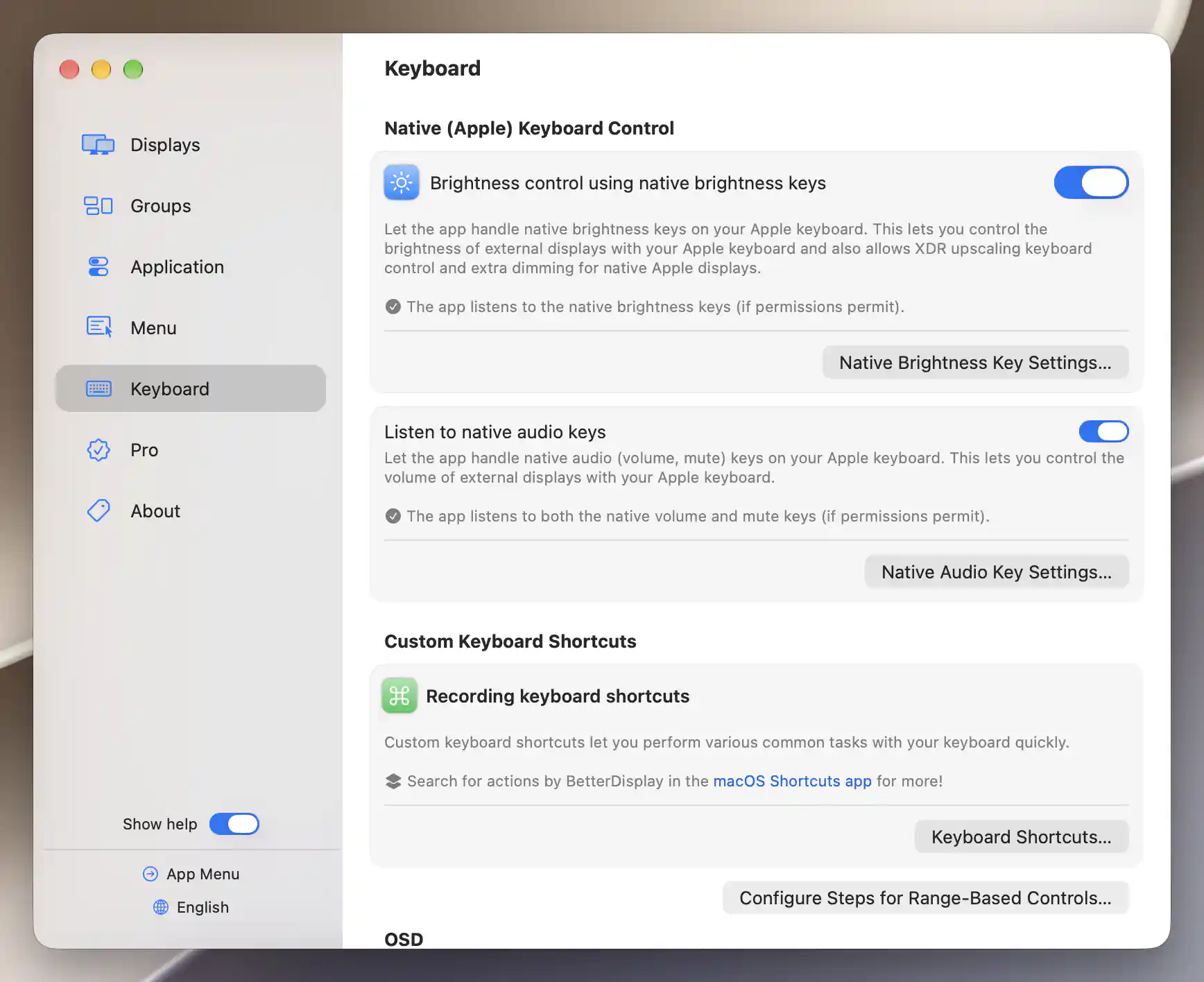
Native brightness and audio keys are enabled; each section shows its listening status and settings button.
Permission setup
BetterDisplay needs permission to handle native keys. If it is missing, open Set up Accessibility Permissions…, or Set up Device Control and Data Access… on macOS 27 and later. The sheet tells you which step remains:
- Accessibility Configuration Required!: select Configure Accessibility, then authorize BetterDisplay under System Settings > Privacy & Security > Accessibility, or Device Control and Data Access on macOS 27 and later.
- Accessibility Configured - App Restart Needed: permission has been granted since the app started. Select Restart BetterDisplay, or close and reopen the app when convenient.
- Accessibility is Configured Properly: permission is available. If keys still do not work, check the enabled switches, listening status and target selection; the sheet also suggests restarting the app.
The status updates while the sheet is open, and an Apple permission-help link is available if you need guidance. Granting permission and restarting when requested completes the setup; it does not require you to change the individual keyboard options.
Native brightness keys
Enable Brightness control using native brightness keys to let BetterDisplay handle brightness adjustments. It is enabled by default. The status underneath tells you whether the app is listening, subject to permission; turning the switch off disengages the brightness keys and hides the settings-sheet button.
Open Native Brightness Key Settings to choose when BetterDisplay should take over. The default, A controllable display is present, is useful when you want the same keyboard behavior throughout your setup. A display with hardware, software or combined brightness control is enough to engage it.
Choose A display is present which is not fully controllable without the app if you want macOS to keep its ordinary behavior whenever all applicable brightness controls are ordinary Apple controls. When macOS retains the keys, BetterDisplay's target-display and fine-scale preferences do not change what those keys do.
Alternative keys and smaller adjustments
Allow using F14/F15 as alternative brightness keys is enabled by default. This can make brightness adjustment convenient on a keyboard without the usual Apple brightness keys: F14/F15 correspond to Scroll Lock/Pause on some PC keyboards and to brightness keys on some Logitech keyboards.
Native audio keys
Listen to native audio keys lets BetterDisplay handle volume and mute and is enabled by default. Its status distinguishes listening to volume and mute together, listening to volume only, and disengaged handling. This helps explain, for example, why volume works through BetterDisplay while mute remains with macOS.
In Native Audio Key Settings, choose when BetterDisplay should assume control:
- Current audio device matches a controllable display's name is the default. This keeps interception tied to a matching display sound output and also respects the display's configured audio name/identifier override.
- Current audio device has no native volume control takes over when the output has no native volume control and a display with suitable volume controls is available.
- There is at least one controllable display connected listens whenever a display supports volume adjustment, regardless of the current output's name.
- Always listens regardless of connected display controls. The operation still needs somewhere suitable to send the adjustment.
Handle devices with native volume control is enabled by default. It allows the current macOS audio device to act as a fallback when the display operation cannot supply ranged volume or stateful mute control. In other words, BetterDisplay can still use the system's own control when it cannot set the corresponding level or mute state on the display.
If a display's mute behavior is unsuitable but macOS can mute the digital audio stream, enable Leave mute key under OS control. This option is off by default and lets you keep BetterDisplay's volume handling while handing mute back to the system.
If the display’s volume works but mute does not, follow Fix mute and unmute on an external display to test this macOS workaround and the display’s hardware alternatives.
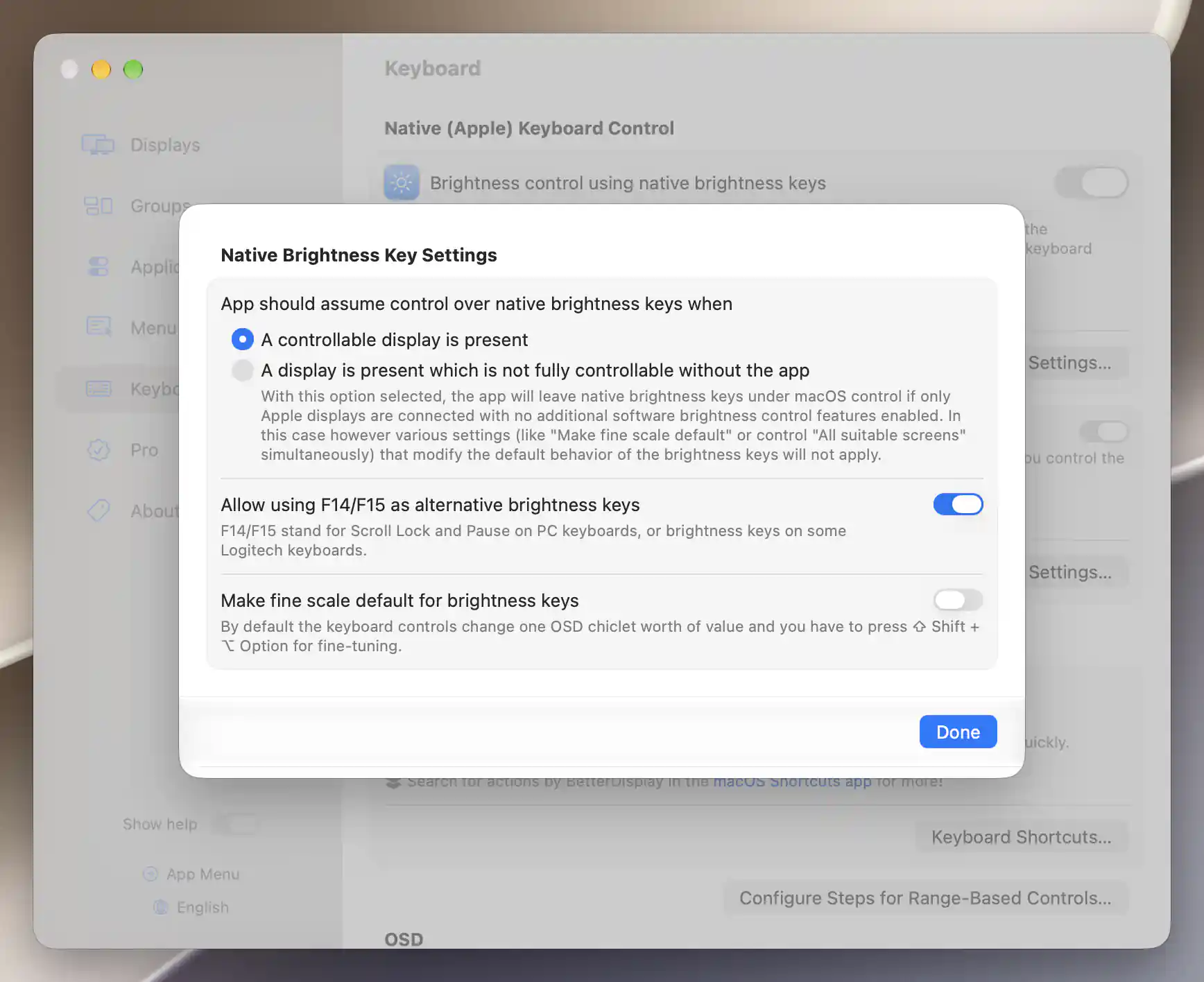
Brightness-key settings choose when BetterDisplay handles native keys and how standard and fine adjustments work.
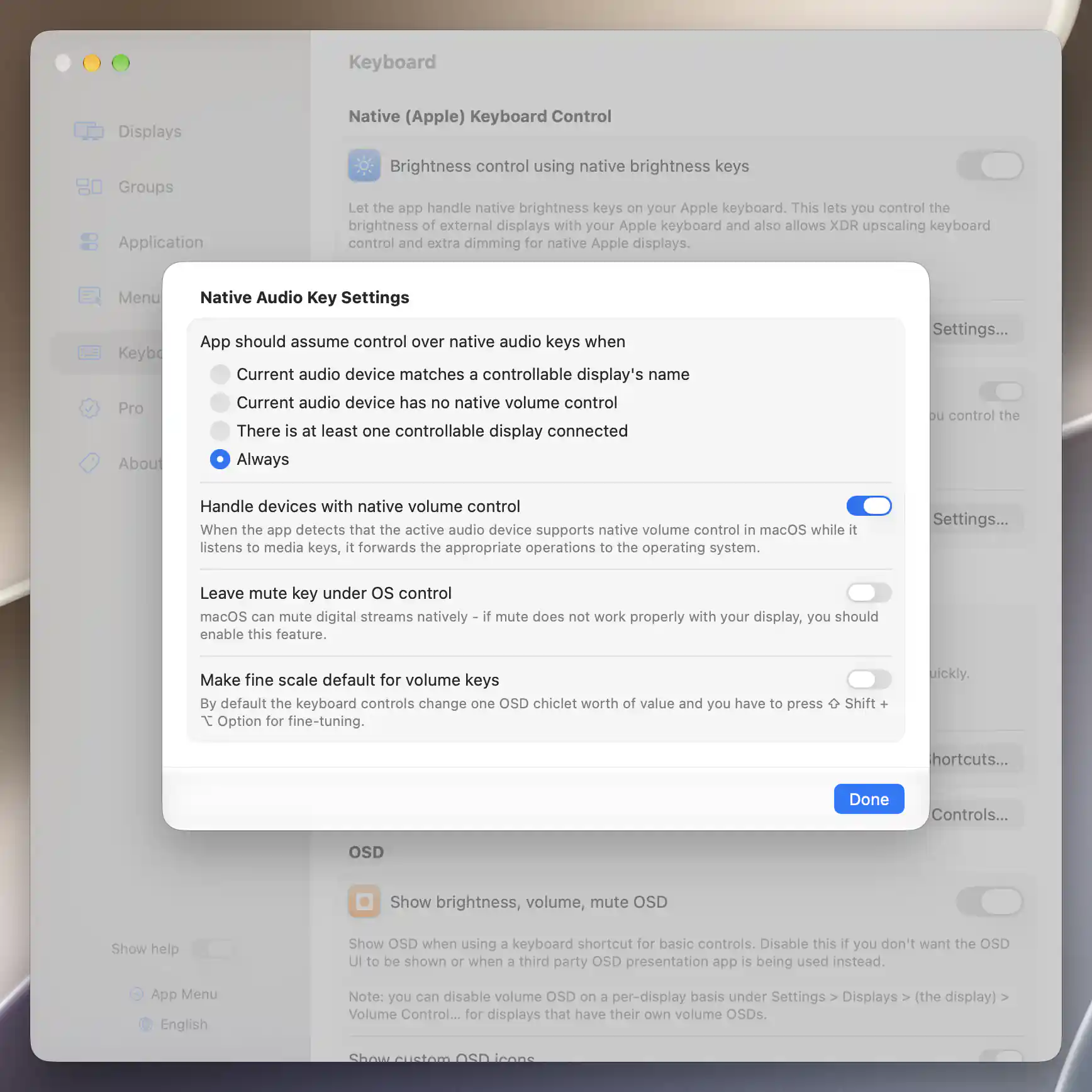
Audio-key settings define when BetterDisplay handles volume keys, native-volume devices and mute.
Modifier-key actions
Once the ordinary controls work as you want, modifier keys provide quick, temporary variations. The following actions apply only while BetterDisplay handles the native keys:
| Keys held | Effect |
|---|---|
| Shift+Option | Fine adjustment, or standard adjustment when fine scale is the default. |
| Shift without Option or Command | Skip group synchronization for brightness, volume and mute. With All suitable screens selected, use the screen under the pointer for this operation. |
| Control with a brightness key | Target the built-in display. |
| Control+Command with a brightness key | Target external displays, excluding BetterDisplay virtual screens. |
| Shift+Command with a brightness key | Target displays outside the current display and its mirror/stream target set. |
| Option alone with brightness or audio keys | Open the macOS Displays or Sound settings respectively. |
| Command alone with brightness-down | Break existing display mirroring; otherwise mirror displays to the first available external display. |
All suitable screens takes precedence over the built-in, external and other-display brightness overrides unless synchronization is skipped. The other-display override can include displays whose ordinary keyboard-control switch is disabled. Use that combination deliberately.
Volume feedback is played on key release when applicable. Saved keyboard preferences take effect without an Apply button; permission changes may still require the restart described above.
See Target Displays, Configure Steps for Range-Based Controls and OSD.
Additional information
This section explains which features require Pro and how availability differs between Mac platforms.
Features requiring Pro license
- Brightness upscaling reached through the brightness keys.
- Custom display groups and group synchronization of contrast, volume, mute or separately selected hardware/software brightness controls.
Ordinary native brightness, volume and mute handling, its policies and modifier-key actions do not require Pro. Basic Brightness synchronization in the default group remains available without Pro.
Platform compatibility
Native-key handling and its settings are available on both Apple silicon and Intel Macs, subject to the required system permission and suitable display/audio controls. The permission route is Accessibility on earlier macOS versions and Device Control and Data Access on macOS 27 and later.
Extended brightness depends on the display and control method. Software HDR/XDR upscaling through a color table requires Apple silicon; an Intel Mac needs a supported alternative such as overlay upscaling. Direct XDR Upscaling depends on a compatible built-in Apple display and its available preset/control capabilities.