Volume Control
A display's volume control can adjust its own speakers through a hardware controller, or adjust an associated native macOS audio device. This sheet helps you see which method is available, choose how supported mute operations work, and connect the display to the intended sound output. It also controls the display's keyboard volume feedback.
Where to find it: Settings > Displays > [display] > Device Control > Volume Control….
Available controls depend on the active controller and what it supports. Changes save per display without Apply; closing the sheet does not discard them.
Feature Availability
Start here to see what BetterDisplay can request through the selected method. Volume control says Enabled for a volume-level control, Enabled (up/down only) for relative commands, or Disabled. Mute control similarly shows Enabled, Enabled (toggle only) or Disabled.
These distinctions matter when using a slider or asking for a definite mute state. Up/down commands do not supply an absolute volume percentage, and a toggle-only command does not report whether the device is already muted.
Controller names the selected volume-level controller, or the up/down controller if no level control exists. It is a status field, not a selector; choose methods through Device Control. Volume and mute availability are checked separately.
Mute and unmute methods
Devices can respond differently to “set the volume to minimum” and “mute.” These preferences let supported controllers combine the two operations in the order your device needs. The three groups appear when stateful mute is available and native association is off.
DDC, custom Control Integration and the Yamaha AVR integration use these choices. Other stateful controllers, including LG webOS and Philips TV, may show the groups while continuing to use their own fixed volume/mute behavior; the choices do not rewrite those protocols.
Choose a Mute Method according to whether the device needs a minimum-volume write, an explicit mute command, or both:
- Set volume level to lowest setting first, then issue mute command, the default. It combines a minimum-volume write with an explicit mute command, in that order.
- Issue mute command first, then set volume level to lowest setting, reversing those operations.
- Set audio volume to lowest setting only, avoiding a separate mute command.
- Issue mute command only, leaving the volume setting alone.
“Lowest” means the configured volume range's minimum, which is not necessarily silence on every device. A separate mute command requires working mute support. When the DDC/integration path lacks a usable mute action, it can use minimum-volume control as its fallback.
The Unmute Method similarly determines how the volume level and explicit unmute command are combined:
- Set volume level first, then issue unmute command, the default.
- Issue unmute command first, then set volume level.
- Set audio volume level only, avoiding a separate unmute command.
- Unmute only (except for volume change induced unmute, when set volume as well). Explicit unmute leaves the hardware volume unchanged; a volume adjustment that releases mute also writes that adjustment.
Follow the mute and unmute tutorial to choose and test a sequence for your monitor, including its separate behavior at 0%.
Which level returns after mute
The restored level depends on the controller and the value retained at mute time. DDC uses its remembered last-mute volume when present. Control Integration uses the current nonminimum value first, falling back to the remembered value.
With DDC, the first adjustment while muted can therefore restore the remembered level instead of immediately applying the new level you requested. The unmute-only option is the exception when a volume change releases mute: it explicitly writes that adjustment. Do not assume that muting at 0% retains a previous audible level.
What happens at minimum volume
When Volume Reaches 0%… defaults to Use mute/unmute methods, making the configured minimum a mute operation in the paths above. Set volume to lowest setting writes the minimum without automatically invoking the mute sequence. Either way, the device can still have its own reaction to a minimum-volume setting.
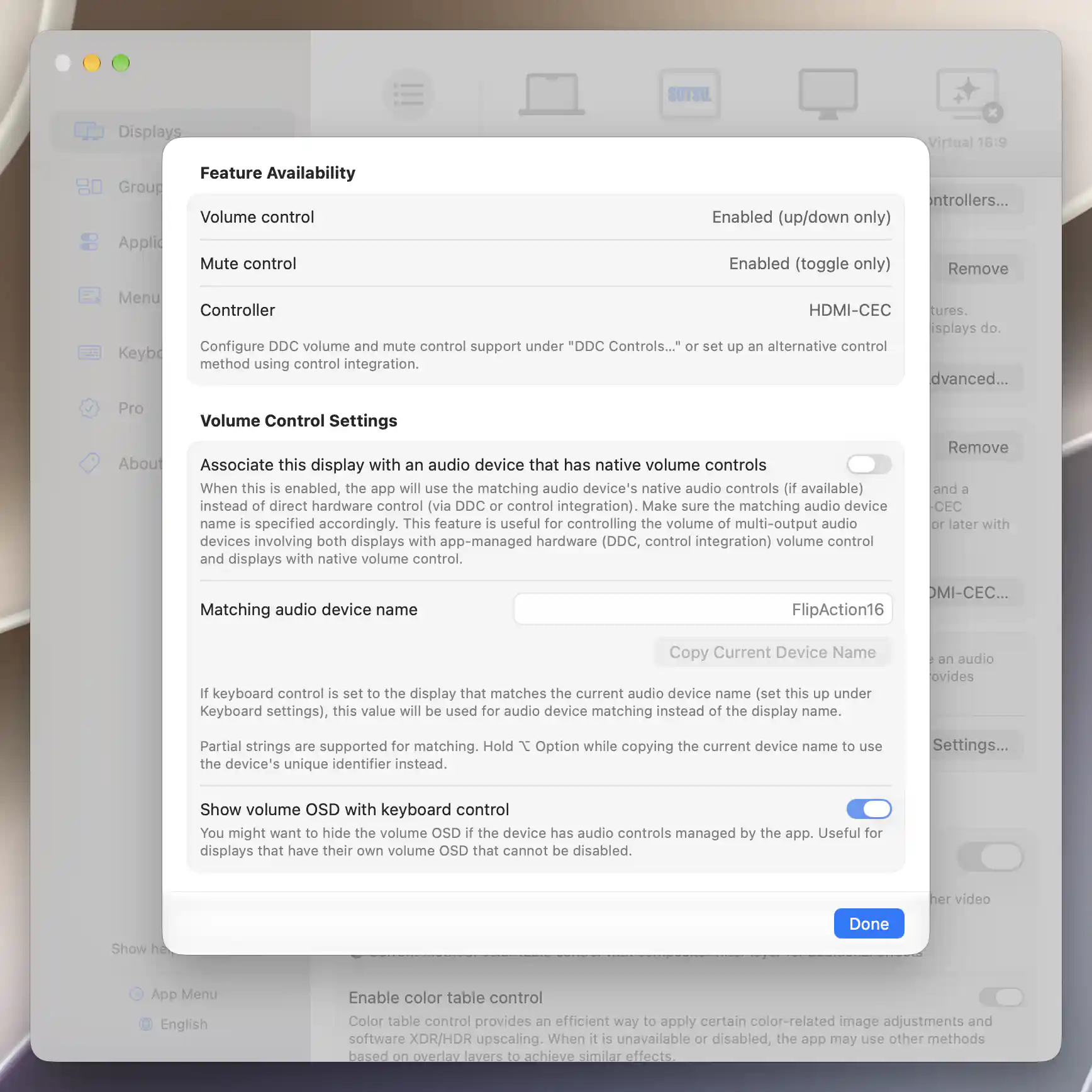
A command-only controller exposes up/down and mute-toggle controls; its configuration does not verify the connection.
Associate a native audio device
Enable Associate this display with an audio device that has native volume controls when you want the display's volume and mute controls to use a macOS output instead of the hardware volume path. The option defaults to off. Enabling it immediately refreshes controller selection and menu controls, but does not change the Mac's current output or create a multi-output device.
The field becomes Associated audio device name. Enter the intended output's name or UID. This can help you coordinate native-volume devices alongside display speakers controlled by DDC or another integration.
The output needs writable native volume control. Mute is a separate capability, so volume can work even if native mute does not. On this path, a native volume change above minimum requests unmute, while setting minimum requests mute when supported. The DDC/integration method groups are hidden.
Copy Current Device Name fills the field with the current default macOS output's name. Check that this is the device you intend to associate; the Mac's current output may be different. Text edits commit with Return or when focus leaves the field, and Escape restores an uncommitted edit.
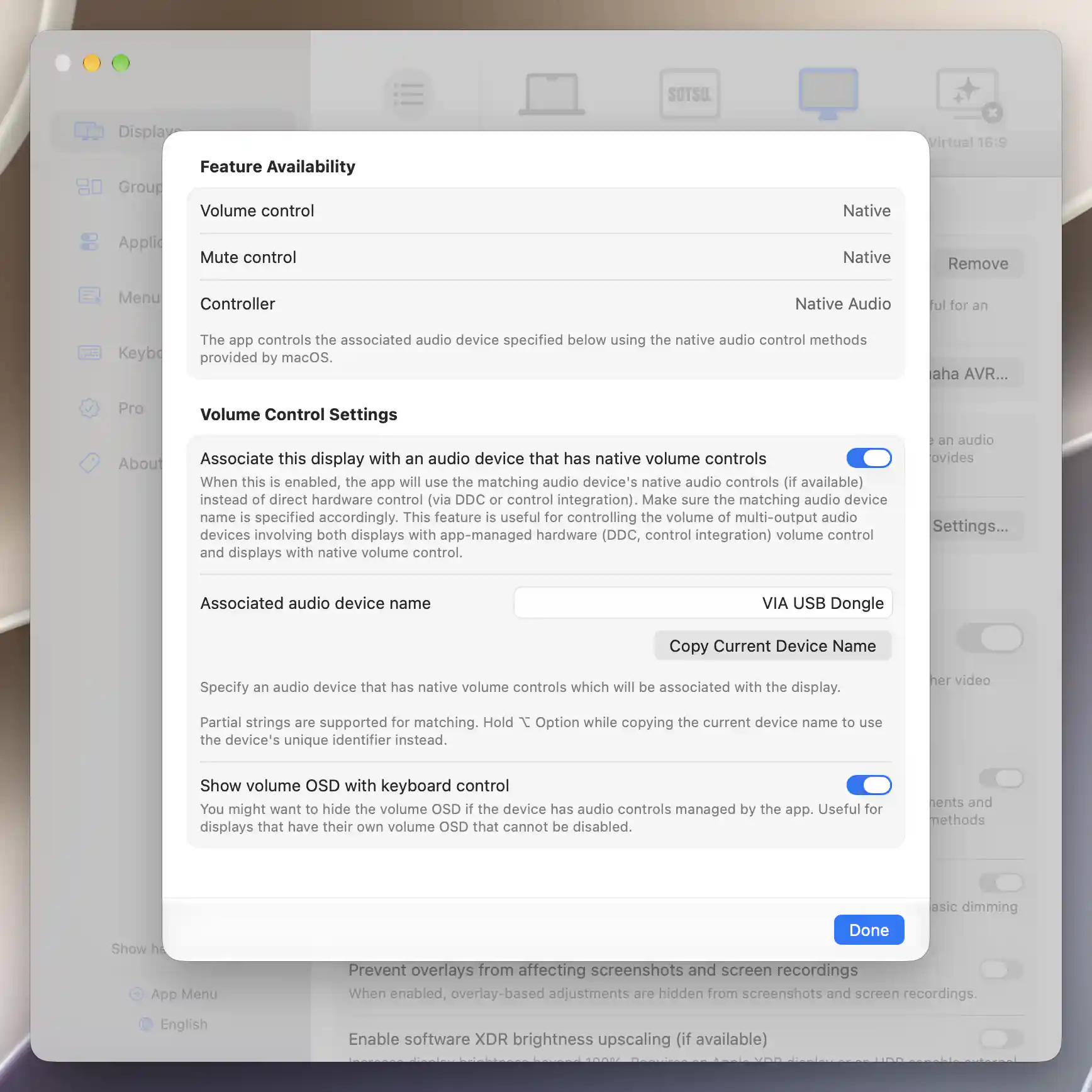
Native association uses the named audio output and macOS volume controls. Hold Option when selecting Copy Current Device Name to copy its UID.
Matching and unavailable outputs
Use a distinctive full name or UID where possible. Partial strings work, but the native matcher does not reject ambiguous matches. It first tries names, ignoring letter case, spaces, parentheses and digits. It prefers an exact normalized name, then the first partial name match. Only if no name matches does it try a case-insensitive exact or partial UID.
Names differing only in model numbers can therefore collide. Even a UID has no unconditional priority over a matching name.
For a nonempty specified value, The specified audio device is not found or currently unavailable means that no output resolves at that moment. The specified audio device does not have native volume controls appears when native association resolves an output but it lacks native volume support. A match and Native status still do not confirm mute support, and these messages do not change the Mac's selected output.
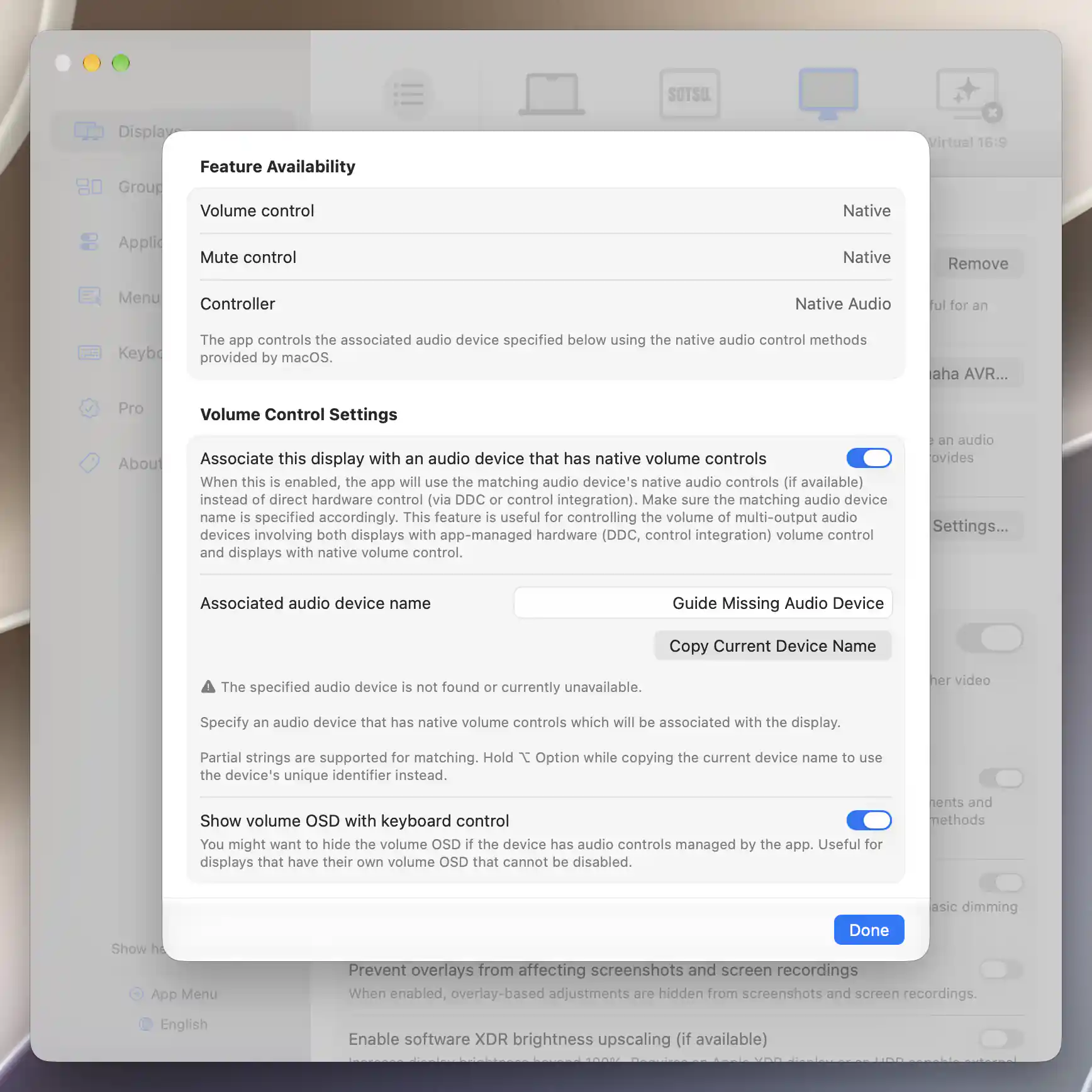
Native describes the selected method even when the named output cannot be found.
Match the current output without native association
With native association off, Matching audio device name serves a different purpose: it helps Display with the same name as current audio device in keyboard target selection find this display. The volume operation still uses the display's controller; this field does not redirect DDC commands into an audio device.
Leave the field blank to compare normalized names using the display's original product name, rather than its custom displayed name. A nonempty override can match part of the current output's normalized name or UID. Several eligible displays can match the same output and receive keyboard adjustments, which can be intentional in a multi-output setup. Each display must also allow keyboard control and provide the requested control.
Follow the monitor-and-headphone volume-key tutorial to combine this match with the separate listening policy and destination, then check both outputs safely.
Keyboard feedback
Show volume OSD with keyboard control is on by default. Turn it off when the device already has a volume indicator and you do not want BetterDisplay's additional per-display volume/mute on-screen display (OSD). This does not turn off the monitor's own indicator, change the global OSD style, or suppress keyboard handling's separate current-output native fallback.
Feedback sound is independent of that checkbox. It follows the system's volume-feedback preference and applicable keyboard modifiers. When one affected display matches an audio output unambiguously, BetterDisplay can direct the sound there.
Sound routing uses a stricter match than native control. If there is no unique match, it may use the current output. If an explicitly resolved device becomes unavailable, it does not silently redirect that device's sound elsewhere.
Additional information
This section explains which features require Pro and how availability differs between Mac platforms.
Features requiring Pro license
The shared volume, mute-method, native-association and feedback preferences on this page do not themselves require Pro. A selected hardware or integration feature can have its own requirement.
Platform compatibility
All features described on this page are available on both Apple silicon and Intel Macs, subject to the selected audio device and controller. Native volume and native mute are separate capabilities. HDMI-CEC, if used as the underlying command-only controller, requires a supported Apple silicon HDMI path; other hardware and network methods have their own compatibility requirements.