Menu Bar Icon
The menu-bar icon is the usual entry point to BetterDisplay’s App Menu. These settings let you choose its image and alignment, or hide it when you prefer to reach the app another way. The icon can also indicate an available update or that BetterDisplay is preventing display sleep.
Where to find it: Settings > Menu > Menu Bar Icon. Enable Show app icon in the menu bar to reveal Menu Bar Icon Options….
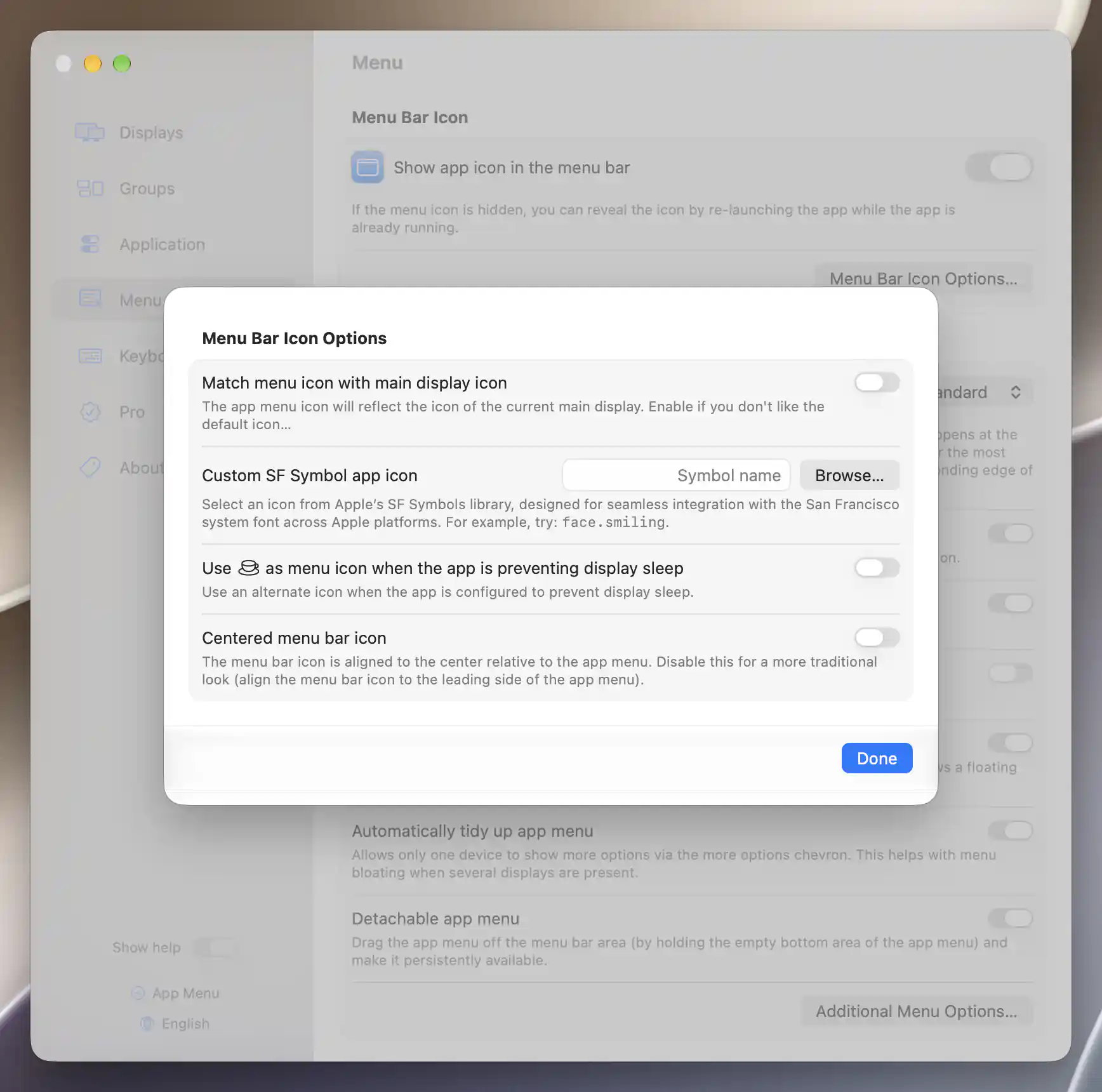
Menu Bar Icon Options with appearance and alignment options.
Visibility and returning to Settings
Show app icon in the menu bar is on by default. Turning it off hides the icon while leaving BetterDisplay running.
If you hide it, reopen BetterDisplay normally from Finder or the Dock to return to Settings, then enable the switch again. The App Menu button in Settings also gives you access to the menu there. Safe Mode forces the icon to remain visible.
When a display also asks to hide the icon
A display’s additional settings can request that the icon be hidden. The notice below the visibility switch warns when a stored display has such a rule, but that warning and the icon’s actual visibility answer different questions.
The display-based rule hides the icon only when every display currently present requests it and at least one such display is present. For example, one display requesting a hidden icon does not necessarily hide it while another display remains present. Remembered absent displays can make the notice appear, but they do not count toward the all-displays check.
Menu Bar Icon Options
Match menu icon with main display icon is off by default. Enable it to use the current main display’s displayed icon, including its linked virtual screen’s icon where applicable. This gives the menu-bar icon a connection to the display currently serving as your main screen.
Choose a custom symbol
Custom SF Symbol app icon accepts an SF Symbols name, such as face.smiling. Select Browse… to open the shared symbol picker, search for a symbol and choose it. The selection takes effect immediately; Done closes the picker, and Remove clears the custom choice.
The symbols available in the picker depend on macOS. If you type an unrecognized name, the icon falls back to a dashed rectangle. Clear the field to return to main-display matching, if enabled, or to the usual BetterDisplay icon.
Status icons and priority
A status indication can temporarily take the place of your chosen image. BetterDisplay uses this priority order:
- The alternate sleep-prevention icon, when enabled and the app is actively preventing display sleep.
- The update-available app icon.
- Your nonempty custom symbol.
- The main display’s icon, when matching is enabled.
- The usual BetterDisplay icon.
The sleep-prevention option is labeled Use … as menu icon when the app is preventing display sleep, with a cup icon in its label. It is off by default. Enabling it changes the status indication only; it does not turn sleep prevention on.
Align the attached menu
Centered menu bar icon centers the icon relative to the attached menu. With it off, the menu uses the traditional leading-side alignment. The option is off by default and unavailable while Sidebar presentation is active.
All of these icon preferences are saved without a separate Apply step. See Menu Appearance & Behavior for Standard and Sidebar presentation.
Additional information
This section explains which features require Pro and how availability differs between Mac platforms.
Features requiring Pro license
No Pro license is required for the icon visibility, symbol, status-indication or alignment preferences on this page. Changing an icon does not enable the underlying display or sleep-control feature it represents.
Platform compatibility
All features described on this page are available on both Apple silicon and Intel Macs. The symbol library depends on the installed macOS version. Centered alignment applies to the attached Standard presentation and is unavailable while Sidebar is active.