Stream Selected Content
Stream Selected Content puts one or several application windows into a separate window that you can position and adjust. Choose the content through the macOS content-sharing picker, then use the stream's settings to adjust its size and appearance. This lets you work with selected windows without duplicating an entire display.
Where to find it: App Menu > Tools > Stream Selected Content. After selection the entry becomes Stream [application name] or Stream Multiple Selections. Configurations with the same kind of source receive numbered titles. Right-click or Control-click the output for its context menu.
To keep one reference window visible above your work, follow Keep a chosen app window visible while working elsewhere.
macOS controls access to the selected content, so follow its sharing and permission interface. BetterDisplay offers single-window and multiple-window selection in the picker and excludes its own windows. The system-owned labels can vary with macOS.
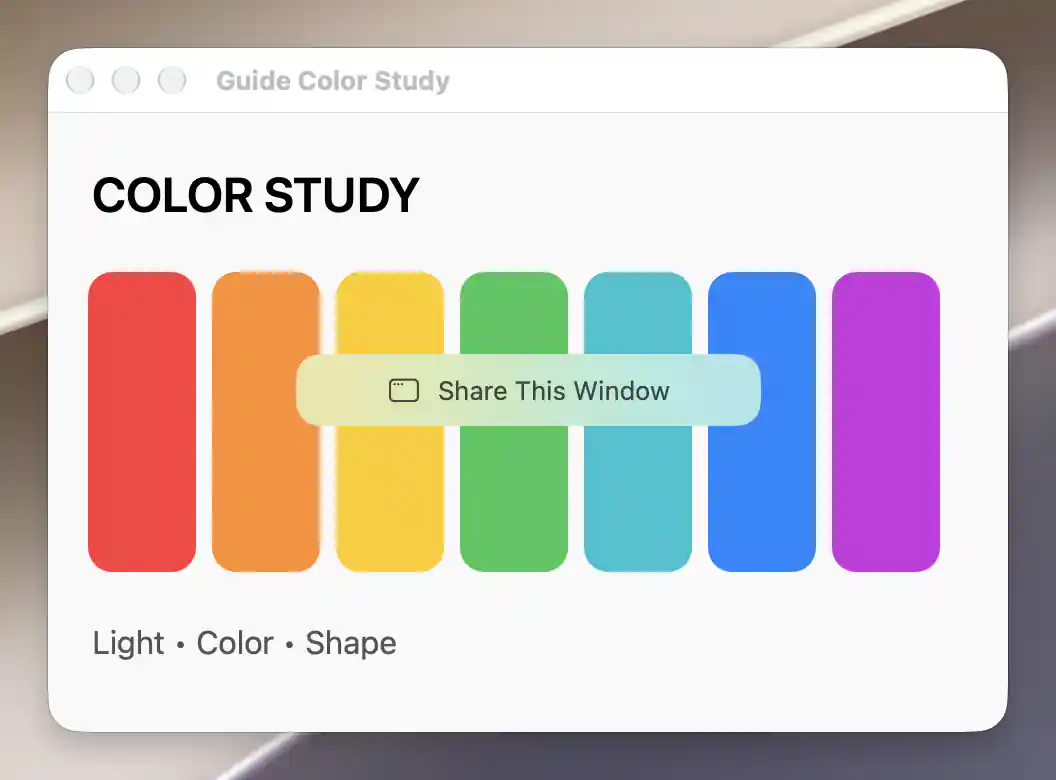
Source Selection opens the macOS picker so you can choose a window to stream.
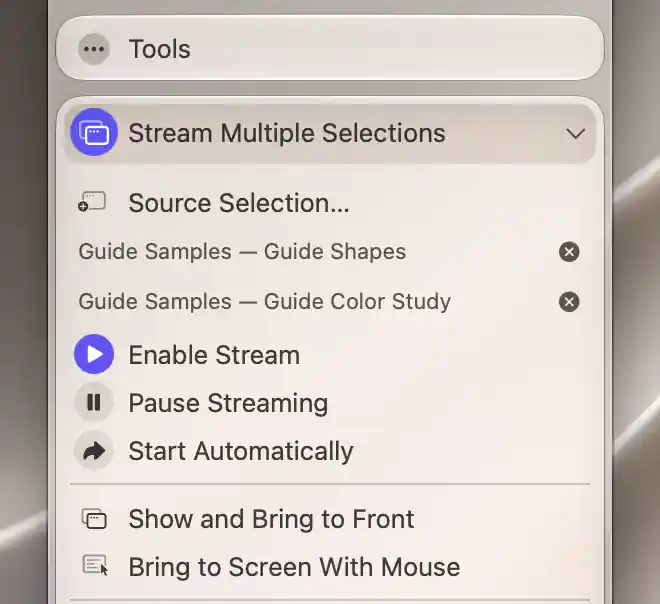
The source list identifies each selected window and lets you remove an individual selection.
Choose, restore and remove sources
Open Source Selection… and choose the window or windows you want to show. Accepting a nonempty selection starts the stream. If it is already running, the new selection updates that stream instead; cancelling leaves the previous saved selection in place.
While you choose, an attached App Menu hides and then returns when selection finishes. A detached menu stays open. You can reopen the picker at any time to change a running stream's content.
The menu lists each selected source by application name and window title. When the list is empty, it shows No source selected, and Enable Stream opens the picker for you.
Remove a source
Use the cross beside a source to remove it immediately, without confirmation. If other sources remain, the stream keeps those selections and refreshes its content. Removing the last source also stops the stream and clears its saved selection.
Restore a saved selection
Selections are saved so you can return to them later. BetterDisplay first tries to find the same window. If that is unavailable, it looks for a unique matching title in that application. As a final fallback, it can use the application's sole remaining candidate when only one selection was saved for that application.
This matching avoids guessing between several candidates. A source that cannot be resolved is marked MISSING, while other selected windows that can be found may continue. Reopen Source Selection… if a window was closed, replaced or cannot be distinguished from another. Source availability continues to refresh while the App Menu is open.
Start and manage the output
Enable Stream starts or stops this configuration. Use Pause Streaming to hold the captured image, then select it again to return to live capture.
Enable Start Automatically if you want BetterDisplay to attempt to restore the saved source when the app starts. This preference is initially off and also supports recovery after an unintentional stop around sleep and wake. Without a saved selection, it does not open the picker automatically.
Find or move the stream window
For active output, Show and Bring to Front restores the window's presentation. Bring to Screen With Mouse moves it to the pointer's display using its saved relative geometry. Both are App Menu actions. Position, size and window preferences are remembered separately for each configuration.
Choose how the window sits on the desktop
The priority choices control its stacking position:
- Normal Window Priority treats it as an ordinary window.
- Keep Above Other Windows, the default, keeps it above ordinary windows.
- Above Menu, Dock, Spaces places it above those system surfaces. This reveals Show on Lock Screen, initially off.
Title Bar & Window Controls is on by default and cannot be changed while active in full-screen mode. With the title bar hidden, or in full-screen mode, the menu provides Window Controls for bring-forward, minimize/restore, full screen where supported (otherwise window zoom), and hide.
In full-screen mode, the ordinary minimize, zoom and hide actions are disabled. Bring-forward is also disabled in the context menu.
Transparent background and shadows
A content-only presentation removes the surrounding stream-window background so the selected content can stand on its own. To reveal Hide Stream Window Background, first turn Title Bar & Window Controls off. Hiding the title bar initially enables that content-only background, turns on the output window's own shadow, and turns off captured source shadows.
Changing Hide Stream Window Background restarts capture. Turning it on again also selects the same shadow combination: the output's shadow on and captured source shadows off.
Choose which shadow to show
Window Shadow controls the output window's own shadow. To use the captured source's shadow instead, keep Hide Stream Window Background enabled and turn Window Shadow off. Source Content Shadow then becomes available.
Enabling Source Content Shadow hides the ordinary Window Shadow option. Turn the source shadow off to expose that choice again. The two choices are kept separate so both shadows are not applied together.
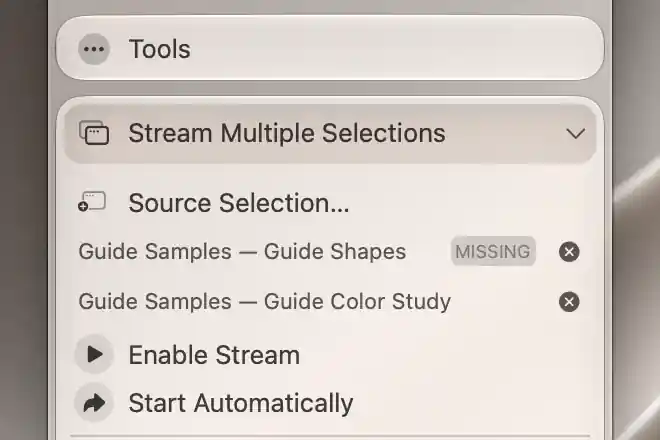
A missing source stays in the selection list until you remove it or make that window available again.
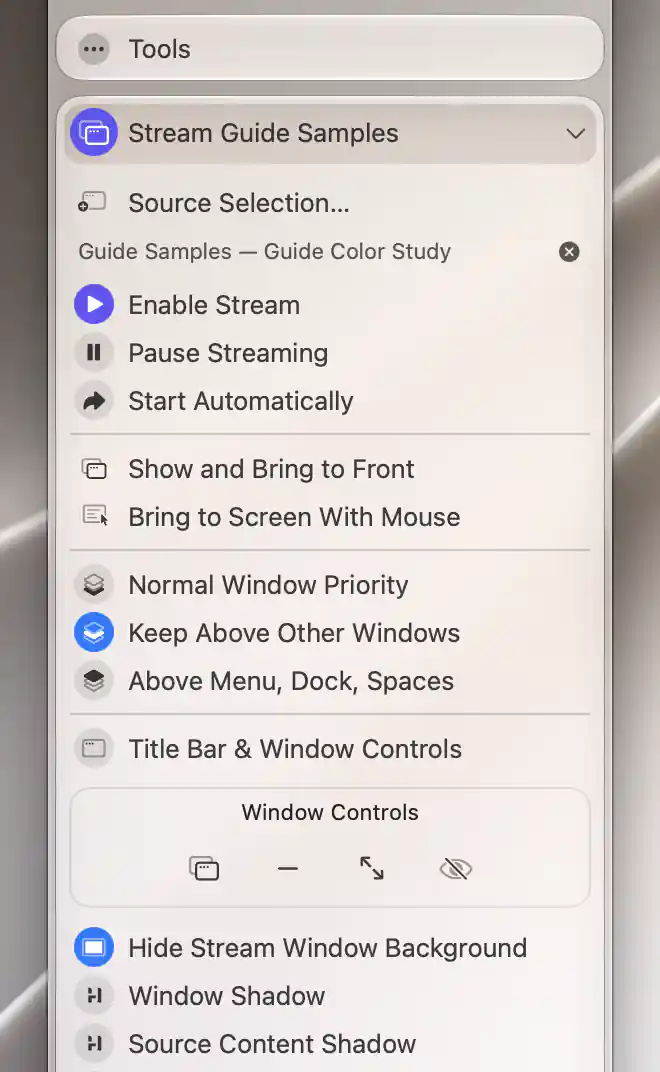
Hide the title bar and turn off Window Shadow to choose whether to include the source content’s own shadow.
Sizing, pointer and image adjustments
Lock Window Position prevents moving the window, and Prohibit Resizing prevents user resizing. Both start off. Free Aspect Ratio, also off by default, lets you change width and height independently instead of preserving the source proportions.
Integer Scaling uses nearest-neighbor sampling to retain hard pixel edges. It starts off and does not enforce whole-number window dimensions; see integer scaling.
Pointer and input
Show Mouse Pointer is off by default for selected-content streams. Mouse Click-through, also off, passes input to the windows underneath and is available only in the App Menu. This stream window does not provide the display-stream pointer-warp command or the PIP tab-management menu.
Adjust the captured picture
Video Filters reveals the shared filter settings. The flip buttons, 90°/180°/270° rotation buttons and rotation reset change this copy of the selected content.
A full-screen presentation exposes horizontal and vertical alignment, which are disabled with Free Aspect Ratio. Zoom appears while the window is actually full screen and ranges from 10% to 300%. Magnification enlarges the content within the window from 100% to 200%, and Alpha changes its opacity from 0% to 100%. All three start at 100%.
Target FPS sets 1–200 captured frames per second or Unlimited (∞), initially Unlimited. There is no display crop selector here: the source selection determines which content is captured.
Keep independent selections and settings
Add Stream Configuration creates another independently saved selected-content stream and appears only in the default entry, even after it is renamed for its source. Additional entries offer Remove Stream Configuration, without confirmation. The menu closes before removal completes; wait until the entry is gone. These commands are absent from the output's context menu.
Merely stopping or hiding a configuration preserves its saved sources, filters and window settings for later use.
Additional information
This section explains which features require Pro and how availability differs between Mac platforms.
Features requiring Pro license
- Selecting sources, starting or pausing output, and changing priority, sizing, appearance and filter preferences.
- Enabling automatic start and adding a configuration.
- Show and Bring to Front and Bring to Screen With Mouse.
Removing a saved source or additional configuration, stopping existing output, disabling automatic start, and the basic Window Controls strip remain available without Pro.
Platform compatibility
Selected-content streaming is available on both Apple silicon and Intel Macs. The shared HDR Filter Pipeline for captured-image filtering requires Apple silicon.
macOS supplies the content-sharing picker and controls access to the selected windows. Its labels and sharing interface can vary with the system; source restoration and multiple-window framing also depend on which windows are available.