Present a desktop and freeze the audience’s view while preparing the next step
Show a desktop on an audience display, hold its last frame while you prepare the next harmless step, then resume. A stream gives you separate pause and visibility controls; ordinary mirroring follows the source continuously.
Before you begin
- Keep BetterDisplay running and use two connected, extended physical displays: a visible source desktop you can operate and an unused audience display receiving its image. Neither should be a mirror target. Choose different displays; Self-Stream + Video Filters does not provide this pause workflow. Keep a usable physical recovery desktop visible throughout.
- Prepare two visibly different harmless test views on the source, such as two pages of an approved sample document. Remove private windows and notifications from that desktop. Leave only harmless content on the audience display’s own desktop too: hiding or stopping the stream reveals it.
- Save the existing stream configurations and their actual active, paused, hidden, target and automatic-resume states. Record the original main display, arrangement, current display modes, and any independent protection targets or group rules. Starting a stream can stop a competing stream to the same receiver or a reverse stream, and can move the main display from the receiver to the source. Use an unused receiver rather than interrupting another presentation.
- Record the current Settings > Displays > Overview > Advanced Display Settings… > Switch to native mode for full screen stream target choice. Leave it off for this rehearsal; it defaults off. If it was on, turn off only that choice temporarily and retain its original state. This avoids deliberately requesting a different target mode.
- If your open MacBook’s built-in display is the source or recovery desktop, record and temporarily turn off Settings > Displays > Overview > Connection Management Settings… > Disconnect built-in display when an external display is connected. Keep existing connection safeguards. Record and pause only a proven interfering layout, main-display or automatic group rule, retaining its original target separately.
- Allow BetterDisplay to capture the source screen through the actual macOS request. You can review screen access in System Settings > Privacy & Security > Screen & System Audio Recording; follow any requested relaunch before the rehearsal. Audio-only permission is insufficient. See Apple’s screen-access instructions.
This task uses the source desktop directly and creates no virtual screen. An optional presenter Picture in Picture (PIP) preview is another view of that source, with its own pause state; it cannot prove what the audience is currently seeing. See Create a dedicated desktop for recording and sharing if you need a separate presentation workspace.
Start a separate presentation stream
- Open App Menu > [source display] > Stream Display. Expand the source’s more options if needed. Find its default, unnumbered stream entry: only that entry offers Add Stream Configuration, even if the entry has been renamed. Preserve its existing preferences and target.
- Choose Add Stream Configuration once. Wait for the menu action to finish and find the actual new numbered Stream Display entry. Record that identity; numbering depends on existing configurations. Use this new entry for every action below.
- While the new stream is stopped, keep Full Screen Window Mode off. Keep Resume Stream on Connect off and Show on Lock Screen off. These start off. Leave Prevent Cursor Entering off if it is shown; holding Option or Shift while opening the stream options reveals advanced rows. No pointer restriction is needed.
- Keep Video Filters and Enable Cropping off, with no custom filters or transformations. Leave 1:1 Pixel Mapping, Integer Scaling and Free Aspect Ratio off. Keep Zoom, Underscan and Alpha at 100%, and Show Mouse Pointer on. Keep the default Target FPS of Unlimited; it is a requested capture setting, not a measured performance result.
- Put the first harmless test view on the source, then select the actual audience display in this stream’s target list. Do not select the source itself or a row already receiving another stream. Wait for the first image and any display or menu changes to settle. Look at the actual audience display and confirm it shows the intended source.
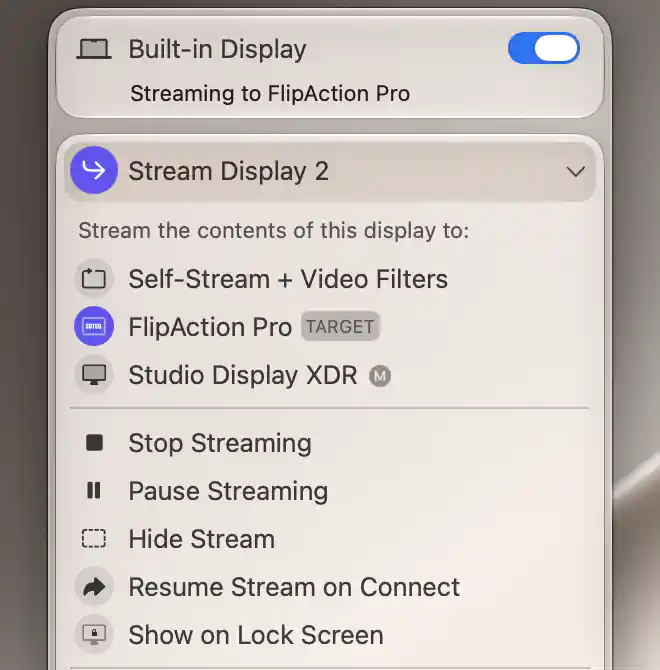
Use the source’s own stream entry to control the presentation on its selected receiver.
The ordinary stream is an overlay on the audience desktop. Operate the original source desktop for this rehearsal. Moving the pointer over the receiver’s image does not forward a click to the source; see stream mouse interaction if you need to move between the two.
Freeze, rehearse and resume
- Let the first test view become fully visible on the audience display. Open App Menu > [source display] > [new Stream Display entry] > Pause Streaming.
- Reopen that same entry and confirm its action now says Unpause Streaming. Change only the harmless source document to the second test view. Observe the physical audience display: it should still show the first view. A changed label alone is not this result check.
- When ready to reveal the second view, choose Unpause Streaming in that entry. Wait and verify that the actual audience display now shows the second view and follows subsequent harmless source changes.
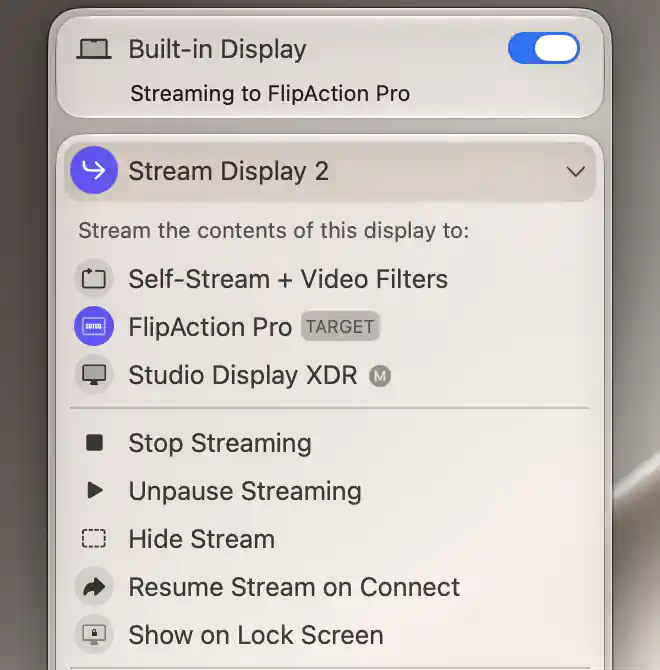
Unpause Streaming resumes this presentation after its held frame has been checked on the audience display.
Hide and Stop have different results
- With both desktops still harmless, choose Hide Stream in the same source stream entry. The overlay disappears and the audience display’s own desktop is exposed. Hiding does not stop capture or freeze a live stream.
- Choose Unhide Stream to bring the overlay back. Its pause state is separate: a paused stream remains paused, while a live stream can have changed during hiding. Verify the actual receiver before showing it to others.
- Choose Stop Streaming when you are finished. The overlay closes and the target desktop returns. The configuration stays available, but its remembered resume target is cleared; selecting the receiver again starts a new presentation.
Hide Stream is unavailable in Full Screen Window Mode. This tutorial leaves that mode off. Use Stop Streaming if you need to reveal the target desktop in that mode.
Check the result
Repeat the first-view → pause → second-view → unpause rehearsal before a real session. Check the physical audience output at each stage, including the harmless underlying desktop revealed by Hide and Stop. Confirm that the source stays connected and usable and that no unrelated stream, display mode or arrangement changed unexpectedly. If one did, stop and restore it before proceeding.
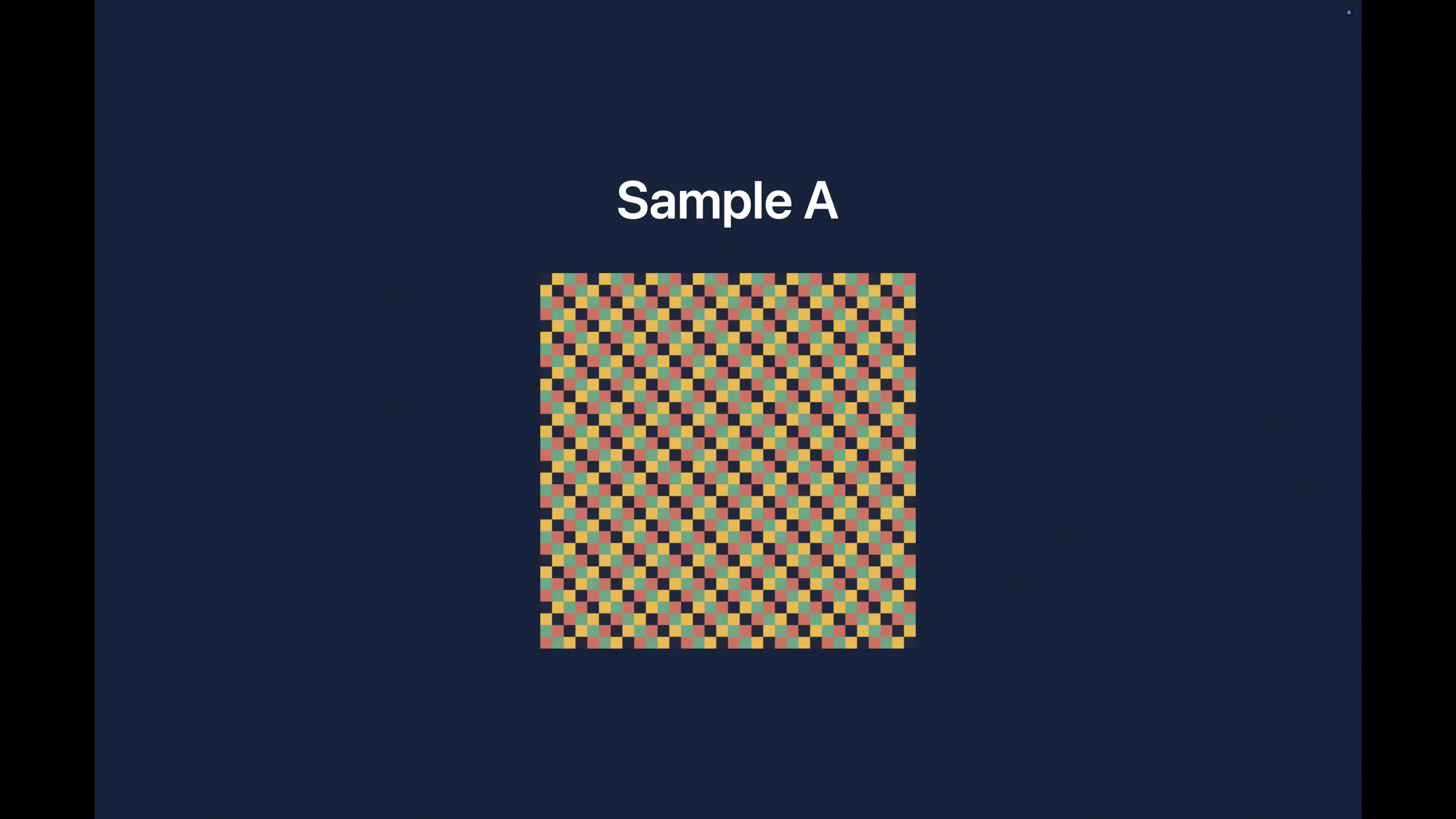
The audience display retains the last captured frame while the source changes; this pause does not stop unrelated sharing or recording.
Optional: a pause shortcut
For repeated rehearsals, open Settings > Keyboard > Keyboard Shortcuts…. Under Full Screen Stream, assign an unused combination to Pause all streams, recording the original binding first. Test it only when every affected view contains harmless material.
This shortcut affects active display PIPs as well as full-screen streams. Within each source display, it uses the first active PIP, then full-screen stream, to choose a common toggled pause state for that source’s views. Different source displays can therefore move in opposite directions when their starting states differ. Selected application-window streams are outside this display-based action. Use the individual stream menu when you need to affect only the presentation.
Stop all full screen streams also stops display PIPs. Avoid that broader action when other views must remain running. See streaming shortcuts for the complete scope.
Troubleshooting
- The audience target is missing: confirm it is connected and not a mirror target, and that the source remains available. Streaming does not create a video connection or wake an unavailable receiver. Keep physical recovery available; do not disable connection safeguards to populate the list.
- There is no Pause action: confirm you opened the active new configuration and selected a different display. A self-stream is the filter workflow, not this presentation. Check the feature availability below.
- The source changes but the audience does not: check for Unpause Streaming and Unhide Stream in the correct source entry. If both states are as intended, stop the trial, verify screen access and start it again using harmless content. Wait for an actual frame rather than assuming target selection completed capture.
- Private work might become visible: stop and verify inactivity before opening it on the source. Keep other live PIPs, streams, meeting apps and recorders in mind. A frozen local audience image does not freeze another app’s capture of the source.
- The receiver’s own windows disappeared: an ordinary overlay covers them. Use Hide Stream or Stop Streaming to reveal the harmless desktop. Starting on a receiver that was the main display can also change the main-display arrangement; compare your original record.
Stop, remove and restore
- Turn off Resume Stream on Connect for the trial entry and stop using any trial shortcut or issuing start, crop, filter, target or mode changes. Let already dispatched starts, capture restarts, native mode/main-display changes and menu callbacks settle. Then choose Stop Streaming again if active and verify that this trial is inactive before changing the source to private content. An earlier Stop alone does not establish that pending work has finished.
- In the actual additional source entry choose Remove Stream Configuration. There is no confirmation dialog: the menu closes and removal follows its queued callback. Wait for that exact entry to disappear. Keep the default and every unrelated additional configuration. Removing the fresh entry clears its trial preferences; Stop alone retains them.
- Remove only the optional trial keyboard binding, or restore its original binding. Restore the source document and windows. Confirm the original main display, arrangement and current modes after all stream callbacks have finished; restore only values changed by this trial. Restore a displaced original stream only to its recorded source, target and pause/hidden/resume state, with safe source content first.
- Restore only individually paused rules and the recorded global native-mode choice. Keep current display values and independent protected targets separate. If targeted ordinary UI cannot recreate both an original current value and a different protected target, leave only that affected rule off, retain the private original record or backup, and report the precise restoration limit. Apply the same caution to an originally absent or nil saved field instead of entering its displayed fallback as an original value.
- After safe physical recovery and stable connections, restore the built-in automatic-disconnect choice if changed. Restore only changed appearance, permission and other fixture preferences; retain screen access used by existing workflows. Do not use global Forget, Reset or Import to undo this presentation. No virtual source was created or needs removal.
Related pages
- Can I freeze a presentation display while continuing to work on my Mac?
- Stream Display / Stream Virtual Screen
- Custom Keyboard Shortcuts
- Keep several cropped desktop views visible
Additional information
This section explains feature availability and platform requirements.
Features requiring Pro license
Starting a full-screen stream, adding an additional configuration, Pause/Unpause, Hide/Unhide and the optional streaming shortcuts require Pro. The streaming preferences used here also have Pro gates. Stopping an active stream, disabling automatic resume and removing an additional configuration remain available for cleanup.
Platform compatibility
BetterDisplay requires macOS 26.3 or later. This ordinary desktop-streaming workflow supports Intel and Apple silicon Macs with a connected usable source and receiver and permitted screen capture. It does not require a virtual screen, a native media-key listener or cursor restriction. Actual capture availability and output must be checked on your Mac.