Keep your monitor arrangement and main display consistent after wake
Keep two monitors on the intended sides of your desk and restore your preferred main display with explicit Layout Protection rules. BetterDisplay saves relationships between displays, such as “right of the left monitor, with their top edges aligned,” and reapplies eligible rules during display reconfiguration.
Before you begin
This example uses two connected monitors in an extended desktop: a left monitor called Desk Left and a right monitor called Desk Right. Desk Left will be the reference and main display; Desk Right will be positioned relative to it. Substitute your own display names and physical arrangement.
- Use displays with independent desktop positions. A target in ordinary mirroring does not have an independent position to protect.
- Keep BetterDisplay running for automatic enforcement. You need Pro or an active trial for the group protections described below.
- Use the same cables, dock connections and Mac ports during initial testing. Stable display identification matters, especially for identical-model monitors.
- No hardware-brightness controller, display-control helper or Screen Recording permission is needed for this layout workflow.
Before editing, record each monitor’s current resolution, orientation, main-display status and arrangement. Open Settings > Displays > [display] > Display Information… and privately note its UUID under Identifiers (the system UUID). Also note which physical monitor and connection it represents. Record any existing group rules, activation settings and protected-main selection you plan to change, plus any enabled Main Status protection under App Menu > [display] > Configuration Protection.
Sketch the desktop rectangles at their logical sizes, including which edges meet. For example, two 1920 × 1080 desktops with aligned top edges place Desk Left at (0, 0) and Desk Right at (1920, 0) when Desk Left is main. Use the logical desktop size rather than panel pixels or centimeters; HiDPI scaling can make those sizes different.
Create a group for your desk
A display group ties the rules to the monitors that belong to this desk.
- Open Settings > Groups > Overview, choose Create New Display Group…, enter Desk layout in Display group name, then choose Create Display Group. Select the new group.
- Keep Enabled on. Under Group Membership, turn off Treat all currently connected displays as group members and select Desk Left and Desk Right in the membership list. This keeps the rule attached to those two saved displays.
- Open Configure Activation Rules…. For this desk, choose All configured group member displays are connected. If a MacBook’s built-in display or another screen will remain connected without joining this group, turn off Only group members can be present. That restriction starts on for a new custom group.
- Review Exclusive display group, which also starts on for a new custom group. Keep it on only if this desk group should prevent lower-priority groups from activating. If you already use other groups, review their activation and priority before choosing which should operate together.
- Close the activation-rules sheet and check the Activation section. It should say Display group is currently active. If it says Display group is inactive, use the explanation below that status to resolve membership or priority conditions before proceeding.
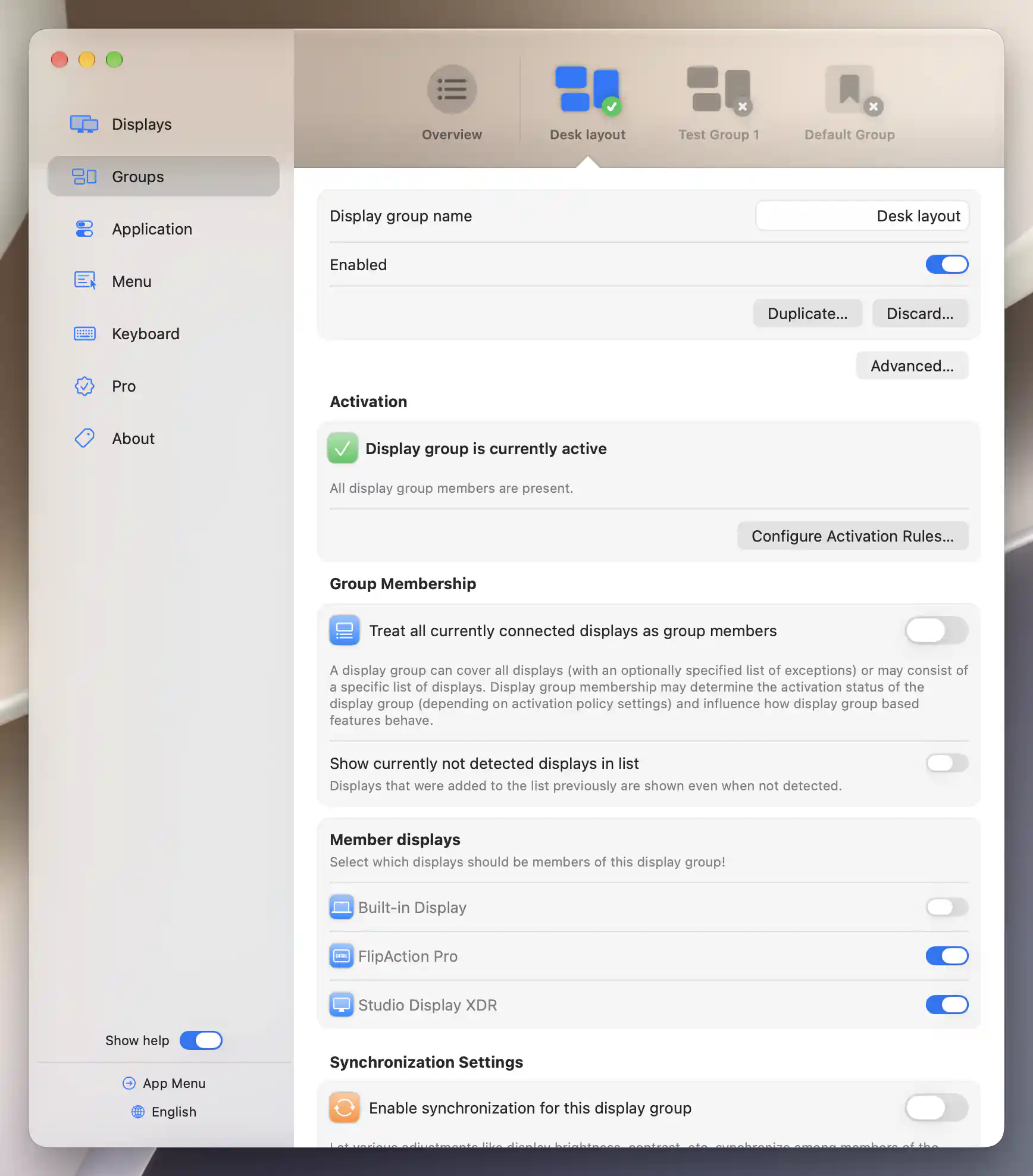
Enable the group, select its real display members and check that it is currently active.
Enabling a group does not take a snapshot of the current arrangement. You will now define the relationship to protect.
Protect the right monitor’s position
- In Settings > Groups > Desk layout > Layout Protection, turn on Enable layout protection. It starts off.
- Choose Add New Protection… > Desk Right without holding Option. This creates a general rule. In its editor, leave Protect the position of Desk Right on.
- Set Arrange Desk Right next to to Desk Left, then set Position of Desk Right to Right of Desk Left. A rule needs both a reference display and a direction; the group switch alone does not define either.
- For centered side-by-side alignment, keep the new rule’s default anchors. For this example’s top-aligned arrangement, turn on Adjust anchor point offsets and move both sliders fully toward Top. Each should show 0% at that edge. The two selected anchor points will line up even when the logical heights differ.
- Choose Apply All Protections. This applies eligible position and main-display protections from all active groups, including any other groups you have configured. Check the two desktop positions before adding more rules.
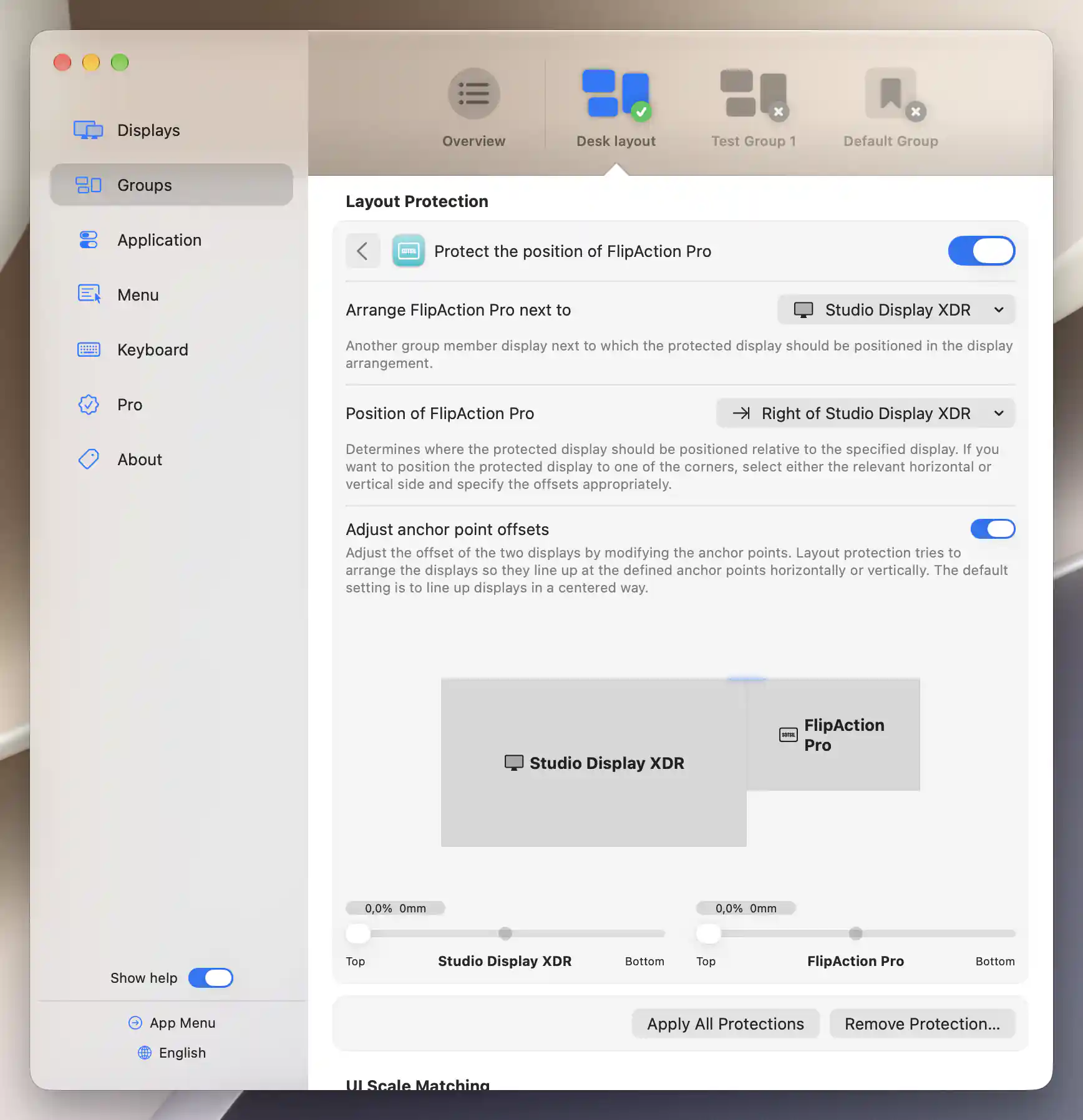
Choose the XDR reference, a right-hand direction and two matching top-edge anchors.
For two monitors, one rule is enough: Desk Right is right of Desk Left. Avoid adding a reverse rule that also tries to place Desk Left relative to Desk Right. For a monitor above the reference, choose Above Desk Left; the default centered anchors keep it horizontally centered, while the offset sliders run Left/Right.
Rules are saved as you edit them; there is no separate Save step. Hiding Adjust anchor point offsets keeps the stored offsets. To return to centered alignment, move both sliders to their centers, where each shows 50%, then hide the editor if desired.
If you rotate a monitor and want a different relationship in each orientation, hold Option while selecting the group in Settings, then open Add New Protection… to reveal portrait and landscape entries. Start with the general rule for this tutorial. An existing matching orientation-specific rule takes precedence over the general rule even when that specific rule is disabled; see the rule-selection explanation before adding variants.
Keep the left monitor as main
- Use the back arrow in the rule editor to return to this group’s Layout Protection overview.
- Set Protect main display status to Desk Left. The initial Unspecified state leaves this choice to macOS or the display’s separate Configuration Protection.
- Choose Apply All Protections again. Confirm that Desk Left is main and Desk Right still occupies its intended side. Main-display protection needs the group to be active, layout protection enabled and Desk Left connected.
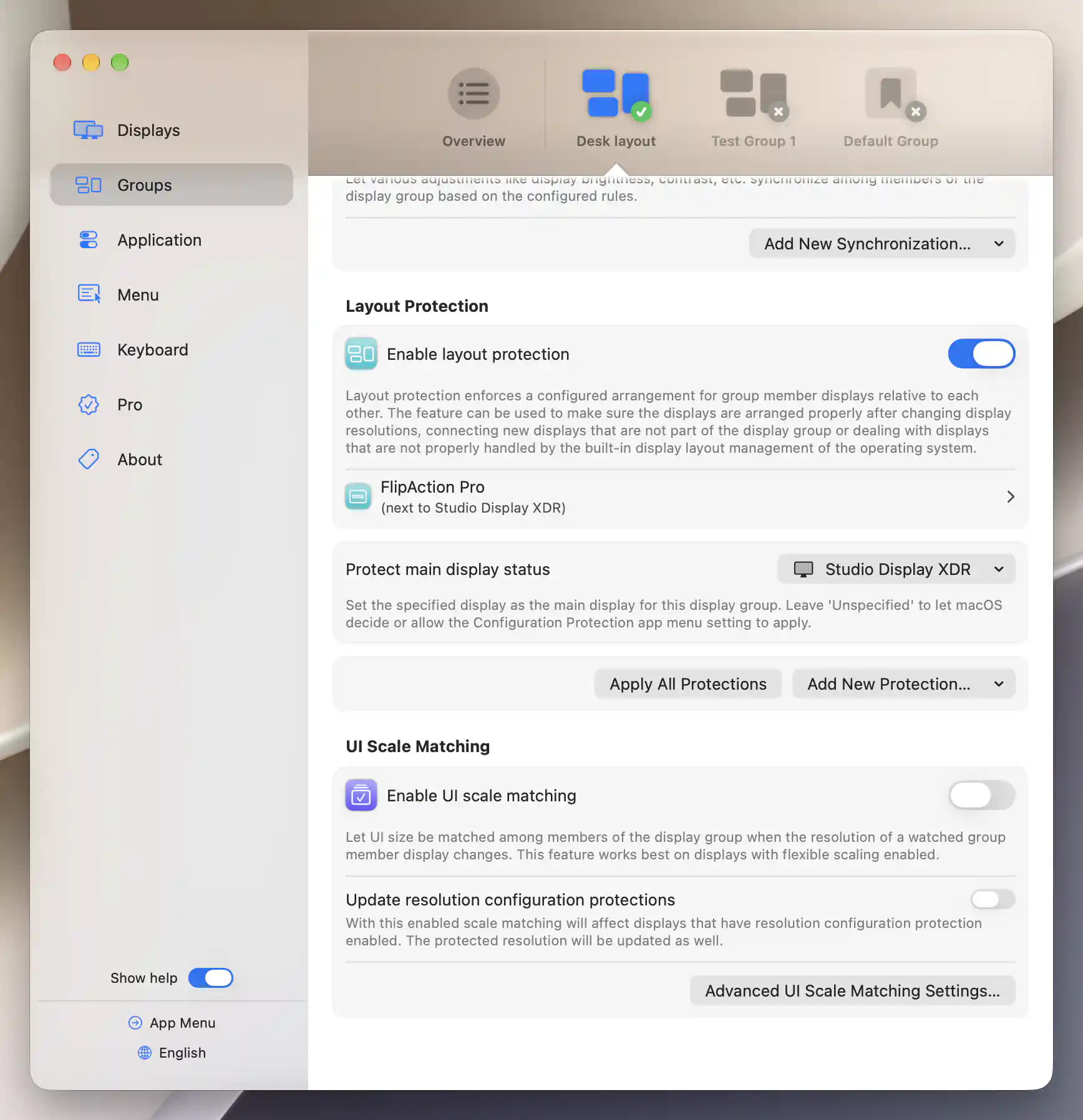
Protect the XDR main-display choice separately, then apply the eligible layout rules.
If applying the group changes which screen is main, BetterDisplay can turn off an existing individual Main Status protection on another connected display. The group’s main-display choice takes precedence; keep your original individual protection recorded for undo.
You have now saved a position rule and a main-display choice. Switching the group off stops its future enforcement but leaves the current arrangement in place.
If the monitors are identical
First make sure Desk Left and Desk Right consistently refer to the intended physical monitors. Different displayed names make the setup easier to read but do not give the monitors distinct hardware identifiers. Numbered suffixes and list order also do not establish which screen is on which side.
- Compare your recorded identifiers after wake or reconnect. If a custom name disappears or preferences switch monitors, follow the identity troubleshooting procedure.
- For an affected existing monitor, open Settings > Displays > [display] > Additional Settings… > Display Identification & Settings Transfer. Record the current Display identification method before changing it.
- If the monitors expose distinguishable extended identifiers, Basic + extended identifiers can use those additional fields. On Apple silicon, Basic + extended + port also considers the port. Keep the same connections when using it: changing a port can change the match. Neither method guarantees that every dock or pair of monitors can be distinguished.
- If the changed method makes the monitor appear as a new record, review Transfer display settings in the identity and transfer reference before transferring the intended old record. Transfer replaces the current display’s settings and forgets the old disconnected record; the confirmation states that this cannot be undone. Recheck this group’s members, reference monitor and protected-main selection afterward.
Missing or duplicate serial numbers can make identical displays harder to distinguish, but identical models do not automatically have identical identities. A stable UUID also does not prove that every layout or mode problem is solved. Change identification only when your observations justify it; the global default in Displays Overview affects newly encountered displays, not these existing records.
Check the result
Test one event at a time with BetterDisplay running. Wait for both monitors to finish connecting and for any mode changes to settle, then check group activation, physical screen identity, the shared top edge, pointer movement across the adjoining edges and the main-display choice.
- Sleep and wake: put the Mac to sleep and wake it. Confirm that the two monitors return to the intended sides and Desk Left remains main. Compare the identifiers if the names or preferences changed.
- Reconnect: disconnect and reconnect the desk’s dock or one monitor using the same ports. With the selected all-members activation rule, the group is expected to become inactive while a member is absent. Check that it becomes active and restores the relationship after both return.
- Change resolution: choose another supported resolution for Desk Right through App Menu > Desk Right > Display Mode. Confirm that its left edge still adjoins Desk Left’s right edge and both top edges line up. Restore the original resolution and repeat. The rule preserves that relationship rather than freezing every desktop coordinate.
If manual Apply All Protections works but a particular event does not, record which event failed and whether the group and displays were eligible at that time. This separates a rule-definition problem from an automatic-enforcement or reconnection problem.
Optional startup and menu switching
For enforcement shortly after app startup, enable Settings > Groups > Overview > Advanced… > Apply all layout protections on startup. It starts off. Rules remain saved with this off, but startup enforcement is a separate choice.
If you enable or disable groups through App Menu > Tools > Groups, turn on Apply Automatically there to reapply eligible protections after those menu changes. It also starts off and does not turn every Settings edit into an Apply action. You can choose Apply All Protections in that menu for an immediate application. See group layout switching if enabling a group alone does not move the desktop.
Troubleshooting
- Nothing moves: check group activation, Enable layout protection, the individual position switch, the reference and direction, and both monitors’ connections. The editor warns about absent participants and undefined positions. A main-display-only choice does not define a position rule.
- The group is inactive with both monitors connected: check Only group members can be present and competing exclusive groups. A connected built-in screen outside the group can trigger the first condition. Higher-priority groups can prevent this group from activating.
- The wrong monitor moves or becomes main: verify physical identity and saved membership before altering the geometry. Do not assume swapping names corrects the saved match.
- A third monitor moves: applying rules can move other connected displays to resolve overlaps. Check all active groups and simplify conflicting relationships. See application and conflict handling.
- The diagram looks unlike your scaled desktop: physical dimensions influence the preview and millimeter labels, while positioning uses logical desktop bounds. Judge the result by the arrangement and pointer crossing, not the diagram’s apparent size.
- Windows or Spaces still move: use the windows-after-wake troubleshooting page. Correct desktop geometry does not establish window or Spaces restoration. Reinitialization, virtual screens and mirroring can require separate investigation.
Undo or stop protection
- To pause this new desk setup, turn off Enable layout protection for Desk layout. This stops both its position enforcement and its protected-main enforcement. Disabling the whole group also stops other features belonging to that group, so use the layout switch when you want those features to continue.
- To remove only the tutorial’s additions, open the Desk Right rule, choose Remove Protection… > Remove, return to the overview and choose No selection under Protect main display status. If you edited preexisting rules or a preexisting main selection, restore their recorded values instead. Leave unrelated rules intact.
- Restore any startup/menu automatic-apply preferences and activation or identification settings you changed. If you used settings transfer, its overwritten settings and forgotten record cannot be restored by reversing a switch; use your saved preferences to recover the earlier configuration if needed.
- Restore the recorded resolutions, orientation, main display and arrangement manually through your usual display settings. Removing or disabling a rule does not reverse the arrangement already applied. After restoring the original main display, restore its individual Main Status protection if it was previously enabled. You can use Move Display to reposition a screen directly.
- If the new group is no longer needed, select Settings > Groups > Desk layout > Discard… > Discard. This deletes that group and its settings; it still does not restore the old desktop geometry.
Related pages
- Layout Protection reference — rule selection, anchors, main display and applying protections.
- Display-group settings — membership, activation and priority.
- Display settings disappear or switch monitors after sleep — check identity before changing protection rules.
- Windows or Spaces move after wake — investigate window placement separately.
Additional information
This section explains which features require Pro and how availability differs between Mac platforms.
Features requiring Pro license
- Creating and enabling custom display groups.
- Group position and main-display protection, including manual application, automatic enforcement and the optional startup/menu apply settings.
Platform compatibility
The documented BetterDisplay build requires macOS 26.3 or later. Layout Protection is available on Apple silicon and Intel Macs. It needs connected group members with usable desktop bounds; ordinary mirrored targets have no independent position. No particular monitor-control transport is required. Basic + extended + port identification is offered only on Apple silicon, and useful identity distinctions depend on the data exposed by the displays and their connections.