Custom LUT Filters
Three-dimensional look-up tables (LUTs) map input colors to output colors. This manager lets you import a reusable LUT and tell BetterDisplay how its values should be interpreted. Saving it here makes the definition available; each display, PIP window, Video Filter Window or stream separately chooses whether to apply it.
Where to find it: Settings > Displays > Overview > Custom LUT Filters…. A populated Custom LUT filters section in an image/filter menu also offers Manage….
Choose a LUT authored for the color conditions you intend to use. HDR LUT handling is marked Experimental and assumes a fixed calibration; its interpretation settings are part of using the file correctly, rather than a way to discover how the file was calibrated.
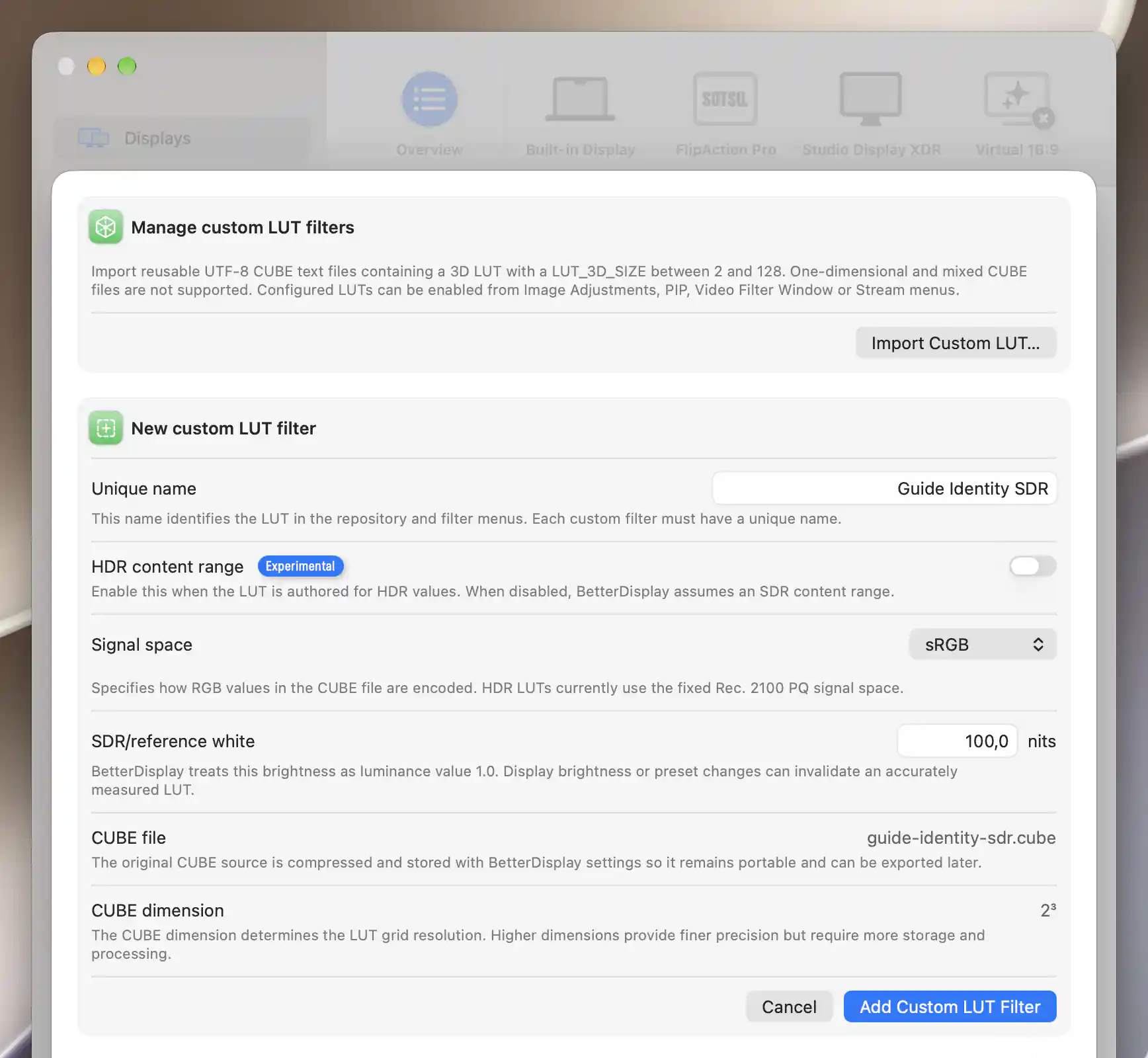
A valid SDR CUBE import exposes its name, signal space and reference white before it is saved.
Import a CUBE file
Select Import Custom LUT… and choose one file. BetterDisplay reads UTF-8 CUBE text containing a 3D LUT. After a successful import, you review a pending definition before saving or applying anything.
The pending form shows the original CUBE file and CUBE dimension. Unique name starts from the CUBE title or filename, with a numeric suffix when needed. Choose a name you will recognize in the menus where you apply filters. Names are compared ignoring surrounding whitespace, letter case and accents; a duplicate produces A custom filter with this name already exists. and disables adding.
Add Custom LUT Filter saves a valid definition, while Cancel discards the pending import. BetterDisplay compresses the original source into its settings and keeps it available for later export. The external file does not need to remain at its import location.
Supported files and validation
The CUBE file must have a LUT_3D_SIZE from 2 to 128, and its source must be no larger than 256 MiB. One-dimensional and mixed 1D/3D CUBE files are rejected.
Validation checks the dimension, numeric color entries, input domain and expected entry count. An invalid import produces a Custom LUT Filter alert explaining the cause, such as a missing dimension, an invalid data line or the wrong number of entries. Domain declarations can describe the input range, but a valid maximum must exceed its minimum.
A larger cube gives the color mapping a finer grid, with greater storage and processing requirements. It does not increase the pixel resolution of your image.
Content range, signal space and white level
The interpretation fields tell BetterDisplay what the LUT's numbers mean. Match them to the conditions for which the LUT was authored; a filename alone does not establish the correct settings.
A new import starts with HDR content range off, sRGB, and SDR/reference white: 100 nits. For SDR, the Signal space menu offers sRGB, Rec. 709, and Display P3. Choose the space used by the LUT.
Enabling HDR content range on a new import selects fixed Rec. 2100 PQ, sets reference white to 203 nits, and sets HDR target peak to 1000 nits. Turning it off resets the pending import to sRGB with 100-nit reference white. These are starting values, not measurements of your display.
Setting reference white and peak
SDR/reference white records the LUT’s authored white-level assumption. It must be a positive finite value. For HDR, HDR target peak must also be finite and must exceed reference white. These stored metadata values participate in validation; they do not currently apply a luminance gain or set or measure the monitor’s brightness. Set them to the levels used when the LUT was authored; nits measure luminance.
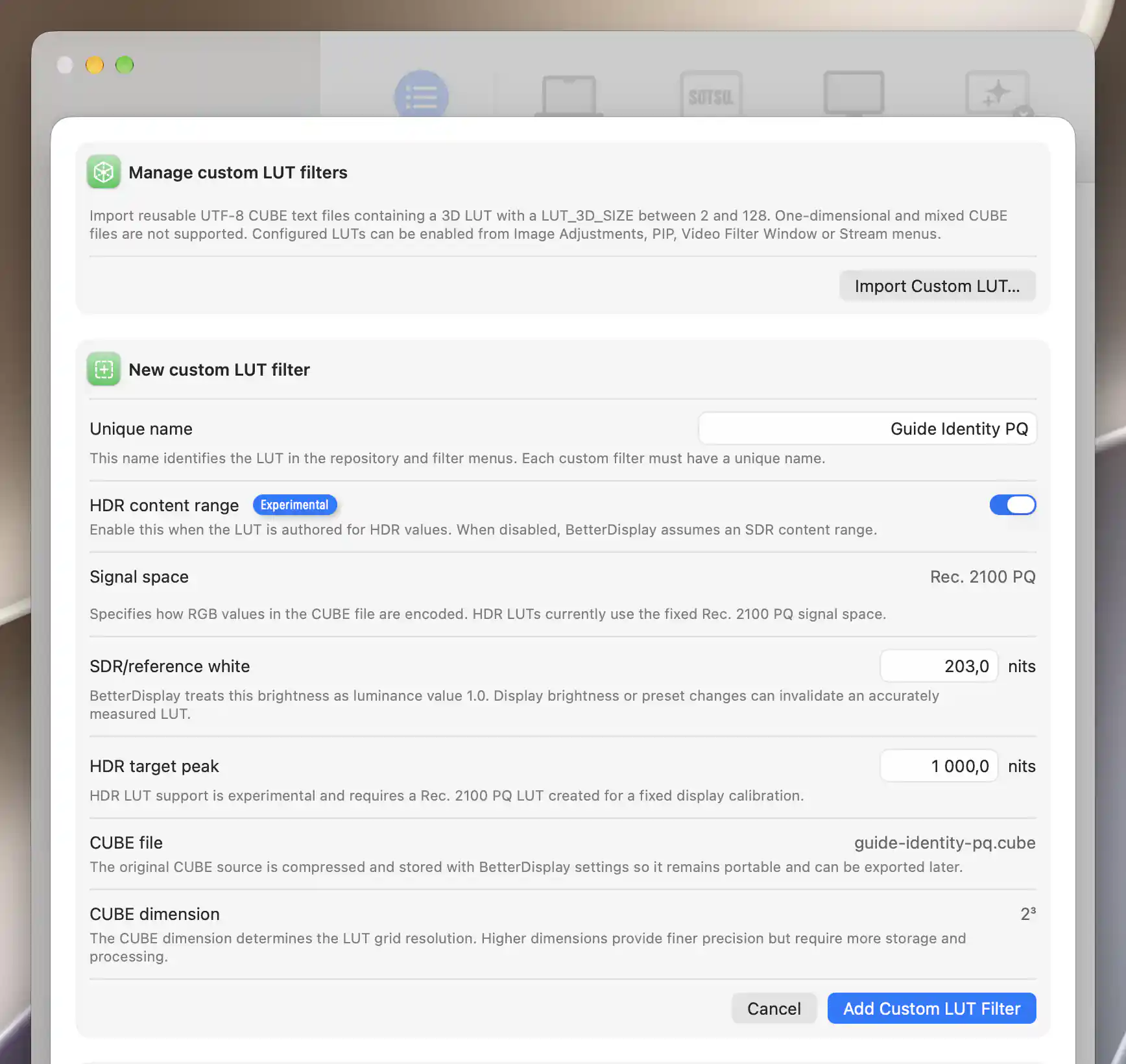
HDR imports use a fixed PQ signal space and explicit reference-white and peak luminance values.
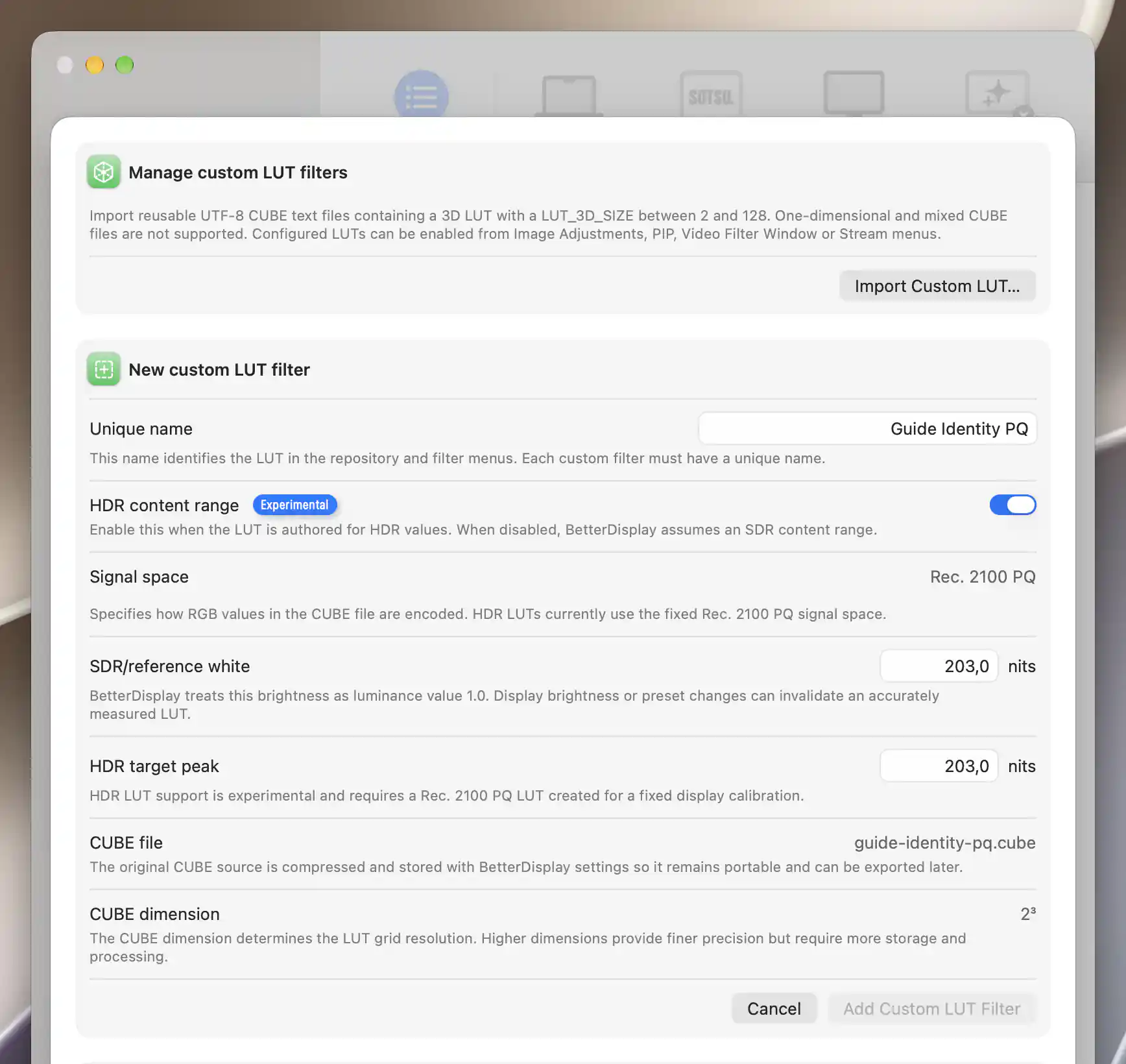
The target peak must exceed the reference white before an HDR LUT can be added.
Existing filters, replacement and export
Each existing entry summarizes its content range, signal space, reference white, optional HDR peak, filename and cube dimension. Use Edit… to change the interpretation fields or Upload… to stage a replacement CUBE.
A replacement keeps the filter's identity, assignments and configured content range. This lets you update a shared filter without reassigning it everywhere, but you should review the interpretation settings if the replacement was authored differently. Done saves and refreshes the consumers using the filter. Cancel discards the staged name, settings and replacement.
Export Original LUT… opens a save dialog with the original filename and exports the stored CUBE source. The signal space and reference white you configured are separate app settings; exporting does not rewrite them into the calibration file. Problems reading stored data or exporting appear in a Custom LUT Filter alert.
Delete and apply
Importing alone does not change display colors. To use the saved definition, enable it from the target's Image Adjustments, PIP, Video Filter Window or Stream menu. Each target chooses independently whether to use it.
Several targets can share one definition. Editing or replacing that definition can therefore affect all its enabled uses, even though enabling the filter remains a per-display or per-stream choice.
Delete… always asks for confirmation. If the filter is in use, the message reports how many display or stream configurations have it enabled. Delete removes the definition and disables those assignments, including remembered displays and stream configurations. Cancel preserves them.
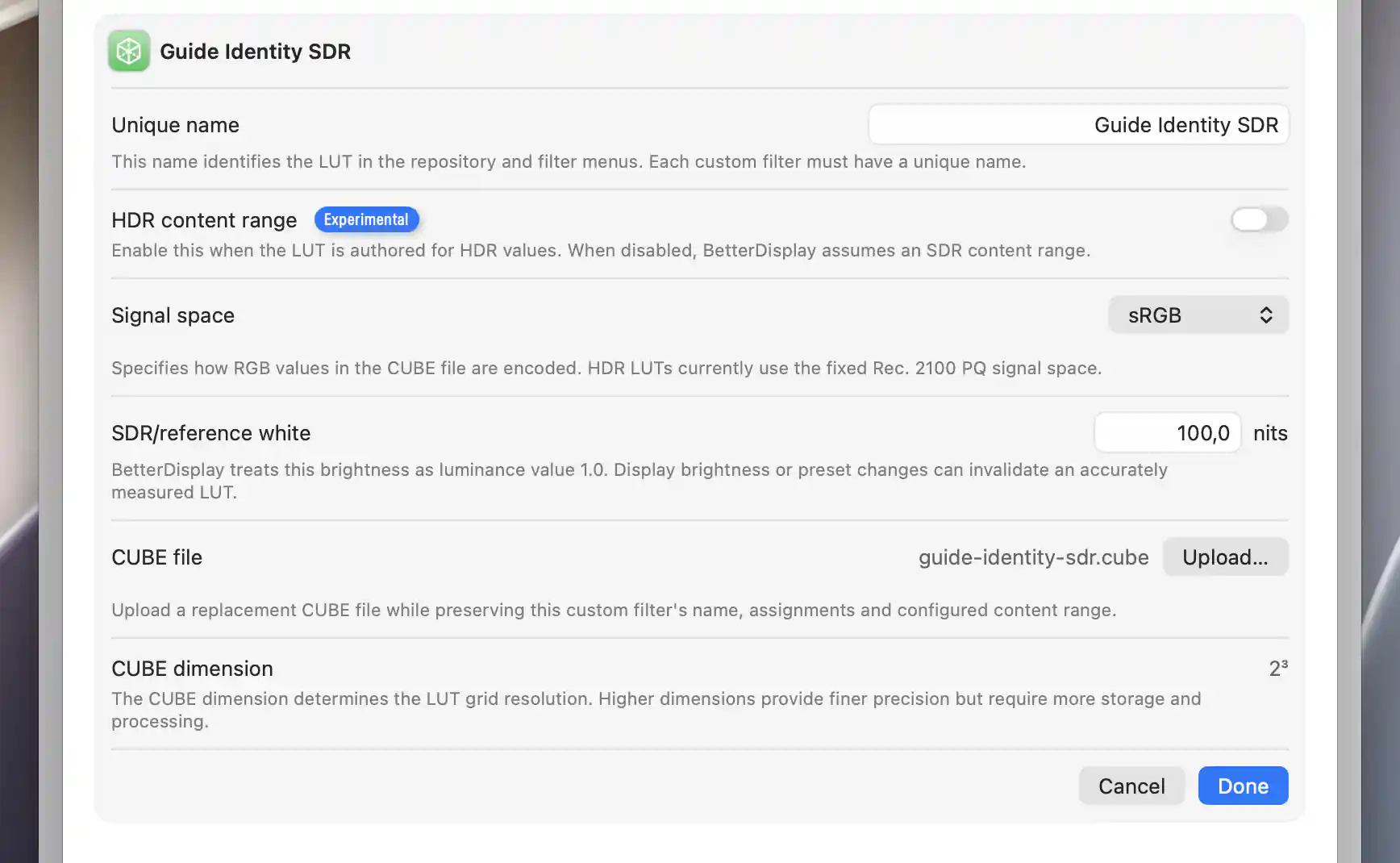
Edit a saved LUT’s configuration or upload a replacement while keeping its identity.
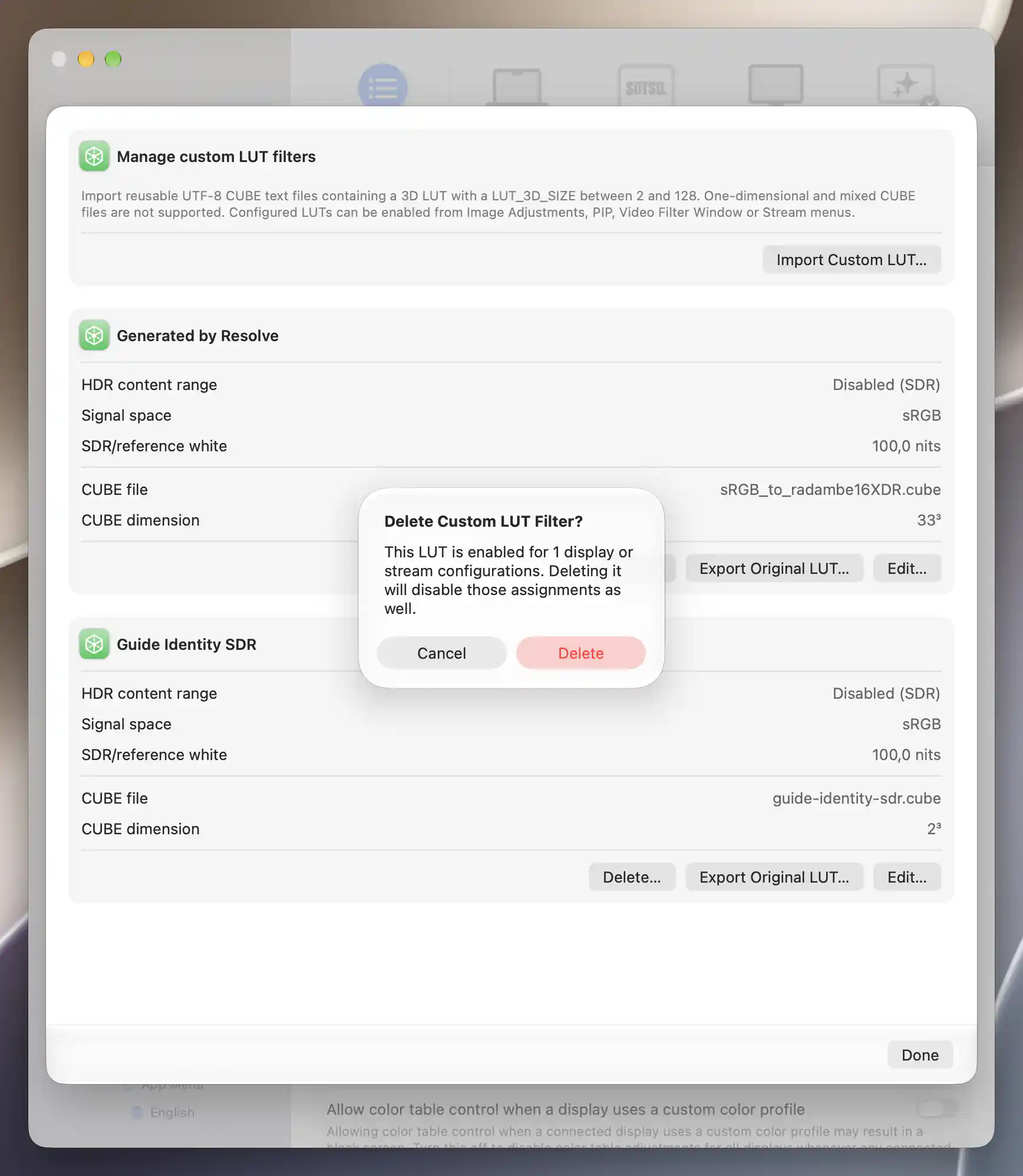
The deletion confirmation reports assignments that will also be disabled.
See Software XDR/HDR Upscaling and Dimming for the separate color-table and brightness controls.
Follow the whole-display and separate-preview LUT tutorial for a neutral test file, independent selections and targeted cleanup.
Additional information
This section explains which features require Pro and how availability differs between Mac platforms.
Features requiring Pro license
- Importing and adding custom LUT definitions.
- Editing their settings or replacing their CUBE source.
- Applying custom LUT filters to display or stream consumers.
Existing filters can still be exported or deleted when Pro editing is unavailable.
Platform compatibility
The LUT manager and its file operations are available on both Apple silicon and Intel Macs. Applying a filter depends on the target's image-filtering and capture capabilities. The stream filtering path enables extended dynamic range only on Apple silicon, so availability of HDR interpretation fields does not promise HDR stream output on Intel. HDR LUT handling remains experimental and requires the fixed calibration described above.