Color Profile
Color Profile chooses the ColorSync profile macOS uses for a display. A profile describes its color behavior, helping the system handle colors for that screen. This menu lets you select an installed profile, inspect its file and remove profiles you no longer need.
Where to find it: App Menu > display > Color Profile, usually under the more-options chevron.
The display must be connected and support color profiles. The menu lists installed RGB display profiles available to the app; installing or calibrating a new profile is a separate task.
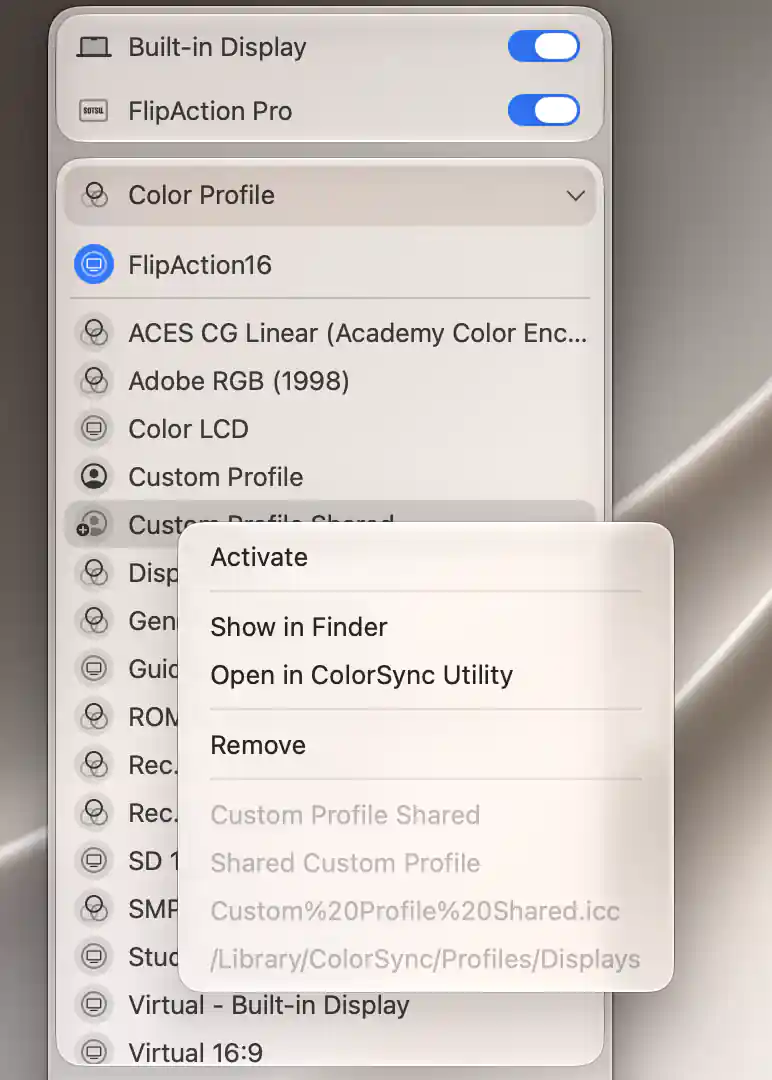
A profile’s context menu exposes available actions and its type, filename and location.
Choose and inspect a profile
Select a profile row to apply it immediately. The current choice is marked, and the selected display’s factory profile appears first, separated from the rest. Other profiles are sorted by their available names. If there are none to list, the menu shows No color profiles found.
Changing the selected profile refreshes color adjustments and updates any existing SDR/HDR profile protection. It does not enable Configuration Protection or calibrate the display. You are choosing a profile that already exists, rather than measuring the screen to create a new one.
Inspect the profile file
Right-click a row to see its name, category, filename and containing folder at the bottom of the context menu. The category describes where the installed file comes from: User Color Profile, Shared Custom Profile, System Color Profile, Factory Color Profile or Other Color Profile. It does not establish that the profile is suitable for every display.
The same menu provides these actions:
- Activate applies the profile and appears when it is not already selected.
- Show in Finder reveals the profile file so you can locate it.
- Open in ColorSync Utility opens the file in Apple’s utility for inspection.
- Remove deletes a non-system profile file. System profiles do not offer this action.
Custom profiles and color-table control
A custom profile and color-table adjustments can both affect the display’s colors. Because a user or shared custom profile can conflict with color-table control, BetterDisplay blocks that control by default when a connected display uses such a profile.
The block applies to all displays, not only the one with the custom profile. When color-table control is enabled globally, a warning beneath the selected custom profile explains the block. This helps account for a color-table control becoming unavailable on one screen after you change the profile on another.
Remove All Factory Profiles
Factory profiles can accumulate as displays are connected. Remove All Factory Profiles appears when the list contains removable factory profiles. It targets all listed non-system factory profiles, including ones for other displays; it is not limited to the profile currently selected for this display.
The Remove Factory Color Profiles confirmation explains that macOS recreates necessary factory profiles the next time a display connects. Choose Remove to proceed, or Cancel to leave the files alone. System profiles are excluded. If you want to remove an individual custom profile instead, use that row’s context menu.
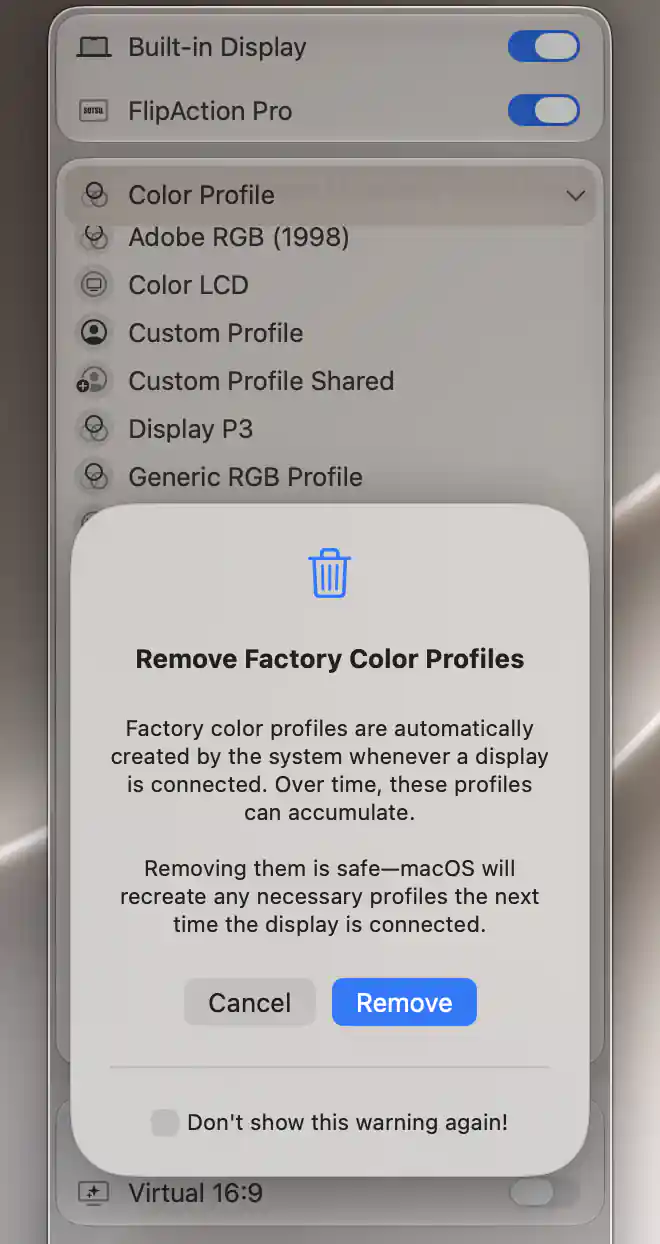
The confirmation explains factory-profile regeneration before removal.
Authorization, cancellation and errors
Removing a profile can require permission to change its file. Files in your own ColorSync profile folder can be removed directly; protected locations use BetterDisplay’s helper or an administrator prompt.
During the operation, Configuring System… explains that macOS may ask for administrator credentials. This message disappears when the request finishes or is cancelled.
If the background helper needs approval
Allow BetterDisplay to Make Changes offers three choices:
- Open System Settings opens System Settings > General > Login Items. Allow BetterDisplay to run in the background, then return and retry the removal.
- Use Admin Prompt Instead retries through administrator authorization.
- Not Now leaves the approval request for later.
If removal does not finish
A failure opens Something went wrong…, with the returned error and an OK button. Cancellation or an error does not prove that every selected file was removed—or that every file remains. In a multi-file operation, earlier removals can succeed before a later failure. Check the refreshed list or Finder before retrying.
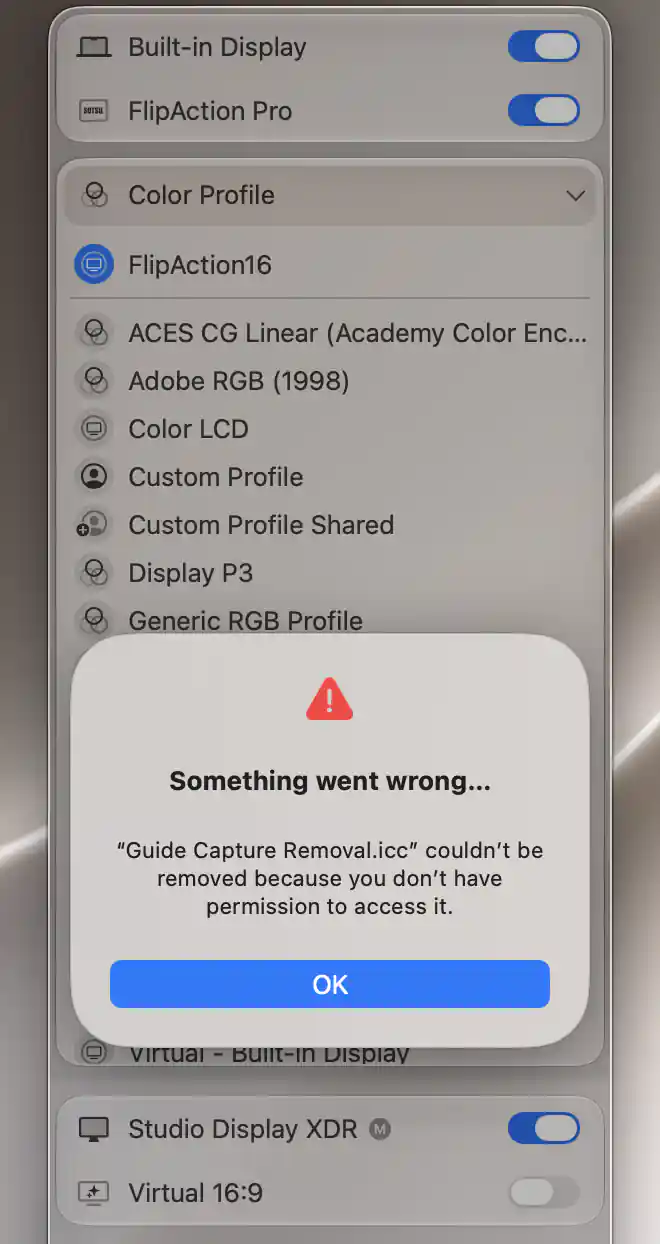
A removal failure reports the returned error and provides an OK button.
The Settings reference explains the shared approval context. Profile selection and deletion take effect as operations are performed; they are not pending Apply/Undo overrides.
Additional information
This section explains which features require Pro and how availability differs between Mac platforms.
Features requiring Pro license
- Configuration Protection for saved SDR/HDR profiles.
Selecting and inspecting profiles, the context-menu file actions and factory-profile removal do not themselves require Pro.
Platform compatibility
All features described on this page are available on both Apple silicon and Intel Macs. The display must support color profiles, and the available files depend on what is installed. File permissions and background-helper approval can affect removal on either platform.