Software XDR/HDR Upscaling and Dimming
Software brightness can dim an image or, on a suitable display, extend it into a brighter range. These app-wide settings govern color-table compatibility, the behavior of software upscaling, and which adjustments return after launch or sleep. The available HDR/XDR capabilities and brightness methods still depend on each display.
Use per-display settings to choose a supported brightness method and calibrate its range. A global preference changes how those methods behave; it does not create upscaling support or measure the brightness of a screen.
Where to find it: Settings > Displays > Overview > Software XDR/HDR Upscaling and Dimming; open Brightness Upscaling and Dimming Settings… for additional settings.
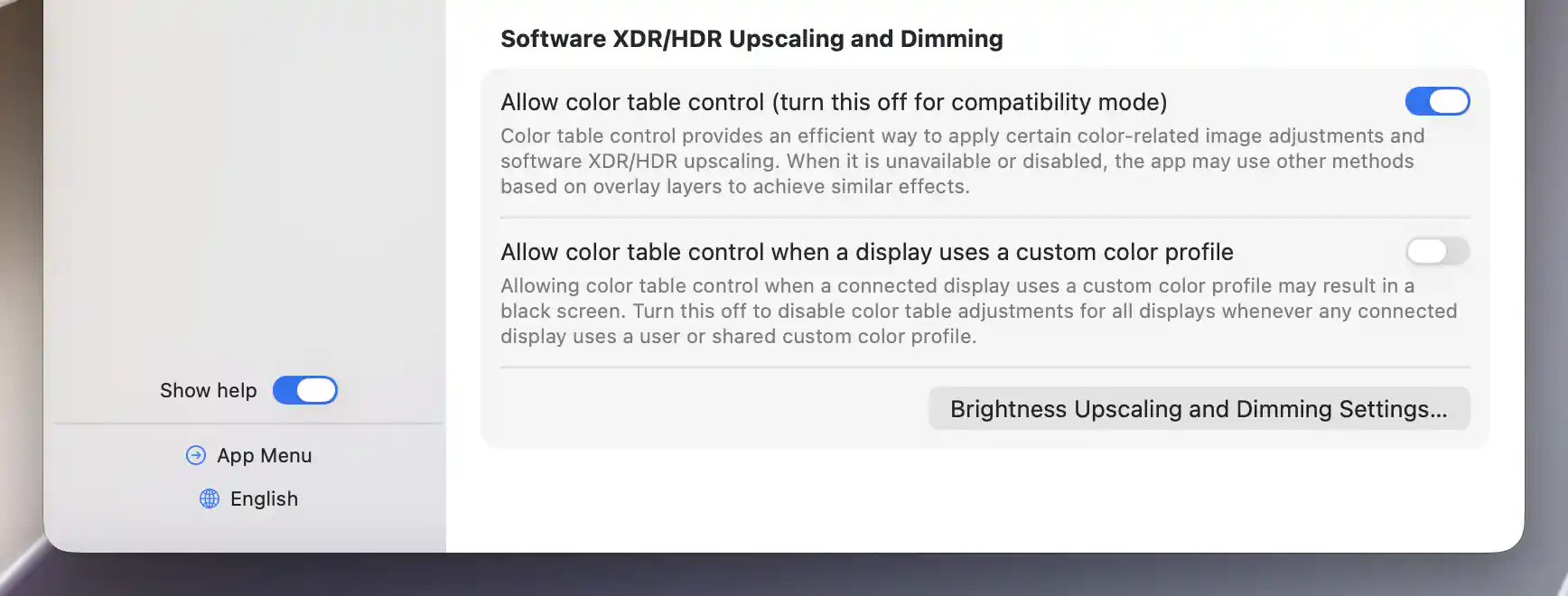
Global color-table preferences select the compatibility behavior.
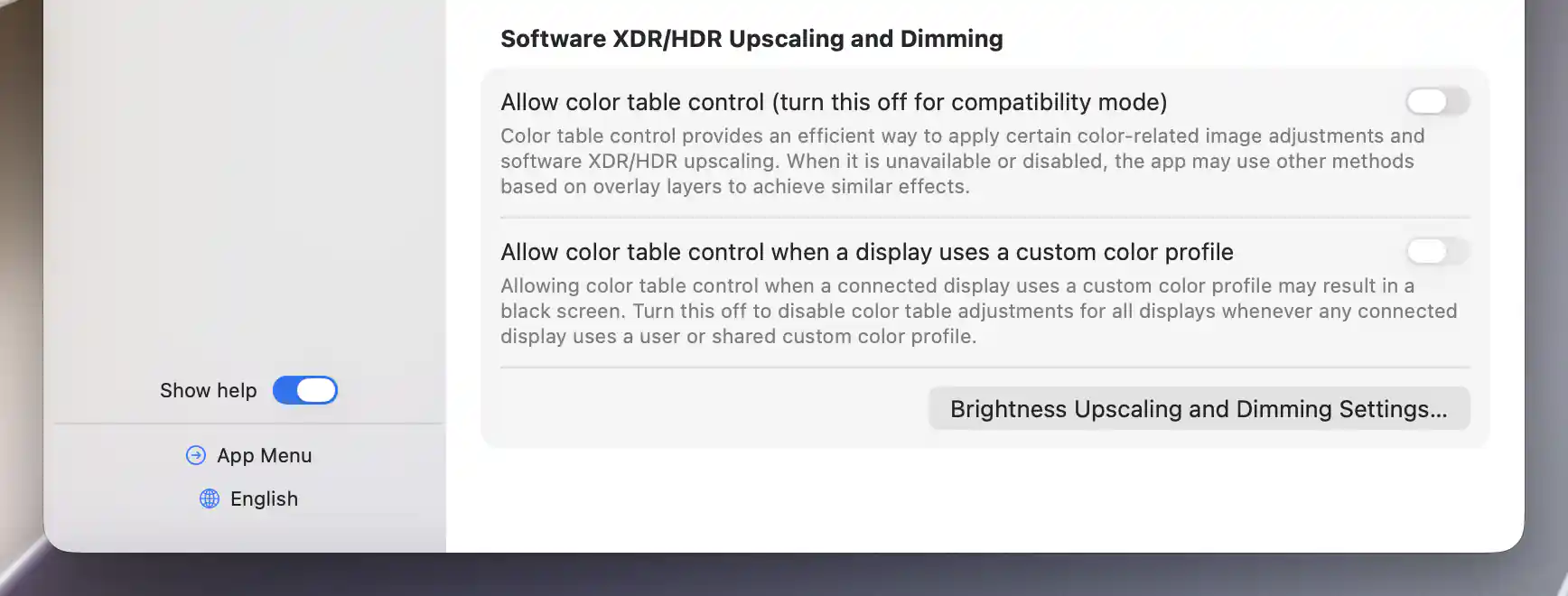
Turning off global color-table control also disables its custom-profile option.
Color-table control and compatibility
A color table lets BetterDisplay apply certain color adjustments and software XDR/HDR upscaling efficiently. Allow color table control (turn this off for compatibility mode) is on by default. If a configuration has compatibility problems, turning it off makes BetterDisplay reconfigure its controllers—the methods it uses to adjust displays. Overlay-based methods may provide similar effects, depending on the display and operation, but there is no equivalent fallback for every color-table feature.
Custom profiles have an additional protection. Allow color table control when a display uses a custom color profile defaults to off and is disabled while global color-table control is off. With this protection in place, a user or shared custom color profile on any connected display blocks color-table control for all displays. A temporary failure to read a profile does not automatically clear an existing block.
Both global switches reconfigure controllers immediately when changed.
Brightness Upscaling and Dimming Settings
The advanced sheet lets you refine transitions into upscaling, see the components of combined brightness and troubleshoot color-table behavior.
Continuous software XDR upscaling readiness is enabled by default and needs global color-table control. It keeps transitions into software upscaling smoother. Turning it off can reduce system load on XDR displays using automatic brightness, at the cost of a less smooth transition; BetterDisplay reconfigures immediately.
Show subsliders for combined brightness control defaults to off. Combined brightness brings hardware and software adjustment together in one control; showing its subsliders lets you see and adjust the separate components alongside it. This is useful for understanding which component changes, but does not enable combined brightness on a display that lacks it.
Reaching neutral brightness with the keyboard
Insert intermediate keyboard/OSD step at neutral 100% for HDR upscaling defaults to on and needs global color-table control. With software HDR upscaling and no hardware-brightness component, the range runs from zero to the calibrated upscale maximum. Neutral 100%—the level at which on-screen HDR content is unclipped—can fall between ordinary keyboard steps. This preference inserts a step there so you can reach it with the keyboard.
Neutral colors and troubleshooting
The following options appear only while global color-table control is enabled:
- Reset colors on neutral settings for HDR capable screens, on by default, resets the color table when adjustments are neutral. This prevents unnecessary color-table manipulation from keeping HDR content clipped. On some configurations, the reset can cause a distracting change or black screen.
- Show warning notifications about color table anomalies, off by default, reports detected interference from other apps that adjust the color table. It helps you investigate interference; showing a warning does not guarantee the problem has been resolved.
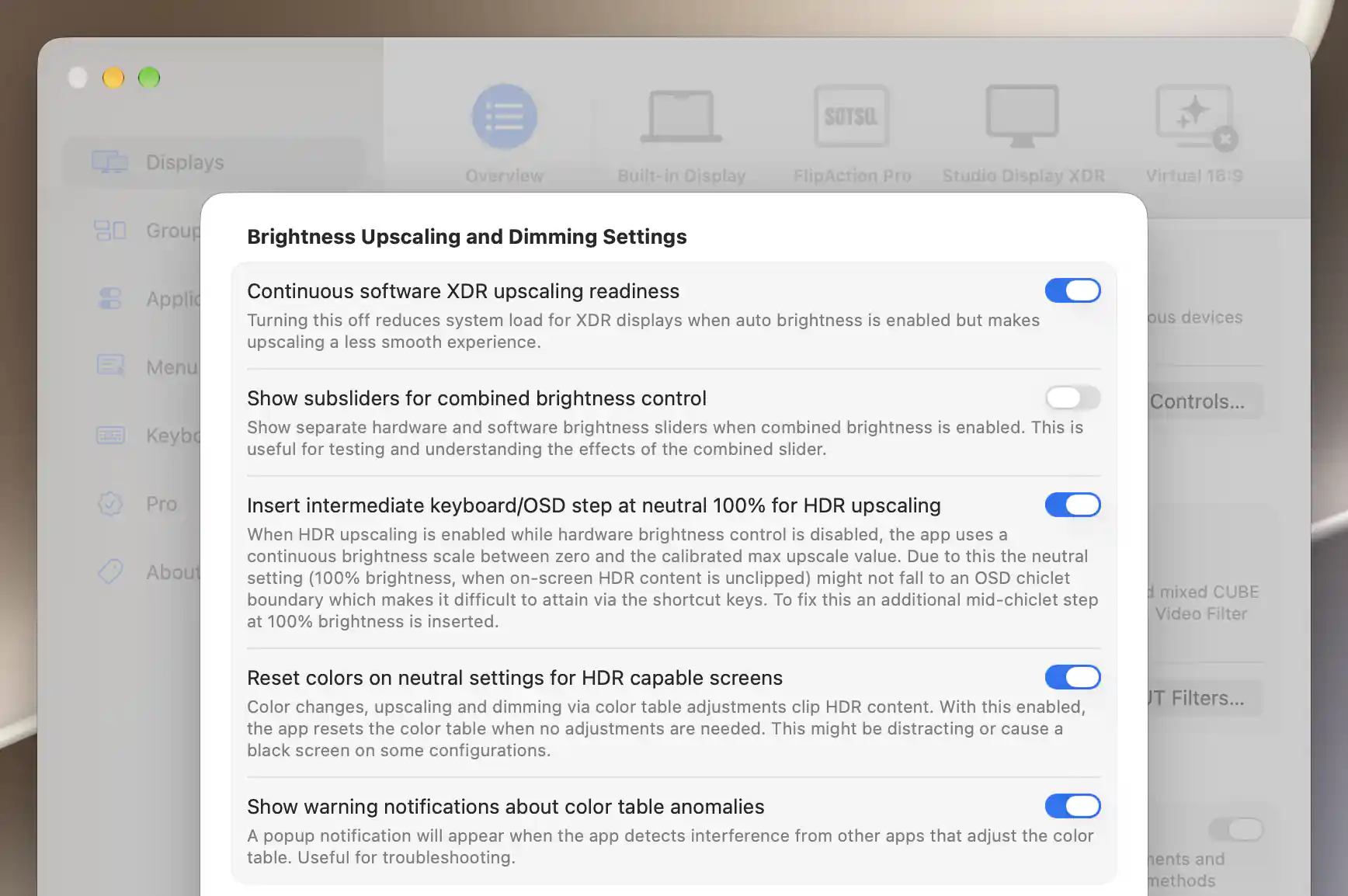
Advanced brightness settings refine upscaling, combined sliders and color-table behavior.
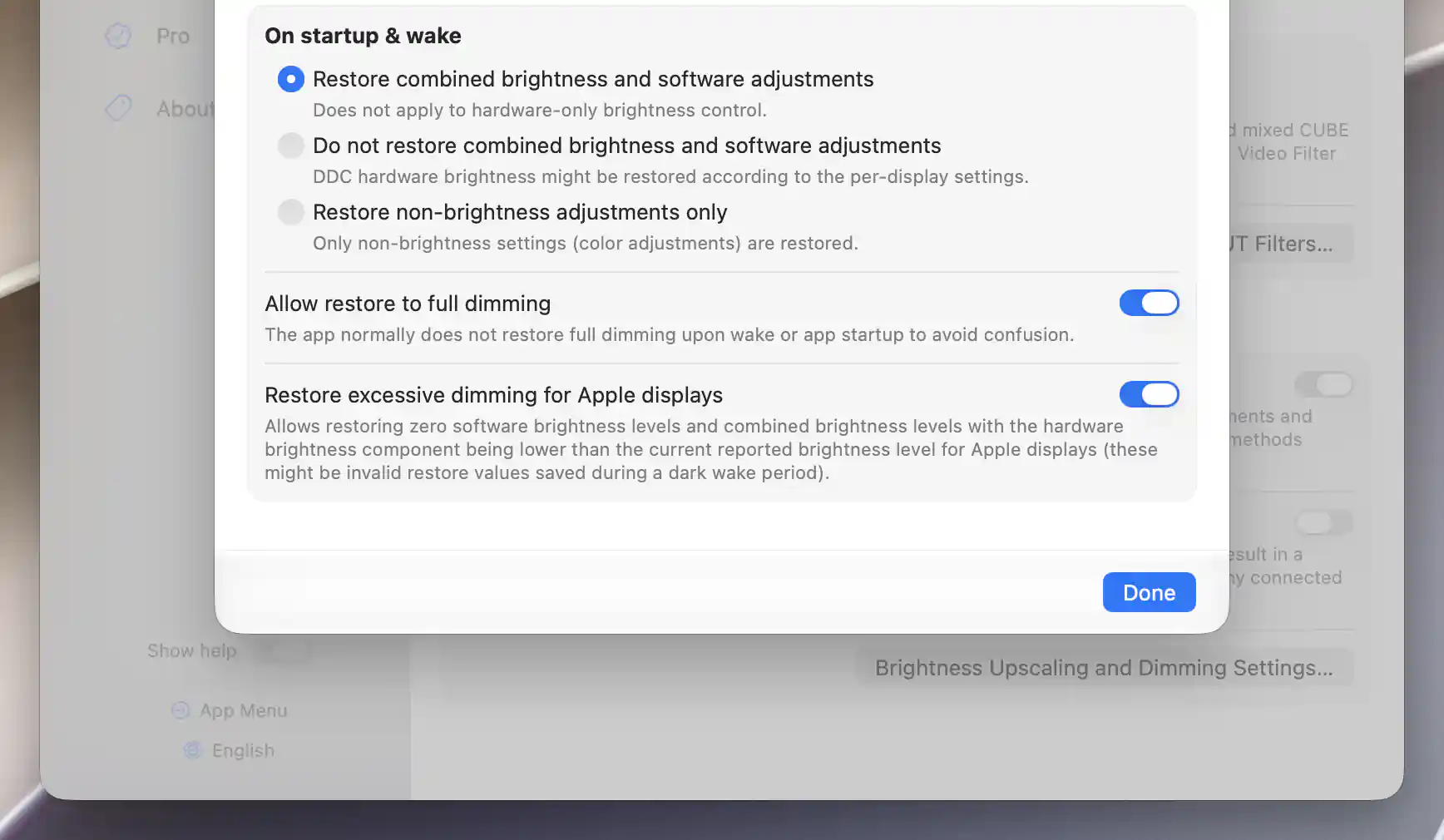
Startup and wake options determine which brightness and image adjustments return.
On startup & wake
Choose what BetterDisplay should restore when it starts or the Mac wakes. This policy controls restoration of saved adjustments; selecting it does not immediately reset the current image.
- Restore combined brightness and software adjustments is the default. It restores those stored controls; hardware-only brightness follows its separate controller rules.
- Do not restore combined brightness and software adjustments leaves those controls unrestored. DDC hardware brightness may still be restored according to the display's own settings.
- Restore non-brightness adjustments only restores color adjustments without restoring software or combined brightness.
Safe Mode suppresses restoration. All these preferences persist without an Apply button.
Protections against restoring a screen too dark to use
Allow restore to full dimming defaults to off. Normally, BetterDisplay avoids restoring extremely low software or combined brightness and uses a minimum safety level of 15% on that logical control scale. Enabling this option allows a stored lower value, including full dimming, which can leave the screen unreadable after wake or launch.
Restore excessive dimming for Apple displays also defaults to off. It permits zero software brightness and combined-brightness values whose hardware component is lower than the brightness currently reported by an Apple display. The default protects against unsuitable values saved during a dark wake.
These are separate protections. Enabling one does not remove the other: the full-dimming floor can still raise a low saved level, and the Apple-display protection can still reject an unsuitable saved value.
To change an individual screen now, use its brightness and Image Adjustments controls. Its calibration and Apple brightness settings configure the supported range; these global preferences do not establish HDR/XDR capability or a measured brightness level.
See Configure Steps for Range-Based Controls and OSD for keyboard increments and feedback, and Custom LUT Filters for a separate reusable image-filter mechanism.
Additional information
This section explains which features require Pro and how availability differs between Mac platforms.
Features requiring Pro license
- Software XDR/HDR brightness upscaling.
- Continuous software XDR upscaling readiness.
- Insert intermediate keyboard/OSD step at neutral 100% for HDR upscaling.
The color-table compatibility switches, combined-brightness subslider preference, neutral-reset/anomaly preferences and restoration policies do not themselves require Pro. Underlying display features retain their own requirements.
Platform compatibility
The compatibility, dimming and restoration settings are available on both Apple silicon and Intel Macs, subject to suitable display controls. Software upscaling through color tables requires Apple silicon. On Intel, a supported alternative such as overlay upscaling is needed; turning off color-table control does not guarantee that such a method is available.
Any upscaling method still needs suitable HDR/XDR capability and brightness headroom. Apple-display restoration protection additionally depends on the display's reported hardware brightness.