Synchronization Settings
Synchronization makes an adjustment on one display follow through to other suitable members of its group. You choose which display can start the change, which displays receive it, and how their values should relate. Each control has its own rules, so brightness can follow one display while volume follows another.
Where to find it: Settings > Groups > group > Synchronization Settings.
The group must be active and Enable synchronization for this display group must be on. Synchronization starts off for a new group. Individual control entries have their own switches as well, so you can keep their settings while enabling only the ones you need.
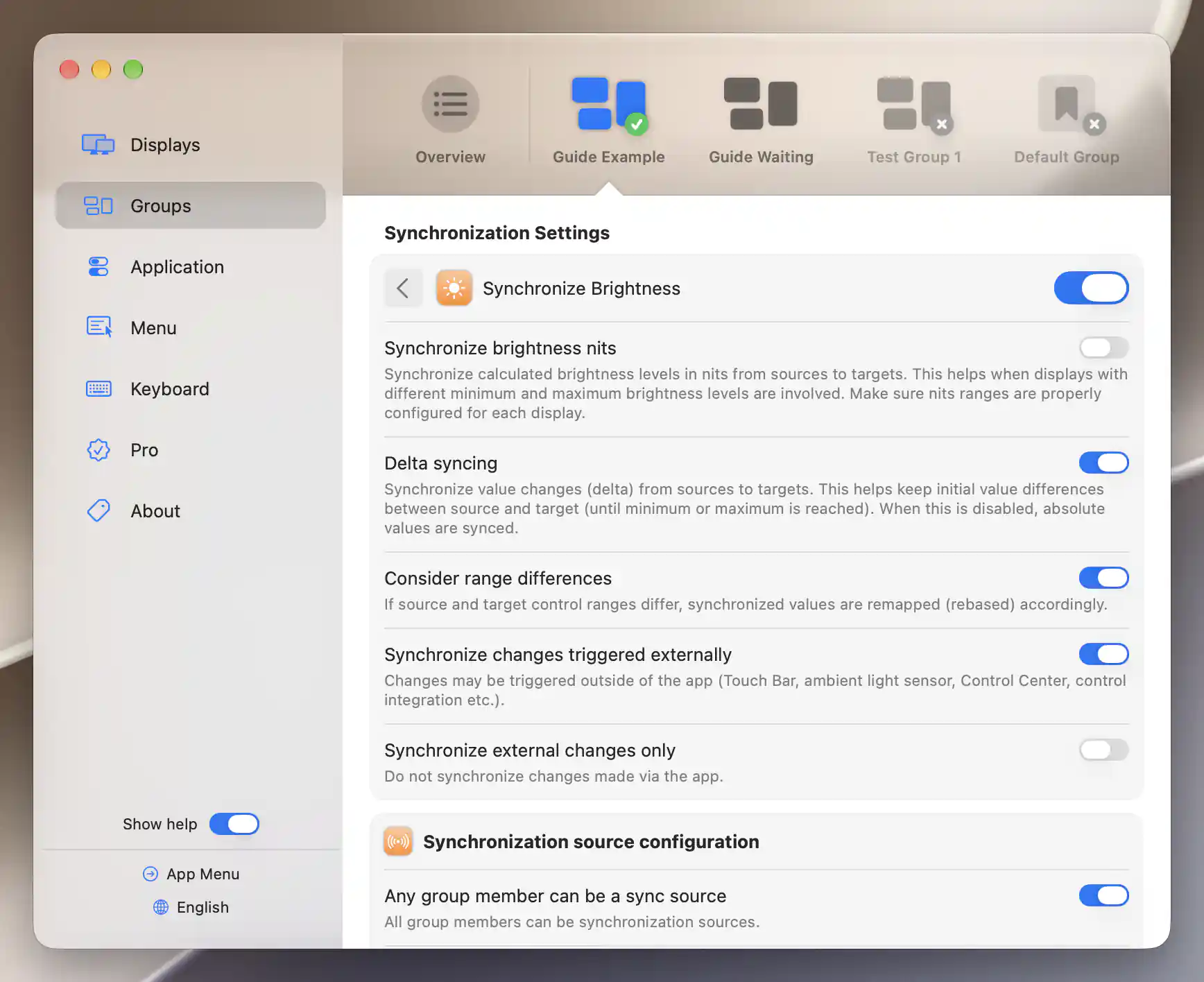
Delta syncing preserves brightness differences while range remapping accounts for different adjustment ranges.
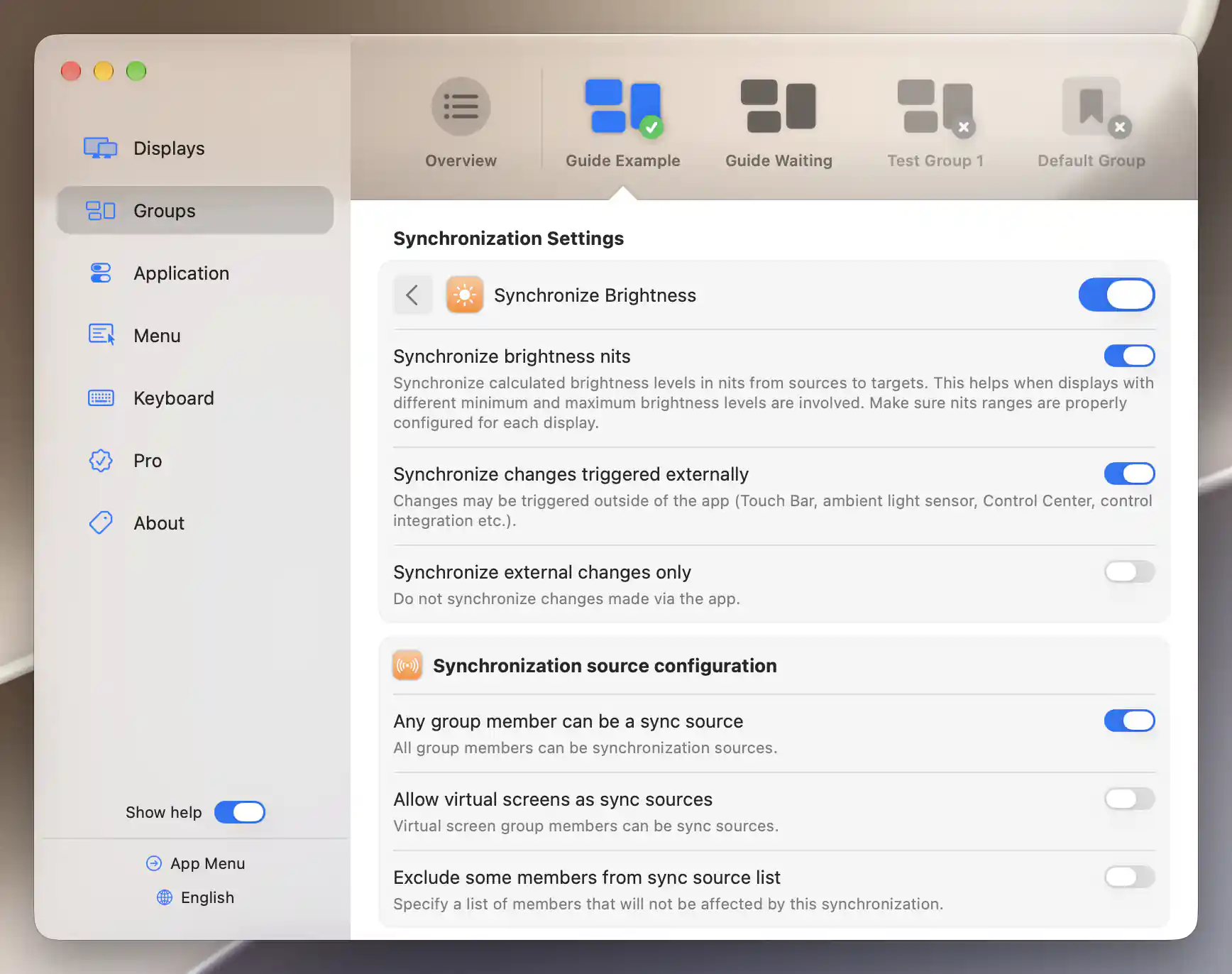
Nits synchronization matches calculated luminance rather than adjustment percentages.
Add and manage a control
Choose Add New Synchronization… to see the eligible registered controls. Custom controls appear first, followed by built-in controls grouped by type. Already configured controls and choices that are unavailable to you are disabled. Selecting a control creates an enabled entry and opens its editor; it does not replace the independent group-wide switch.
Choose the kind of adjustment
Brightness uses each display's most appropriate combined, hardware or software brightness control. The displays therefore do not all need the same type of controller to take part.
Any Image Adjustment covers the registered image-adjustment family and also maps brightness to an appropriate target brightness control. If you configure a specific control separately, that entry takes precedence over its broader matching entry.
Other choices include Volume, Mute, hardware contrast, saturation, RGB gain and black level, as well as individual software image adjustments and filters. A target can respond only if it has the corresponding usable controller. An entry's presence in the creation menu does not establish hardware support.
Edit or remove an entry
Select a configured row to edit it. Synchronize [control] turns that entry on or off while preserving its settings. If it is on but group-wide synchronization is off, a warning explains why the entry will not run. The back arrow returns you to the list.
Remove Synchronization… asks for confirmation. Remove deletes the entry and its settings; Cancel keeps them.
Values, changes and luminance
Follow a change or an absolute value
Delta syncing, on by default, sends the change in value. If the source and target begin at different levels, raising the source raises the target by a corresponding amount, preserving their initial difference until a limit is reached. Turn Delta syncing off when you want the target to follow the source's absolute value instead.
Consider range differences is also on by default. It maps the source range onto the target range: in absolute mode, a source halfway through its configured range maps to halfway through the target's range. In delta mode, it maps the fraction of the range that changed. Turn it off only when matching controller values directly is appropriate.
Toggle controls such as Mute copy their on/off state instead of using a numeric delta.
Match calculated luminance
Synchronize brightness nits, available for the general Brightness entry, targets calculated luminance in nits instead of a percentage or a change in value. While that mode is effective, the delta and range choices are hidden.
Configure accurate nits ranges for every participating display before relying on this match. Equal percentages do not by themselves mean equal brightness, and a display cannot reproduce luminance outside its capabilities.
Changes from outside BetterDisplay
Enable Synchronize changes triggered externally if you want detected changes from an ambient light sensor, Touch Bar, Control Center or integration to drive the group too. It starts off. The display's controller still needs to be able to detect the change; the option does not add a monitoring capability it lacks.
Once external changes are allowed, Synchronize external changes only lets you prevent app-initiated adjustments from driving this entry. That option is also off by default.
Applicable absolute or nits brightness rules can reconcile brightness after display configuration using an eligible Apple display with automatic brightness. Reconnecting a setup may therefore update targets even without a new slider drag.
Sources
A source is a group member whose adjustment is allowed to start synchronization. Any group member can be a sync source is on by default. In that automatic mode, Allow virtual screens as sync sources starts off, and an optional source-exclusion list lets you omit selected members.
Turn automatic sources off when you want more specific conditions. You can combine these filters:
- Source member must be an external display.
- Source member must be an Apple display.
- Source member must be set as the main display.
- Source must be on the list of specified members.
Enabled filters apply together: a source must satisfy all of them. With none selected, any member can qualify in this mode. The external-display filter excludes built-in displays and app-managed virtual screens.
Targets
A target receives the source's adjustment. All group members are sync targets starts on. In this automatic mode, Allow virtual screens as sync targets and Skip displays in HDR or reference XDR mode both start off. The latter excludes members currently in HDR or an Apple reference preset.
Exclude some members from sync target list reveals exceptions to automatic target selection. Alternatively, turn automatic targets off and choose a specific target list. That explicit list is used in its own right: the automatic-mode virtual-screen and HDR exclusions are not applied to it.
Only connected targets with a suitable control receive an operation. Synchronization also prevents the same originating change from repeatedly feeding back into itself.
Edit source and target lists
All inclusion and exclusion lists are limited to group members. Show currently not detected displays in list reveals remembered entries, while already selected remembered displays stay visible. An empty group is reported explicitly.
Option-click a display's name or icon to identify its screen. Use its row switch to change its selection. The rules are saved and take effect without an Apply button.
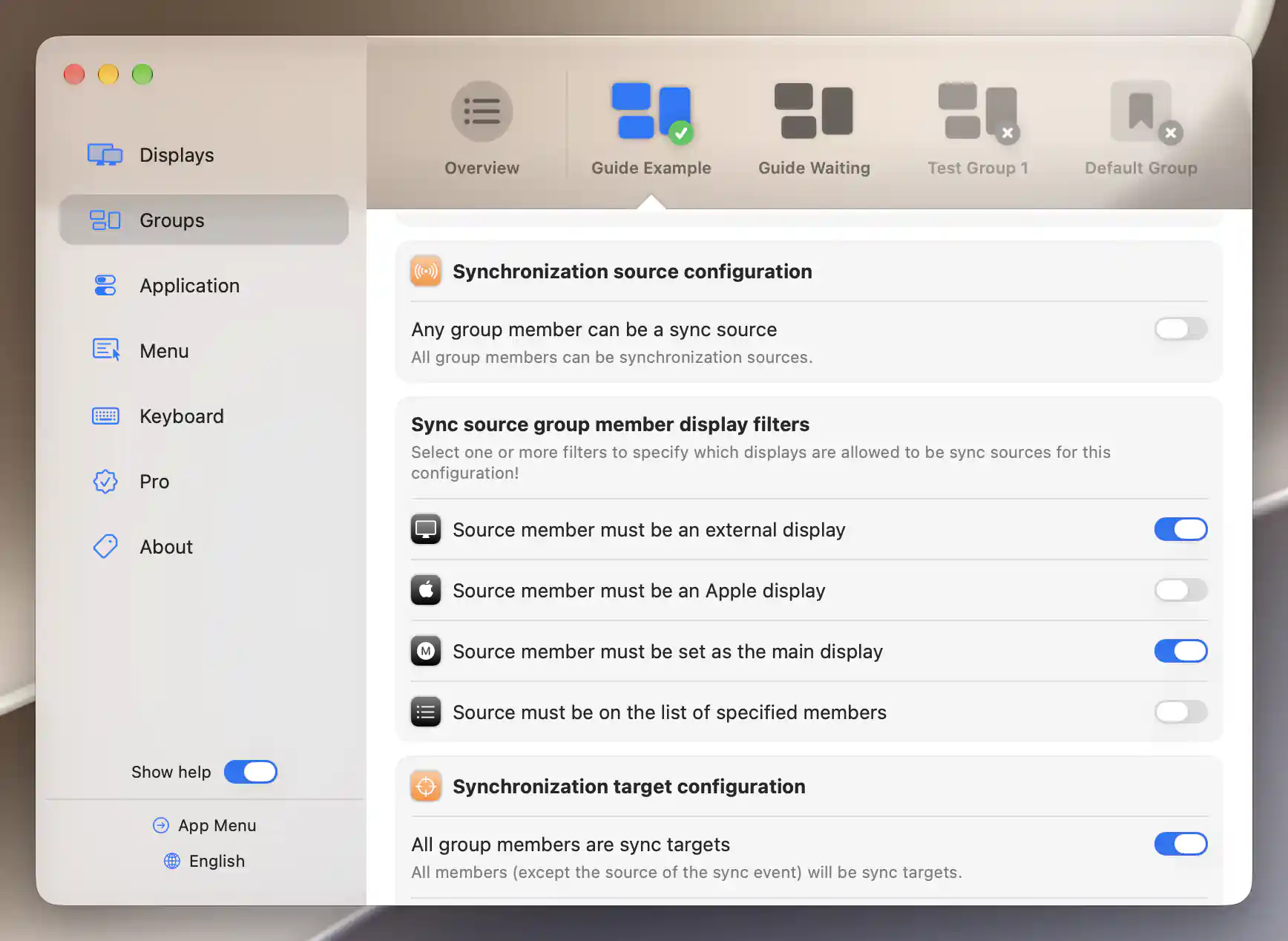
Enabled source filters are combined, so a source must satisfy every selected condition.
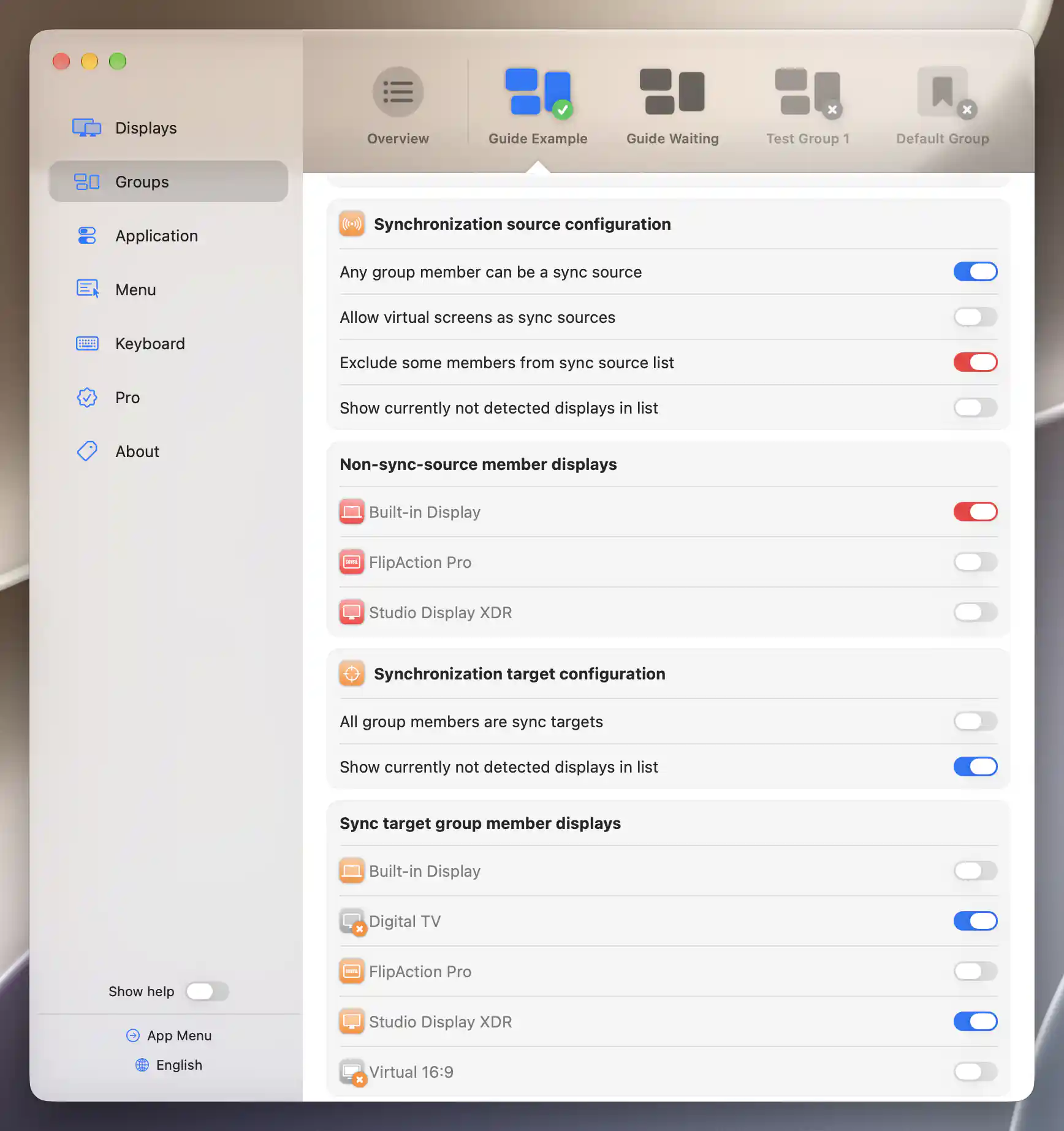
Source exclusions and explicit targets can include remembered displays that are currently absent.
See Individual group for activation and membership, and Sliders for the temporary Shift override.
Additional information
This section explains which features require Pro and how availability differs between Mac platforms.
Features requiring Pro license
- Using synchronization in custom groups.
- Built-in synchronization targets other than general Brightness, including the separate Brightness (Combined), Brightness (Hardware) and Brightness (Software) choices.
- Synchronize brightness nits.
- The external-display and main-display source filters.
- Editing individual entries in specified source/target lists and their exclusion lists.
Basic Brightness synchronization is available without Pro in the Default Group. Its delta/range and external-change choices do not independently require Pro. The creation menu disables unavailable Pro choices, and individual advanced options retain their own requirements.
Platform compatibility
All features described on this page are available on both Apple silicon and Intel Macs. Each receiving display still needs a suitable usable controller. External-change synchronization depends on detected changes, and nits matching depends on correctly configured luminance ranges and the displays' capabilities.