Make external monitors follow your MacBook’s automatic brightness
Make your external monitors follow your MacBook’s built-in brightness, including automatic adjustments by macOS. BetterDisplay detects the built-in display’s changes and passes them to the monitors through group synchronization, so the external monitors do not need their own ambient light sensors.
The procedure below makes the built-in display the source and your chosen external monitors the receivers. Matching adjustment levels does not guarantee equal perceived brightness: different panels and brightness ranges can still look different.
Before you begin
- Use a MacBook whose built-in display supports native automatic brightness. Keep its lid open and built-in display connected and awake, and work in the Mac’s active user session.
- Connect the external monitors you want to follow it. Each needs a working brightness controller. Hardware brightness changes the display itself; software dimming changes the image. The general Brightness synchronization entry can use different controller types on different displays.
- Record your starting brightness levels, the built-in display’s automatic-brightness state, and any existing group or Brightness synchronization settings you will change. This makes it possible to restore your previous setup.
The exact source and target lists used below have their own feature requirements; see Features requiring Pro license. A simpler arrangement using the Default Group’s automatic sources and targets is described separately below.
Prepare the built-in display and monitors
- In macOS, open Apple menu > System Settings > Displays, select the built-in display, and enable Automatically adjust brightness. If the option is absent, check the Mac’s support for native automatic brightness; see Apple’s brightness instructions.
- In BetterDisplay, open Settings > Displays > Built-in Display > Device Control. Keep Apple Brightness Control enabled. If its card is missing, open Add or Remove Controllers…, select Add for Apple Brightness Control, and confirm that the built-in display’s brightness slider works.
- Open Device Control Settings… in the same Device Control section and keep Prefer hardware brightness control on for the built-in display. This lets its native brightness changes drive the general Brightness entry. Use ordinary macOS brightness for this setup; active direct XDR upscaling is incompatible with normal automatic brightness. See Apple Brightness Control if you need to return from direct upscaling.
- Open the BetterDisplay App Menu and adjust each external display’s brightness slider individually. Confirm that the image or backlight responds, then restore its starting level. Resolve any unresponsive monitor before configuring synchronization.
The connection must support whichever brightness method you use. For hardware brightness over a dock or adapter, see DDC Control; software dimming is a different result and does not establish working hardware brightness.
Choose an active group
- Open Settings > Groups and select Default Group. This is a convenient starting point because it can include all currently connected displays.
- Keep Enabled on. In Group Membership, verify that the built-in display and intended external monitors are members. With Treat all currently connected displays as group members on, check that none of them is excluded.
- Check Activation for Display group is currently active. If it is inactive, read the displayed reason before continuing. A missing required member or a higher-priority exclusive group can prevent an enabled group from running.
- In Synchronization Settings, turn on Enable synchronization for this display group. Open its Brightness row, or choose Add New Synchronization… > Brightness if no such entry exists.
A display group defines the pool of available members; the next steps assign their roles for this one adjustment. If you already use the Default Group’s Brightness entry for another purpose, record those rules before editing, or use a separate custom group and verify its activation instead. See Individual group for membership and activation choices.
Set how brightness follows the source
- Turn on Synchronize Brightness. This entry switch is separate from the group-wide switch you enabled above.
- Leave Synchronize brightness nits off for the initial setup. Turn Delta syncing off so the monitors follow the source’s absolute position in its brightness range. Delta syncing starts on and instead preserves their starting differences until a range limit is reached.
- Leave Consider range differences on, its default. A source halfway through its configured range then maps to halfway through a target’s range, even when their controller ranges differ.
- Turn on Synchronize changes triggered externally. It starts off, and is necessary for detected changes made by macOS automatic brightness, Control Center or a Touch Bar slider.
- Leave Synchronize external changes only off initially. Then an ordinary BetterDisplay adjustment to the built-in display can also drive the monitors. Enable it later if you specifically want this rule to ignore app-initiated changes.
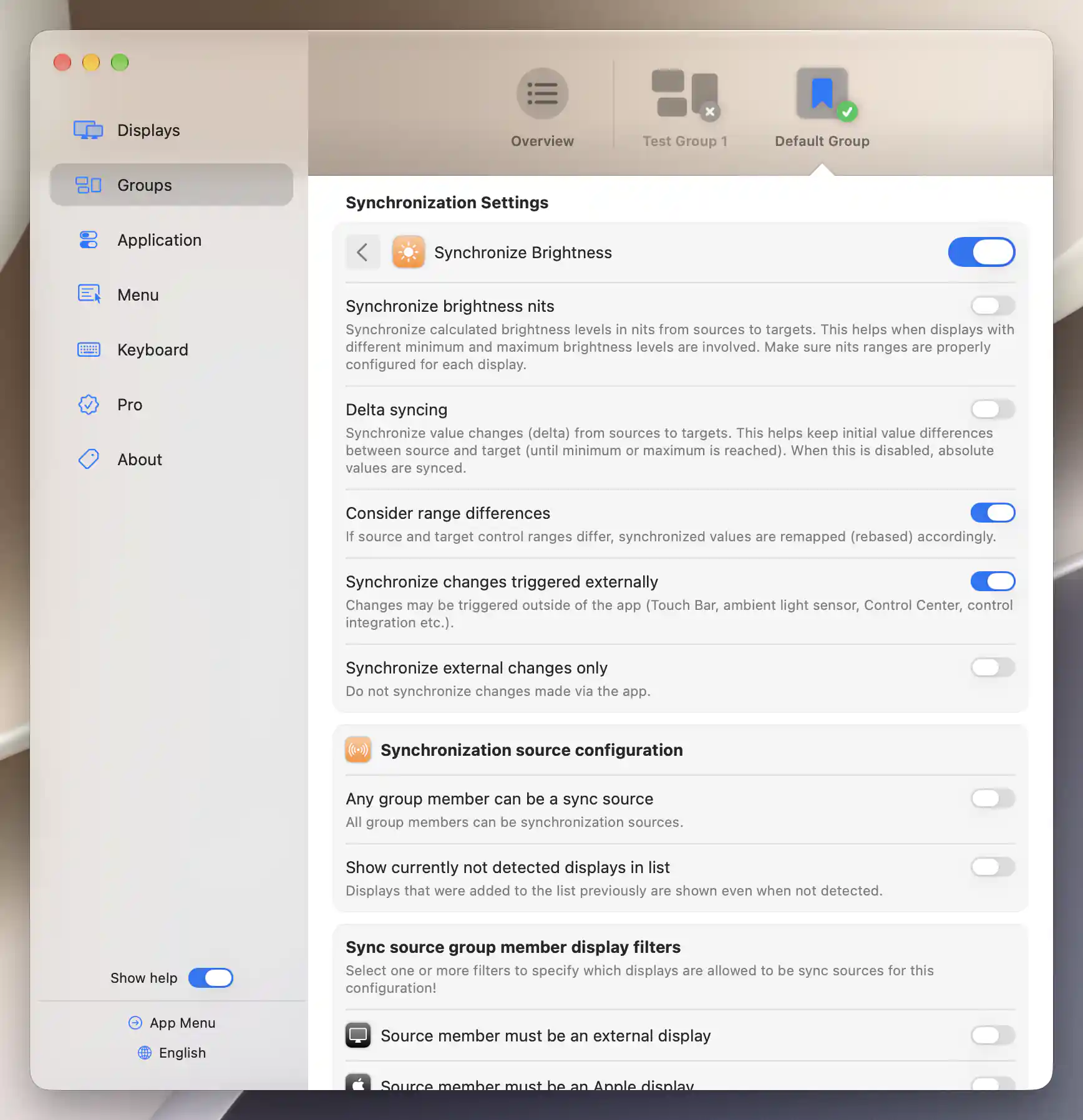
Allow external changes and turn Delta syncing off to follow the built-in display’s absolute brightness level.
Make the built-in display the source
- In Synchronization source configuration, turn off Any group member can be a sync source.
- Under Sync source group member display filters, turn on Source must be on the list of specified members. Leave the other filters off: the external-display filter would exclude your built-in display, and the main-display filter could stop the rule when another monitor becomes main.
- In Sync source group member displays, select only the built-in display. Leave every external monitor unselected.
Now a brightness adjustment on an external monitor cannot start this particular synchronization rule. Other active groups can still have their own rules.
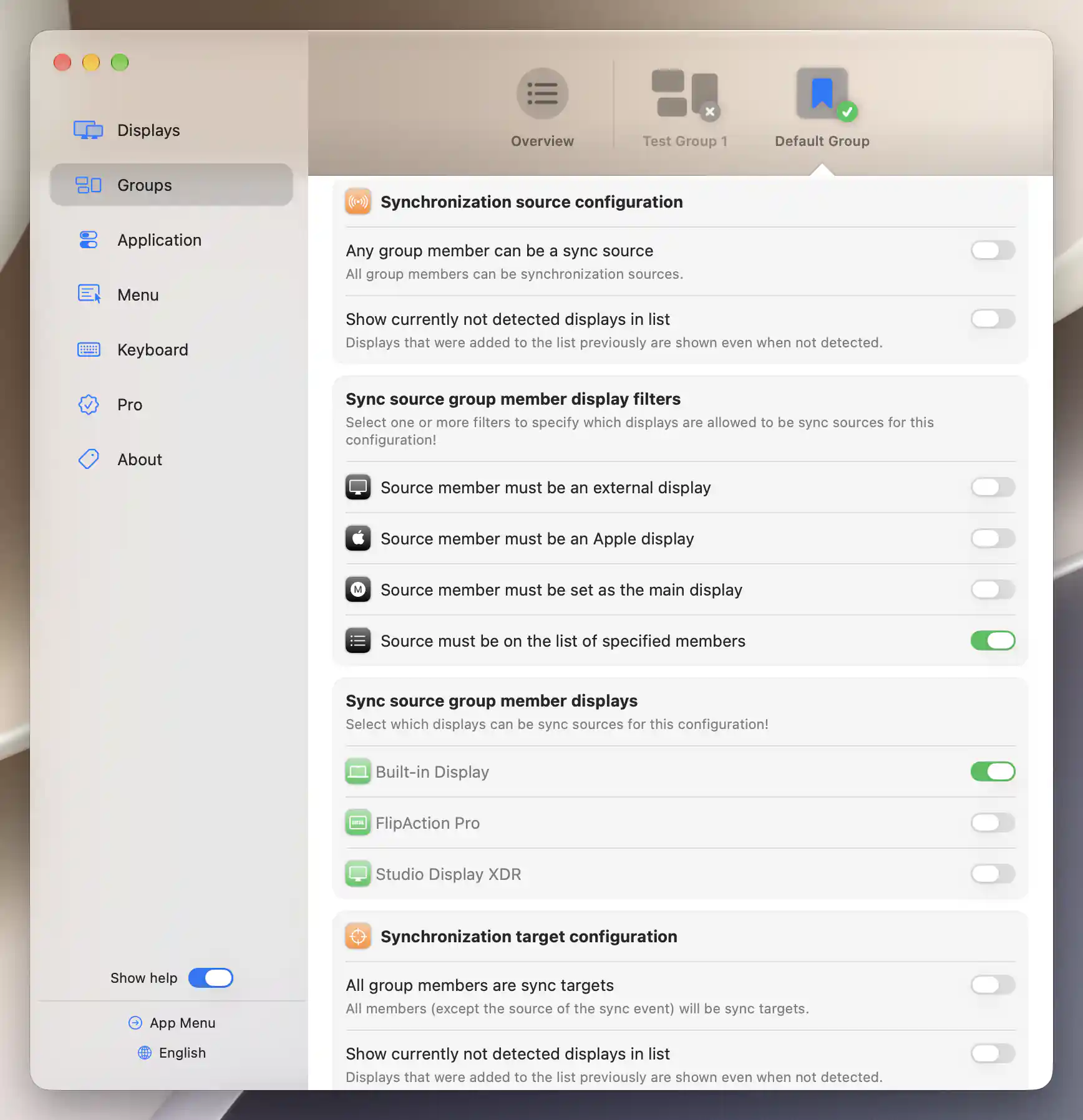
Select only Built-in Display as the brightness source; keep the other source filters off.
Choose the external receivers
- In Synchronization target configuration, turn off All group members are sync targets.
- In Sync target group member displays, select each external monitor that should follow the MacBook. Leave the built-in display unselected.
- Allow the configuration to settle, then use the editor’s back arrow and confirm the group is still active and its synchronization switch is on.
These choices are saved and take effect without an Apply button, restart or reconnection. The lists remember your selected displays when they disconnect, but only connected receivers with a usable brightness control can respond. Applicable absolute-brightness rules can also update receivers after display configuration, so reconnection may change their brightness without another slider adjustment.
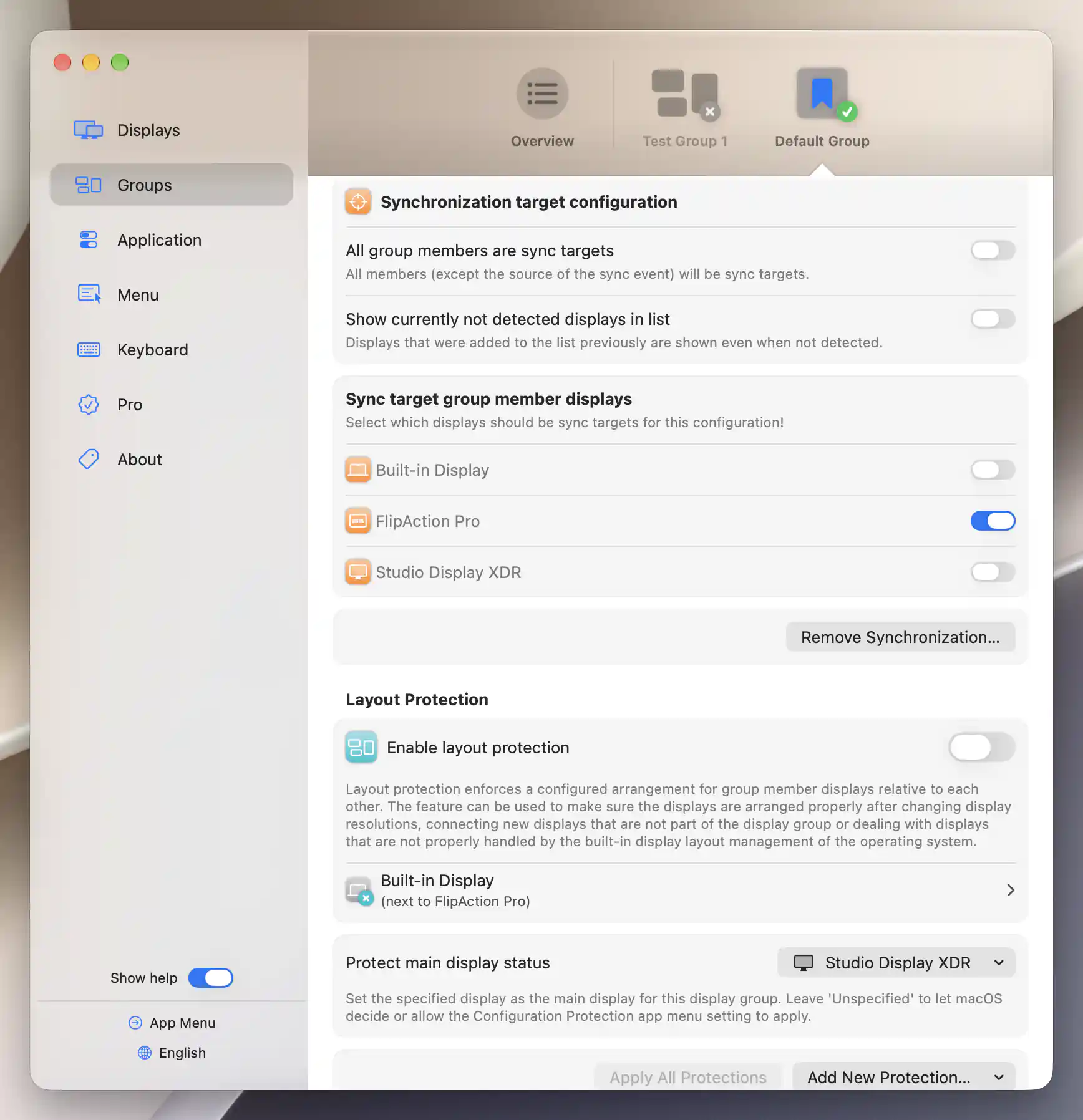
Select only FlipAction Pro as the external brightness receiver; leave the source and XDR unselected.
A simpler Default Group arrangement
For basic synchronization, keep Any group member can be a sync source and All group members are sync targets on in the Default Group instead of editing individual lists. Keep both synchronization switches and Synchronize changes triggered externally on, and use the same delta/range choices above. Every eligible member can then send changes to the others; adjusting an external monitor may also change the built-in display. Leave virtual-screen participation off unless you intend to include it.
This is useful when you want shared brightness from any screen. Use the explicit lists when the built-in display should be the sole driver.
Check the result
- In macOS Control Center > Display, move the built-in display’s brightness slider by a noticeable, comfortable amount. First confirm that BetterDisplay’s built-in brightness value follows the change. If you need to watch both interfaces, you can temporarily detach the App Menu by dragging it away from its menu bar icon; see App Menu.
- Check each chosen external monitor. Its BetterDisplay brightness value should follow according to the rule, and the physical display should respond. A moving slider alone does not prove a successful hardware adjustment.
- With automatic brightness still enabled, change the room lighting and allow macOS to adjust the built-in display. Once its brightness actually changes, check that the receivers follow. There is no fixed lux threshold or response time established by this setup.
- With the explicit one-way lists, adjust one external monitor in BetterDisplay. Confirm that it does not drive the built-in display through this rule; the next source change may replace that monitor’s independent setting.
This workflow follows detected display-brightness changes. It does not use a direct ambient-light-sensor reading in lux as the group’s source. A Touch Bar brightness slider follows the same system-change path; it does not need to be intercepted as a native keyboard brightness key.
Troubleshooting
BetterDisplay does not see the built-in change
Return to the source first: confirm its Apple Brightness Control is enabled, Prefer hardware brightness control is on, and the built-in display is awake with the lid open. A fixed-brightness reference preset or active direct XDR upscaling can make ordinary native adjustment unavailable. Test Control Center again before testing room lighting. If Control Center works but room lighting does not change the built-in brightness, revisit macOS automatic brightness rather than the receiver lists.
The source updates but the monitors do not
Check the active group, its group-wide switch, Synchronize Brightness, and Synchronize changes triggered externally. Confirm that the source and receivers are group members and are selected in the correct lists. Multiple source filters must all match; an unintended external-display or main-display requirement can reject the built-in source. Then test each receiver’s own slider again and check its controller and connection. See the automatic external brightness FAQ and Synchronization Settings for further checks.
Keyboard tests give a different result
Under Settings > Keyboard > Brightness Keys, Video Adjustment Shortcuts Affect:, All suitable screens adjusts displays directly and bypasses group brightness synchronization. Holding Shift can also skip synchronization for an operation. Use the Control Center test above to test the external-change rule itself; see Target Displays for keyboard targeting.
The displays follow but look too different
Try Delta syncing on after setting comfortable starting levels if you want to retain an offset. Alternatively, properly configure each display’s nits range before trying Synchronize brightness nits. That matches calculated luminance and remains limited by the monitors’ capabilities; see Match calculated luminance.
Undo or stop following
- Open the group’s Synchronization Settings > Brightness and turn off Synchronize Brightness. This stops this entry while retaining its rules and leaves the group’s other synchronization entries available.
- If you only want to stop following macOS changes, turn off Synchronize changes triggered externally instead. App-initiated source adjustments can still synchronize when external-only mode is not effective.
- If you created this Brightness entry solely for the tutorial and want to delete it, choose Remove Synchronization… > Remove. This deletes the entry’s saved rules. Restore the recorded settings instead if the entry already existed.
- Restore your recorded per-display brightness levels after stopping the rule. Disabling synchronization does not restore those levels automatically. Restore macOS automatic brightness or controller preferences only if you changed them for the tutorial, and return a temporarily detached App Menu to your usual presentation.
A full app reset is unnecessary for removing this setup. Avoid disabling the entire group when you still need its other features.
Related pages
- Can external monitors follow my MacBook’s automatic brightness?
- Synchronization Settings — other source, target and range choices.
- Individual group — membership and activation.
- Device Control — enabled controllers and native Apple brightness.
- Target Displays — how keyboard adjustments select their destinations.
Additional information
This section explains feature requirements and the hardware needed for this workflow.
Features requiring Pro license
Editing individual entries in the specified source and target lists used by the one-way procedure requires Pro or an active trial. Custom groups and Synchronize brightness nits also require Pro. Basic Brightness synchronization in the Default Group, including delta/range choices and allowing external changes, is available without Pro; use the automatic-source/automatic-target arrangement when those basic rules suit your setup. Each receiver’s chosen brightness method retains its own requirements.
Platform compatibility
The documented BetterDisplay build requires macOS 26.3 or later. Group brightness synchronization is available on Apple silicon and Intel Macs. This particular workflow requires a MacBook built-in display with native automatic brightness and a working Apple brightness controller, plus connected receivers with usable brightness controls. Keep the built-in display open and online; this is not a closed-lid automatic-brightness setup. Availability of hardware brightness depends on the display and transport.