DDC Control
DDC Control lets BetterDisplay adjust supported features in an external display itself, such as its hardware brightness or selected input. Start by detecting what the display reports, then check that the enabled features and numeric ranges match your hardware. Advanced timing settings are available when the connection needs different communication behavior.
Where to find it: Settings > Displays > select a display > Device Control > DDC Control. The card opens Configure Controls…, Input Sources… and Advanced…. App Menu > display > Device Control > Configure DDC Controls… opens the controls sheet directly.
DDC requires a compatible display and connection, with DDC enabled for the selected display. TVs and smart monitors may not support it. The controller normally applies to non-Apple physical displays; enabling a feature in the app does not establish that the hardware implements it. Preferences save per display as you edit them, with no separate Apply step.
The card's Remove disables this controller. Configure Controls… and Remove require a connected display; input and advanced settings also require available DDC control. A connection problem can instead show Unable to enable DDC due to display or connection issues.
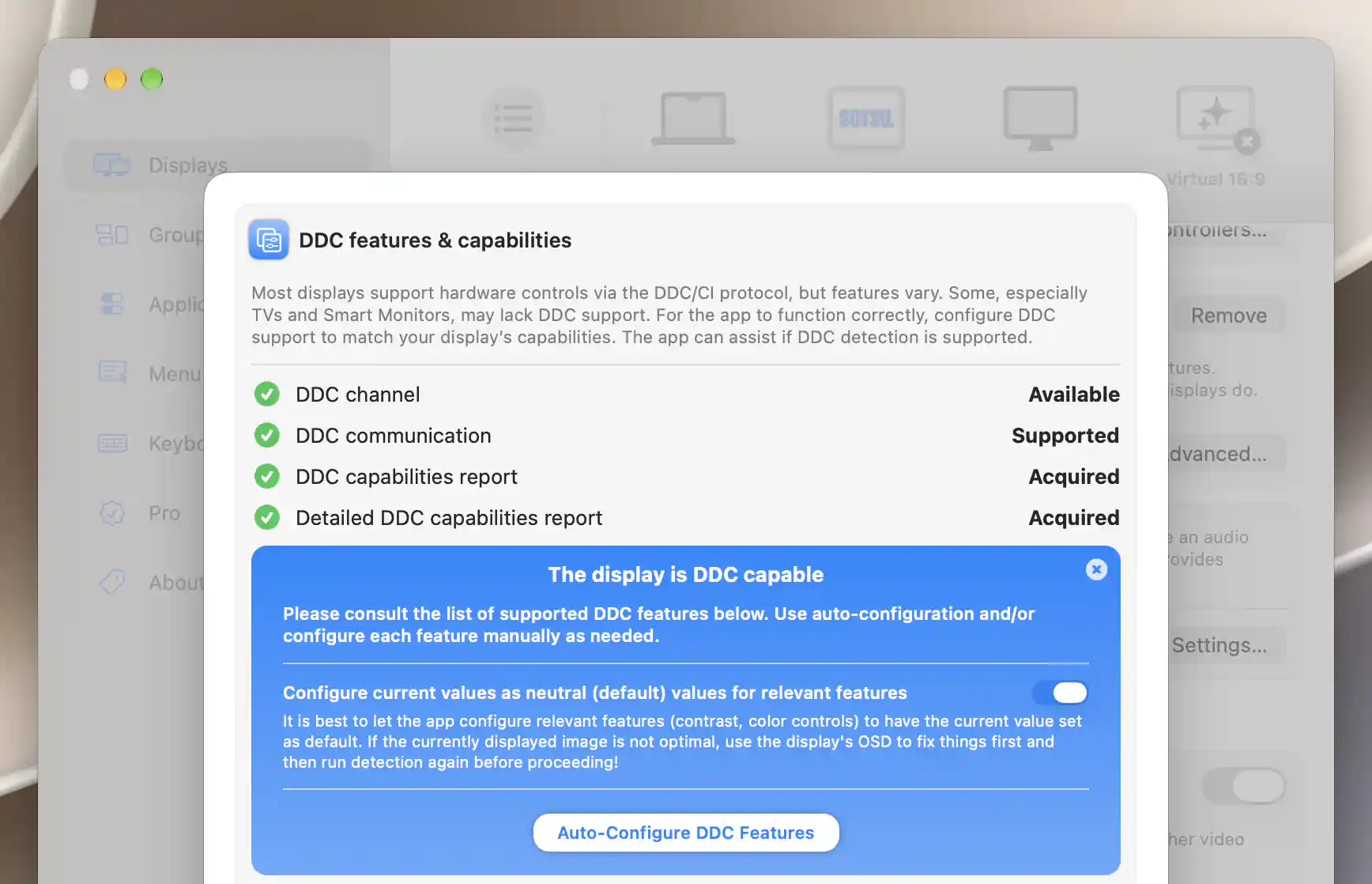
DDC detection reports the connection and capabilities before you apply any automatic configuration.
Detect and configure capabilities
Start with Detect DDC Capabilities… when you want BetterDisplay to examine the connection and the features the display reports. Detection tests the channel and communication, requests a capabilities report where supported, and then attempts more detailed feature reads. Its button is disabled while running; afterward, Redetect DDC Capabilities… repeats the process.
The results distinguish an unavailable channel, unsupported communication, limited support and successfully acquired reports. A missing report does not always mean writes are impossible: some displays can accept a command without providing the corresponding report or readback.
Applying the detected feature set
When usable mapped features are found, Auto-Configure DDC Features configures them from the results. It enables mapped features, disables features outside the detected mapping, and uses reported ranges and current values where available. Review the feature list first because this changes the current feature configuration.
Configure current values as neutral (default) values for relevant features is initially selected when detailed reads succeed. It adopts suitable current contrast and color-control values as neutral settings. If the picture needs correction, first adjust it with the display's own controls and redetect, rather than adopting an unsuitable current value as neutral. After configuration, the completion button becomes Auto-Configuration Done and can dismiss the action block.
Show Detailed Report… expands the report to include additional features and their VCP codes, including codes without a mapped app control. Hide Detailed Report… returns to the compact view.
If DDC is not a useful path, the initial notice offers Explore Other Control Options… alongside detection. Limited-support results also offer alternatives. Disable DDC and Explore Other Control Options disables DDC before opening that selector.
Individual features
Each feature has an enable switch and a Type of Predefined or Custom. Enable only features your display supports. A warning identifies another controller taking precedence, and volume or mute can be inaccessible when the selected audio device uses native volume control. The switch therefore tells you whether this DDC feature is enabled, rather than proving it currently drives the menu control.
The command mapping determines which display feature receives a request. To override it, enter one or more two-digit hexadecimal VCP codes in DDC control code(s) (comma delimited hex values), separated by commas. The field normalizes valid nonzero byte values and removes invalid entries. An empty override uses the built-in code; multiple codes apply the feature to each specified code.
Ranged and on/off features can Periodically read and update current value from display. Readback is off by default. Update frequency defaults to 5 seconds and accepts 0.5–3600 seconds. This can follow changes made with the display's own buttons, if the device supports reading that feature. Periodic reads and DDC writes are suspended in safe mode.
Ranged values
A slider position and a raw DDC value are different scales. DDC value range minimum and DDC value range maximum map one to the other, normally using 0–100 on the device side. Some displays instead use a maximum of 200 or 255. Enter the range appropriate to your hardware.
DDC value mapping skew reshapes how slider position translates to the command. Its range is −10 to 10, with a snap to zero near the center. Invert DDC value scale reverses the mapping.
Neutral (default) value sets the app's neutral point as a percentage, separately from the raw DDC range. Without overrides, brightness and volume use 100%, contrast uses 75%, and RGB gain/black-level and custom ranged controls use 50%. These defaults and the common values in the hints are starting points, not measurements of the best picture setting for your display. Choose a neutral value that preserves the intended picture. Clearing an optional override restores its default.
On/off values and commands
On/off features define DDC data for the ON value is and DDC data for the OFF value, normally 1 and 2. Custom switches also expose Initial (default) setting is ON.
Screen/backlight commands define on and off data, normally 1 and 4, plus Wait time between backlight state change operations, defaulting to 2000 milliseconds. Power-off uses an off value of 5 by default. Other commands expose DDC data. These are raw command parameters, not percentages; support and interpretation belong to the display.
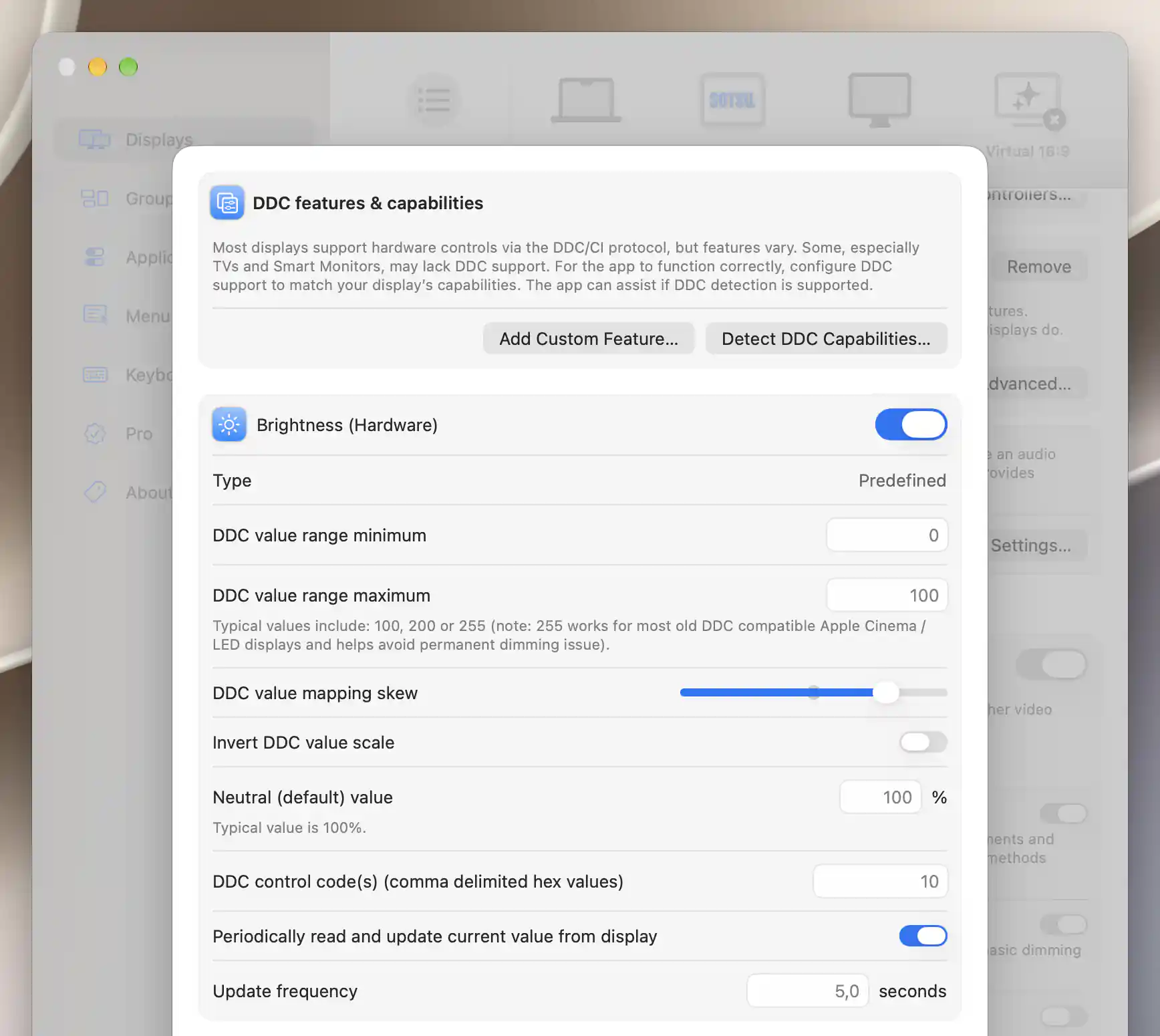
A ranged DDC feature maps app values to the display’s raw range and can read its current value periodically.
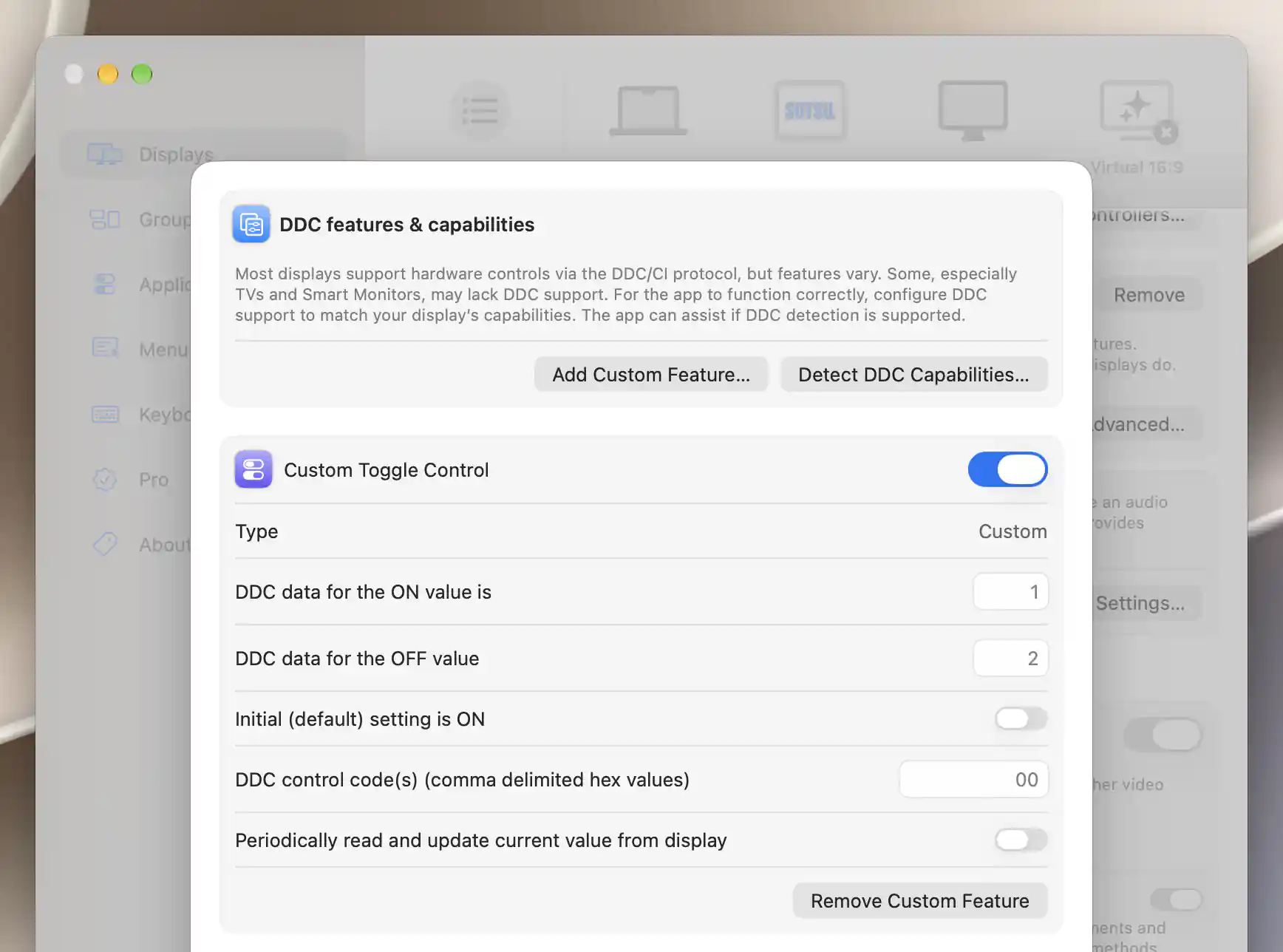
A custom DDC switch defines its on/off data and initial state; this new assignment is still unmapped.
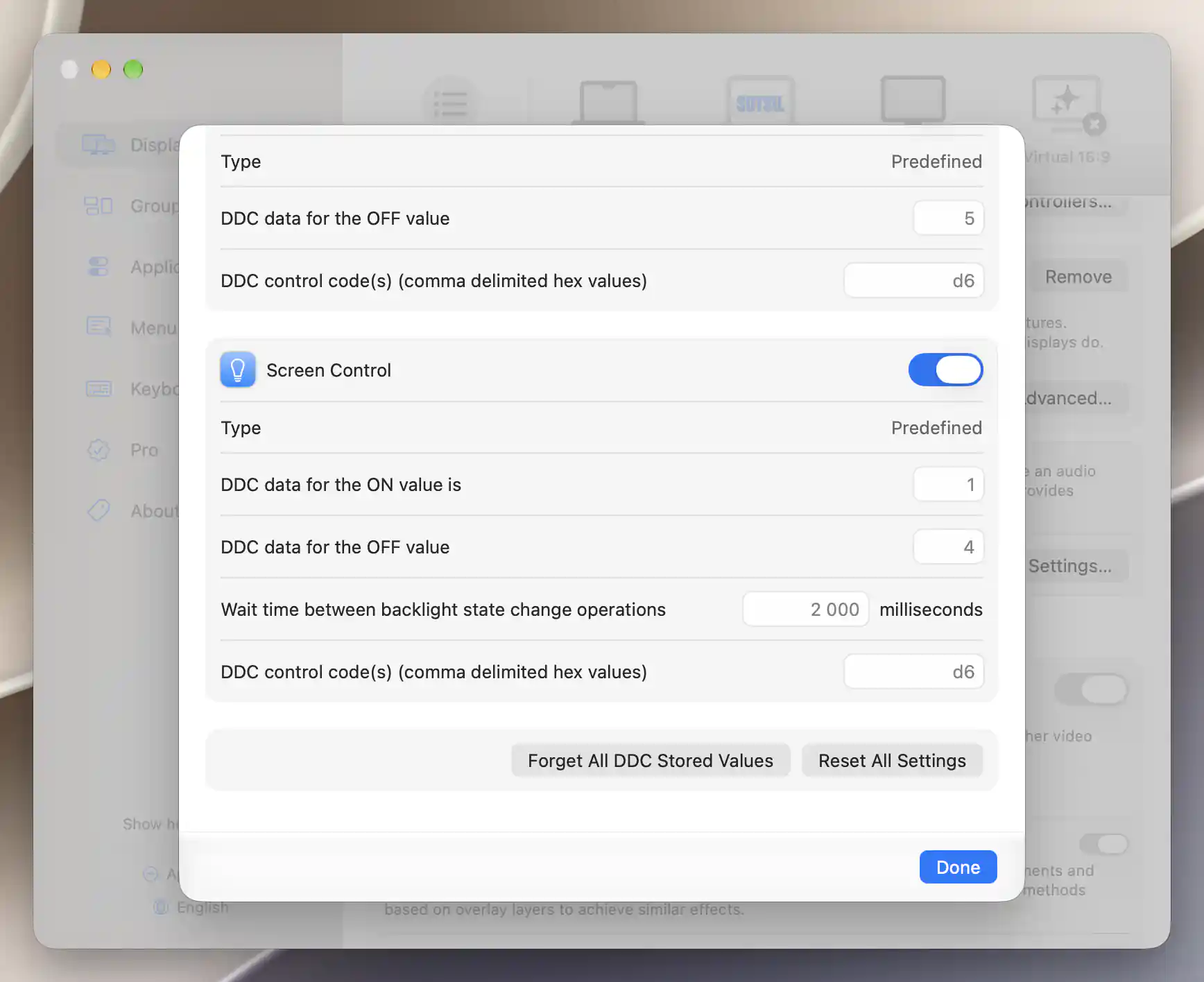
Screen Control defines raw on/off data and the wait between backlight operations.
For a display whose volume works but mute does not, follow the mute compatibility tutorial to check the command sequence before changing the predefined Mute feature’s on/off data or code.
Custom features and reset actions
Use Add Custom Feature… when you need to assign a suitable display-level custom control to DDC. Select Custom Control… lists definitions you can use; an already assigned control is disabled. If the definition you need does not exist, Manage Custom Controls… opens the shared control registry and retains a return path to this display.
After adding a feature, it appears first for configuration. Cancel closes the addition block. Remove Custom Feature removes this display's assignment while keeping the shared definition.
Forgetting values versus resetting configuration
Forget All DDC Stored Values asks for Forget or Cancel. Forget treats DDC controls as untouched and returns their sliders to neutral defaults.
Reset All Settings asks for Reset or Cancel and has a broader scope: it re-enables features, clears saved slider/switch values, and resets predefined controls' code, range, neutral and data overrides. Custom definitions and their mapping/data overrides remain, although command on/off overrides are cleared. Periodic-read preferences, the custom input list and advanced startup/communication preferences also remain.
Neither action sends a factory-reset command to the monitor. That separate operation is in Device Control.
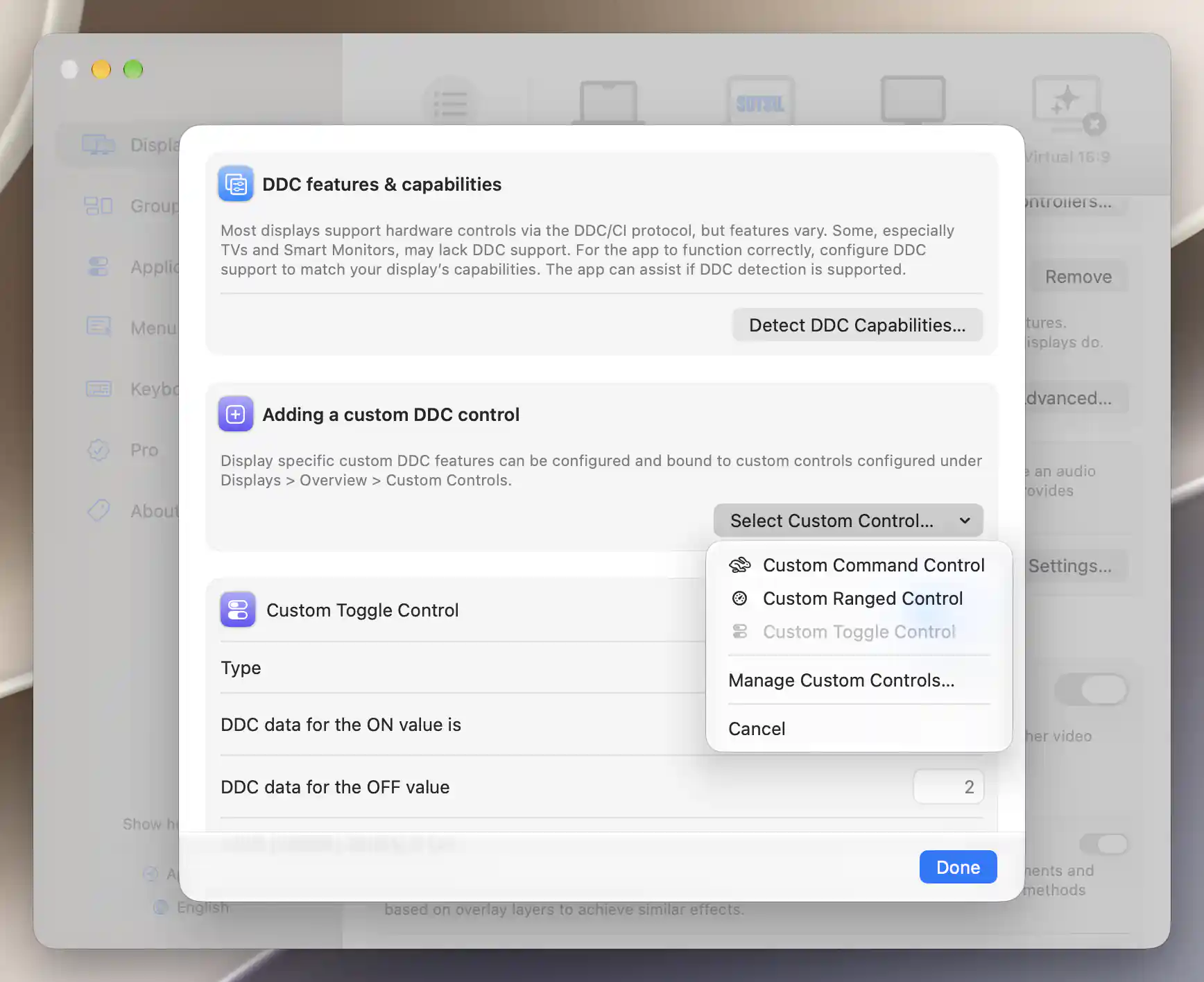
The custom-control chooser disables a control already assigned to this DDC controller.
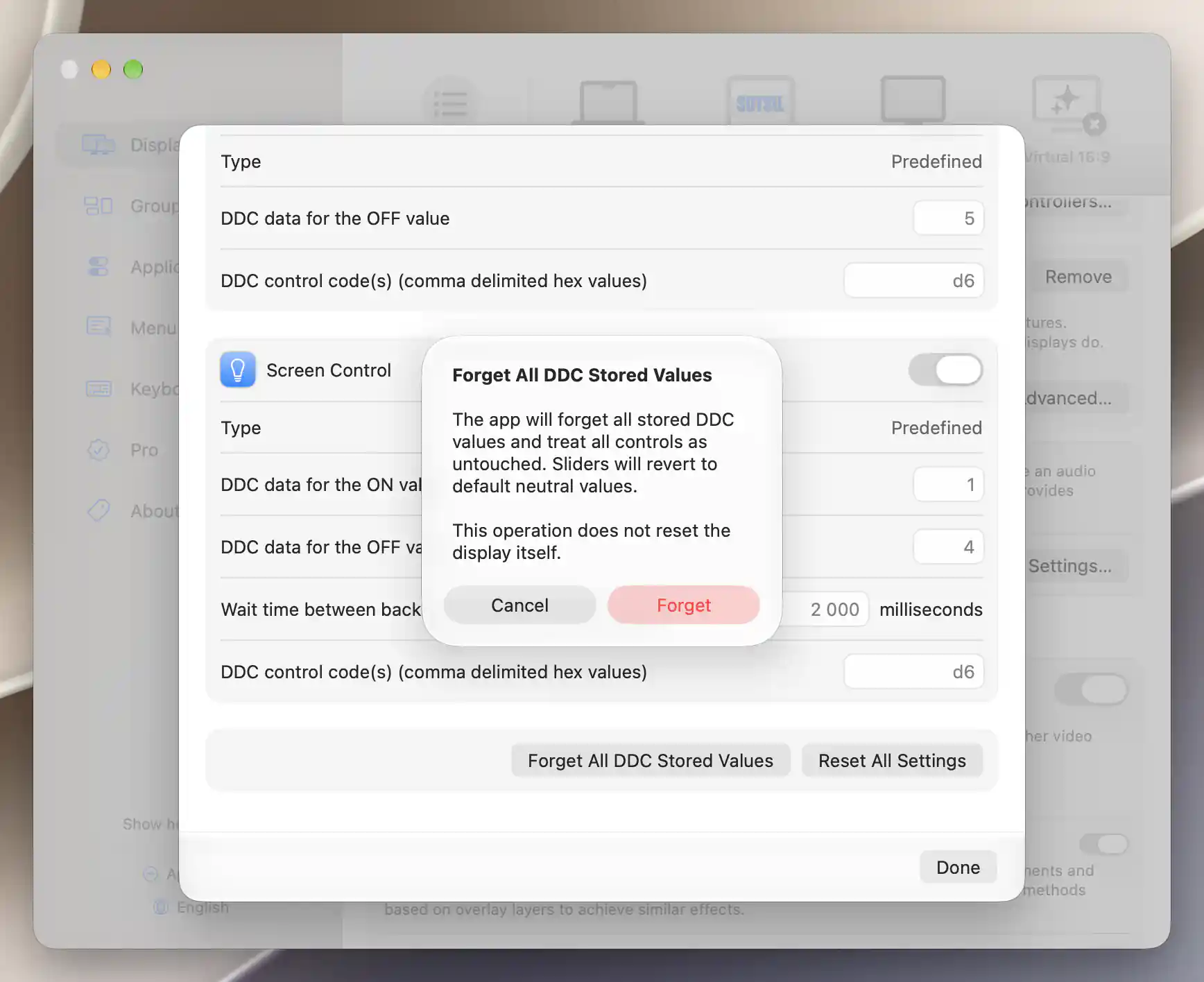
Forgetting stored values returns the app’s controls to neutral defaults.
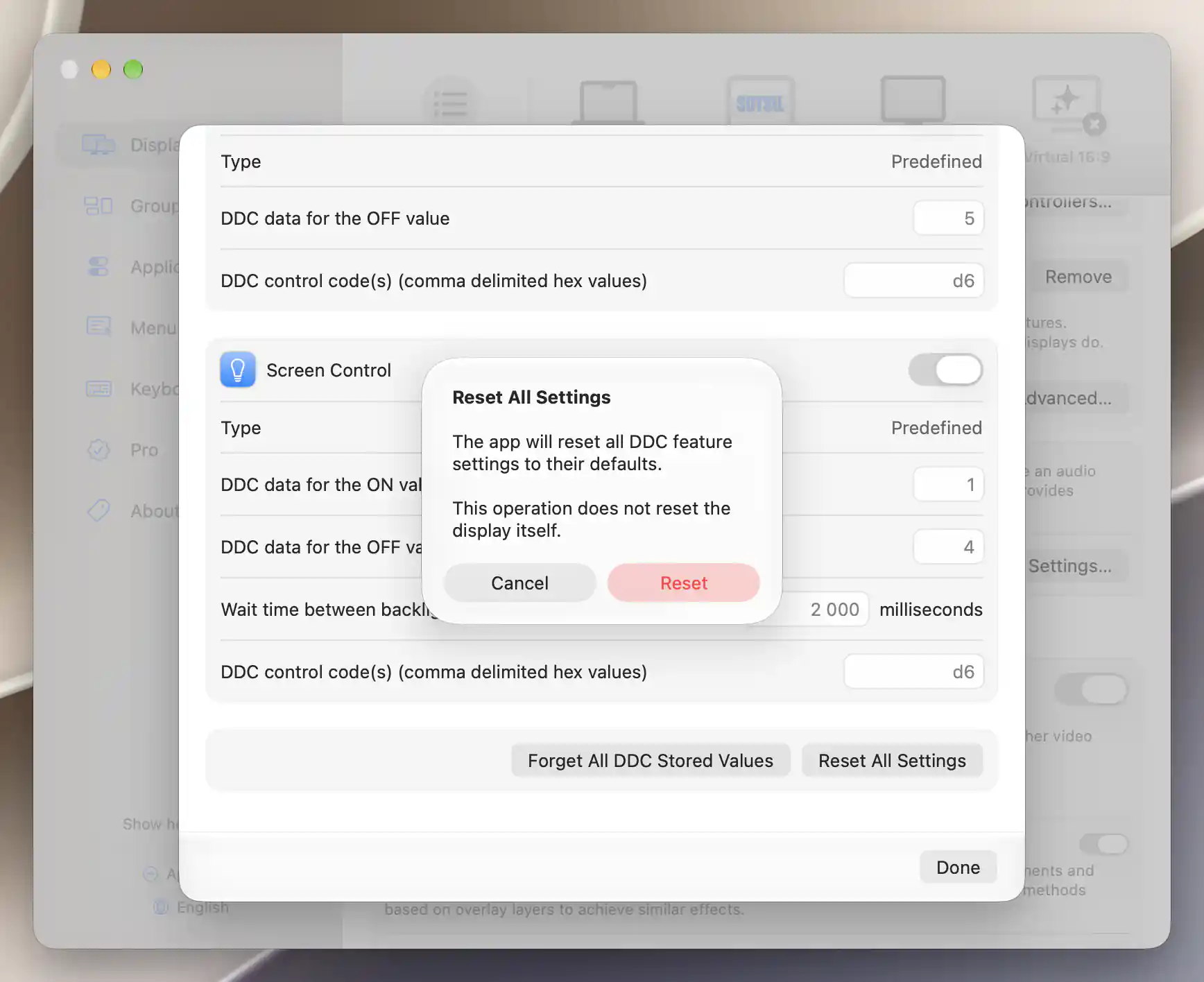
Reset All Settings resets the app’s DDC configuration.
Input sources
Use Input Sources… to decide which input commands appear in the menu and how they are labeled. The sheet first reports whether DDC Input Source Control is enabled. If it is off, the list editor is disabled; configure input-select support under Configure Controls… before editing the list.
Enable Customize input source list for this display to edit the predefined list. Each row has Value, LG alt, Icon, Description and Menu visibility. The default assignments are common examples rather than a detected list of physical ports, so match them to your display. LG alt selects the alternate input-control command used by some newer LG displays.
Set visibility to Hidden for commands you do not want to show, or Block 1 through Block 4 to organize visible commands into separated groups in the Input Source menu.
Edits are saved as the list changes. Reset Default Input Sources removes the custom list and reloads defaults. Set All to Hidden sets every current entry's visibility to Hidden so you can expose only the inputs you need. Both list-editing actions require customization to be enabled.
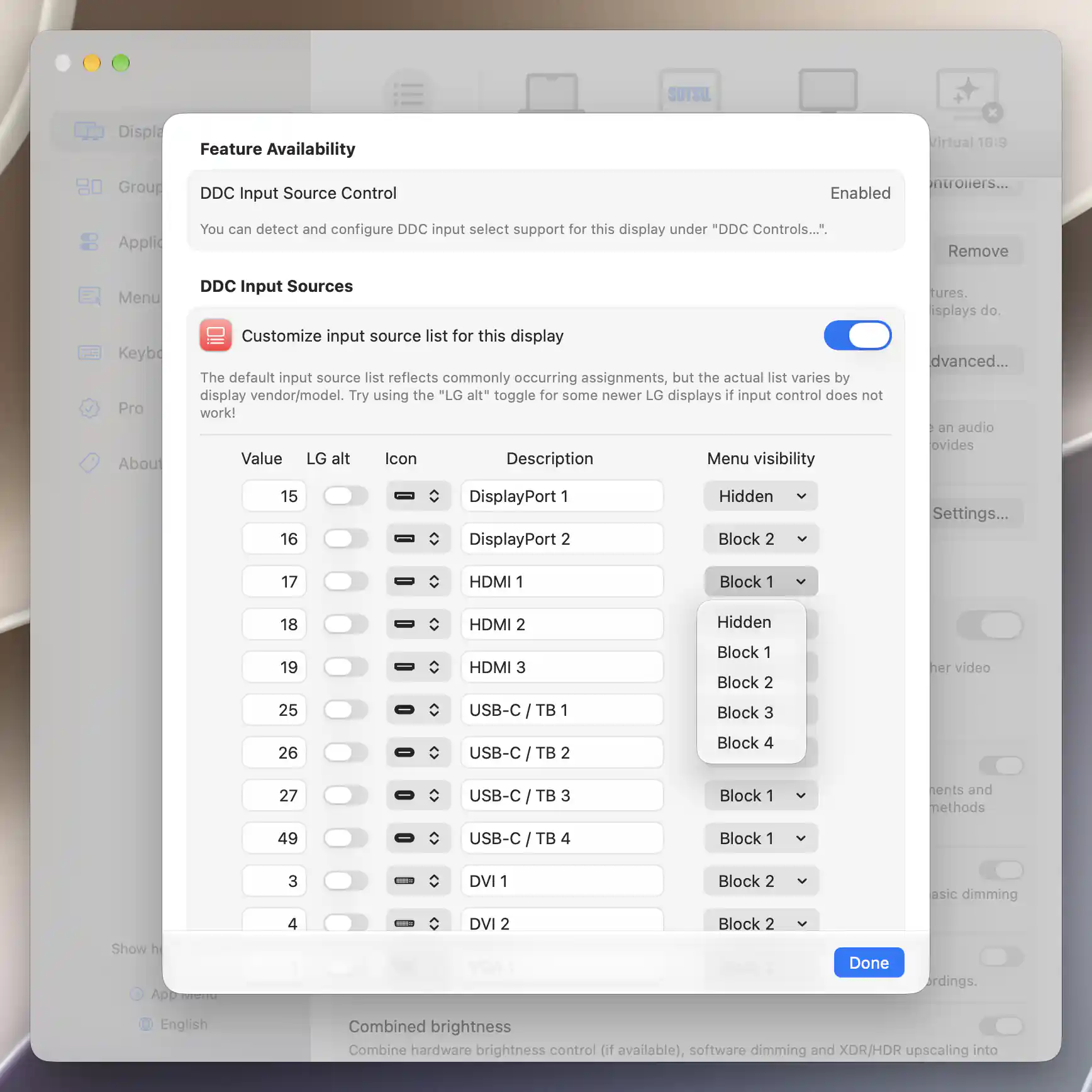
Customize input labels and arrange their menu entries into visible blocks or hide them.
Advanced DDC settings
Startup values determine whether the app initially trusts what it remembers, writes those values back, or asks the display. DDC values on startup offers three policies:
- Assume last used or default values are valid is the default and recommended policy. It initializes app controls from saved or neutral values.
- Write last used values to display sends the saved values. Hold ⇧ Shift during app startup to enter safe mode and prevent saved-value writes. Combined brightness can reapply hardware brightness even when this policy is not selected.
- Read values from display requests current values. Some otherwise DDC-capable displays do not support readback.
Reapply DDC settings on wake is initially off. Enabling it shows an additional delay, defaulting to 1 second and limited to 0–10 seconds, added after the app's wake/configuration delays and display setup.
Communication timing
Use dedicated queue lets this display communicate independently of the others. It defaults to on for Apple silicon and off for Intel. If several displays have communication problems, disabling it for all affected displays makes their commands share one queue instead.
The timing fields override these defaults: Number of times to send a DDC command, 2; Delay between commands, 10 ms; Number of retry attempts on failure, 4; Extra wait time after failure, 5 ms; Wait time for response on read, 10 ms. Writes use at least one cycle, retries at least zero, and the communication delays at least 1 ms. Clearing a field restores its default.
Ignore checksum check error on read, initially off, relaxes read validation for displays with that compatibility issue.
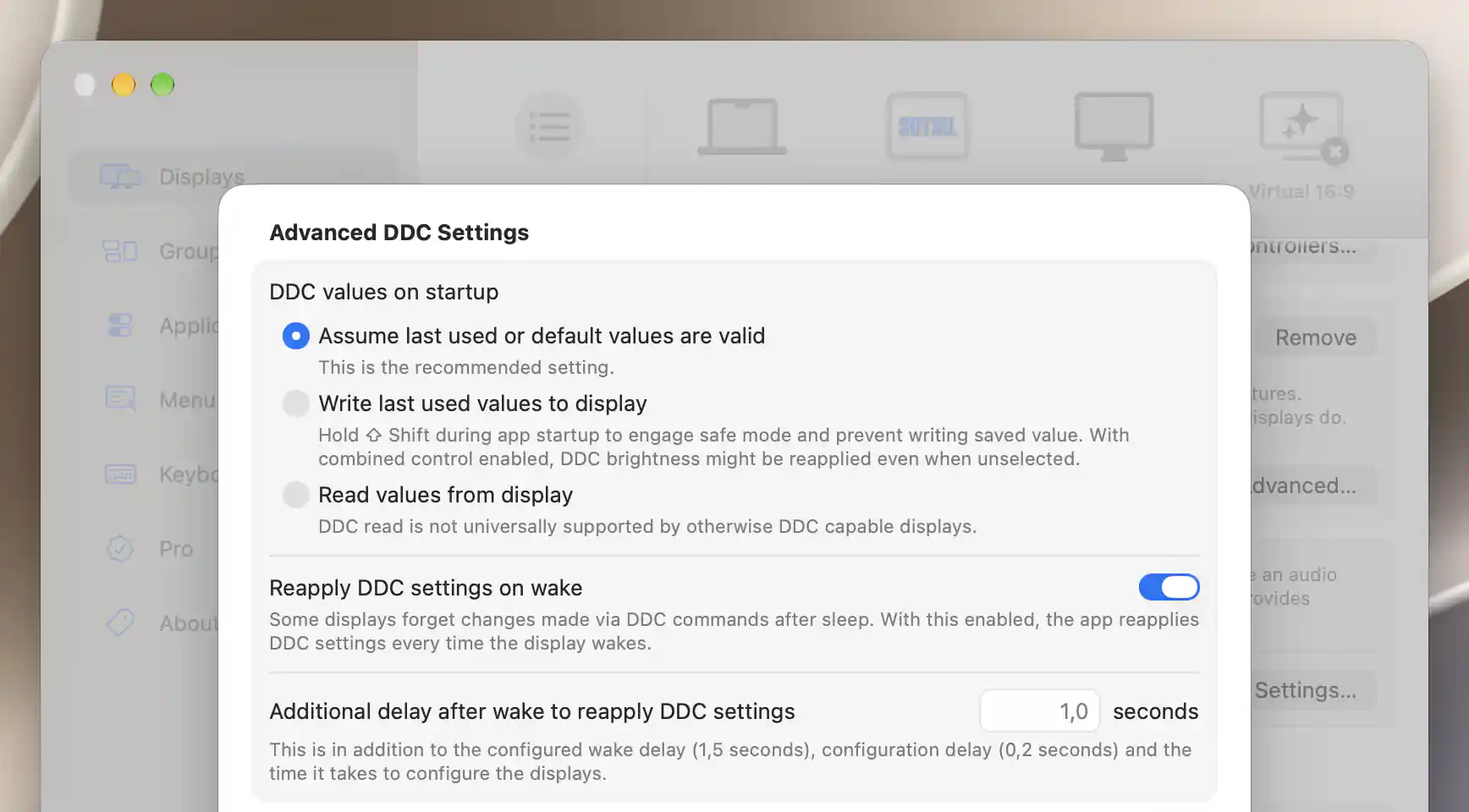
Choose how DDC values initialize and, when needed, delay their reapplication after wake.
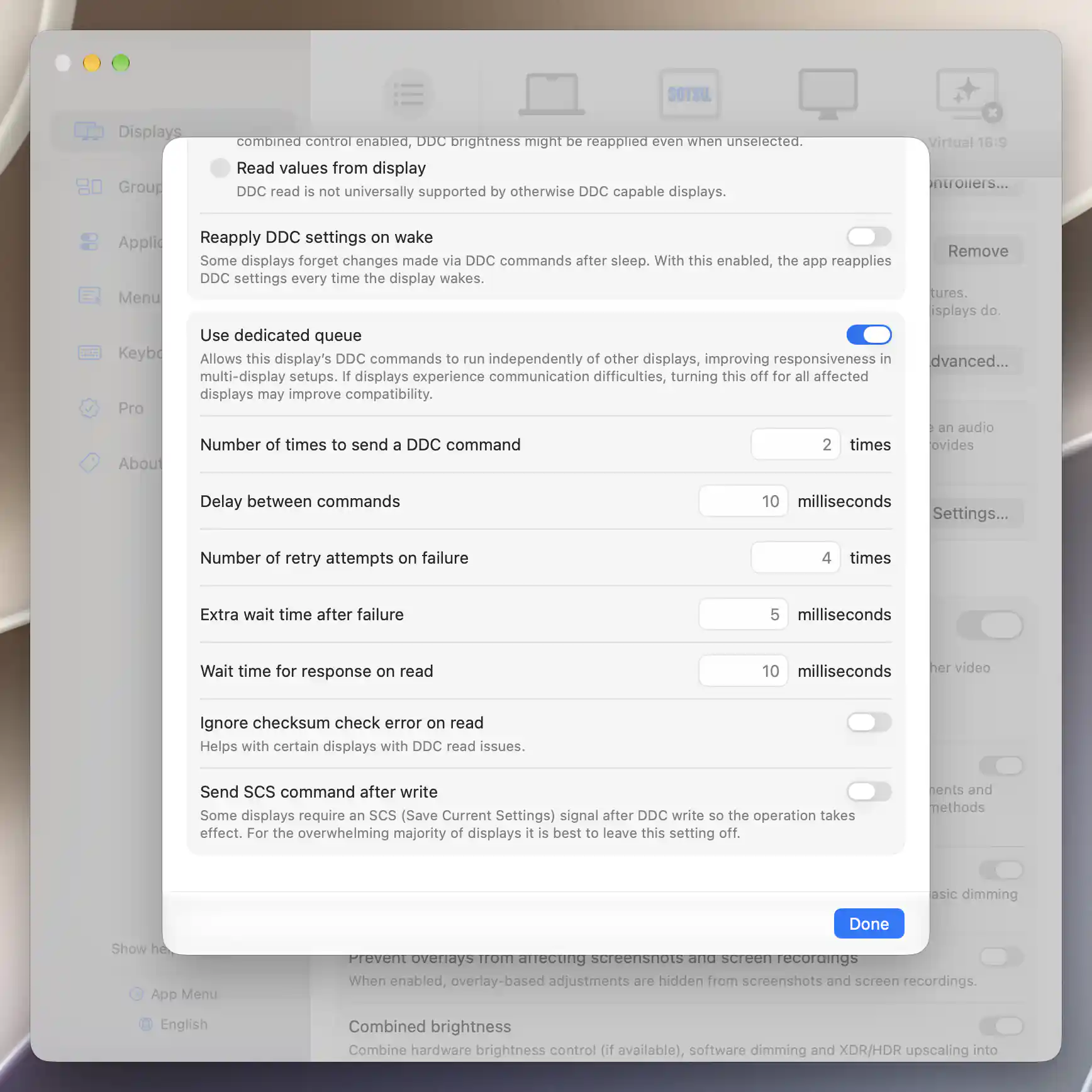
Advanced DDC settings control command timing and compatibility behavior.
Related: Device Control · Input Source
Additional information
This section explains which features require Pro and how availability differs between Mac platforms.
Features requiring Pro license
- Adding, enabling or editing custom DDC features and creating their shared custom-control definitions.
Predefined DDC feature configuration, detection, input-list editing and advanced communication preferences do not themselves require Pro.
Platform compatibility
DDC control is available on both Apple silicon and Intel Macs through compatible display connections. The path must support the command, and readback support can differ from write support. Use dedicated queue defaults to on for Apple silicon and off for Intel.
The controller normally applies to non-Apple physical displays. The older compatible Apple Cinema/LED brightness-range warning above still applies when those displays use this control path. A configured feature does not establish hardware support.