Schedule daytime and evening brightness across your monitors
Use a brighter daytime setup and a comfortable evening setup without rebuilding the settings each day. Save explicit brightness choices for your monitors in named macOS Shortcuts, test them manually, then attach time-of-day triggers. Shortcuts supplies the schedule; BetterDisplay applies each requested adjustment.
Before you begin
- Keep BetterDisplay running and the intended displays connected, with working brightness controllers. A remembered display can appear in a picker while its brightness is unavailable. A schedule cannot connect an unplugged monitor or add DDC support to an unsupported cable or dock.
- Use ordinary SDR for this example. Start with one display, then add a second after its action works. Set Brightness chooses the appropriate hardware/software/combined control; it does not guarantee a hardware-only path.
- Privately record each monitor’s actual brightness, app-current and saved values, range/mapping/controller, picture mode and automatic-brightness state. Also record affected displays, synchronization rules, group priorities/activation, current modes/main display/layout and independently saved protection targets, including absent values. Pause only individually interfering rules or automatic-brightness behavior whose originals you can restore. Keep unrelated settings intact.
- Keep a visible physical recovery desktop and monitor menu available; do not test levels that make the whole desktop unusable. On a MacBook keep the lid open and built-in connected. Record then temporarily turn off Settings > Displays > Overview > Connection Management Settings… > Disconnect built-in display when an external display is connected if it would remove that recovery view. Preserve existing connection safeguards.
The time trigger belongs to this Mac’s Shortcuts automation. It is not a built-in BetterDisplay scheduler. Native BetterDisplay actions do not require CLI access, a shell script or a server. These ordinary actions and time triggers do not use Apple Intelligence.
Make Daytime, Evening and Restore shortcuts
- In Shortcuts, use the toolbar’s Add button, then Shortcut Name to name a new shortcut Desk Daytime. Search the action list for BetterDisplay and add Set Brightness. Apple documents creating and testing a shortcut.
- Select the actual intended Display and a comfortable daytime Brightness. Expand the action’s additional parameter and explicitly turn off Range includes software brightness upscaling, which defaults to on. Do this before choosing and testing the level. Keep the same range choice in all three shortcuts.
- Run this one action manually. Verify the real screen, not just its slider or the action’s completion. Adjust to a comfortable visible setting and record the tested value. Do not assume the app’s initial value reflects actual monitor brightness or copy a percentage from another monitor.
- For a second monitor, add another Set Brightness action with that display, its independently tested level and the same explicit range choice. Run the full sequence and inspect both final levels. Use a specific display in every action rather than Set Brightness for All Displays or a target selected by pointer position.
- Create a separate Desk Evening shortcut with the same explicit display selections and range choices, using individually tested comfortable evening levels. Then create Desk Restore with the original comfortable levels you recorded and verify that sequence too. Keep Restore available for manual recovery; do not give it a time trigger.
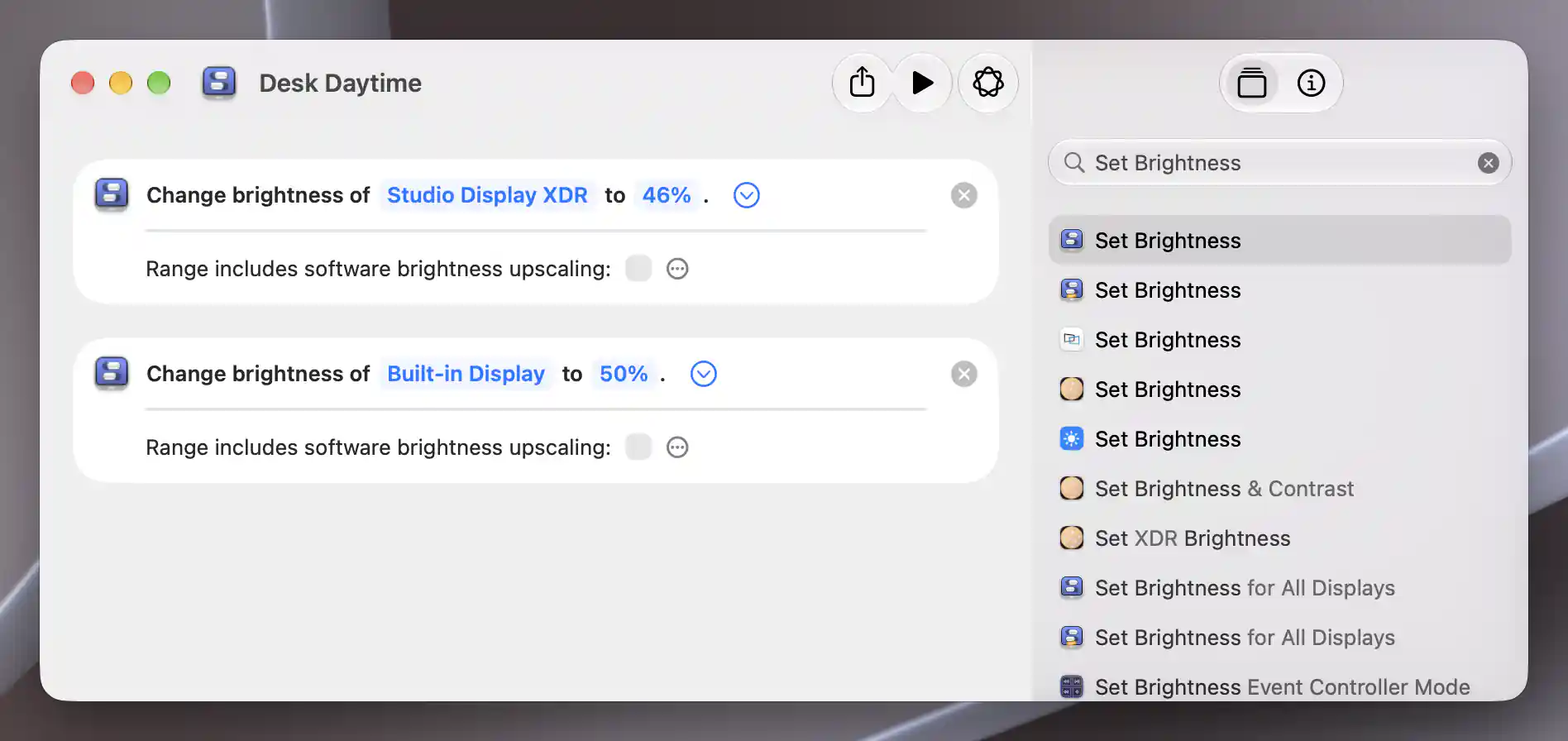
Test each display’s brightness separately, then check the complete sequence before adding a schedule.
The range option changes how a request maps to the selected control’s range. With upscaling included, the full normalized range can include software brightening above the ordinary level. Excluding it keeps this example’s requests on the ordinary brightness scale. It does not disable a separately configured upscaling feature or turn an unsuitable HDR workflow into SDR. Keep the controller, ranges and picture mode used during testing unchanged.
Percentages are requested settings, not measured luminance. Two monitors can need different values for comfortable viewing. The actions run in sequence, and synchronization can propagate a change to another display; the final action can overwrite an earlier independent level. Review Synchronization Settings before scheduling. This preset is not an atomic transaction or a complete saved calibration, and the Restore shortcut does not restore all app preferences or absent storage.
Add the two time triggers
- In Shortcuts on this Mac, select Desk Daytime, click Edit, click Automation, then choose Time of Day.
- Use the time and recurrence choices actually offered by your installed macOS to set when Daytime should run. Choose a time you can observe for the initial test; record its repeat pattern and the Mac’s time-zone context. Inspect the resulting trigger before leaving it active.
- Add a separate Time of Day trigger to Desk Evening for the evening schedule. Keep the two times distinct and check both saved triggers. Leave Desk Restore manual. Follow Apple’s current Mac automation instructions if your version presents different options.
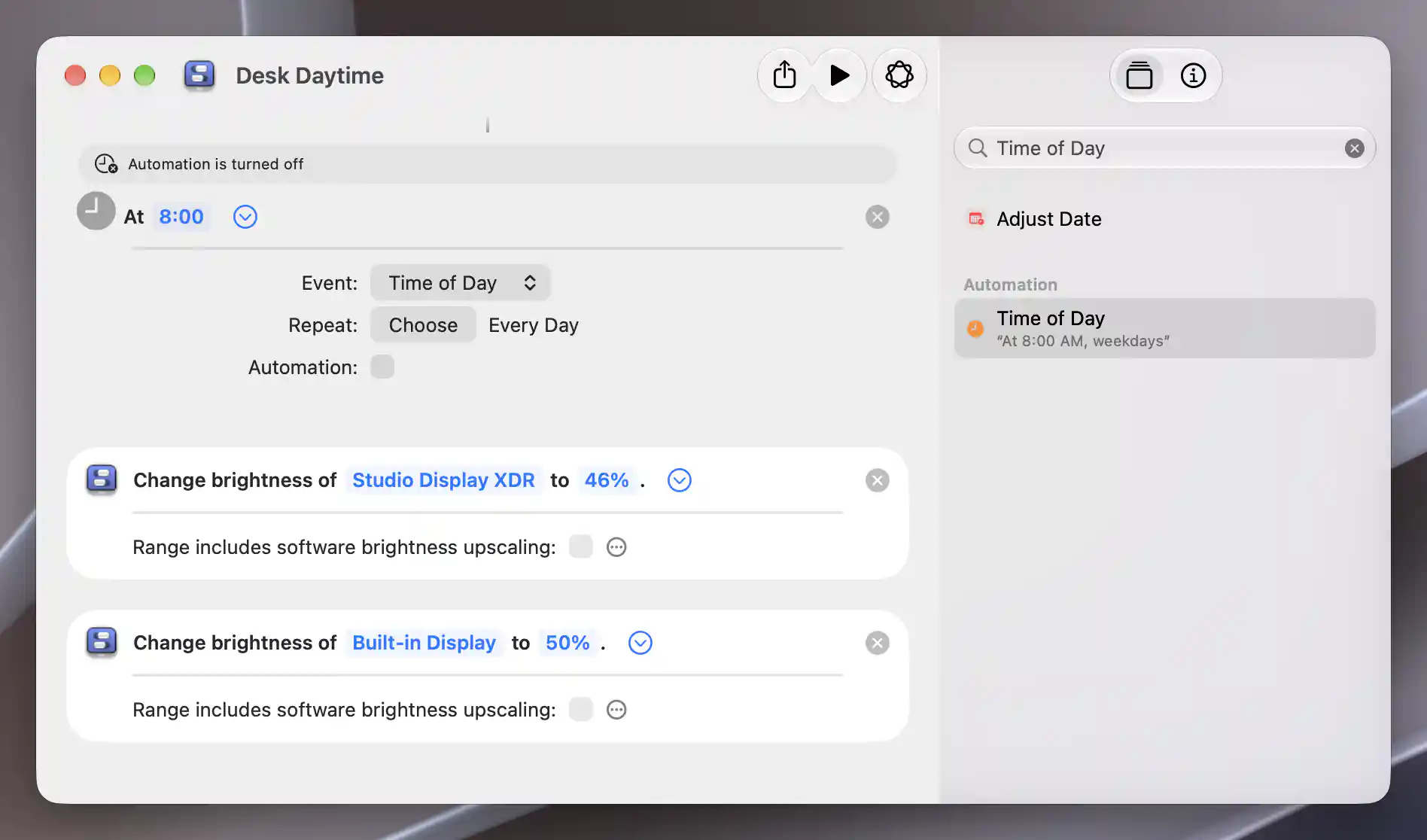
Review the time and repeat pattern before enabling the automation.
By default, an automation can ask you to run it through a notification. Apple also notes that automations are device-specific: an automation synced to another device is disabled there. Verify the schedule on the Mac driving these monitors. Apple’s automation introduction
Allow unattended running after manual testing
After checking the normal scheduled request, select each scheduled shortcut, click Edit, click the Info button, then choose Privacy. Enable Allow Running When Locked if you want its supported time trigger to run without asking. Individual actions may still need permissions; resolve only genuine requests during manual testing, using Shortcuts’ privacy settings. Review the actual options on your installed macOS before relying on unattended operation.
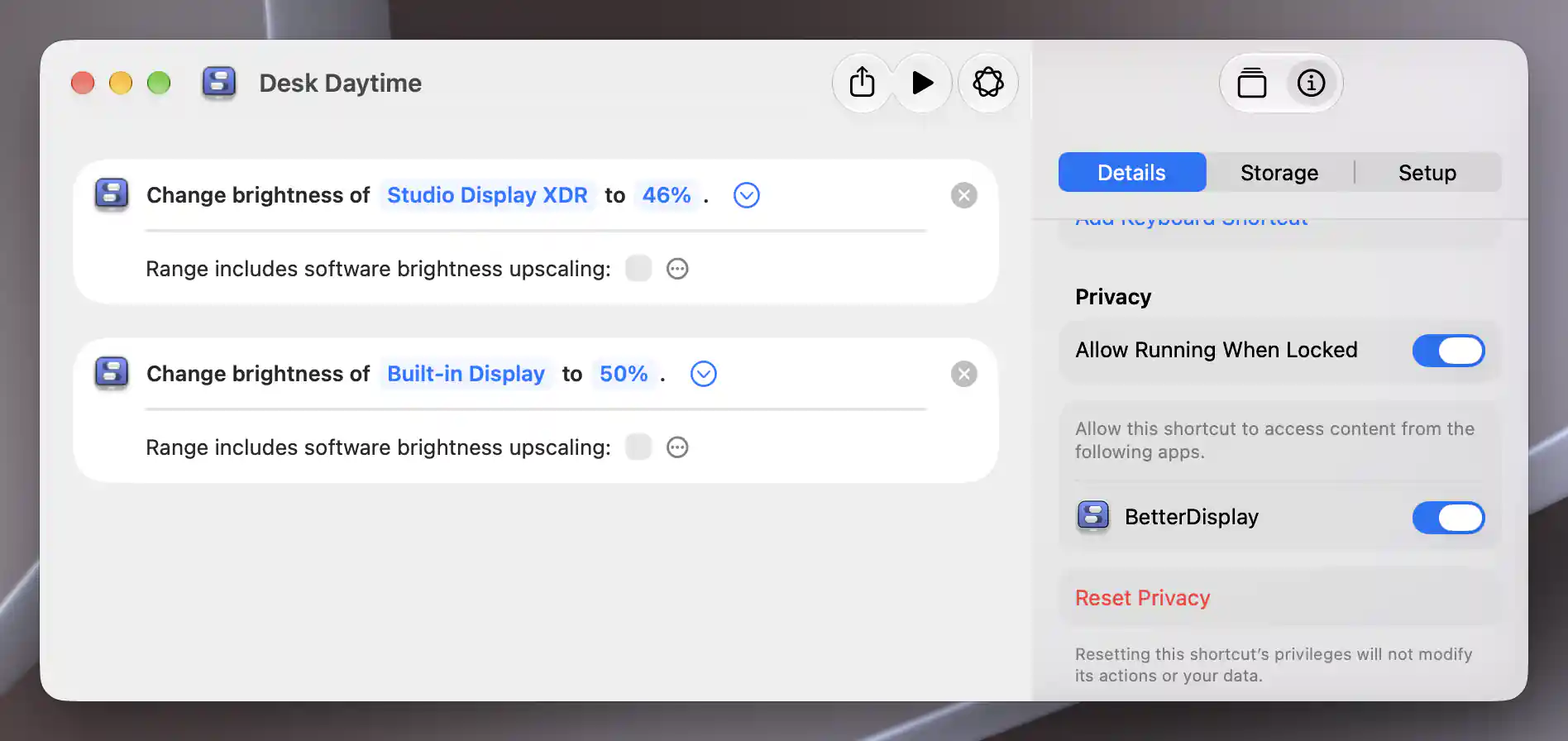
Review unattended permission separately from each action’s access and the monitor’s readiness.
Keep BetterDisplay running and the intended displays usable. Permission to run while locked is not permission to connect missing hardware, wake a sleeping Mac or relaunch BetterDisplay. Do not rely on missed triggers being replayed after wake or login. If a time passed while your setup was unavailable, inspect the displays and run the appropriate named shortcut manually once they are ready.
Check the result
- At each initial trigger time, with the Mac awake and displays ready, observe whether Shortcuts asks for confirmation or runs unattended as configured. Check each monitor’s actual brightness after all actions and pending hardware requests finish.
- Compare the final result with the manually tested Daytime or Evening setup. Check other displays and the recovery desktop too. A completion indicator or a returned Boolean alone does not prove the panel changed.
- Run the same named shortcut again manually and confirm it requests the same fixed levels, rather than incrementing brightness. If a display is absent or a controller fails, another action may already have changed its monitor; inspect each separately.
- Recheck after your normal reconnect or wake. Automatic brightness, group reconciliation and startup/wake policies can subsequently change levels. The schedule does not lock them out or continuously enforce the preset.
For manual presets without a schedule, use the brightness preset tutorial. If you prefer brightness to track ambient light, use automatic brightness across mixed displays instead of letting two policies compete.
Troubleshooting
- Manual shortcut does not work: confirm the actual display selection, connected state, appropriate brightness controller and range choice. A disconnected or unavailable target cannot receive this setting. Test one action before its schedule; the brightness-presets FAQ explains the underlying setup.
- Manual run works, time trigger does not: inspect the schedule on this Mac, repeat pattern, time-zone context and confirmation/privacy behavior. In Shortcuts’ Automation view, the Filter button’s Turned On and Turned Off filters help locate scheduled shortcuts. Do not assume a synced copy is enabled or a sleeping/unavailable setup will catch up.
- One level changes another or drifts back: review only the applicable brightness synchronization, ambient/automatic brightness and preset/startup/wake rules. Pause one relevant rule at a time after recording its exact original settings. Check both screens after the full sequence, not between actions.
- Unexpected percentage: keep Range includes software brightness upscaling consistent, recheck controller ranges and picture mode, then retest comfortable actual levels. See why monitor and app percentages can differ. Do not use maximum brightness as a universal workaround.
Undo the test setup
- Stop manual trial runs and disable or remove only the two newly added time triggers on this Mac. Select their shortcuts, choose each trigger and remove it through the installed version’s automation interface. Wait for any running shortcut and already dispatched asynchronous display requests to finish before restoring levels. Removing a trigger does not cancel a hardware request already sent.
- With all affected displays connected and recovery visible, run the verified Desk Restore once or restore the recorded actual brightness manually. Separately restore changed app-saved values/ranges/controller configuration and original absent/nil fields. The named shortcut restores requested levels, not every saved preference.
- Restore individually paused automatic-brightness/synchronization rules and independent protection targets/group metadata. If original current state differed from a saved protected target and normal UI cannot recreate both, leave only that affected rule off, preserve the private original record/backup and report the precise restoration limit. A shown default is not original saved presence. Do not use global Forget, Reset or Import.
- Delete only the three new shortcut definitions if no retained trigger or other workflow uses them: select each, Edit > Delete > Delete Shortcut. Deletion does not undo applied brightness. Apple’s deletion instructions
- Restore only trial-specific permissions and original appearance/window state. Restore the built-in auto-disconnect policy only after the original physical desktop is usable and removing the temporary recovery view is safe. Preserve unrelated schedules, groups, settings and safeguards.
Related pages
- Change brightness at scheduled times
- Restore brightness levels on several monitors
- macOS Shortcuts action reference
- Synchronization Settings
Additional information
This section explains licensing and platform requirements.
Features requiring Pro license
Native Shortcuts access and ordinary supported brightness adjustment have no separate Pro requirement. Requested advanced brightness methods, upscaling and particular group features retain their own license requirements. This recipe does not create custom groups or advanced adjustments to obtain a schedule.
Platform compatibility
BetterDisplay requires macOS 26.3 or later and supports Apple silicon and Intel Macs. Time-based Mac Shortcuts automations were introduced with macOS Tahoe, as described in Apple’s feature overview; the installed macOS determines its exact trigger and privacy interface. Ordinary Set Brightness actions and time scheduling do not require Apple Intelligence. Each monitor still needs a supported controller and a usable connection. No CLI/script access, native-media-key or Screen Recording permission is required for these native brightness actions.