Run desk setup actions automatically when a monitor connects
Have your desk monitor return to a comfortable, previously tested brightness when BetterDisplay detects it reconnecting. This recipe attaches one fixed, explicitly targeted shell script to the monitor’s Hard reconnect event. It leaves connection, input and display mode decisions to you.
Before you begin
- Use one connected, remembered physical desk monitor with working ranged DDC hardware brightness through the actual cable, dock or adapter you use. Establish that path manually first; the dock tutorial covers diagnosis. Use ordinary SDR for this example; see HDR for different brightness restrictions.
- Keep BetterDisplay running. The script calls its installed executable to contact the running app. Record the original Settings > Application > Integration > Enable CLI access and notification based integration setting, and enable it if needed. It defaults to on. HTTP access, custom URL access and native keyboard interception are unnecessary.
- Keep an independent visible Mac desktop and the monitor’s own menu available for recovery. On a MacBook, keep the lid open and built-in display connected. If its automatic disconnection would remove that recovery view, record then temporarily turn off Settings > Displays > Overview > Connection Management Settings… > Disconnect built-in display when an external display is connected. Preserve the existing connection safeguards.
- Privately record actual monitor brightness separately from the app’s current and saved control values, ranges and controller assignment. Also record other displays’ brightness, relevant synchronization/automation rules, current modes/main display/layout and independently saved protection targets. Record all existing integration actions, parameters and original optional values, including absent values. Pause only individually relevant rules that would override the trial or propagate its brightness to other displays.
The event editor has no separate Pro requirement. This recipe uses the existing hardware-brightness control, not a new custom control. Confirm its owner remains the intended DDC controller after adding Control Integration; existing integration definitions can replace feature ownership.
Prepare a paused reconnect event
- With the intended monitor connected, open Settings > Displays > [monitor] > Device Control > Add or Remove Controllers…. Choose Add beside Control Integration if it is not already added. Preserve existing definitions and feature assignments; this task does not need Configure Integration Controls….
- In the monitor’s Control Integration section, open Configure Events…. Choose Add Event… > Select Event… > Hard reconnect. Only hooks not already added appear. If Hard reconnect is already configured, record its entire definition and use a separate suitable monitor for this trial rather than overwrite an existing action.
- Leave Action at its initial Do nothing. The new card is saved immediately, with empty action text and absent optional timing values. There is no Apply, Test or dry-run button.
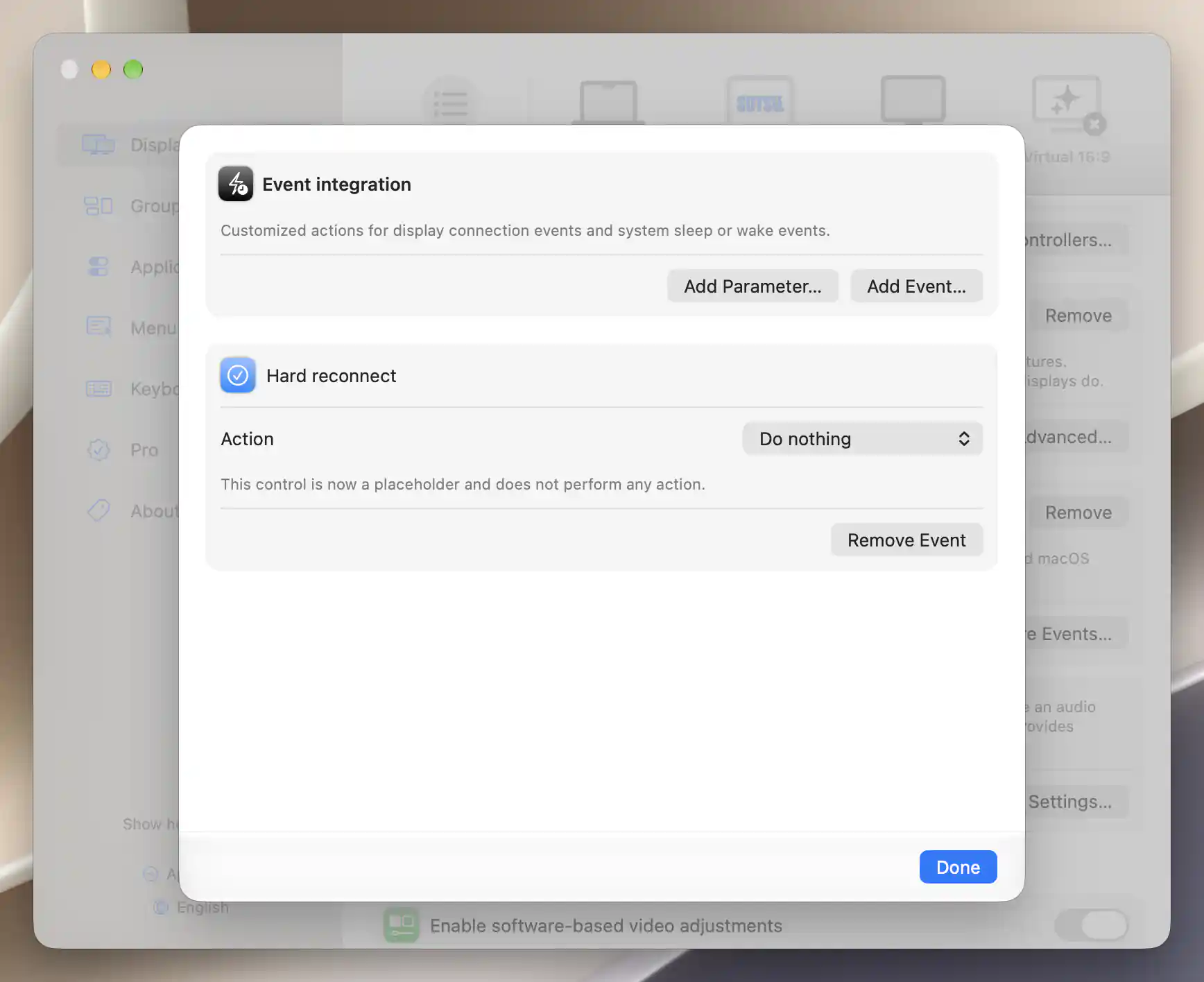
Prepare the new event with Do nothing before selecting an action.
Hard reconnect means a remembered display is rediscovered, marked connected and has its controllers set up. It is not every configuration refresh or the first discovery of an unknown monitor, and it does not guarantee the hardware has finished becoming ready.
Make and test one fixed brightness script
- Use the monitor’s own menu and BetterDisplay to establish a comfortable, visible hardware brightness. Do not assume a stale app slider describes the panel’s starting level. Record the tested setting and verify that changing it really changes the intended monitor without changing another display.
- Open Settings > Displays > [monitor] > Display Information… > Identifiers and record its actual Tag ID. This is BetterDisplay’s local remembered identity, not a permanent cross-Mac identifier. Use that single current tag and
-type=Displayin every request; omitting a selector can target multiple devices. Do not substitute a runtime display ID or a different monitor’s tag. - Save the following as a new plain-text
desk-brightness.zshfile in a stable folder you own. Replace the executable path if BetterDisplay is installed elsewhere,REPLACE_WITH_TAG_IDwith the actual positive numeric tag, andREPLACE_WITH_TESTED_LEVELwith the value you will manually verify on the normalized 0–1 scale. Keep straight quotes and preserve the explicit target in both requests.
#!/bin/zsh
bd='/Applications/BetterDisplay.app/Contents/MacOS/BetterDisplay'
tag='REPLACE_WITH_TAG_ID'
level='REPLACE_WITH_TESTED_LEVEL'

if [[ ! "$tag" =~ '^[1-9][0-9]*$' ||
      ! "$level" =~ '^(0(\.[0-9]+)?|1(\.0+)?)$' || ! -x "$bd" ]]; then
    printf '%s\n' 'Configure the actual executable, Tag ID and tested level first.' >&2
    exit 64
fi

if ! "$bd" get -type=Display -tagID="$tag" -hardwareBrightness >/dev/null; then
    printf '%s\n' 'Target hardware brightness is unavailable; no write requested.' >&2
    exit 1
fi

if "$bd" set -type=Display -tagID="$tag" -hardwareBrightness="$level" -min=0 -max=1; then
    printf '%s\n' 'Desk brightness request accepted.'
else
    printf '%s\n' 'Desk brightness request failed.' >&2
    exit 1
fi
-min=0 -max=1 maps the chosen number across the control’s configured minimum and maximum. For example, 0.4 means 40% of that configured span; it is not a universal monitor percentage or measured luminance. Use it only if that mapped setting has been tested on your monitor. Choose a visible, comfortable value rather than either endpoint by habit. This explicitly requests hardware brightness instead of automatic hardware/software/combined selection.
The initial get succeeds only when this connected target has an available control. It reads the app’s stored value, not fresh DDC readback, and the script discards it. It neither detects actual luminance nor guarantees readiness for the following write. An absent or unavailable target produces a failure and no set request. The script makes at most one probe and one write, with no retries, toggles or connection changes.
- With the event still paused, run the saved script once in Terminal using
/bin/zshand its actual absolute quoted path. For example, replace the account/folder placeholders in the next line before using it. Explicitly invoking zsh means the file need not be made executable. Apple explains running commands in Terminal.
/bin/zsh "/Users/YOUR_ACCOUNT/BetterDisplayActions/desk-brightness.zsh"
- Read the output and check the physical monitor. A successful CLI request has exit status zero; a failed request reports failure to standard error. Desk brightness request accepted. confirms app handling, not completed hardware change. Verify the real brightness, other monitors and recovery desktop before activating the event. If anything is wrong, leave Do nothing selected and correct the target, range or hardware path first.
Activate and check a controlled reconnect
- Open App Menu > Tools > Show Console and turn on Logging, recording its original state. Keep logs private until reviewed for identifiers, paths and command contents. The console is for inspecting app logs here; do not paste the shell script into its integration prompt.
- Return to the monitor’s event editor. Change Action to Run shell script and enter the manually tested
/bin/zsh "…actual absolute script path…"invocation in Shell script (zsh). Explicitly invoking/bin/zshruns the saved file with its intended interpreter. - Leave Timeout and Redundancy filter time interval blank for their defaults of 10 seconds and 1 second. The displayed defaults are hints, not explicitly saved values. Timeout does not kill a shell process or roll back a write. The redundancy filter suppresses recently identical expanded payloads of the same action type across this controller’s controls and events; it is not loop protection.
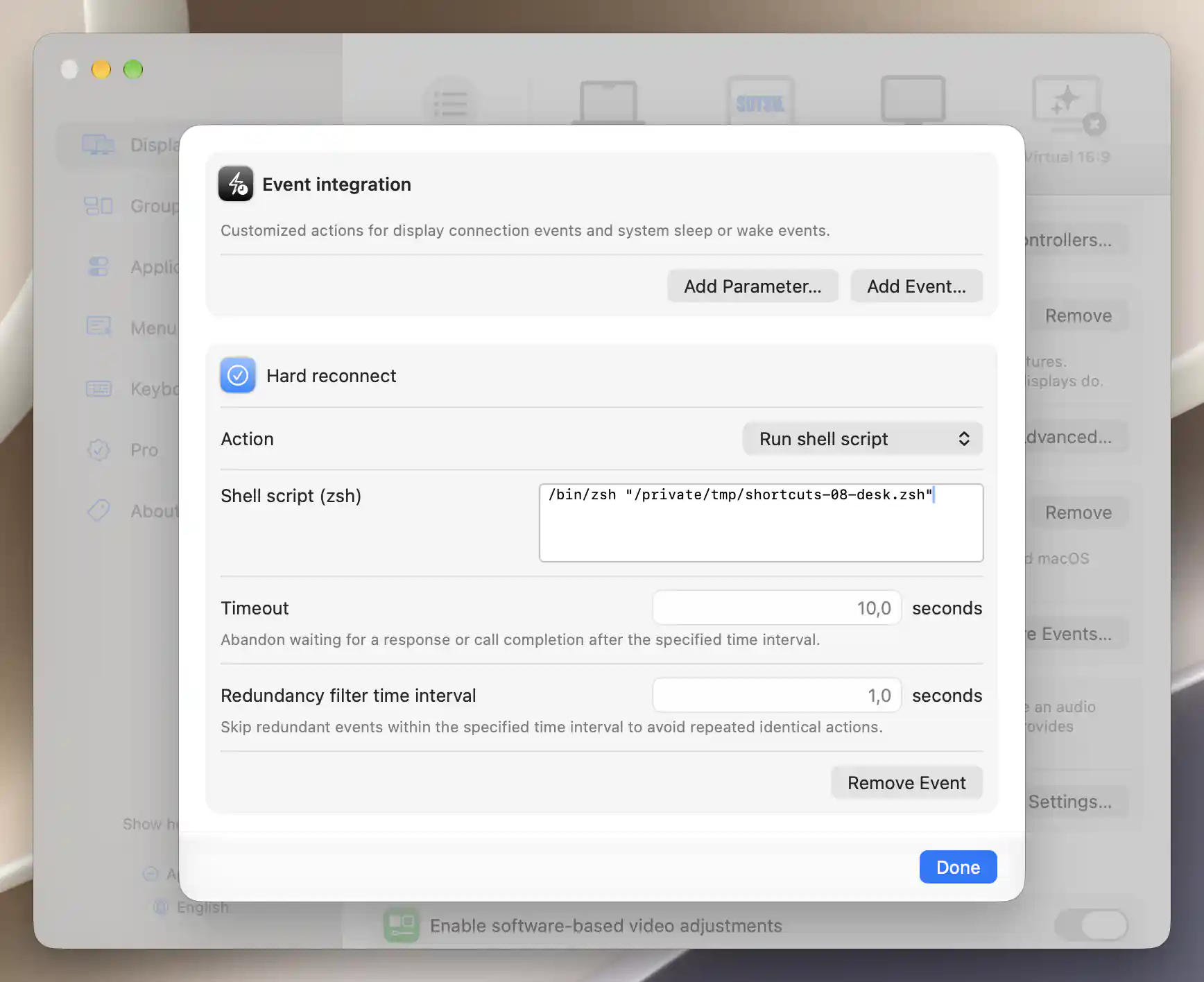
The saved action invokes the validated script; blank timing fields retain their defaults.
- All edits are already active. With the recovery desktop visible, perform one controlled physical disconnect/reconnect of the intended desk monitor. Allow it to become a remembered display before reconnecting. Avoid other trial scripts or simultaneous reconnects. Keep the same cables, controller configuration and picture settings used for the manual test.
- Inspect the console for the actual integration script dispatch and its output. Wait for the process and pending hardware requests to finish, then check the monitor’s actual brightness. If it failed, set Action back to Do nothing before investigating. Do not repeatedly reconnect to hide an unexplained failure.
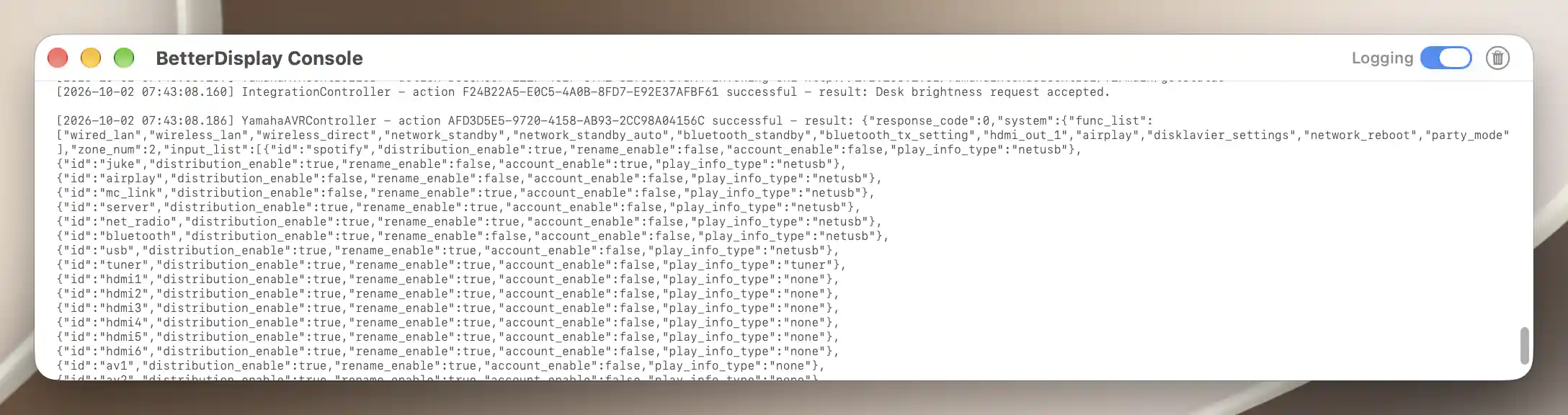
Inspect real script output, then verify the monitor’s brightness separately.
Check the result
Confirm that one remembered-monitor return requests the script and the monitor reaches the same comfortable brightness as the manual test. Confirm that other displays, selected input, modes and the independent desktop remain usable. When a later controlled reconnect repeats the same fixed setting, it should not keep increasing brightness as a relative increment would.
App logs and a zero exit status establish request handling. Check the panel separately. The event is a response to a detected transition, not continuous enforcement, hardware power control or a transaction with automatic rollback.
Choose other events only when needed
Hard disconnect runs when a display leaves active duty and becomes remembered; it does not prove a physical cable was pulled. Soft reconnect runs before BetterDisplay’s own connection attempt after early safety checks, while Soft disconnect follows its disconnect attempt. These timings are poor substitutes for a ready hardware-brightness path.
System sleep addresses currently connected displays. System wake (immediate) is the first pass before the app’s global wake delay; System wake is the later pass after that delay and before subsequent display-configuration work. Neither promises hardware readiness or completion of another action. One operation can lead to several hooks, and actions can run concurrently. Keep this trial on Hard reconnect alone; see wake recovery for a separate task.
If you later reuse parameters, replacement is case-sensitive and literal: built-in tokens, then predefined parameters, then your display’s parameters. Inserted content is not shell-escaped. This fixed script deliberately avoids interpolating [*:DEVICE_NAME:*] or a runtime [*:DISPLAY_ID:*]; punctuation or untrusted text could change a shell command. Event actions have no VALUE substitution. Refer to event parameters before extending the recipe. Time-of-day scheduling is a separate workflow.
Troubleshooting
- No event output: verify Control Integration is added on the intended connected monitor, Hard reconnect is active and the display actually went from remembered to connected. A configuration refresh or unknown new identity is not this hook. Check Logging, the real script path and duplicate-message suppression.
- CLI failure or timeout: confirm the existing BetterDisplay host is running and accepting CLI access, the executable is the actual installed app and the tag still identifies this monitor. Do not add a loop that relaunches the app. The script’s get fails when hardware brightness is unavailable; it does not read connection-management status.
- Manual test works, reconnect does not: the controller can be registered before the transport or panel is ready. Pause the event, wait until the monitor is usable and repeat one manual test. Review competing startup/wake restoration or readback policies before making one relevant change. This recipe does not poll until success; the connection-events FAQ explains timing.
- Wrong brightness or another display changes: recheck actual tag, configured range, DDC owner, synchronization and relevant rules. Adding integration can activate existing saved controls. A slider or app-stored get response alone does not prove physical brightness. Use the App console and hardware-path diagnosis separately.
Undo the test setup
- Stop trial reconnects and manual script runs. Set only this trial event’s Action > Do nothing. Let already dispatched shell processes and asynchronous hardware requests finish before restoring settings or deleting the script. Do nothing, Remove Event and a timeout do not cancel work already sent.
- With the monitor connected and the recovery desktop visible, restore its original actual brightness safely. Restore changed app-saved control values/ranges/controller assignments separately, along with any affected displays. Removing an event or controller does not restore hardware.
- Choose Remove Event only on the newly created Hard reconnect card. It deletes immediately without confirmation. Delete only the new script file after no process or retained action uses it. If Control Integration was added solely for this trial, remove only that controller afterward; removal retains saved definitions, so it is not a substitute for removing the trial hook.
- Restore only individually paused rules and original current/main/mode/layout states that changed. Preserve protection targets independently: if original current state differed from its saved target and normal UI cannot recreate both, leave only the affected rule off, retain the private original record/backup and report the restoration limit. A displayed default is not an original saved value; record any inability to restore absent/nil storage rather than use global Forget, Reset or Import.
- Restore original CLI access and Logging if changed solely for this trial. Restore the original built-in auto-disconnect policy only after the original physical desktop is usable and removing recovery is safe. Preserve other integration actions, controller settings and connection safeguards.
Related pages
- Run a command when a monitor connects or disconnects
- Event Integration
- Control Integration and Events
- App console and CLI reference
- Verify the hardware path through a dock
Additional information
This section explains licensing and platform requirements.
Features requiring Pro license
Event configuration, shell actions, CLI access and ordinary supported DDC hardware brightness have no separate Pro requirement. Requested advanced features retain their own requirements. This recipe does not create a Pro custom control or use Pro connection-management queries or operations.
Platform compatibility
BetterDisplay requires macOS 26.3 or later. Event Integration and this shell workflow are available on Apple silicon and Intel Macs; actual DDC support depends on the monitor, adapter and transport. The monitor must be connected to configure the event, and BetterDisplay must remain running for its CLI requests. No Screen Recording or native-media-key permission is needed for this fixed brightness script.