Restore brightness and display settings reliably after wake
Find out whether wake changes your display's identity, its macOS configuration or its own hardware settings, then use the restoration feature that matches the problem. Stable display identification lets BetterDisplay find the saved preferences; Configuration Protection can preserve a supported mode, while DDC restoration can resend saved monitor adjustments.
For example, an external monitor might return brighter after sleep while the app still shows the old percentage. That needs a different investigation from a monitor whose custom name and rotation disappear together. Work through the diagnosis first and change one relevant setting at a time.
Before you begin
- Keep a usable physical recovery display and input devices available. On a MacBook, keep the lid open and its built-in screen connected. If it is your recovery screen, record and temporarily turn off Settings > Displays > Overview > Display Connections > Connection Management Settings… > Disconnect built-in display when an external display is connected where available, so a wake/reconfiguration cannot remove it. Keep other connection safeguards intact. Save your work before any mode change or reinitialization, which can interrupt the image and move windows.
- Use the same monitor, input, cables, ports and dock for each comparison. Record any intentional monitor picture mode or picture-by-picture change separately; these can change the identifiers or available modes.
- Privately record current names/identifiers, connection and main display, display modes, orientation, desktop origins and window positions. Record selected controllers, actual monitor settings and app values separately.
- Record existing protection targets and enabled states independently from current values, including unset fields. Keep the corresponding main-display protections for all affected displays. Record relevant group, automatic-preset, brightness/sync and connection policies before pausing only those that conflict with a trial.
If you plan to change identification, preserve a private settings backup first through Settings > Application > Advanced Settings & Privacy… > Manage App Settings > Export…. This is an app-wide backup, not a targeted undo: Import… replaces the app's existing settings and requires a restart. Keep it private and do not use import as ordinary wake recovery. See Manage App Settings.
Identify what changes after wake
- While the affected display works normally, open Settings > Displays > [display] > Display Information…. Under Identifiers, privately record UUID, vendor/model/serial information and available port/location information. Use Export Display Information… for a comparable report. Record the current custom name and whether any old disconnected entry already exists.
- Record resolution, HiDPI status, refresh rate, rotation and HDR state. For a brightness problem, compare the app's brightness value with the monitor's own setting and the actual visible image. A software dimming percentage does not measure the panel's backlight.
- Use your normal sleep/wake operation without changing the setup. After the picture returns, collect the same information before making a corrective adjustment. Note when the image appeared, when an ordinary supported adjustment started working, and whether the app selected the same saved display entry.
- Choose the relevant branch below. If custom name and saved preferences disappear or move to the wrong monitor, investigate identification. If the saved entry stays the same but a supported mode or rotation changes, investigate protection. If the entry/mode stay stable and the monitor's own DDC setting resets, investigate DDC restoration.
If the panel's hardware brightness remains correct but the image looks different, inspect software brightness, HDR, the active color profile and other image adjustments. Enabling DDC wake writes will not repair a different brightness path. Keep layout-only problems in Keep your monitor arrangement and main display consistent after wake.
Check the saved display match
- Open Settings > Displays > [affected display] > General Settings > Additional Settings… > Display Identification & Settings Transfer. Record Display identification method. The usual default is System UUID match (recommended).
- Compare identifiers across the failing and working states. Leave the method unchanged if the observed identity is stable and the correct saved entry is reused. Different displayed names do not create distinct hardware identities.
- Only when the reports identify a changing field, consider a method that uses stable information and still distinguishes every monitor. For example, Match vendor, serial can avoid a changing model identifier when that vendor/serial pair is genuinely stable and unique. On Apple silicon, Basic + extended + port also considers port information; keep the actual connections consistent while testing it. Neither is a universal remedy for identical monitors.
- Record the original method, change only that affected saved display's method if justified, and compare the next normal detection/wake. Check both monitors individually when using a pair. A weaker match can conflate them; a method change can also leave preferences attached to an old disconnected entry.
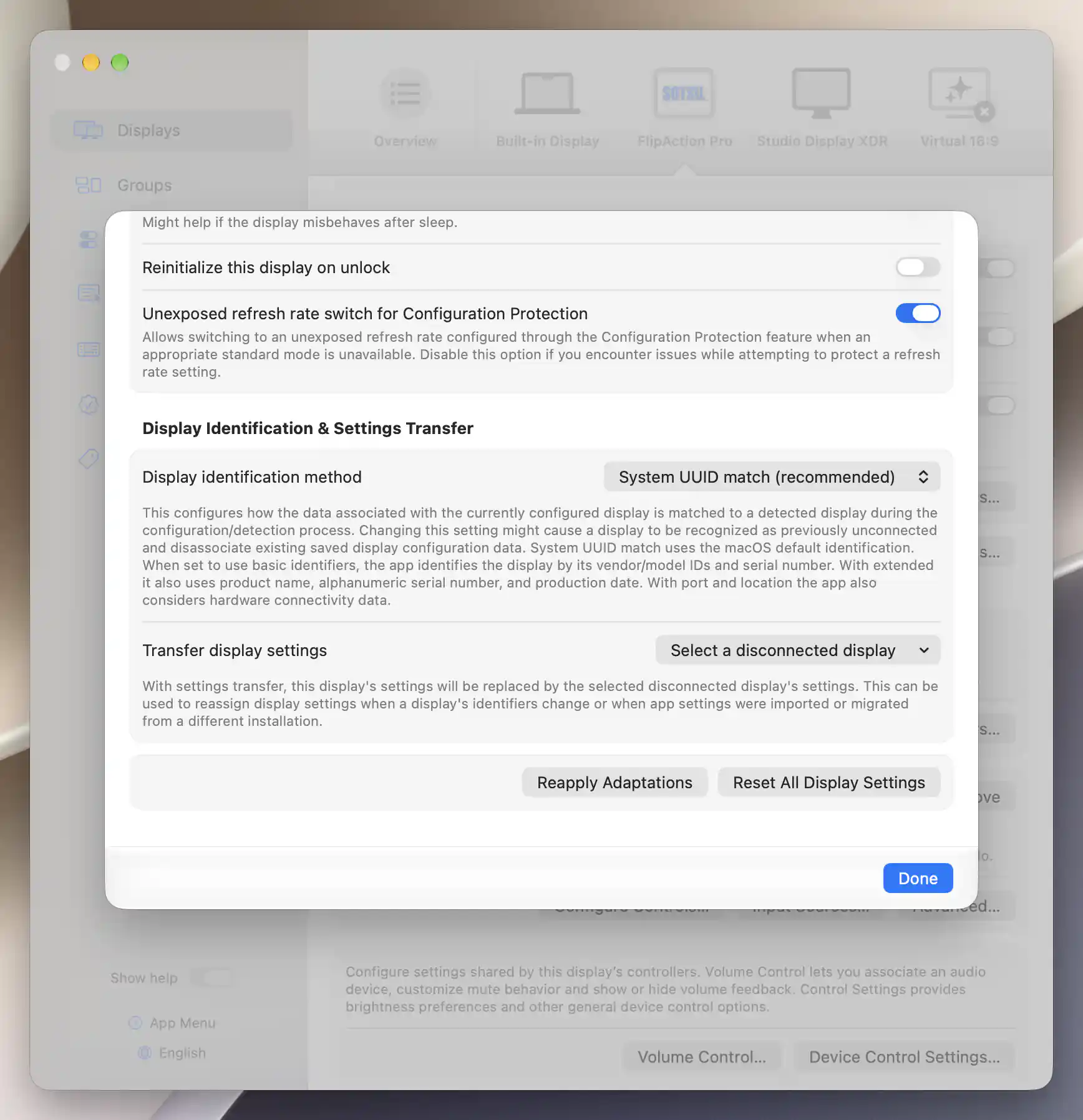
Check the saved display-match method before changing how preferences are associated with a monitor.
The global Default display identification method affects newly added displays, not the method already saved for this display. Full EDID match compares available EDID data and falls back to UUID matching when that data is unavailable; it cannot manufacture a unique identity.
Protect a supported mode
Use this branch only after the correct display record survives wake. Protection cannot attach the right preferences to a display that was identified as a different monitor.
- Record current and protected values first, then select the wanted supported setting through App Menu > [display] > Display Mode or the corresponding refresh/rotation feature. Verify a usable image. Choose a genuinely offered mode; do not assume a resolution or rate supported by another monitor is available here.
- Open App Menu > [display] > Configuration Protection. Enable only the relevant switch: Resolution, Refresh Rate or Rotation, for example. Enabling captures the current setting, and the menu shows its saved target. Avoid Enable All Protections for a single mode problem.
- Compare the next normal wake. Verify both the actual mode and saved target. Later manual changes made with BetterDisplay can update an enabled protection's target, so recheck that target after any deliberate adjustment.
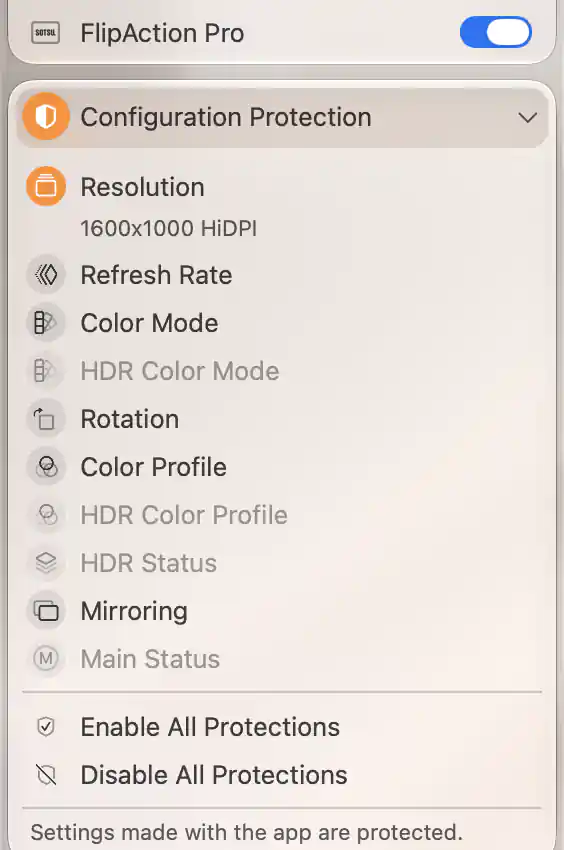
Enable only the protection needed for the observed problem; it captures the current setting.
Protection acts on connected displays and supported available configurations, with limits against repeated enforcement loops. It cannot create an unavailable mode or guarantee the same mode identifier after every handshake. Color-profile, HDR, mirroring and main-display protections are separate choices; enable them only for an observed need. A group main-display rule takes precedence over a conflicting per-display main protection. See Configuration Protection.
Restore monitor adjustments through DDC
First verify that the affected monitor's hardware adjustment works through its configured DDC controller once the monitor is fully awake. The monitor, selected input and cable/dock path must support it. Read failure does not by itself prove write failure; a working app slider does not by itself prove the panel accepted a command. See hardware brightness and volume through a dock for testing the actual path.
- Inspect Settings > Displays > Overview > Software XDR/HDR Upscaling and Dimming > Brightness Upscaling and Dimming Settings… > On startup & wake. Record its shared restoration choice. The default is Restore combined brightness and software adjustments. Do not blindly change this policy for every display just to test one monitor.
- If Do not restore combined brightness and software adjustments is selected, stop before this DDC restore trial: it also prevents these saved DDC adjustments from being restored and can clear their saved values. Restore non-brightness adjustments only excludes software/combined brightness restoration while allowing the DDC hardware path. Decide any shared policy change separately, after recording its effects on the whole setup; the steps here leave it unchanged.
- Privately review all available DDC adjustments and their saved values. This is not a brightness-only option: saved volume, mute and other configured ranged/on/off adjustments can also be reapplied. Record custom mappings and current input/power state too. Pause sound, verify a suitably low actual volume and safe mute state, and choose comfortable verified brightness before testing. Do not assume stale sliders or default values represent the monitor's current settings.
- Open Settings > Displays > [display] > Device Control > DDC Control > Advanced…. Record the original choices. Leave DDC values on startup unchanged for the first wake test and enable Reapply DDC settings on wake, which starts off by default.
- Test one normal sleep/wake cycle and compare the monitor's actual setting with the recorded intended level. The wake option resends stored adjustment values after display configuration; it does not poll until the monitor is ready.
- If the adjustment works manually once fully awake but the wake write appears too early, increase only Additional delay after wake to reapply DDC settings and retest. An unset field uses 1 second; explicit values are limited to 0–10 seconds. This is added to the app's wake delay, configuration delay and configuration work, not the total time from opening the lid. Record each tested value and result instead of treating 10 seconds as a universal fix.
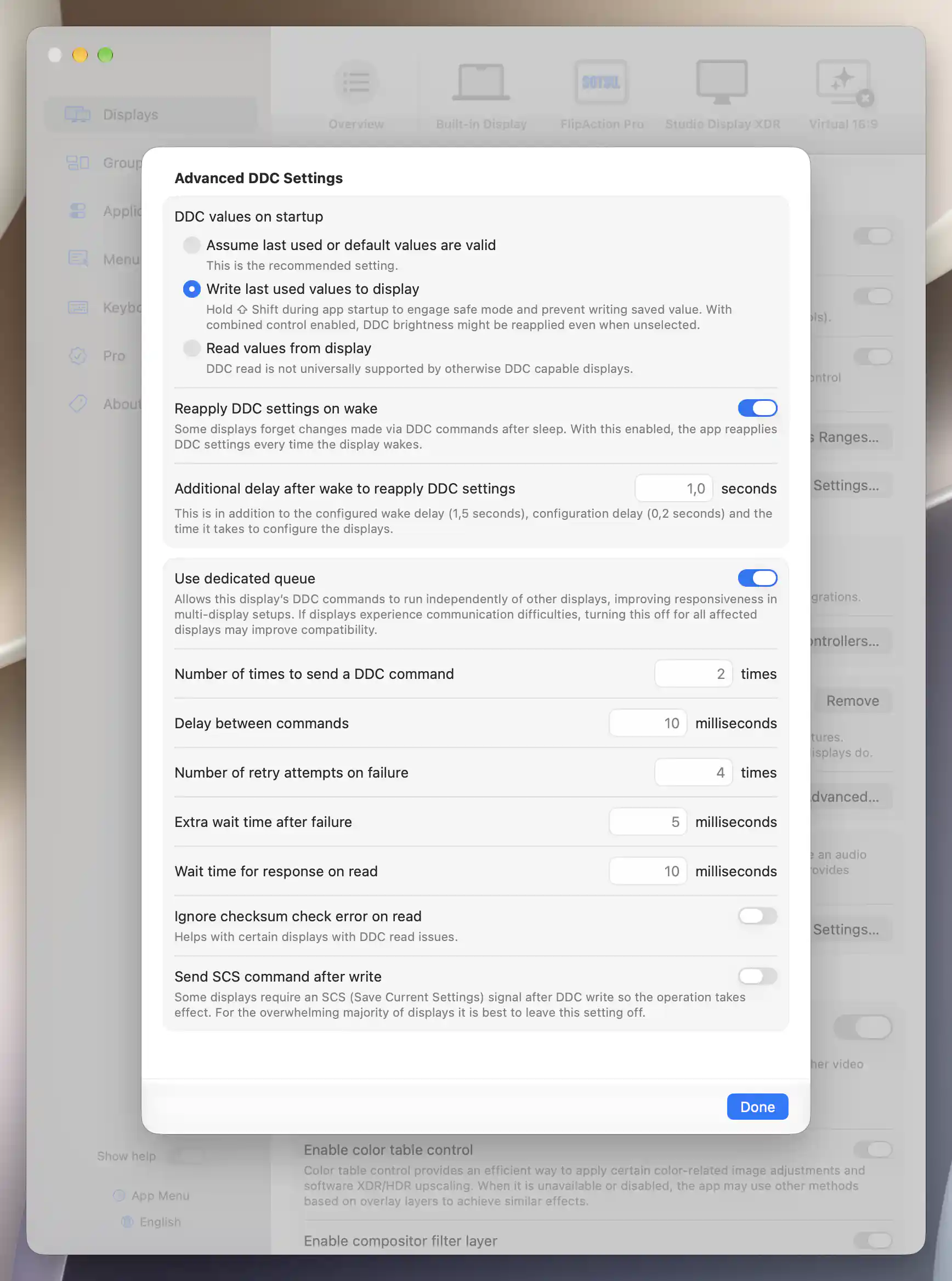
The extra DDC delay follows wake and configuration work; the existing startup write policy is separate.
Periodic DDC reads can update the saved adjustment to the monitor's reset value before a delayed restore. If an enabled read policy might explain this, record it and test only that relevant change separately; see DDC settings. Do not simultaneously change queue, readback, command repetition, retries and delays.
Separate wake from startup and reconnection
DDC values on startup normally uses Assume last used or default values are valid. Write last used values to display instead restores saved available adjustments when the DDC controller is initialized, including after a reconnection that creates it again. It is a separate trial from wake reapplication and can affect other saved adjustments too. Read values from display acquires supported current values instead of writing; many monitors support writes better than reads.
If only initialization is too early, record the global Configuration delay under Settings > Application > Advanced Settings & Privacy… before considering a change. Its unset default is 0.2 seconds; Wake delay defaults to 1.5 seconds. Both accept 0–10 seconds and affect the app broadly. Prefer the observed per-display wake-delay trial first for a wake-only issue. Holding Shift during app startup enters safe mode and prevents saved-value writes; it is a recovery aid, not a successful restoration test.
Use reinitialization only after manual recovery helps
If the image itself is broken after wake, a supported Apple-silicon external connection may benefit from reinitialization. It needs an accessible framebuffer connection; a visible setting alone does not make a built-in screen or non-native virtual connection eligible.
- Keep the recovery desktop visible, save work and record the original EDID/override and mode state. After the fault occurs, try App Menu > [affected display] > Manage Display > Reinitialize Display only if that actual display offers the supported action. Check whether it restores the real picture and how much interruption it causes.
- Only if manual recovery helps, open Settings > Displays > [display] > General Settings > Additional Settings… > Reinitialize Display. Record and enable Reinitialize this display on wake for a sleep/wake fault, or test Reinitialize this display on unlock separately for an unlock fault. Both start off.
- Repeat the corresponding event with the same physical setup. If interruptions increase or the fault persists, return that trial switch to its original state rather than enabling both triggers indiscriminately.
Reinitialization reapplies the EDID configuration and can interrupt the display. An enabled, available automatic custom EDID override is tried first; otherwise factory EDID is used. It is separate from DDC value restoration. Leave Reset all VMM7100 devices before wake or unlock reinitialization for this display unchanged: that adapter-reset choice can affect all detected VMM7100 devices, not just the selected screen. Use the reinitialization FAQ and adapter-reset reference for that specialized case.
Check the result
- Repeat several normal sleep/wake cycles with only your chosen change, then repeat the separate unlock or app-start/reconnection event only if that is what you configured. Keep the same physical setup and record any changed conditions.
- Confirm the saved display match/custom name, actual mode/orientation, protection target and physical brightness separately. Check that other displays, volume/mute, input, main display and window positions remain appropriate. A restored app number is not proof of restored hardware luminance.
- For a delay trial, record when ordinary manual adjustment works and whether the delayed restore reaches the intended monitor setting. For reinitialization, record the visible recovery and interruptions. A successful trial is useful evidence for this setup, not a universal monitor or dock guarantee.
Troubleshooting
A custom name disappears or settings switch monitors. Compare identifiers and the selected saved records before enabling more protections. Weak matching can confuse identical displays. Keep port topology consistent; review lost settings and display identification. Do not routinely reset all settings or NVRAM.
The mode stays wrong despite protection. Check the saved target, current available modes, mirror-target restrictions, competing group rules and active Pro/trial. Safe mode skips enforcement. Restore a usable supported mode manually and avoid repeatedly forcing an unavailable target.
Brightness returns to the monitor's default. Check the actual DDC path, global restore policy, saved values, readback policy and measured readiness. If the 0–10-second per-display delay cannot cover your monitor's observed readiness, keep the wake option off if ineffective and use manual adjustment once ready while collecting evidence. See DDC brightness after wake.
Brightness changes only when the app starts. Compare the shared combined/software policy and the separate DDC initialization policy. Other automatic brightness or image-adjustment features may also act. See startup restoration.
The issue remains unexplained. Keep before/after Display Information reports, app/macOS versions, transport details, identifier changes, exact settings tried and the event timeline. Use the App Console or macOS Console logging guide to collect relevant configuration/DDC failures. Review private identifiers before sharing reports; do not call an unanswered report or a source hypothesis a confirmed hardware cause.
Undo the trial
- Keep physical recovery visible. Restore each changed wake/unlock switch, DDC wake flag, initialization mode and delay field from the original record. Clearing an originally unset delay restores its fallback; entering “1” is an explicit saved value and is not the same stored state. Restore only global timing/restoration choices you deliberately changed. Turning the wake flag off prevents future scheduling but does not cancel an already scheduled restore; let pending wake/configuration work finish on the safe desktop before restoring adjustment values.
- Restore original monitor adjustments and their saved app values, including volume/mute and any relevant custom DDC adjustments, while the monitor is ready. Verify the actual panel/audio result safely; do not assume toggling the wake flag restores the old values.
- Turn off only protections newly enabled for this trial, then restore original current modes, orientation, main/mirror relationships, desktop/window positions and recorded protection targets separately. If the normal interface cannot recreate an original current value and different protected target independently, leave that affected protection off, preserve your original record/backup and document the precise restoration limit. Turning a protection off removes its active target but may not recreate every original saved field. The same restoration limit applies to unset saved targets and main-protection state; do not blindly recapture the current value.
- If identification was changed, restore the original method on the appropriate recorded entry and verify the next match. A new or misassigned saved record is not automatically removed by undoing a picker choice. Preserve both records and seek a targeted recovery plan if needed; do not use destructive transfer, Forget or global Import as a claimed exact rollback.
- Restore only individually paused group/preset/sync/connection rules after their original targets and safe visible desktops are recovered. Restore the original built-in auto-disconnect choice last, after a usable original external desktop is physically present; an originally enabled policy can remove the built-in recovery view again. Keep original safeguards. Preserve and report any saved-nil, identity, protected-target or hardware restoration difference instead of using a global reset.
Related pages
- Why do my display settings disappear or switch monitors after sleep?
- How can I restore monitor brightness after it resets during sleep?
- Why does my screen brightness change when BetterDisplay starts?
- Can BetterDisplay reinitialize a display automatically after sleep?
- Keep your monitor arrangement and main display consistent after wake
Additional information
This section explains licensing and platform requirements for the restoration features.
Features requiring Pro license
Configuration Protection and custom EDID application require Pro or an active trial. Display-identification selection, predefined DDC configuration/advanced wake and startup preferences, and supported factory-EDID reinitialization have no Pro gate of their own. Custom DDC features and other adjustments retain their own feature requirements.
Platform compatibility
Display identification, supported protection and DDC restoration are available on Apple silicon and Intel, subject to actual display/controller/transport capabilities. The port-inclusive identification method and framebuffer reinitialization described here are Apple-silicon features; reinitialization requires a supported external connection and is not a built-in-screen recovery action. The documented app requires macOS 26.3 or later. These native configuration/DDC procedures do not require Screen Recording permission.