Fix mute and unmute on an external display
Get reliable mute and unmute behavior from your display’s speakers by choosing a method the display understands. DDC volume and mute support can differ: a working volume slider does not guarantee that the monitor accepts a mute command. You can leave the keyboard mute key to macOS, change the display’s mute sequence, or configure its mute command and values.
Before you begin
Select the display’s audio device in System Settings > Sound > Output and play quiet, steady audio. Confirm that sound comes from the monitor’s speakers or its connected audio output, then test a small volume change in App Menu > [display]. If volume does not work either, first follow the DDC connection and volume checks; changing a mute command cannot repair an unavailable DDC connection. The macOS mute-key option below may still be useful if the selected output supports system mute.
Record the settings you change, including empty override fields, and keep access to the monitor’s own volume buttons. Test one display and one change at a time at a comfortable listening level. The hardware methods below apply to the selected display; the keyboard preference applies to native mute-key handling throughout the app.
Let macOS handle the mute key
This is the simplest option when volume works through BetterDisplay and you mainly need your keyboard’s mute key. macOS handles muting the selected sound output instead of BetterDisplay sending the display a DDC mute command. Its success still depends on the output’s native mute support.
- Open Settings > Keyboard > Native (Apple) Keyboard Control > Native Audio Key Settings….
- Enable Leave mute key under OS control. You can keep Listen to native audio keys enabled so BetterDisplay continues handling volume.
- Press the native mute key, wait for the sound to stop, and press it again to check that sound returns. Test a volume key separately to confirm its existing behavior.
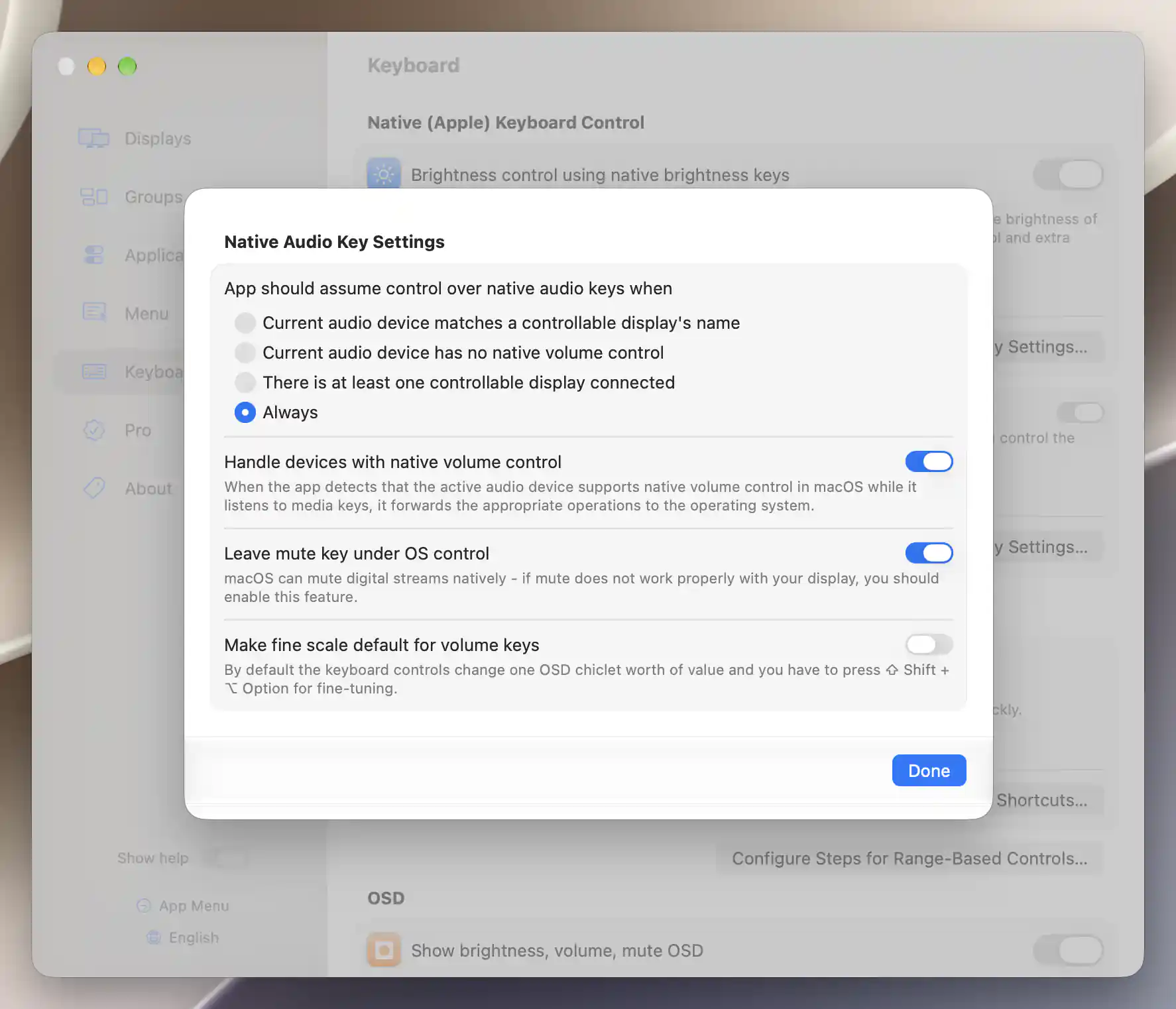
Leave mute to macOS while BetterDisplay continues handling volume keys.
This changes the native keyboard mute key’s handling. It does not fix mute requests made through the display’s app-menu items or integrations. For those, continue with the display-specific methods below. See Native (Apple) Keyboard Control for listening policies and permission setup.
Choose a working mute and unmute method
Some displays respond to setting volume to minimum, others need an explicit mute command, and some need both in a particular order. Mute and unmute have separate preferences because a sequence that silences a monitor may not restore its sound.
- Open Settings > Displays > [display] > Device Control > Volume Control…. Check Feature Availability. The method groups appear when stateful mute is available and native audio association is off; Enabled describes the configured app feature, so still test the audible result.
- Under Mute Method, first try Set audio volume to lowest setting only if the explicit mute command seems ineffective. Pair it with Set audio volume level only under Unmute Method, then test mute and unmute from the app menu.
- If the monitor needs a separate mute command, try Issue mute command only with Unmute only (except for volume change induced unmute, when set volume as well). If neither single-operation method works reliably, try the two-operation choices: set volume first and issue the command second, or reverse that order. Change one preference at a time and test both directions.
- Once explicit mute and unmute work, check When Volume Reaches 0%…. Use mute/unmute methods invokes the chosen mute sequence at minimum volume. Set volume to lowest setting writes the minimum without automatically invoking that sequence. Test lowering volume to 0% and then raising it again separately.
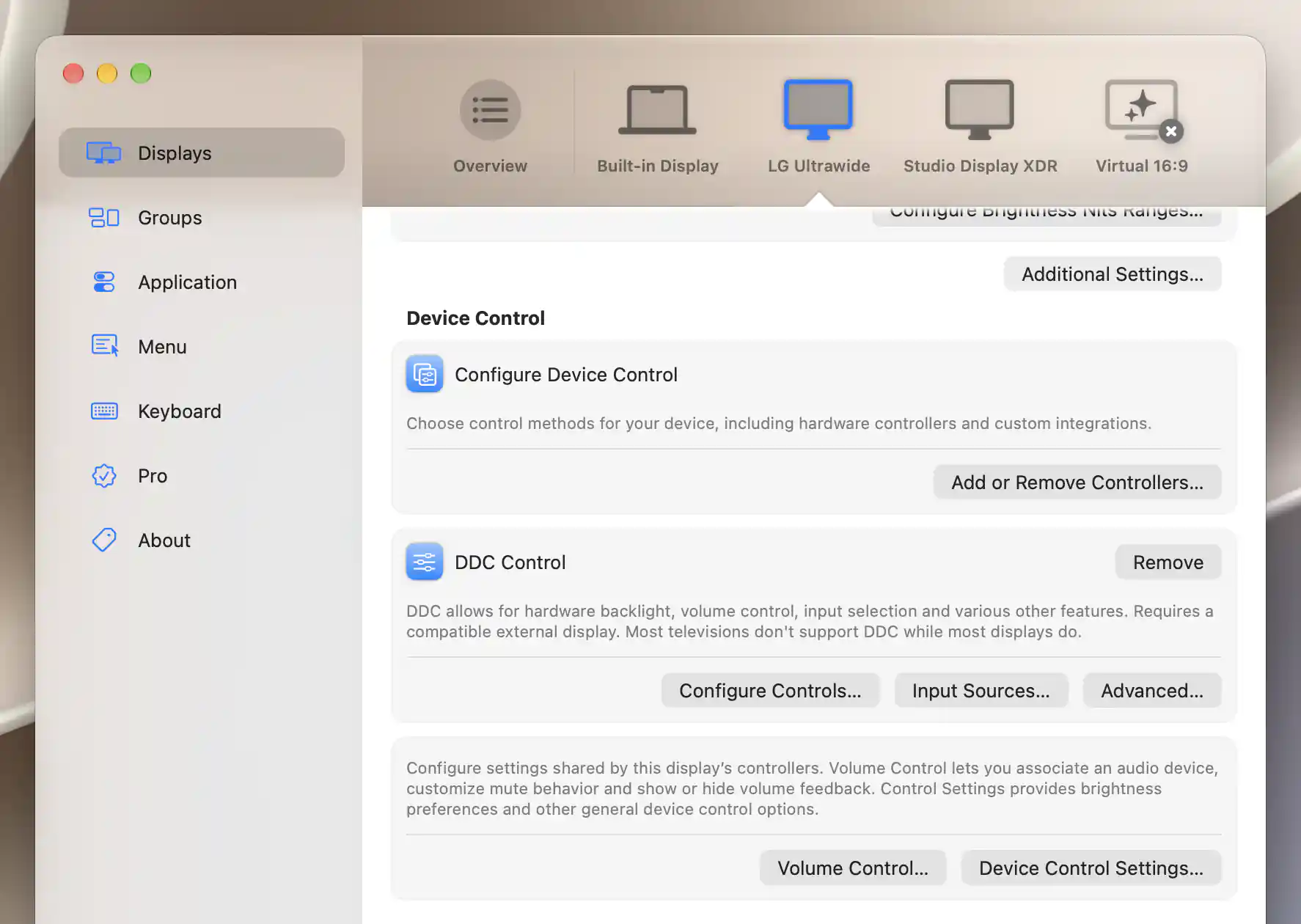
Open Volume Control for mute methods or Configure Controls for DDC mute data and codes.
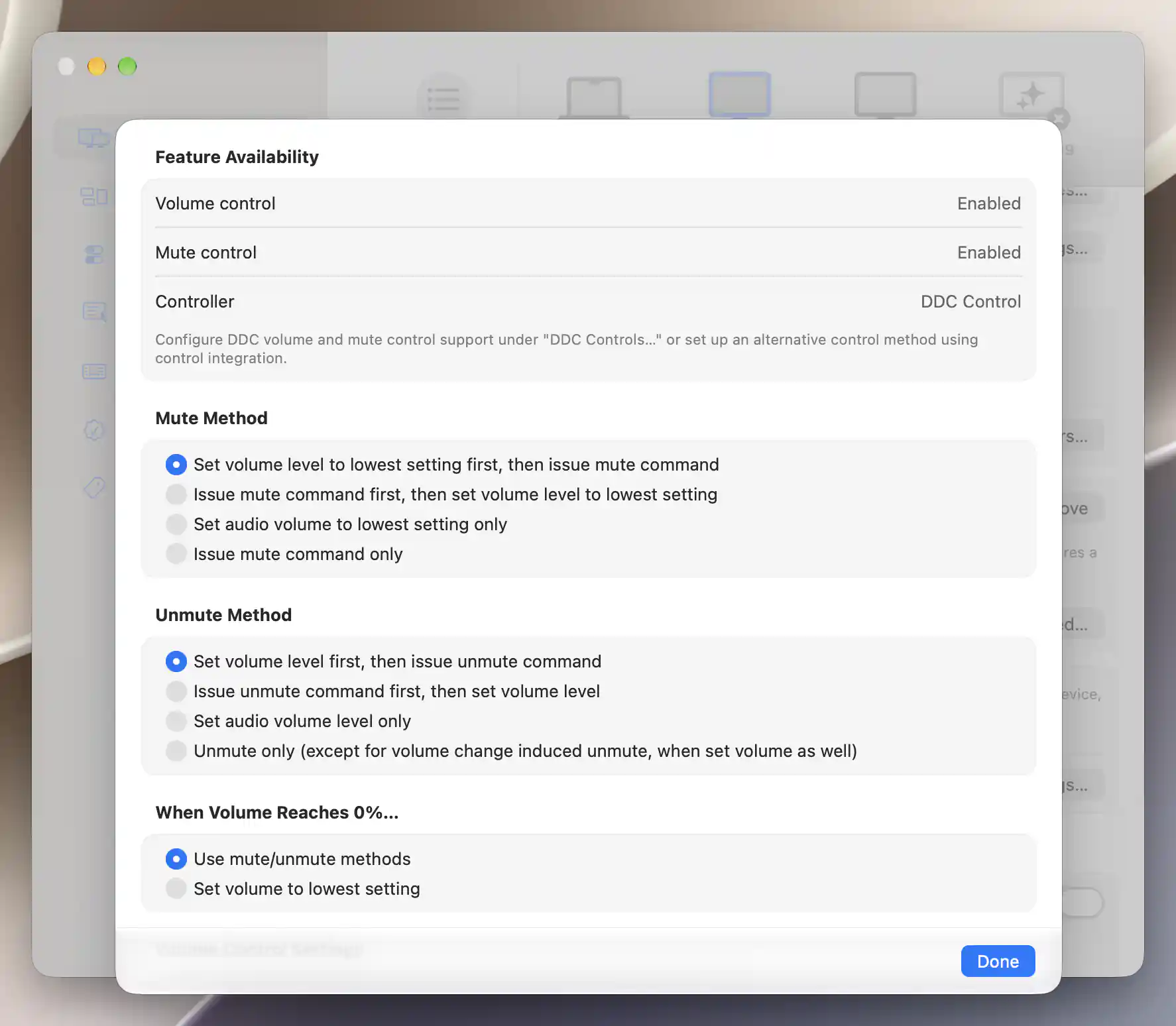
Choose mute and unmute methods separately, then test what happens at minimum volume.
“Lowest” means the configured volume range’s minimum; it is not guaranteed to be silent. With DDC, unmute normally restores the level remembered at mute time. The first volume adjustment while muted can therefore restore that remembered level instead of immediately applying the requested level. The unmute-only choice explicitly writes a volume adjustment that releases mute. See Volume Control for the complete behavior.
Adjust the mute values or command code
If the command sequence still fails, the monitor may expect different data for mute on/off or a different VCP code. Use values documented for your model rather than copying unrelated monitor settings.
- Open Settings > Displays > [display] > Device Control > DDC Control > Configure Controls… and find Mute. An alternative entry point is App Menu > [display] > Device Control > Configure DDC Controls….
- Record the Mute feature’s enable state, on/off data and code override. Check that the feature is enabled and that another controller or native audio association is not taking precedence.
- Change DDC data for the ON value is and DDC data for the OFF value only when you have a reason to try different values. These are numeric data values: ON means muted, OFF means unmuted. With no overrides, the app uses 1 and 2 respectively.
- If your display requires a different command, enter its two-digit hexadecimal code in DDC control code(s) (comma delimited hex values). The predefined mute code is
8D; a code identifies the feature, while the on/off data specifies its state. Test mute and unmute after each change, and restore the recorded value if the result worsens.
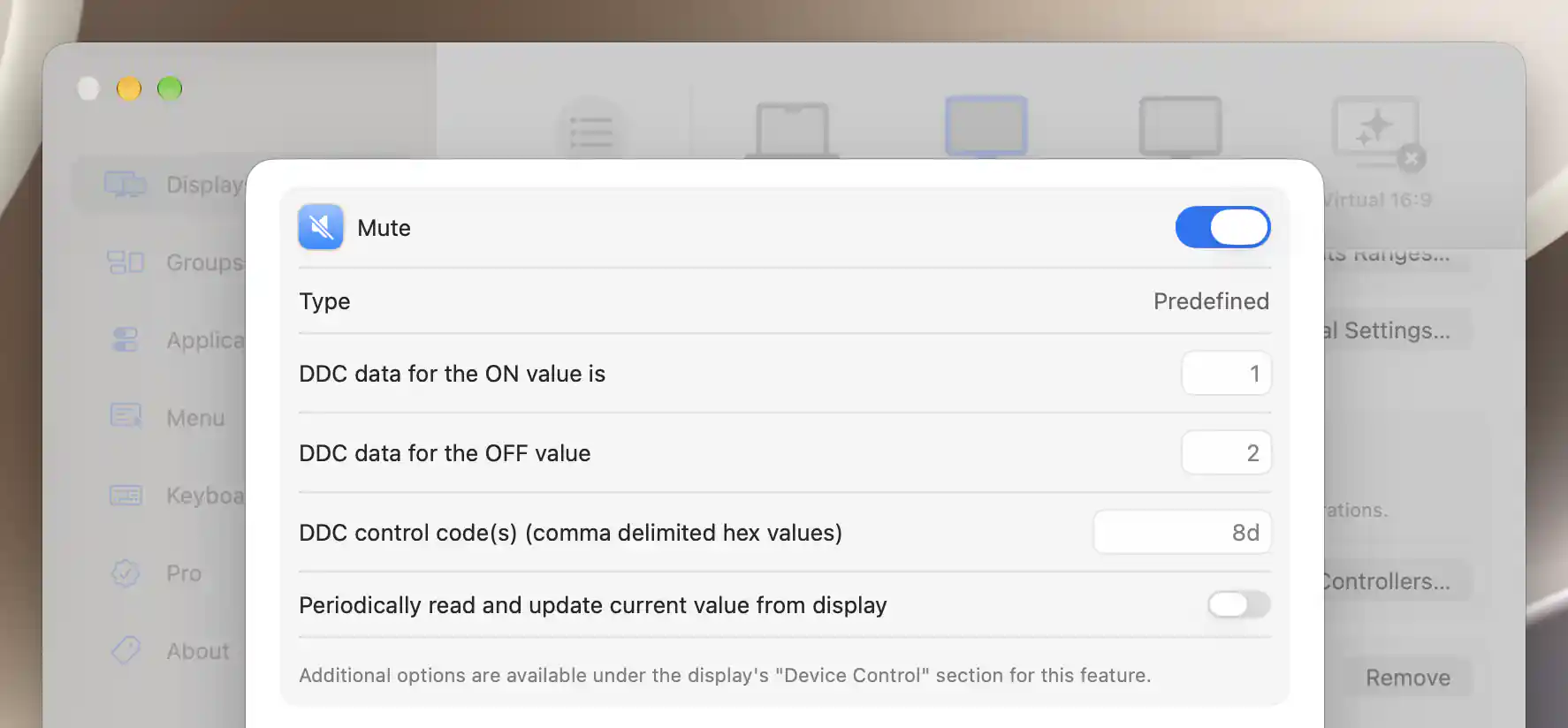
Mute-on and mute-off data specify the state; the VCP code selects the feature.
Edits save per display without Apply. The DDC Control reference explains code overrides, feature availability and readback. Enabling Mute in the app cannot add a command the monitor does not implement.
Check the result
At a quiet listening level, verify three things separately: explicit mute stops the sound, explicit unmute brings it back, and lowering to 0% then raising the volume also recovers sound. Allow the monitor time to respond between requests. Judge the actual audio, not just the app’s mute icon or slider.
If you chose the macOS workaround, verify the native mute key separately from the app menu. A successful keyboard test does not establish that hardware DDC mute works.
Troubleshooting
- Volume works, but mute does not: try minimum-volume-only mute/unmute before changing raw codes. Some monitors implement volume but omit or mishandle the separate mute command.
- Mute works, but sound does not return: test the unmute sequence independently, then check the 0% policy. Restore a quiet nonzero level using the monitor’s own buttons if necessary before the next test.
- The method groups are missing: check Mute availability and whether native audio association is enabled in Volume Control. These method groups do not apply to native audio control or a toggle-only mute command.
- The menu works, but the keyboard does not: check native-key listening and permissions and Target Displays. Follow the audio-output targeting tutorial if keys affect the wrong device.
- A changed setting seems ineffective: wait for pending DDC operations to finish and retest. If needed, quit and reopen BetterDisplay once. A contributor to the original issue reported that restarting helped their monitor; it is a troubleshooting option, not a required Apply step or a guaranteed fix.
- Neither DDC volume nor mute works: return to connection and controller checks. If macOS also cannot mute the selected output, use the monitor’s own mute/volume function or a supported alternative audio path.
Undo the changes
Restore the recorded mute/unmute methods, 0% policy, feature enable state and any data/code overrides for the display. If a field was originally empty, clear the override rather than typing the displayed fallback value. Restore Leave mute key under OS control to its previous state if you changed it, then return the monitor to the original comfortable volume and mute state.
Avoid Reset All Settings for this cleanup: that resets a broader set of DDC feature settings, not just mute.
Related pages
- Why is mute not working correctly on my monitor? — a brief explanation of the difference between DDC volume and mute.
- Native (Apple) Keyboard Control — native mute-key handling and permission setup.
- Volume Control — mute/unmute sequences and minimum-volume behavior.
- DDC Control — feature configuration, data and code overrides.
- App Menu Device Control — direct display volume and mute operations.
- Make volume keys follow the device you are actually listening to — audio-output matching and keyboard destinations.
Additional information
This section explains licensing and platform requirements for these mute compatibility settings.
Features requiring Pro license
Native mute-key handling, the shared mute/unmute preferences and predefined DDC Mute configuration do not require Pro. Adding custom DDC features is a separate Pro feature and is not needed to edit the predefined Mute feature.
Platform compatibility
These settings are available on both Apple silicon and Intel Macs. DDC methods need a compatible display and connection; macOS handling needs native mute support on the selected output. BetterDisplay’s native-key handling also requires the system permission described in Native (Apple) Keyboard Control.