HDMI-CEC
The HDMI-CEC controller sends remote-style commands to a compatible TV through its HDMI connection. Use it for volume keys, HDMI input selection and optional automatic standby and wake commands.
Where to find it: Settings > Displays > select a display > Device Control > HDMI-CEC > Configure HDMI-CEC…. The corresponding Configure… entry in the App Menu opens the same sheet.
Settings are retained per display and controller and take effect as you edit them. The configuration button and sheet settings require the display to be connected.
HDMI-CEC carries remote-style TV commands over HDMI. In BetterDisplay, it is available for non-Apple physical displays on Apple silicon, using a supported built-in HDMI port or an adapter with CEC tunneling support. The Mac, adapter and display must work together; adding the controller alone does not verify the entire path.
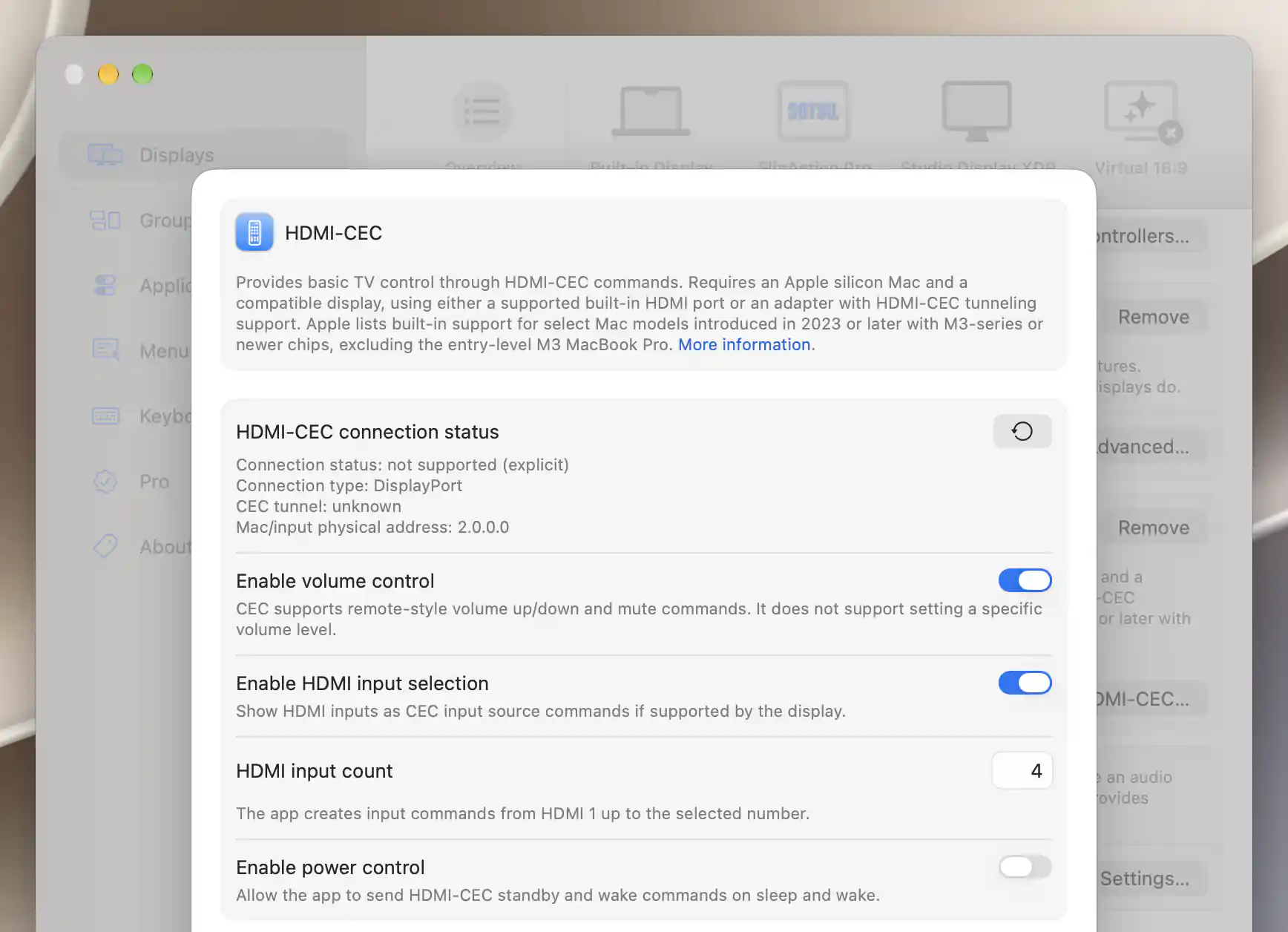
The CEC panel shows connection diagnostics and control preferences; this DisplayPort path reports CEC as unsupported.
For a complete selected-TV workflow with a physical recovery route, see Control a TV’s volume, power and input from your keyboard.
Checking the HDMI path
Use the refresh button beside HDMI-CEC connection status to check the connection; it is disabled while a check runs. Results distinguish pending/checking, verified, unverified (unexpected response, may work), available (response not tested), and unsupported or inactive tunnel/capability states.
Connection type, CEC tunnel and, when available, Mac/input physical address identify what was detected. A passive check can establish availability without testing a response. Likewise, enabled remote buttons mean the display is connected, rather than proving that every command passed a diagnostic test.
Volume, inputs and automatic power
Enable volume control, initially on, supplies volume-up, volume-down and mute commands like a remote. It does not set a specific volume percentage. If another controller currently takes precedence for volume, a warning identifies it.
Enable HDMI input selection, also initially on, exposes numbered HDMI input commands. Set HDMI input count to the number you want to provide: it defaults to 4 and accepts 1–15. This is your configuration, not a detected port count. The Input Source menu marks the Mac's input when its physical address can be determined.
Enable power control, initially off, lets the app's sleep/wake handling send automatic standby and wake commands. Enabling it reveals the additional power preferences and the separate Wake/Standby rows in Device Control. The remote's direct buttons remain independent of this automatic switch.
If macOS already handles the display's CEC standby and wake, the interface recommends leaving automatic power control off to avoid competing commands.
Advanced CEC settings
Command destination chooses the logical device address that receives remote, volume and power commands. It defaults to TV. This picker does not offer Broadcast.
With power control enabled:
- Wake on detection is initially off. It sends wake when the display becomes available again after app startup. Disconnection itself does not send a standby command through a missing CEC path.
- Allow powering the device on is initially on. With input selection enabled, it reveals Switch HDMI input on wake, also initially on, which switches to this Mac's physical HDMI address after wake.
- Allow putting the device to standby is initially on and permits standby during sleep handling.
Use passive connection status check is initially off, so connection checks use an active probe. Enable it to inspect capability/status without sending discovery messages.
Claim logical source address and Clear pending tunnel status are initially on. The first temporarily claims the logical source address while sending and restores the previous mask; the second clears pending transmit/receive flags afterward. Turning them off selects the corresponding compatibility behavior.
Manage CEC tunnel state is experimental and initially off. It lets BetterDisplay enable tunnel control where macOS has not done so.
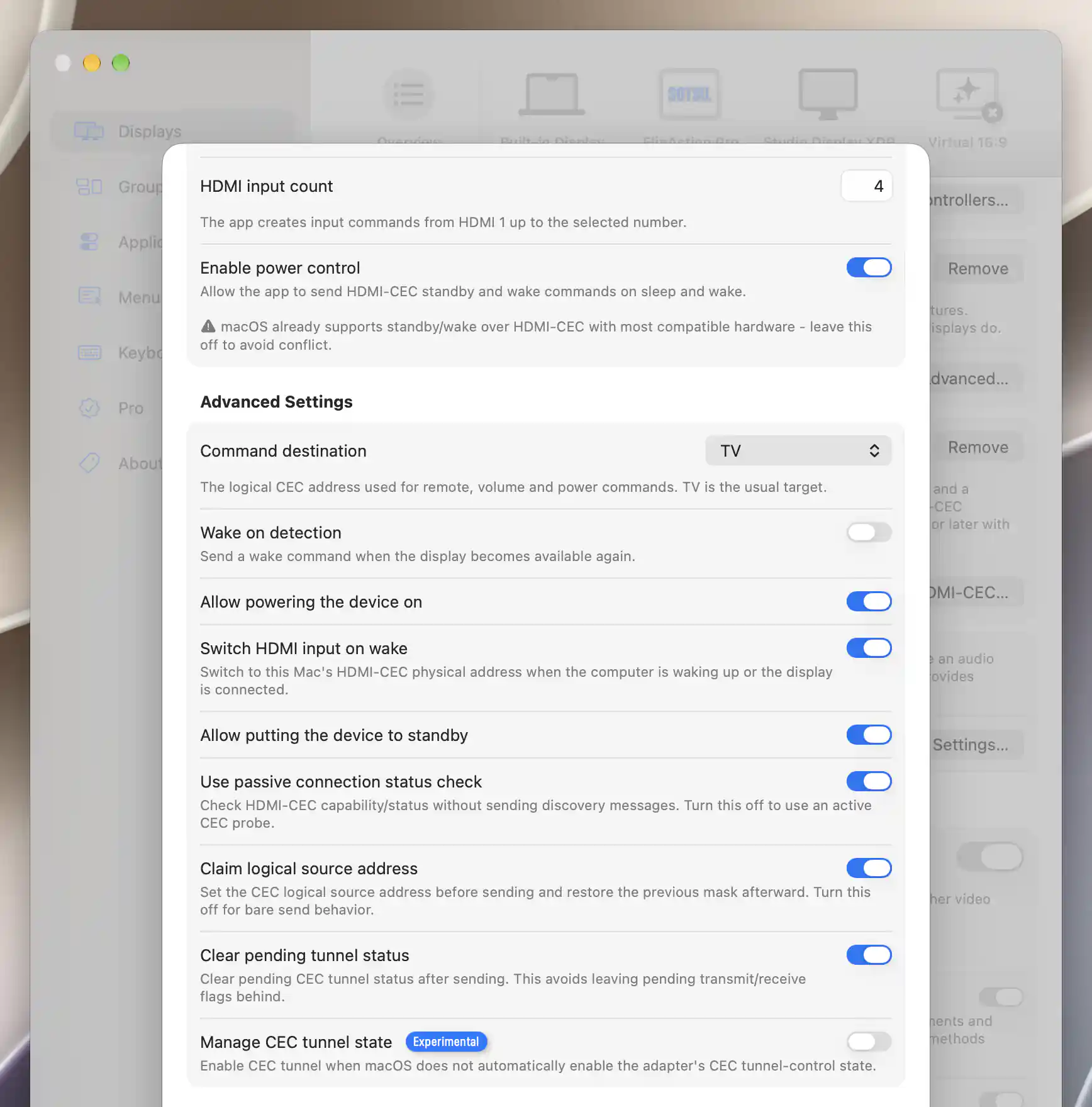
Enabling automatic power control reveals wake and standby preferences; these settings do not establish hardware support.
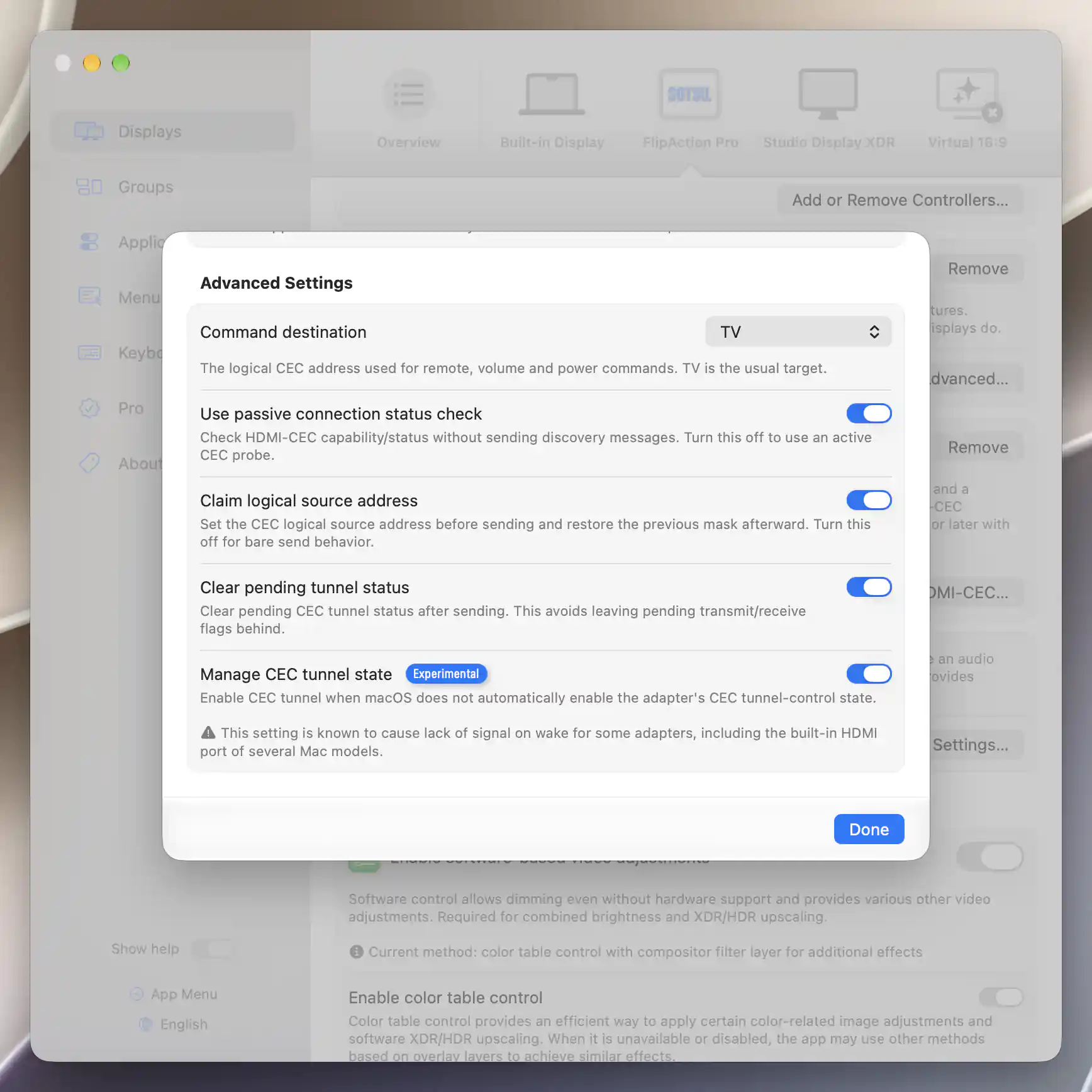
Tunnel management exposes a warning about possible signal loss on wake.
The card's Remove removes the selected display's HDMI-CEC controller assignment. It does not change the display's own CEC preference or macOS's independent CEC behavior.
HDMI-CEC and DisplayLink
HDMI-CEC and DisplayLink use separate controllers with different connection requirements.
DisplayLink
For brightness and contrast through DisplayLink Manager, see the separate DisplayLink article.
Related: Device Control · Input Source · DDC Control
Additional information
This section explains which features require Pro and how availability differs between Mac platforms.
Features requiring Pro license
The HDMI-CEC controller settings described here have no separate Pro requirement.
Platform compatibility
HDMI-CEC requires Apple silicon and a compatible HDMI command path: a supported built-in port or adapter with CEC tunneling, plus a compatible non-Apple physical display. It is not available through this controller on Intel Macs.