LG webOS Smart Device
The LG webOS controller connects BetterDisplay to a compatible LG device over your local network. Pair it to use supported picture and volume adjustments, input selection and optional automatic power handling.
Where to find it: Settings > Displays > select a display > Device Control > Configure LG webOS Smart Device…. If the controller is not listed, add it through Add or Remove Controllers…. Its Configure… entry in the App Menu's Device Control section opens the same sheet.
The associated display must be connected to open and use these configuration sheets. The network device must also be reachable at its IP address and permit remote access. Settings persist per controller and associated display. Connection and refresh buttons communicate with the actual device. Remove on a controller card disables that controller while keeping its saved configuration; it does not automatically revoke authorization on the device.
If a precedence notice appears, another controller currently supplies that feature. Enabling volume here does not necessarily make this the method used by the app's volume control. Review Device Control and the audio-device configuration when deciding which method should take priority.
Connection and pairing
Pairing gives BetterDisplay permission to communicate with the LG device. Enter Device IP address; when no pairing key is saved, Initiate Pairing becomes available. For prompt-based pairing, follow Please confirm the pairing request on the TV. or use Cancel Pairing to clear the pending request. For PIN pairing, enter the TV's PIN, then select Complete Pairing or submit the field.
Once pairing information is saved, the reconnect icon reconnects using it.
Require PIN for pairing is off by default. Changing it clears existing pairing information, so you must pair again with the new method.
Connection status distinguishes disconnected, connecting, connected, waiting for PIN, waiting for prompt, paired, connected, unable to connect, and paired, waiting to connect. The last is normal for an on-demand connection with saved pairing; it is not itself a pairing failure.
Connection mode chooses the permissions requested during registration. Simple Manifest is the default and suits newer firmware; Full manifest with signature or Full manifest without signature may be needed for older firmware or particular operations. Changing mode reconnects.
If the device rejects the signed full request because of a blacklisted certificate, BetterDisplay switches to Simple Manifest and shows a warning. A separate warning reports denied remote-control operations. Pairing therefore establishes a connection, but does not prove permission to use every remote key.
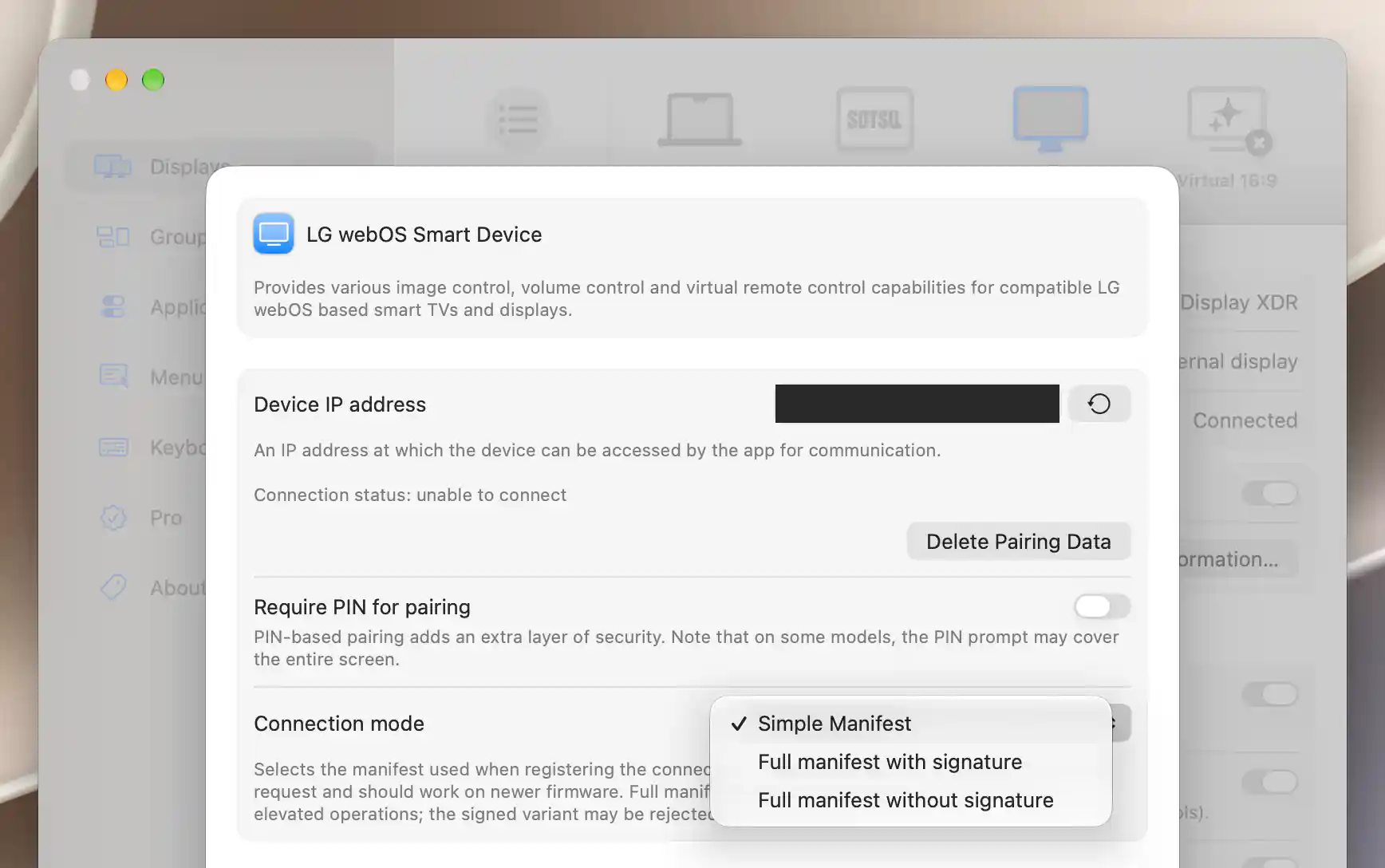
Connection mode selects the manifest used for LG registration; the current connection status remains visible.
Control Settings
Choose a Volume control mode to match how the device accepts adjustments. Up/down and mute toggle only is the default and sends relative commands like a remote; it is the suggested choice when an amplifier receives volume through HDMI-CEC. Full control instead provides an absolute level, while None disables this controller's volume control.
Full control reveals Maximum volume, which caps the outgoing range. Its default is 100, and entries above 100 are reduced to 100.
Enable picture control, on by default, supplies backlight/OLED pixel brightness, contrast and saturation adjustments. Which ones work and how promptly they respond can depend on the TV's picture mode. Changing picture control or the volume mode rebuilds the app's available controls.
Power Control
Automatic power handling is optional. Enable power control defaults to off; before using it, check the device-side guidance for compatible network standby features such as QuickStart+, Always Ready and Turn on via Wi-Fi. Avoid competing Auto Power Sync or HDMI-CEC automation. The names and requirements vary by TV.
Select the connection used by the Mac in Specify Mac input if you want input switching or input-dependent power-off. It starts at Unspecified. The list uses reported names and labels and keeps a previously configured value even if the device is not currently reporting it.
With power control enabled, the following preferences refine when commands are sent:
- Enable power control on detection, off by default, adds physical detection/loss events after app startup to sleep/wake and app connect/disconnect handling.
- Allow powering the device on defaults on within enabled power control. Switch to Mac input on power-on also defaults on and appears when a Mac input is specified.
- Recheck connection on wake, off by default, delays wake handling by the configured app wake and configuration delays, then skips power-on if the associated display is no longer connected.
- Third pass WOL attempt delay adds another Wake-on-LAN attempt after the second system-wake pass. Blank/0 disables it; the allowed delay is 0–10 seconds. It is skipped if the Mac is sleeping again.
- Allow putting the device to standby defaults on. Power-off on Mac input only, off by default, appears when an input is specified. This input check applies to ordinary sleep/app-disconnect handling; detection-triggered power-off bypasses it.
Advanced Settings
Persistent network connection defaults to on, keeping the session ready between actions. Turn it off to connect on demand, accepting additional interaction delay. While persistent mode is enabled, Reconnect on network error also defaults to on.
To follow changes made on the TV, use Update current value from device, shown when full volume or picture control is enabled. It offers Disabled, Event subscription (the default), and Periodic read (polling).
Wake packets need the device's network adapter address. Device MAC address override supplies one manually; when blank, BetterDisplay uses detected addresses, listed under Detected MAC address or shown as Unknown when unavailable.
WOL broadcast address overrides the packet destination. Leave it blank to send to the general broadcast address, a local directed broadcast when available, and the device's last-known IP. Neither address setting creates network-wake support in a device that lacks it.
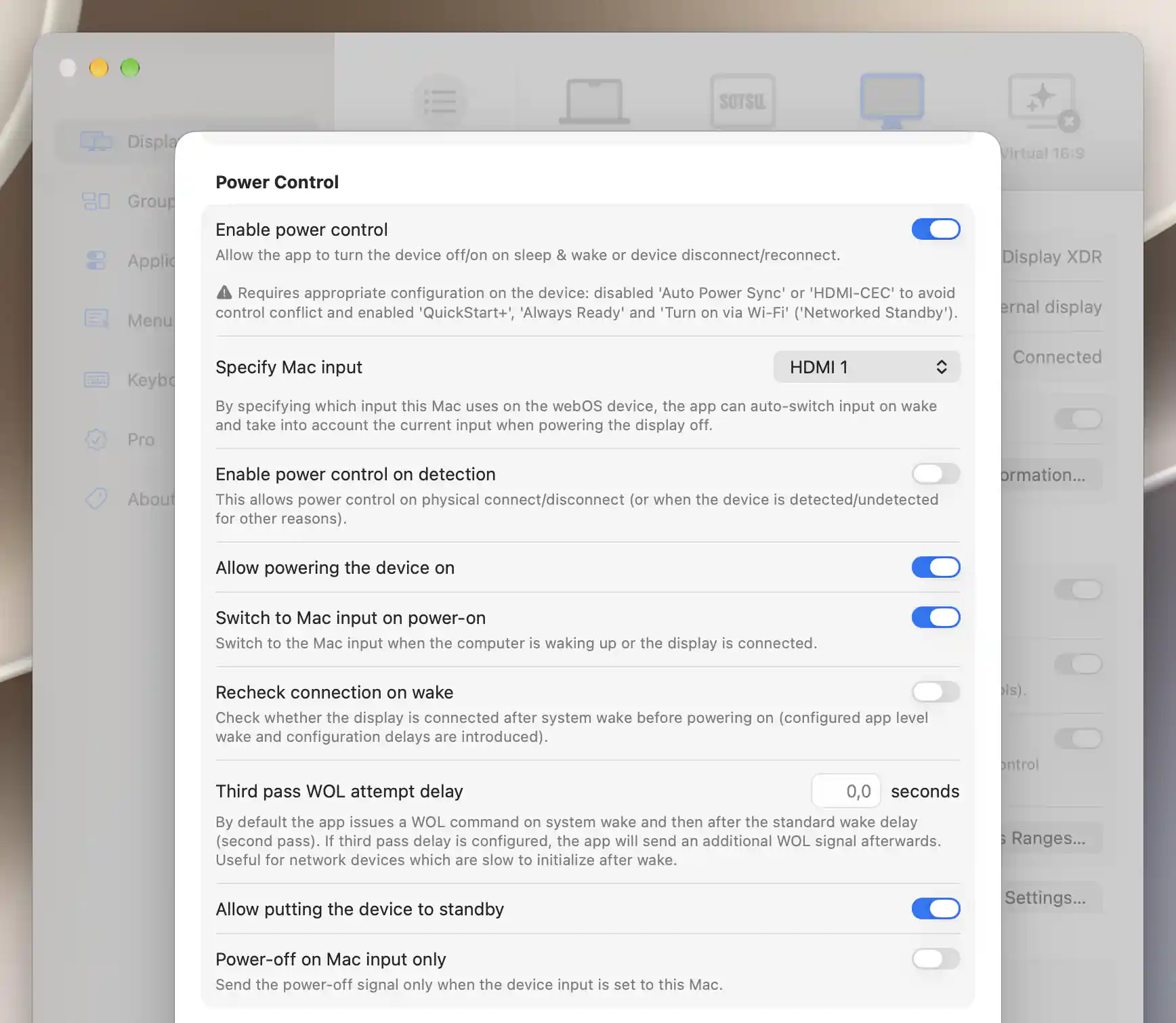
LG power preferences define wake and standby rules; HDMI 1 here is a configuration example, not a verified connected input.
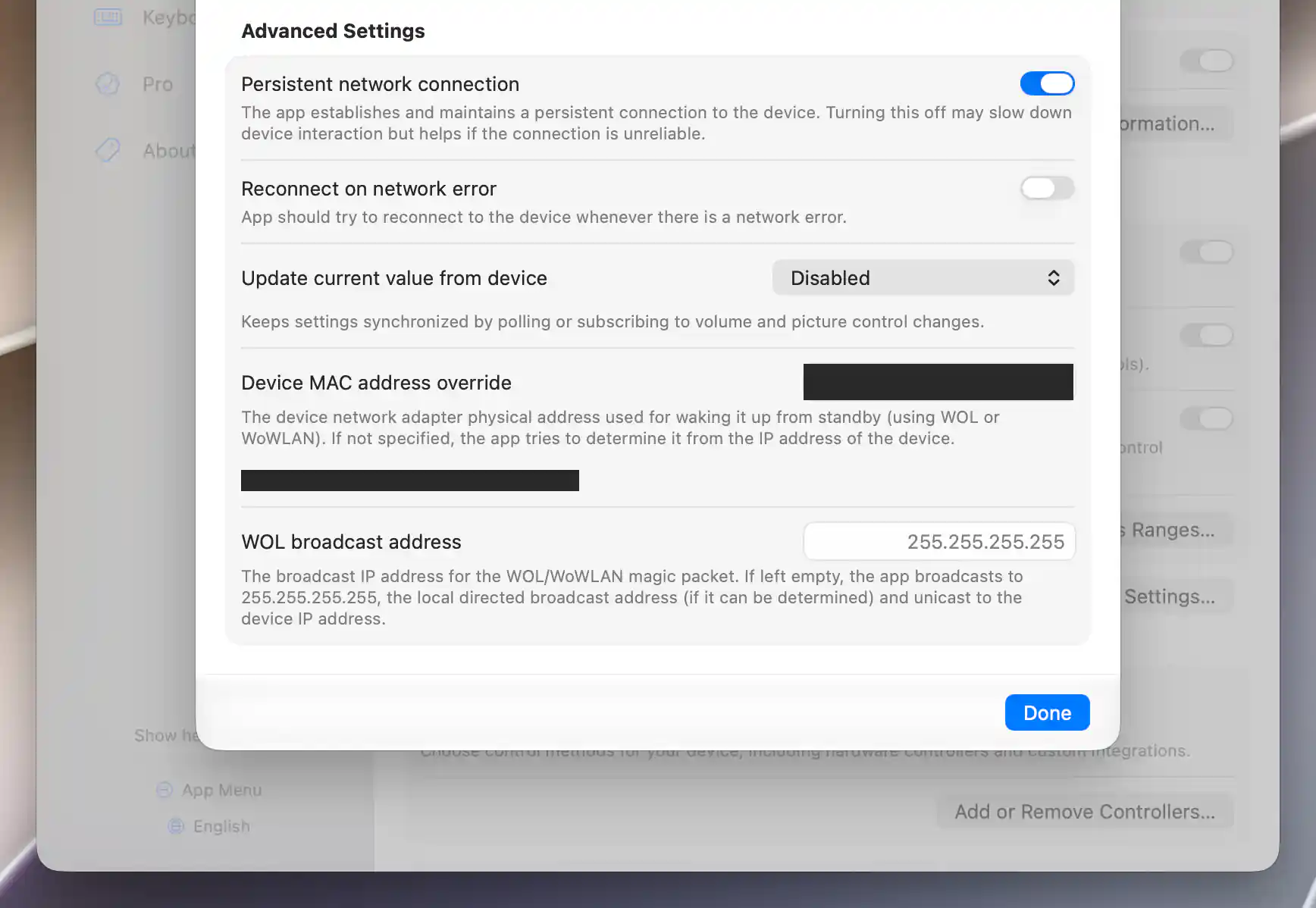
LG advanced settings configure connection persistence, readback and wake addressing.
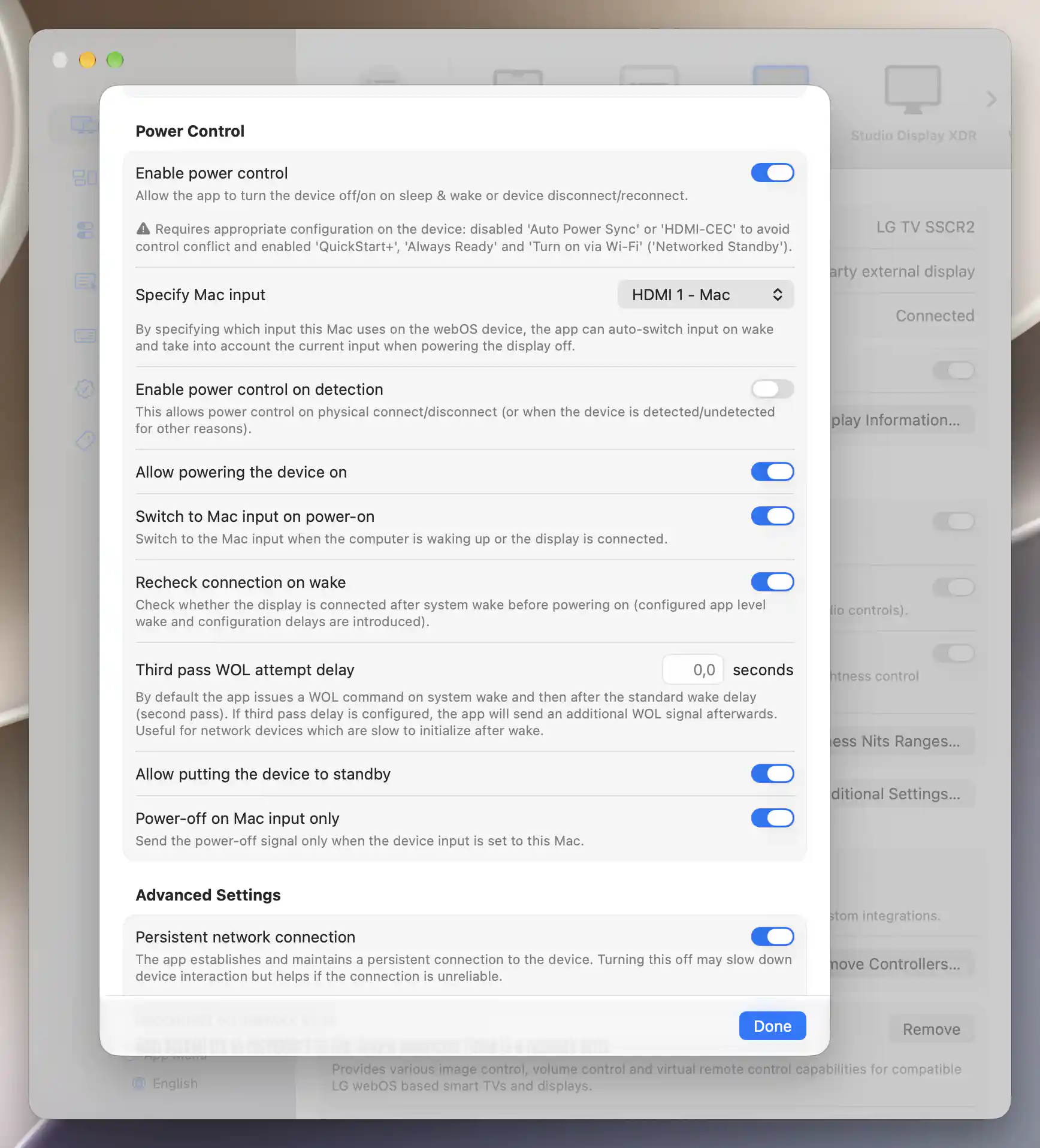
LG power automation uses the reported HDMI 1 Mac input, with detection automation disabled for this example.
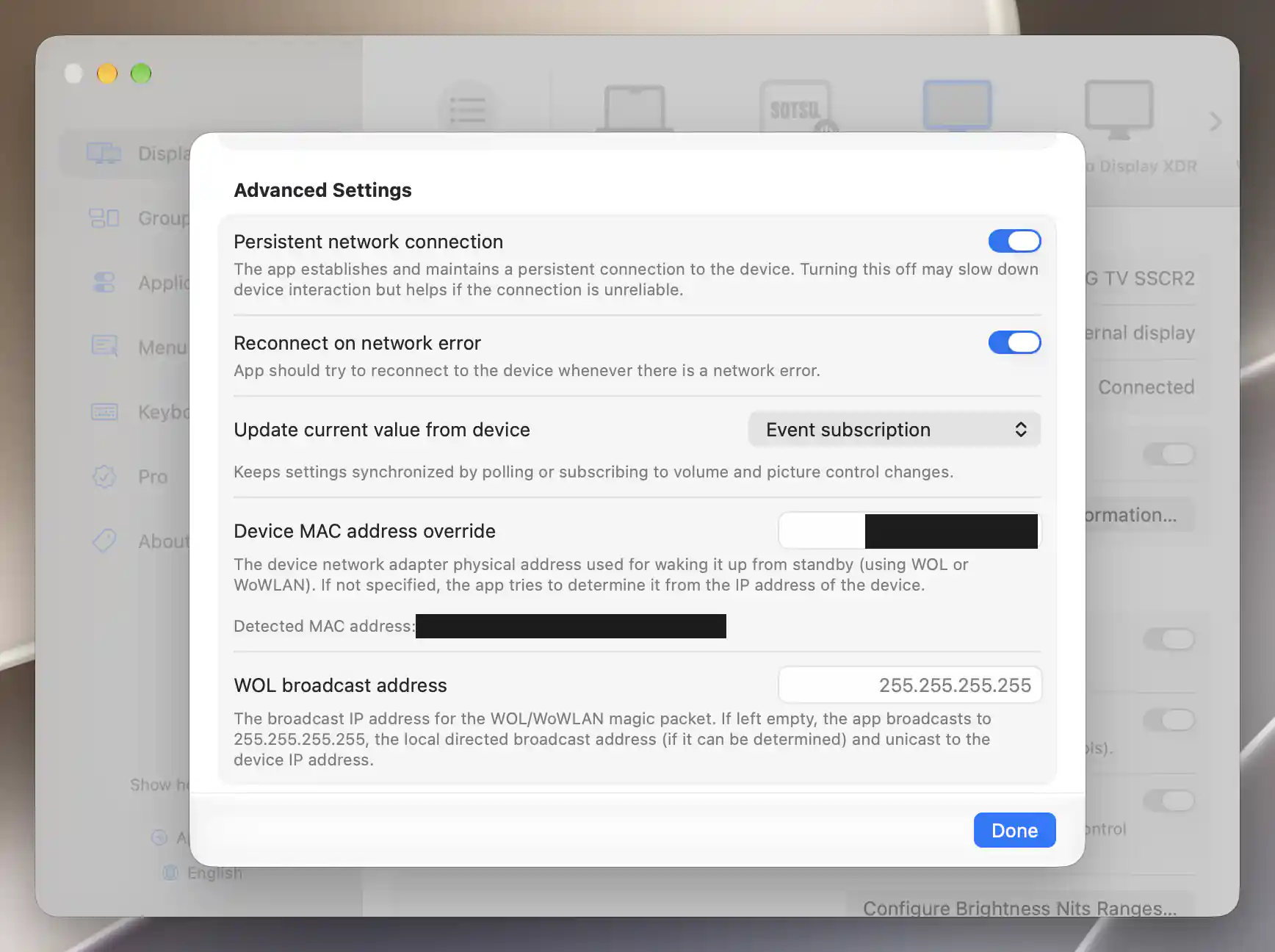
The paired LG connection uses event subscriptions and detected wake addresses; private MAC values are redacted.
See Device Control for controller selection and startup value restoration. Remote buttons and direct input actions are available through the app's Device Control and Input Source menus; these send real commands independently of the automatic power preferences described here.
Additional information
This section explains which features require Pro and how availability differs between Mac platforms.
Features requiring Pro license
The network-controller settings, pairing and automatic control preferences described here have no separate Pro requirement. Other display features used alongside them retain their own requirements.
Platform compatibility
All features described on this page are available on both Apple silicon and Intel Macs. Each controller needs a compatible, reachable device and any required device-side authorization. TV firmware, picture mode, network standby and supported commands determine what actually works; pairing or a validated connection does not establish every capability.