Build an Elgato Stream Deck control panel for your display setup
Put your daily display choices on separate Elgato Stream Deck keys: two comfortable brightness levels, Mac and PC inputs, and a display mode with a return key. This workflow makes named Apple Shortcuts first, verifies them on your own monitor, then assigns each shortcut to a pad hotkey.
Before you begin
Use one connected monitor whose desired brightness, input changes and modes already work in BetterDisplay. A monitor with two video cables does not necessarily accept input commands from both inputs. Its configured controller, transport and actual ports determine what is possible. Follow the Mac/PC input tutorial first if either direction is unverified.
Keep BetterDisplay running, with Apple Shortcuts available and Elgato’s Stream Deck app running on this Mac. Reserve six genuinely unused keys in an existing Stream Deck layout and six unused keyboard combinations. Check conflicts with macOS, BetterDisplay and the apps you normally use; do not overwrite an existing binding.
Keep the monitor’s own input buttons or remote within reach and an independent usable Mac desktop. On a MacBook, keep the lid open and its built-in display connected. Record, then temporarily turn off Settings > Displays > Overview > Connection Management Settings… > Disconnect built-in display when an external display is connected if that screen is your recovery desktop. Otherwise use a separately connected recovery monitor. Keep existing hardware safety safeguards unchanged.
Privately record the original actual brightness, input and complete mode, plus app-saved brightness values and controller configuration. Save current main display, arrangement and any relevant protection targets separately. Mode changes can update resolution/refresh protection targets and affect other displays through groups. Record and pause only relevant automatic brightness, synchronization, UI-scale matching, preset or protection rules before testing. Preserve absent saved values separately from displayed defaults.
Native BetterDisplay actions in Shortcuts do not require enabling CLI access. Stream Deck needs its own macOS permission to send hotkeys; that is separate from BetterDisplay’s native media-key handling. This panel uses ordinary key actions and does not configure dials or install a BetterDisplay plugin.
Choose and test the six actions
- With the Mac input visible, choose two comfortable ordinary SDR brightness levels through App Menu > [monitor]. Confirm actual visibility, rather than assuming a stale app slider reflects the monitor’s current level. Record the two requested values and your original level. Use descriptive names such as Desk Bright and Desk Dim; these are shortcut names you create, not universal percentages.
- Through App Menu > [monitor] > Display Mode, test one offered mode suitable for your task, then return to the original working mode. Record each mode’s resolution, HiDPI/LoDPI scaling, refresh rate and color depth. Use the HiDPI and refresh-rate tutorial if the choice needs diagnosis. Do not invent a mode or use an unsafe entry merely to populate the panel.
- Through App Menu > [monitor] > Input Source, verify the real PC input and the real Mac input, including the correct controller-specific rows. Keep playback paused while switching. Return with the monitor’s physical menu if necessary. If the Mac cannot send the return request while the PC input is active, retain the physical return method and label the Mac key as a request; it cannot repair a missing communication path.
Your panel will contain Desk Bright, Desk Dim, PC Input, Mac Input, Task Mode and Return Mode. Make the two return choices easy to find. They are explicit requests for known settings, not a transaction that restores every window or automatically reverses earlier actions.
Make named Shortcuts
- In Apple Shortcuts, use the toolbar’s add button, set Shortcut Name to Desk Bright, and find BetterDisplay’s Set Brightness action in the action list. Add it to the editor. Select your actual monitor in Display and set Brightness to the first tested value. See Apple’s shortcut creation procedure.
- Expand the action’s additional parameter and turn Range includes software brightness upscaling off for this ordinary SDR example; it defaults on. This chooses how the action interprets the range, not the brightness controller. Set Brightness uses BetterDisplay’s appropriate brightness method, which can be hardware, software or combined. Do not describe it as a guaranteed hardware-only preset.
- Run the shortcut with the editor’s run button while the Mac image is visible. Address only permission requests relevant to this action and check the actual display. A successful action result means the request was handled; it does not establish measured brightness. Create Desk Dim with the same monitor, upscaled-range off and your second tested value.
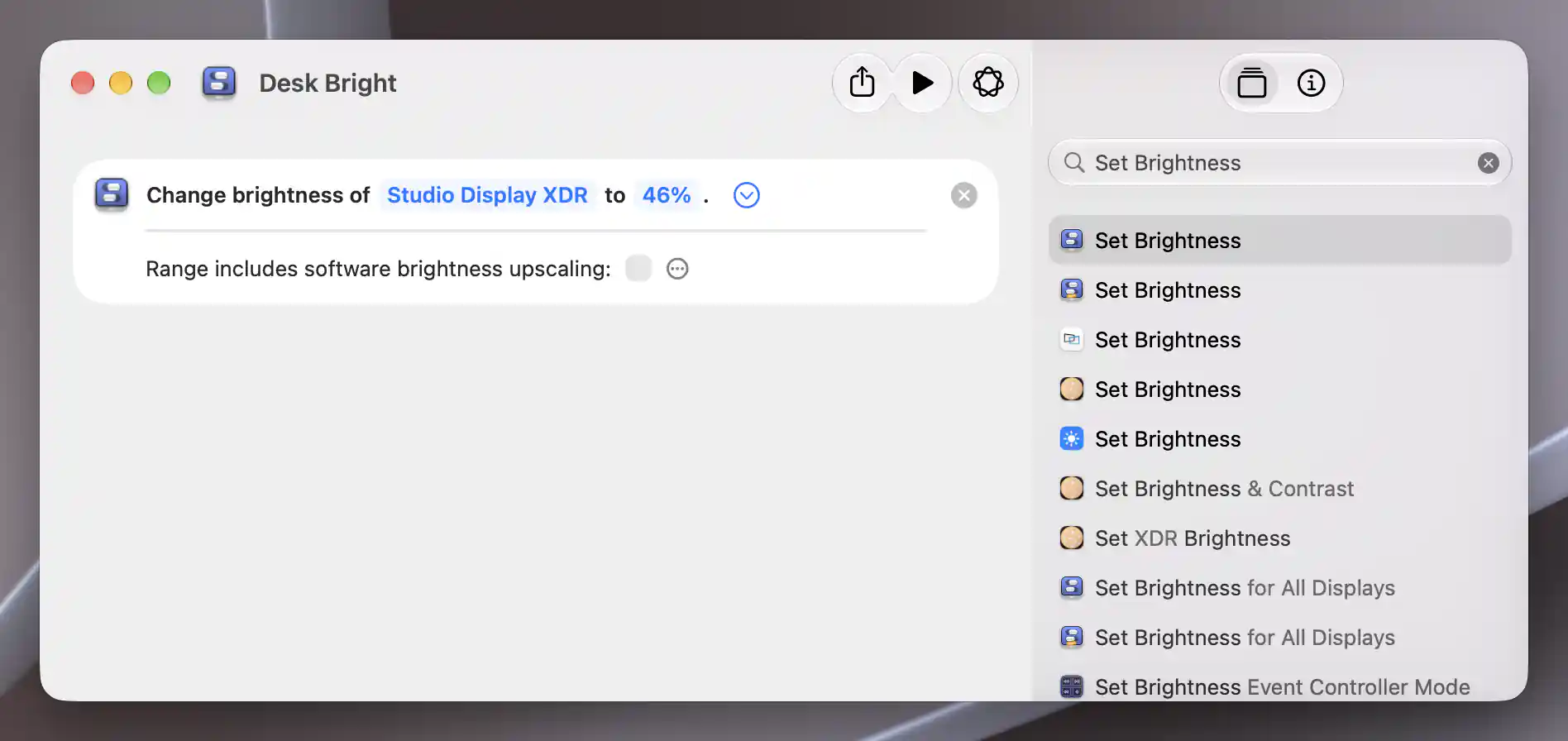
A named shortcut stores one brightness request for the selected display.
- Create Mac Input using BetterDisplay’s Input Source action. Select the actual monitor in Display, then its tested Mac-port row in Input Source, including the intended controller name. Create PC Input with the tested PC row. Unspecified is not an input command. Offered rows describe configured inputs; they do not prove that a cable is attached or the monitor accepts each command.
- Test Mac Input first, then PC Input and the return request while keeping the independent Mac desktop visible. Use the physical menu to recover immediately if the return path disappears. Neither shortcut powers the PC or selects where a USB keyboard is connected.
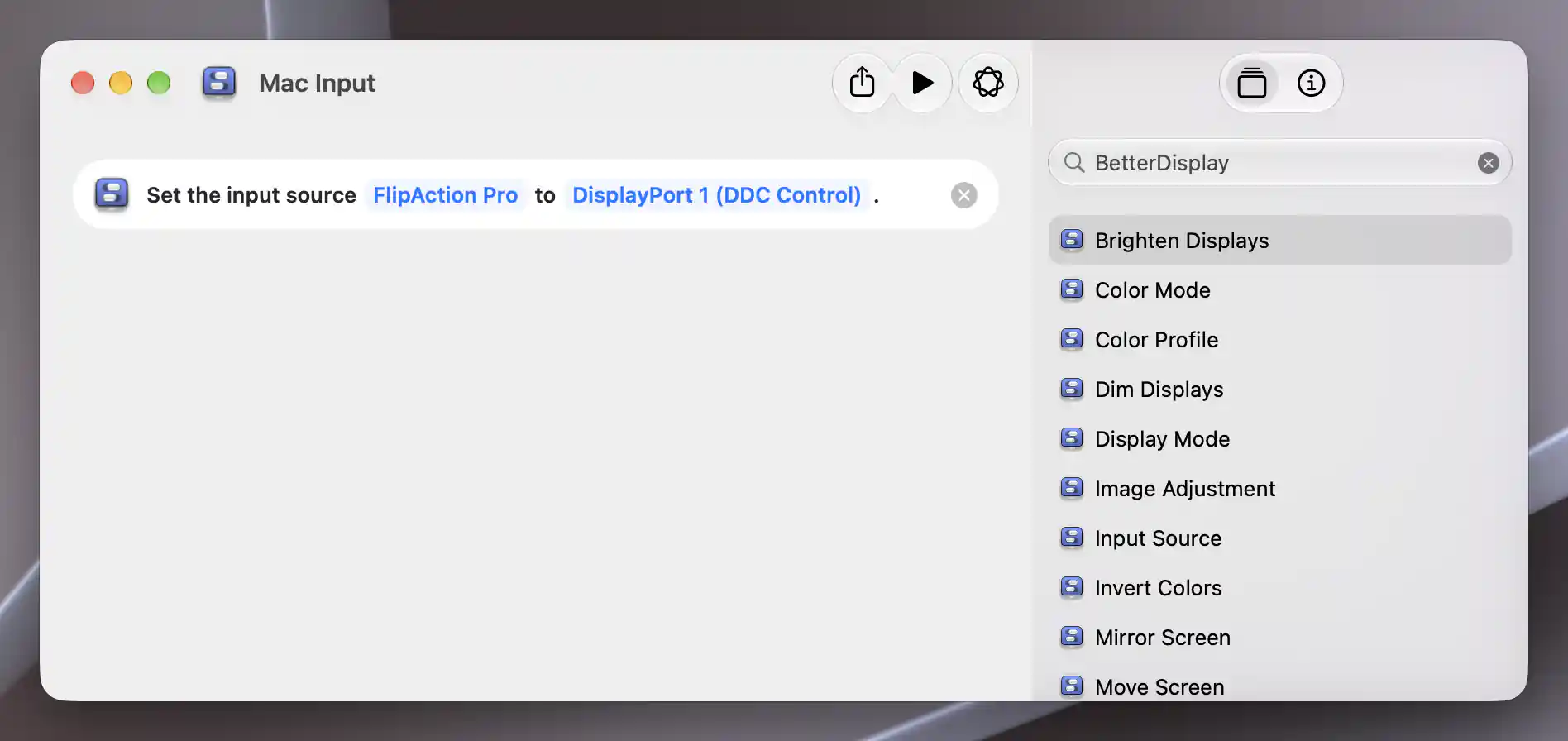
Mac Input stores an explicit input request for the selected display and controller.
- Create Return Mode using BetterDisplay’s Display Mode action and your actual monitor. Set Resolution, Scaling, Refresh Rate and Color Depth from the offered choices for the original working mode. Create Task Mode for the tested alternative. Leaving a parameter Unspecified omits that constraint; it is not a saved original value.
- Run Return Mode, then Task Mode, then return again. Check the actual resulting mode after each settles. BetterDisplay selects an available mode near the requested combination, and may handle the refresh rate separately; individually offered choices do not guarantee that their combined tuple exists. Adjust the shortcut to the genuinely working combination before assigning a key.
The selected Display follows BetterDisplay’s app-local identity. Recheck it after replacing a monitor or changing how it is remembered. Avoid copying system display IDs, mode numbers or another person’s input values into these shortcuts. For advanced command discovery, use listing displays and modes and CLI examples; that separate route requires CLI access and correctly scoped selectors.
Assign shortcut hotkeys and Stream Deck keys
- Open each verified shortcut’s Details, choose Add Keyboard Shortcut and record a different unused combination. Press that combination manually in your normal working app to verify it runs the intended shortcut. Apple documents running shortcuts with a keyboard combination; reserved or conflicting shortcuts need a different combination.
- In the Stream Deck app, find System in the action list and drag Hotkey onto one of your reserved empty keys. In its property inspector, set Hotkey to the exact combination assigned to Return Mode. Repeat for the other five named shortcuts. Use separate Hotkey actions rather than Hotkey Switch, whose local alternation does not query the monitor’s current state. See Elgato’s current hotkey procedure.
- Set each action’s Title to its shortcut name so the two return requests remain identifiable. A title is a label you provide, not a current-input indicator. See Elgato’s title settings.
- If manually typed shortcuts work but Stream Deck does not send them, check System Settings > Privacy & Security > Accessibility > Stream Deck, then quit and relaunch Stream Deck after changing its permission. Test one key at a time, first brightness and mode/return, then the PC/Mac pair with physical recovery ready. Keep the correct Stream Deck layout active.
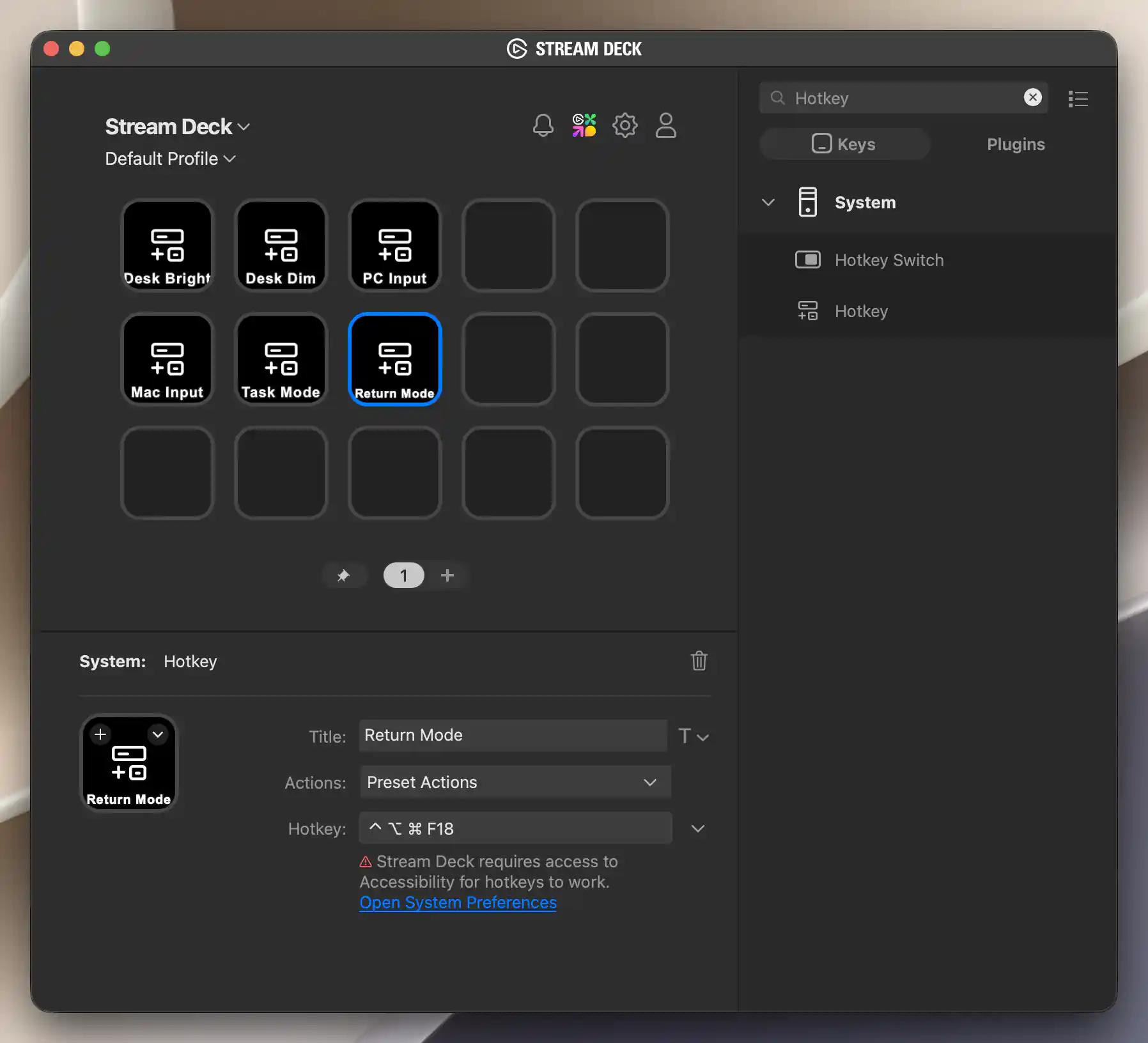
The offline profile stores six separate display requests, with Return Mode selected.
Shortcuts saves your actions and hotkey assignments; no BetterDisplay Apply button is needed for this panel. Its Settings window can stay closed. Keep the app running and allow each display request to finish before pressing another key. This setup provides no automatic hardware-state feedback or dial mapping.
Check the result
With the Mac input visible, press each brightness key once and confirm a comfortable actual image on the intended monitor. Test Task Mode and Return Mode, checking the actual resolution, scaling, refresh rate and depth after settling. Confirm unrelated displays remain as expected.
Press PC Input and verify that the monitor shows the PC’s real image. From the still-usable Mac desktop, press Mac Input and verify the Mac image returns. If that request cannot reach the off-input monitor, use the physical menu and keep that limitation attached to the panel. A key animation, shortcut completion or app value is not proof that the physical input changed.
Troubleshooting
- The keyboard combination fails: run the named shortcut directly first. Confirm BetterDisplay is running, the selected display is available and the requested operation works manually. Then check shortcut conflicts and any actual Shortcuts privacy request. Do not enable unrelated script permissions for these native actions.
- Only the Stream Deck key fails: compare its Hotkey field with the shortcut’s recorded combination, verify the active layout and Stream Deck’s Accessibility permission, and relaunch after permission changes. Test in the same working app where the manually typed combination succeeds.
- PC works but Mac return fails: the Mac may have lost its display/command path. A new hotkey cannot restore that transport. Use the input-return explanation and the physical menu; do not add a disconnect routine or continuous input polling.
- Brightness or mode changes affect more displays: check the action’s explicit Display and relevant synchronization/UI-scale matching rules. See Work and Evening presets for interacting automation. Preserve current values and stored targets independently before changing rules.
- The mode differs or immediately changes again: recheck current offered choices and the actual compatible combination, then inspect relevant protection, groups and presets. A manually changed mode may also update its protection target. Use configuration protection guidance instead of a global reset.
Undo the test setup
- Stop pressing trial keys and stop any trial triggers. Allow already dispatched display/DDC requests to finish before restoring hardware settings. Return the monitor to the Mac using its physical menu if necessary, keeping the recovery desktop visible.
- Remove only the six Hotkey actions you added to the recorded previously empty Stream Deck keys. Leave existing actions, layouts and profiles intact. In each temporary shortcut’s Details, click its Run with field and press Delete to remove the assigned combination. If removing the shortcut too, select only that trial shortcut in Shortcuts and choose Edit > Delete > Delete Shortcut. See Apple’s deletion procedure.
- Restore the recorded actual monitor input, brightness and working mode separately from app-saved values. Restore only settings changed for this trial and the recorded current states of any other affected displays. Deleting a shortcut or removing a controller does not restore the hardware.
- Restore individually paused rules and their saved targets only after the original working setup is visible. If original current values differed from protected targets and ordinary UI cannot recreate both independently, leave only the affected rule off, preserve the private original record/backup and report that restoration limit. An originally absent saved value is not recreated by entering its displayed default; preserve that distinction without an app-wide Import, Forget or Reset.
- Restore the recorded built-in auto-disconnect policy only when the original physical desktop is usable and removal of recovery is safe. Review only permissions changed for this trial, preserving access needed by retained workflows. Restore original appearance and window positions if you changed them.
Related pages
- Stream Deck input-switch requirements
- Discover displays and modes
- Running-app requirements for CLI requests
- CLI examples and selectors
- BetterDisplay macOS Shortcuts
Additional information
This section explains feature availability and platform requirements.
Features requiring Pro license
Native Shortcuts access does not itself require Pro. The actions retain their underlying feature requirements: advanced brightness methods and particular group/protection features can require Pro. BetterDisplay’s custom input-source keyboard slots require Pro; this panel uses Apple Shortcuts hotkeys instead of those slots.
Platform compatibility
The described native actions are available on Apple silicon and Intel Macs running supported macOS26.3 or later. Actual brightness, input switching and modes depend on the monitor, configured controller and connection. Stream Deck requires its supported Mac software, compatible device and hotkey permission. No Screen Recording permission is needed for this panel.