Switch all your monitors between a Mac and PC with one shortcut
Create two macOS Shortcuts: one sends both monitors to the PC, and the other requests their Mac inputs. Each contains a separate, explicit Input Source action for each monitor. This works when both monitors accept the required commands through the Mac’s connections; test switching back before relying on it for everyday use.
Before you begin
Use a Mac running macOS 26.3 or later with BetterDisplay installed and running, the macOS Shortcuts app, and two external monitors connected to both the Mac and the PC. Have both computers awake with a usable picture on their respective inputs. The instructions use Desk Display and Side Display as example names; select your actual monitors.
The main procedure uses DDC, the monitor-command channel carried by a compatible video connection, with a configured controller that provides input-source commands. A cable, dock or adapter can pass the picture without passing those commands. A listed input is a configured command, not proof that the monitor has that port or will respond. Other input controllers have their own setup requirements; choose the same controller that you verified in the menu.
Before changing anything, record each monitor’s current video input, physical Mac and PC connections, and any custom input-list or controller settings you plan to edit. Keep a keyboard available to the Mac independently of any USB hub that may switch to the PC.
Changing video input does not separately configure a monitor’s USB upstream connection. A built-in KVM switch may link USB routing to video inputs, but that depends on the monitor’s own settings. Check those assignments separately, or use an independent USB switch if your setup needs it.
Verify each monitor before building Shortcuts
- With both monitors showing the Mac, open App Menu > [display] > Input Source for
Desk Display. If more than one controller supplies inputs, note the controller heading above the list. The Input Source menu reference explains those lists. - Identify the Mac destination and the actual connected PC destination. Use the monitor’s port labels and documentation, then select the corresponding PC entry. Watch the physical monitor: it must show the PC’s picture, not merely blink or lose signal. Do not try every listed command blindly.
- While
Side Displaystill shows the Mac, try the verified Mac destination forDesk Displayfrom BetterDisplay, if that monitor remains available. If this fails, use its physical selector to restore the Mac. Record whether the Mac can send commands while that monitor shows the PC. - Repeat the same checks for
Side Display, leavingDesk Displayon the Mac. Confirm both destinations separately for each monitor, then restore both to the Mac before editing Shortcuts.
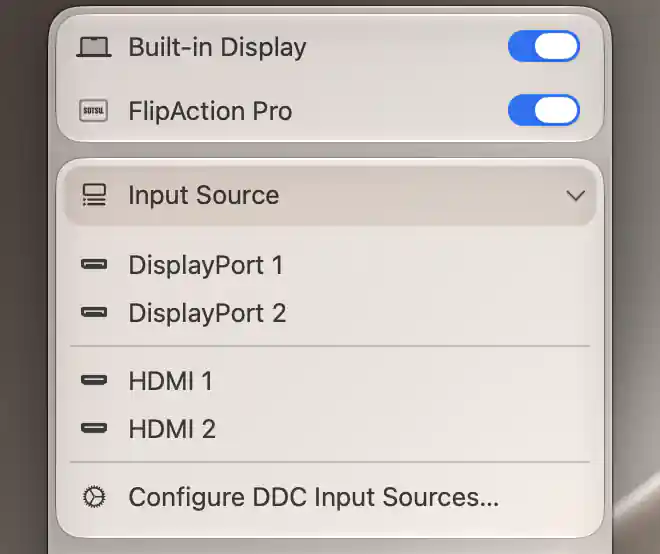
Find the configured DisplayPort and HDMI destinations in the monitor’s Input Source menu; the list does not identify the active physical input.
The DDC menu does not read back the current input to show a checkmark. Confirm the destination from the picture and the monitor’s own input display. A successful switch away proves only that direction; if the return command fails, plan to use the physical selector or a separately verified command from the active computer.
Correct an input list only when needed
Open Settings > Displays > [display] > Device Control > DDC Control > Input Sources…. If DDC Input Source Control shows Disabled, use Configure Controls… on the DDC card to configure the predefined Input Source feature for supported hardware. See DDC Control for detection and configuration; enabling a feature cannot create monitor support.
Customize input source list for this display starts off. Turn it on only if you need to change a row’s Value, LG alt, Description, icon or Menu visibility. Edits save immediately, without Apply or restart. Keep a copy of the original list; Reset Default Input Sources discards custom entries rather than recovering a previous custom list. Hidden removes an entry from the menu, but does not disable its Shortcuts action.
For some LG models, LG alt uses the alternate input command 0xF4 and alternate communication, instead of the usual 0x60 command. For example, the default list includes DP 2 / USB-C (LG alt) with value 209 and HDMI 2 (LG alt) with value 145. These are model-dependent candidates, not universal port assignments. Use documented values for your model and repeat the manual verification after any edit. Renaming a row does not change its command.
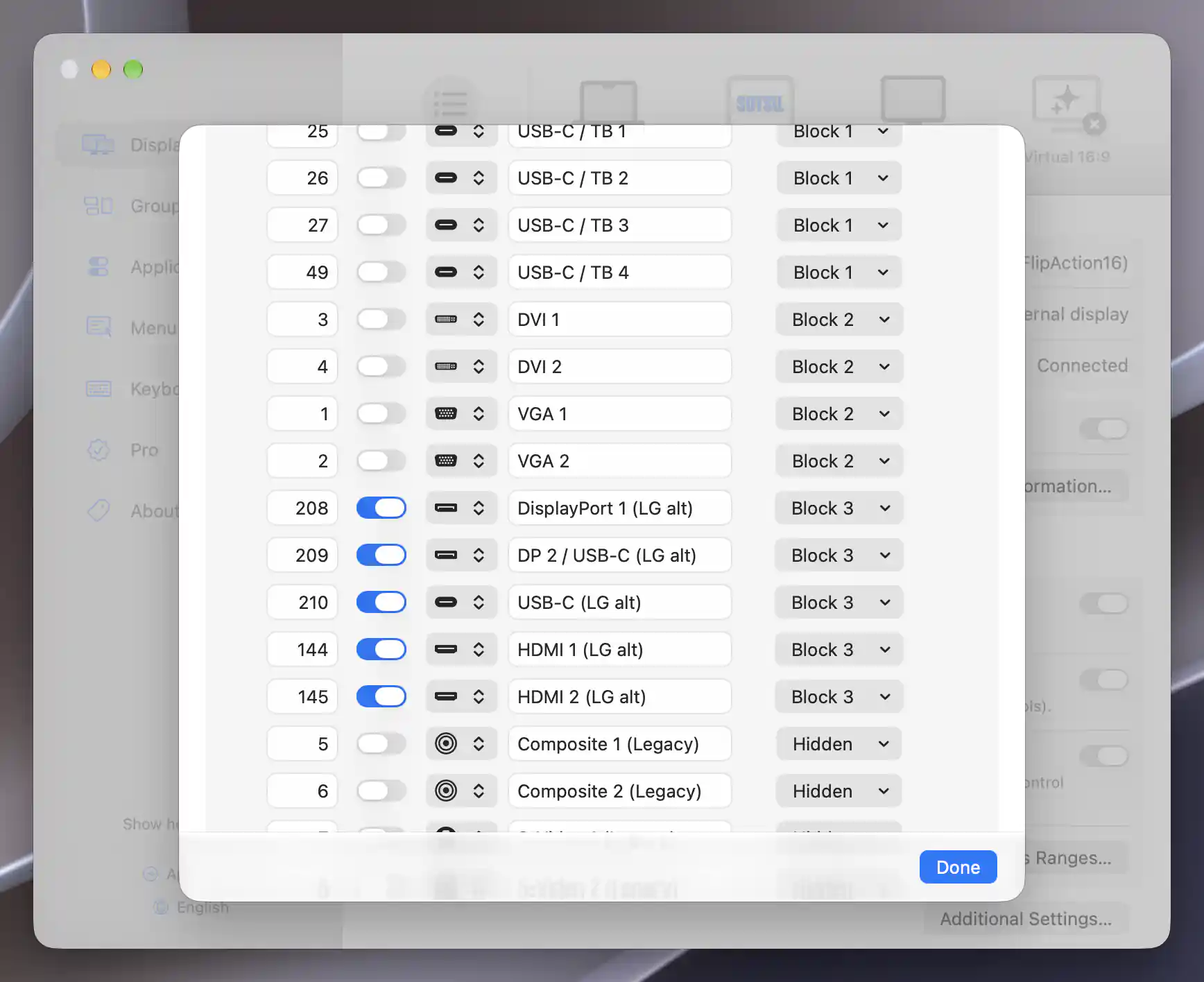
LG alternate rows have separate configured values and LG alt switches; verify support on the monitor.
Record the exact destinations
If display names are ambiguous, give each an identifiable Custom displayed name under Settings > Displays > [display] > General Settings > Additional Settings… > Menu Appearance & Behavior. This changes the app’s displayed name, not the physical identity of the monitor. Confirm the physical target again after reconnecting or changing cables; a familiar name alone is not verification.
For each monitor, record the verified Mac and PC entry labels and their controller. For DDC, also record the configured Value and whether LG alt is on. To record the input identifiers used by automation, open App Menu > Tools > Show Console and run these read-only queries, substituting your unique app display names, without relying on automatically numbered suffixes:
get -name="Desk Display" -inputSourceList
get -name="Side Display" -inputSourceList
The app console works without installing a CLI tool. Each returned line contains an input identifier, label and controller, such as 3 - HDMI 1 [DDCController] for the unmodified default row. Copy the actual verified Mac and PC identifier/controller pairs into your notes. The DDC row identifier is different from its raw Value: default row 3 sends value 17, for example. Do not enter a raw value where an automation expects the configured input identifier.
Create the Mac and PC Shortcuts
Create the return request first, while you can still see the Mac. These Shortcuts run on the Mac; naming one Monitors to PC does not install or run software on the PC.
- In Shortcuts, click the Add button in the toolbar and name the new Shortcut
Monitors to Mac. In the action library, choose Apps > BetterDisplay and add Input Source. - Set Display to
Desk Display, then choose its verified Mac Input Source entry. Match the controller name shown with that entry to your notes. Do not leave the input Unspecified or use an interactive choice that would require an invisible prompt after switching away. - Add a second Input Source action for
Side Display, selecting its own verified Mac destination and controller. Run the Shortcut using the editor’s Run button while both displays already show the Mac. This checks the setup, but does not establish that switching back from the PC will work. - Close the editor. Select
Monitors to Macin the collection, choose Edit > Duplicate (or press Command-D), and rename the copyMonitors to PC. - In the copy, change the input in each action to that monitor’s verified PC destination. Recheck both display selections and controllers; the two monitors need not use the same connector, input value or controller.
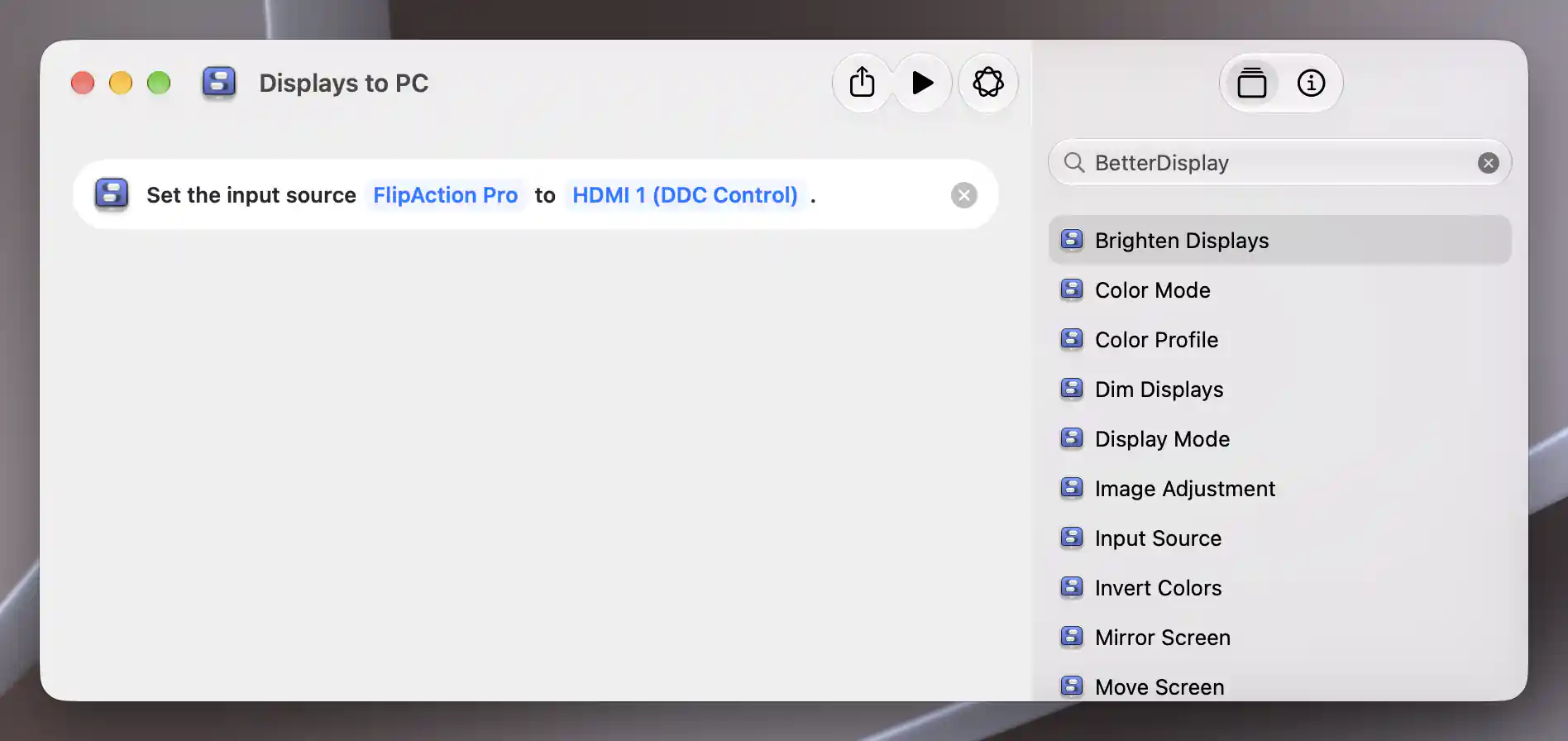
The available monitor has its own explicit PC input request.
Use exactly one explicit destination action per monitor in each Shortcut. Shortcuts executes the actions in order; the two input changes are not one indivisible operation, and one can succeed while the other fails. Keep any monitor needed to see the Mac until last, but do not treat that ordering as a guarantee of continued connectivity.
The input picker associates its configured identifier with a controller. Changing a DDC row’s value or LG alt can change what an existing Shortcut sends even when the row keeps the same identifier. After changing a list, controller or connection, reselect the appropriate inputs in both Shortcuts and retest. A label edit alone does not create a new destination.
Apple documents creating a custom Shortcut and duplicating it. The BetterDisplay Input Source action supplies the display-specific destinations.
Test the pair and assign keyboard triggers
- While both monitors show the Mac, double-click each Shortcut, open Details, select Add Keyboard Shortcut, and record a different unused combination. For example, try Control-Option-Command-P for the PC and Control-Option-Command-M for the Mac if those combinations are free in your setup.
- Test the Mac return combination while the Mac is still visible, using a keyboard that will remain connected to the Mac. Handle any Shortcuts access prompt now. Confirm the destination selections; this does not yet prove return from inactive inputs.
- With the physical return selectors ready, run
Monitors to PCfrom the editor or its keyboard trigger. Confirm each physical monitor shows the intended PC picture. If only one changes, restore it manually and diagnose that monitor separately before another combined test. - If the earlier per-monitor tests established a usable Mac command path, run
Monitors to Macfrom an available Mac screen or its tested Mac-routed keyboard trigger. If the Mac cannot reach the monitors from inactive inputs, use their physical selectors; a second Shortcut cannot repair the lost path. Repeat the switch-and-return test and check both monitors each time, rather than assuming the editor finishing means the device changed input.
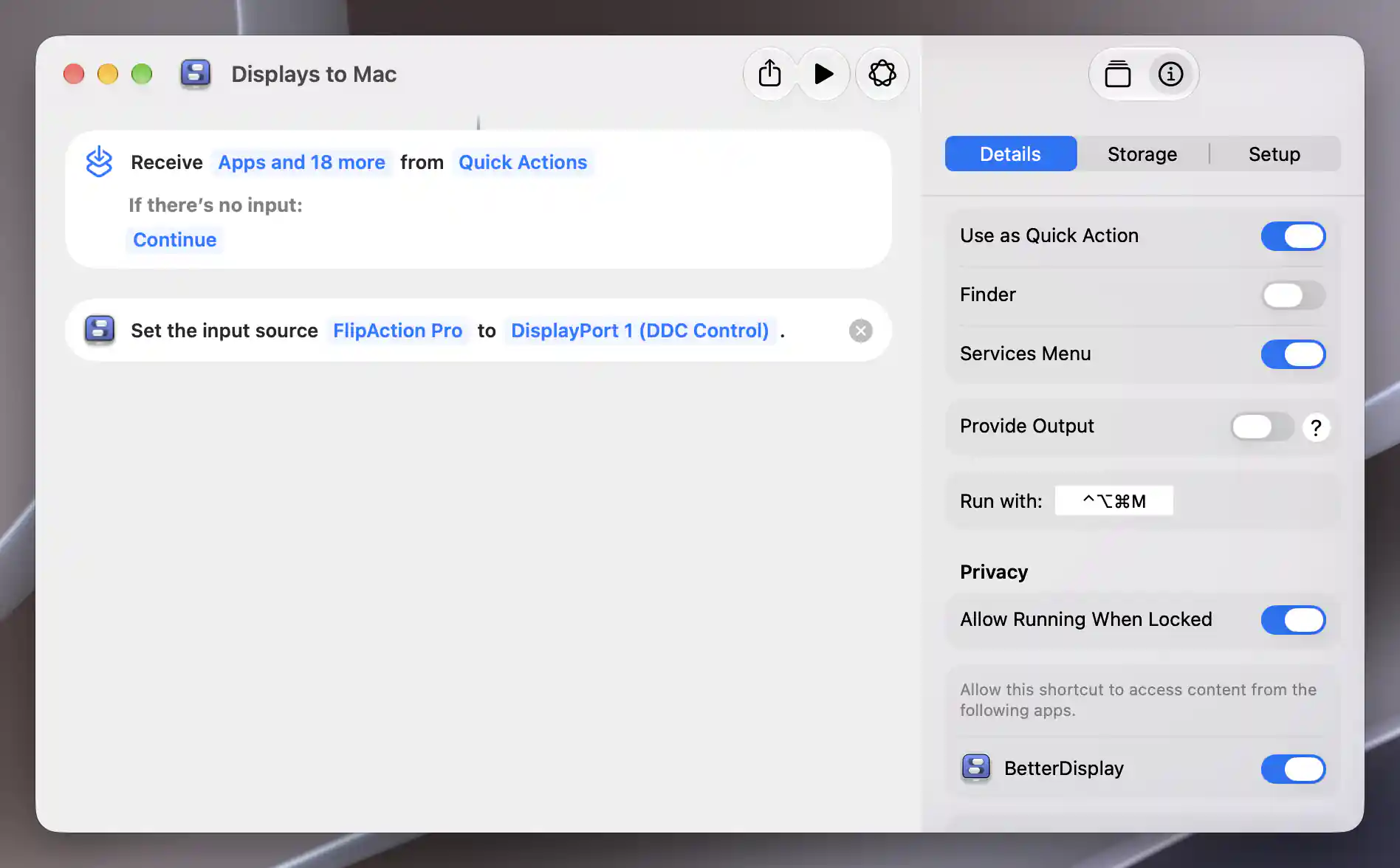
The Mac shortcut stores an explicit input request and a keyboard combination.
Apple’s keyboard trigger instructions also explain reserved system combinations. This assignment belongs to macOS Shortcuts, separate from BetterDisplay’s own keyboard-shortcut settings. Once the pair is reliable, Stream Deck setup is an optional extension.
Check the result
Both monitors should show the PC after Monitors to PC, and both should show the Mac after a supported return request. Check the physical pictures and input labels for each monitor, including after repeating the same destination request. Repeating an explicit request asks for the same input rather than alternating between remembered states.
Test again after sleep, reconnection or a cable/dock change before relying on the workflow. If your monitor only supports switching away from the Mac, the useful result is a verified one-way Shortcut with a manual return, not a working automated round trip. Separately check where the USB keyboard and mouse are connected; correct video output does not establish KVM routing.
Troubleshooting
The menu also fails or chooses the wrong port
Check the physical cable destination, monitor support, configured DDC Value and LG alt. Review DDC Control and why input switching may not switch back. If the monitor rejects the command through the connection, changing the keyboard combination will not help. Restore the Mac using the monitor’s selector before continuing.
The menu works but Shortcuts does not
Check the action’s named Display, explicit Input Source and controller against your recorded pairs. Reselect the input after list or controller edits. A disconnected remembered display can appear in a picker without an available DDC command path. For isolation, duplicate the failing Shortcut and leave only one monitor’s action; run it while the Mac is visible, then delete that test copy. If the editor works but the key combination does not, check keyboard routing and conflicts.
Switching to the PC works, but returning does not
The monitor may ignore commands from its inactive Mac input or remove that display connection. Use the physical selector, or a separately verified input-switching method on the active PC. BetterDisplay’s Mac Shortcut does not supply a Windows-side command path. Keep that return method as part of the setup; see the return-path FAQ.
Undo or remove the setup
- Restore each monitor’s original video input with a verified command or its physical selector. Stopping a Shortcut does not reverse commands already applied, and deleting it does not switch a monitor back.
- To keep the Shortcuts without keyboard triggers, open each one’s Details, click its Run with field and press Delete. To remove the workflow, select only the Shortcuts and diagnostic copies you created, then choose Edit > Delete and confirm Delete Shortcut. See Apple’s deletion instructions.
- Restore the recorded DDC custom list, customization switch, values, LG alt, visibility, labels and icons if you changed them. Use Reset Default Input Sources only if the original list was the default. Restore any controller configuration, custom display names and monitor USB/KVM assignments changed for this task, preserving unrelated settings.
Related pages
- Input Source menu
- DDC input-source configuration
- macOS Shortcuts
- Switching several monitors with one keyboard shortcut
- Switching back after an input change
- Keep a desktop available while a KVM switches away
Additional information
This section explains licensing and platform requirements for the workflow.
Features requiring Pro license
The described predefined DDC input commands, DDC input-list customization and Input Source Shortcuts actions do not themselves require Pro. Creating custom DDC features requires Pro; that is separate from editing the predefined input list. Other controllers retain their own feature and setup requirements.
Platform compatibility
The DDC and Shortcuts workflow is available on both Apple silicon and Intel Macs, on macOS 26.3 or later for the current app. Each monitor and video transport must support the command. DDC requires a usable native display-command connection; a listed or remembered display, or a working video picture, is not enough to establish it. Monitor behavior while its Mac input is inactive remains device-dependent.