Keep a desktop available while a KVM switches away from your Mac
Keep your working desktop on a connected virtual screen, and use mirroring to show it on the physical monitor while your KVM connects that monitor to the Mac. When the KVM switches away, the virtual desktop can stay available to macOS; when the monitor returns, a display association can restore its presentation.
This changes where you work: the virtual screen owns the desktop, and the physical monitor receives its picture. It can reduce disruption, but does not guarantee that every app keeps its windows in place or that the monitor reconnects quickly. A software EDID override changes display information; it cannot keep the physical connection present when the KVM removes it.
Before you begin
- Start with a working Mac-to-KVM-to-monitor connection. Switch away once with a recovery screen available and check whether the physical monitor actually disappears from BetterDisplay's connected displays. If it stays connected, your KVM already retains that connection; this tutorial addresses the disappearing-monitor case.
- Keep your MacBook open with its built-in display connected, or keep another independently connected physical display usable throughout. If the built-in display is your recovery screen, record the original Settings > Displays > Overview > Connection Management Settings… > Disconnect built-in display when an external display is connected choice and turn it off where available before testing. Otherwise, the KVM monitor's return could remove your recovery view. Do not change built-in-disconnection safeguards to make the option available. Have a keyboard and pointing device that still reach the Mac when the KVM switches its USB devices away.
- Privately record the original mirror relationships, main display, display modes, resolution, refresh rate, orientation and positions. Record relevant Configuration Protection targets separately from current values, and note any display-group, preset or connection rule that could change the setup.
- Use a fresh virtual-screen definition for this trial. Choose an aspect ratio suitable for your monitor; the example below uses a 16:9 monitor. Keep private work and notifications off the test desktop.
Native mirroring does not require Screen Recording permission. An optional Picture in Picture window does, and provides a local view of the virtual desktop on your recovery display.
The virtual desktop exists while BetterDisplay runs in your user session. Its saved definition and connection state can be restored on a normal app launch, but it is not a persistent physical monitor before login or while the app is closed. Keep the Mac awake during the first switching test.
Create a desktop that stays connected
- Check the rules you recorded. Temporarily pause only those that would interfere with this trial, such as resolution or mirroring protection on the intended displays, a group's UI scale matching or layout protection, or a preset that reapplies a different arrangement. Record each original enabled state and saved target before changing it. Keep the recovery display connected.
- Open Settings > Displays > Overview > Create New Virtual Screen…. Choose Pre-configured settings (recommended), select 16:9 - HD/4K/5K/6K for the example, then select Create Virtual Screen. This saves a new, initially disconnected definition without an association. Avoid the matching-and-association creation option for this procedure: you will set the connection policies before adding the monitor.
- Select the new virtual screen under Settings > Displays and turn on Connect this virtual screen. Check the actual resulting arrangement and recovery screen. Connecting a new screen can change the desktop layout; a saved definition alone does not confirm a usable connection.
- Open Settings > Displays > [new virtual screen] > Associated Displays > Association Settings…. You can open this sheet before associating any display. Turn Auto-connect virtual screen off, and leave Auto-connect virtual screen when all associated screens are offline off. The first policy is on by default; leaving it on would make the virtual desktop disconnect when its last associated monitor disappears. The inverse policy would disconnect it when the monitor returns.
- Leave Auto-start full screen streaming and Virtual screen follows display orientation off. Turn Enforce virtual screen mirroring on, then close the sheet with Done. This saves the presentation rule; it does not establish the initial mirror relationship immediately.
- In Associated Displays, enable only the intended physical KVM monitor's row. Leave the recovery display and other monitors unassociated. A sole association makes the automatic presentation destination unambiguous. Recheck that both auto-connect policies remain off and the virtual screen remains connected.
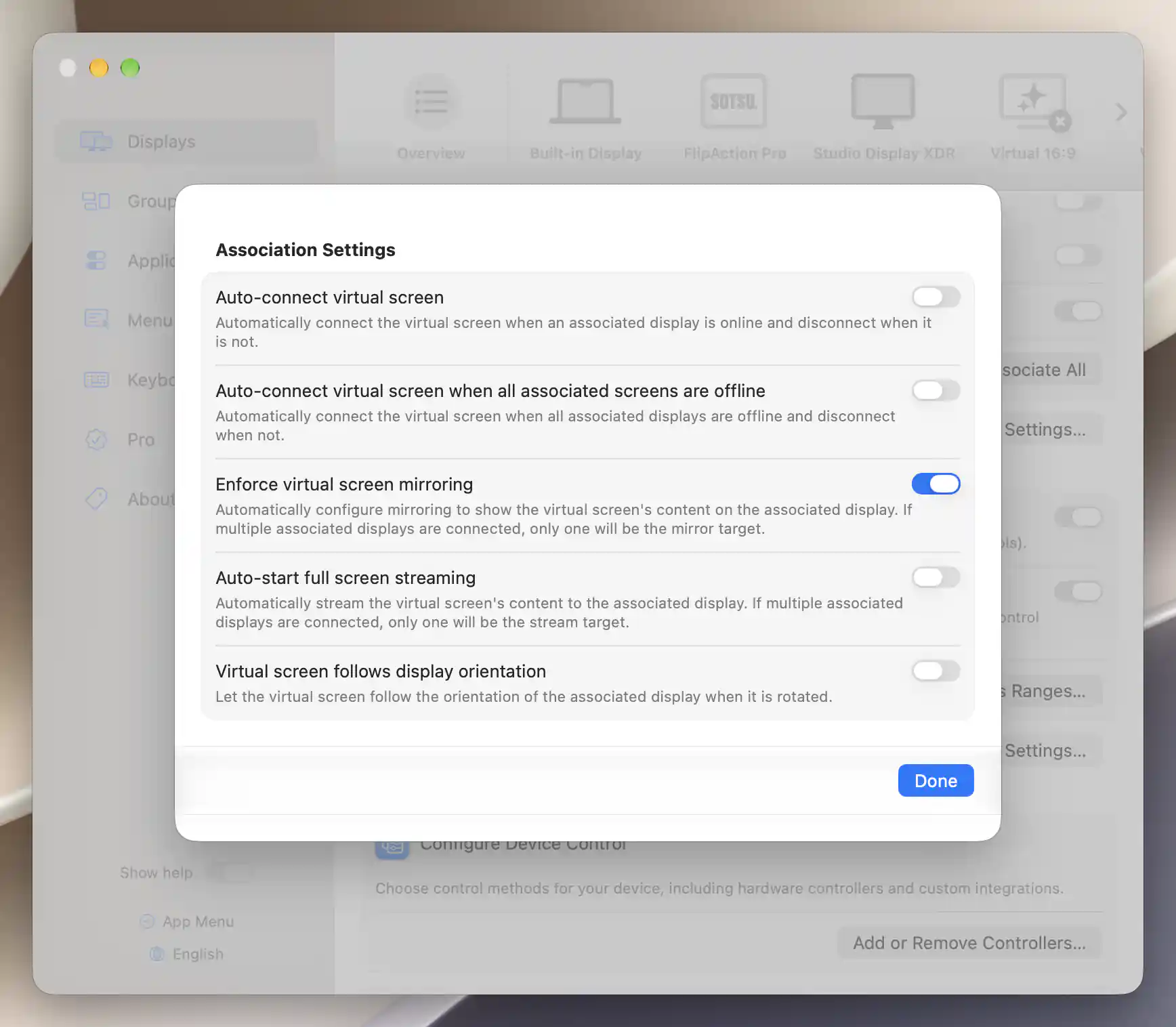
Demonstration with FlipAction Pro: both auto-connect policies are off and the connected virtual desktop enforces mirroring.
Association policies save as you change them; they do not need a virtual-screen reconnect. Custom dimensions, names and other configuration changes can require one, so finish any optional customization before placing work on the desktop. See Associated Displays for policy prompts and the distinction between connection and presentation.
Present the virtual desktop on the monitor
- With both screens connected, open App Menu > [new virtual screen] > Virtual Screen Mode. Choose a comfortable offered desktop size, using HiDPI if appropriate. Confirm the actual size and refresh rate rather than assuming that the physical monitor's previous mode has been copied.
- Open App Menu > [new virtual screen] > Mirror Virtual Screen. The instruction Mirror the contents of this display to: confirms the direction. Select the physical KVM monitor's row with an ordinary click. Do not start from the physical monitor and mirror it to the virtual screen: you want the virtual desktop to be the source.
- Check that the physical monitor shows the virtual desktop and appears as an active TARGET in the virtual screen's mirror list. Keep the recovery display outside this mirror set. Check its visibility, the current main display, desktop size and arrangement; mirroring changes the macOS configuration immediately and can affect these choices.
- Move a harmless test document and a window from an app you normally use onto the virtual desktop. Confirm that they appear on the KVM monitor. Start with a small test before moving your working windows.
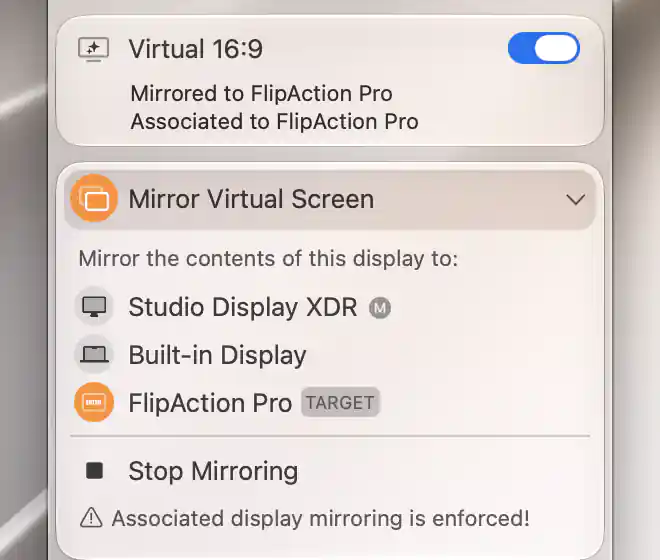
Demonstration with FlipAction Pro: the physical receiver is the real mirror target, and associated-display mirroring is enforced.
If you want to inspect that desktop while the monitor belongs to the other computer, open App Menu > [new virtual screen] > Picture in Picture > Enable Picture in Picture Window. Follow the offered Screen Recording permission route if needed, and place this window on the recovery display. Leave Start Automatically off for a temporary trial. It is a view of the virtual source, not another physical connection. See Picture in Picture for pointer navigation and window options.
Check the result
- With the KVM on the Mac, confirm the physical monitor shows the virtual desktop, the recovery display remains usable, and the test windows belong to the virtual source.
- Switch the KVM to the other computer. On the recovery display, check that the physical monitor becomes disconnected while the virtual screen remains connected. An already associated offline monitor stays listed in Associated Displays; its unavailable status does not mean the association was removed.
- If you opened Picture in Picture, check that it still shows the test desktop and its windows. Otherwise, use the recovery display to inspect the virtual screen's connection state. Check the behavior of your usual apps separately: a connected desktop does not guarantee that each app leaves its windows there.
- Switch the KVM back to the Mac. Wait for the physical monitor to be detected and display configuration to settle. Check that it again shows the same virtual source without manually selecting the mirror target. Verify the active TARGET row, test windows, main display, usable pointer path and recovery display.
- Repeat with your usual apps before relying on the arrangement. Compare window positions and any reconnect delay with the ordinary setup you recorded. Treat those observations as results for your hardware and apps; a successful switching test does not establish wake, app-relaunch or pre-login behavior.
Troubleshooting
The virtual desktop disappears when you switch away or back. Recheck both auto-connect policies, including the inverse policy, on the correct virtual definition. Both must be off. Also check whether BetterDisplay is still running, the Mac slept, or another connection rule changed the setup. Creating a definition does not keep it connected if a policy or the user disconnects it.
The monitor returns without the virtual desktop. Check its actual connected state, sole association and Enforce virtual screen mirroring. Establish the initial mirror manually if you have not done so. Reopen the virtual source's mirror list and select the intended physical target if needed, then repeat the automatic-return test. Check only relevant mirroring protection or automation rules if the relationship keeps changing. See the KVM continuity FAQ and mirroring reference.
Windows move, the picture changes size, or reconnect remains slow. Confirm you placed the windows on the virtual source and chose a suitable desktop size. Mirroring can change display modes and layout; group rules or app window management can change them again. This workflow cannot keep the actual electrical connection present or guarantee switch speed. Restore the ordinary setup if its tradeoffs work better for your apps.
Picture in Picture is blank or unavailable. Confirm the virtual source is connected and BetterDisplay has the required capture permission. Protected content may not appear. Native mirroring and Picture in Picture have different requirements; a PIP failure does not by itself show that mirroring failed. Follow the PIP reference.
Undo the trial or stop using the virtual desktop
- Switch the physical monitor back to the Mac and keep the recovery screen visible. Move your working windows to a usable physical desktop while the virtual source remains connected. If the KVM monitor is still a mirror receiver, use the independent recovery desktop first.
- In the new virtual screen's Association Settings…, turn Enforce virtual screen mirroring off before removing the mirror relationship. Keep both auto-connect policies off so they do not undo your cleanup as displays change.
- Open App Menu > [new virtual screen] > Mirror Virtual Screen and select only the active physical monitor's TARGET row. This removes that receiving display from the mirror set. Do not use the virtual source's Stop Mirroring as a substitute for removing a specific receiver.
- Restore the original physical mirror relationships, main display, modes, orientation and positions you recorded. Check the result before restoring each temporarily paused rule. Restore its original saved target as well as its enabled state; enabling Configuration Protection can capture the current value. If the original current value differed from its protected target and the normal interface cannot recreate both independently, leave that affected protection off, preserve your original record or backup, and record the exact restoration limit instead of saving a different target.
- Stop only the trial's PIP window by selecting its active Enable Picture in Picture Window item again, or closing that window normally. Remove only the intended association from the new definition. Restore any other settings or permissions you changed specifically for this test to their recorded original state. Restore the original built-in auto-disconnect choice only after the physical monitor has returned and cleanup is safe; an originally enabled choice can remove the built-in recovery view again. An absent saved value is not the same as its displayed default; do not overwrite unrelated settings just to reproduce a fallback.
- Confirm every needed window is on a visible physical desktop. Turn Connect this virtual screen off to stop the desktop while retaining its definition. To remove this fresh trial definition, use Settings > Displays > [new virtual screen] > Discard… > Discard Virtual Screen. Do not discard an existing definition or use a global reset. Discarding this fresh source also removes its linked configuration; it cannot preserve windows on that desktop.
Related pages
- Can BetterDisplay keep a desktop available when my KVM switches away?
- Associated Displays — connection and automatic presentation policies.
- Mirror Display / Mirror Virtual Screen — source, target and individual receiver removal.
- Picture in Picture — a local view of the source on another screen.
- Keep your monitor arrangement and main display consistent after wake — protecting a separately verified arrangement.
Additional information
This section explains licensing and platform requirements for the workflow.
Features requiring Pro license
Adding individual associations, the association policies, mirroring actions in BetterDisplay and Picture in Picture require Pro or an active trial. Custom virtual-screen configuration and naming, Configuration Protection, UI scale matching and layout protection also require Pro. Creating and manually connecting an ordinary preset virtual screen does not require Pro.
Platform compatibility
The described virtual-screen and association workflow is available on Apple silicon and Intel Macs, subject to a working virtual screen and a compatible physical display connection. Apple silicon has additional virtual-screen mirroring auto-configuration and activity maintenance; neither guarantees physical connection retention or individual window placement. The documented app requires macOS 26.3 or later. Native mirroring needs no Screen Recording permission; optional Picture in Picture requires it separately.