Increase desktop brightness on an XDR or HDR display
Use brightness upscaling to make ordinary desktop content brighter than the display's usual SDR range. Choose a method supported by your display and Mac, then adjust brightness using BetterDisplay's slider or configured keyboard keys.
Before you begin
You need an Apple XDR display or an external HDR-capable display operating in HDR mode. An ordinary SDR-only monitor cannot acquire HDR brightness headroom from this feature. How much extra brightness is useful depends on the panel, active preset, image content and current conditions; the slider percentage is not a measured luminance.
Upscaling starts off and must be enabled deliberately. For external displays, first enable Enable HDR Mode in the App Menu or HDR in macOS display settings. For keyboard adjustment, set up BetterDisplay's brightness-key routing and Accessibility permission; this is particularly important when using direct built-in XDR control, whose brightness scale differs from the system's usual controls.
Higher panel output uses more power and may add heat. Sustained full-screen brightness can be lower than a display's small-highlight peak. Increase only as far as you need; the app cannot guarantee a particular sustained brightness or long-term panel behavior.
Choose the upscaling method
| Method | When to use it | Main consideration |
|---|---|---|
| Direct built-in XDR | A compatible built-in XDR display offers the direct option | Expands hardware brightness; configure app keyboard routing because native macOS brightness behavior differs. |
| Color-table software | Apple silicon with an eligible XDR/HDR display | Efficient desktop upscaling, but active color-table adjustments can clip HDR content. |
| Metal software | Intel, or a compatible fallback with color-table control disabled | Supports desktop upscaling with extra processing; HDR presentation can differ by GPU/path. |
| Legacy native XDR preset | Supported built-in XDR display on older macOS | Older preset workflow; unavailable from macOS 26.3 onward. |
The direct built-in method does not apply to external Pro Display XDR or Studio Display XDR. Those displays use an eligible software path instead. A standard Studio Display without XDR is a different device and does not become XDR-capable through the app.
Enable software upscaling
- Open Settings > Displays > [HDR/XDR display] > Image Adjustments and keep Enable software-based video adjustments on.
- On Apple silicon, start with Enable color table control on when supported. On Intel, turn it off to use the compositor/Metal fallback; enable Use Metal for image adjustments when that option is needed for other effects.
- In App Menu > [display], open more options and turn Brightness Upscaling on. The equivalent per-display Settings switch is Enable software HDR/XDR brightness upscaling (if available).
- Raise brightness with the slider. When working hardware brightness is available, Combined brightness can combine its normal range with software dimming and upscaling. Otherwise use the software brightness slider, including the one under Image Adjustments when a hardware slider takes precedence.
- Stop at a comfortable level and compare ordinary desktop content. Turn Brightness Upscaling off to leave the software upscaling mode.
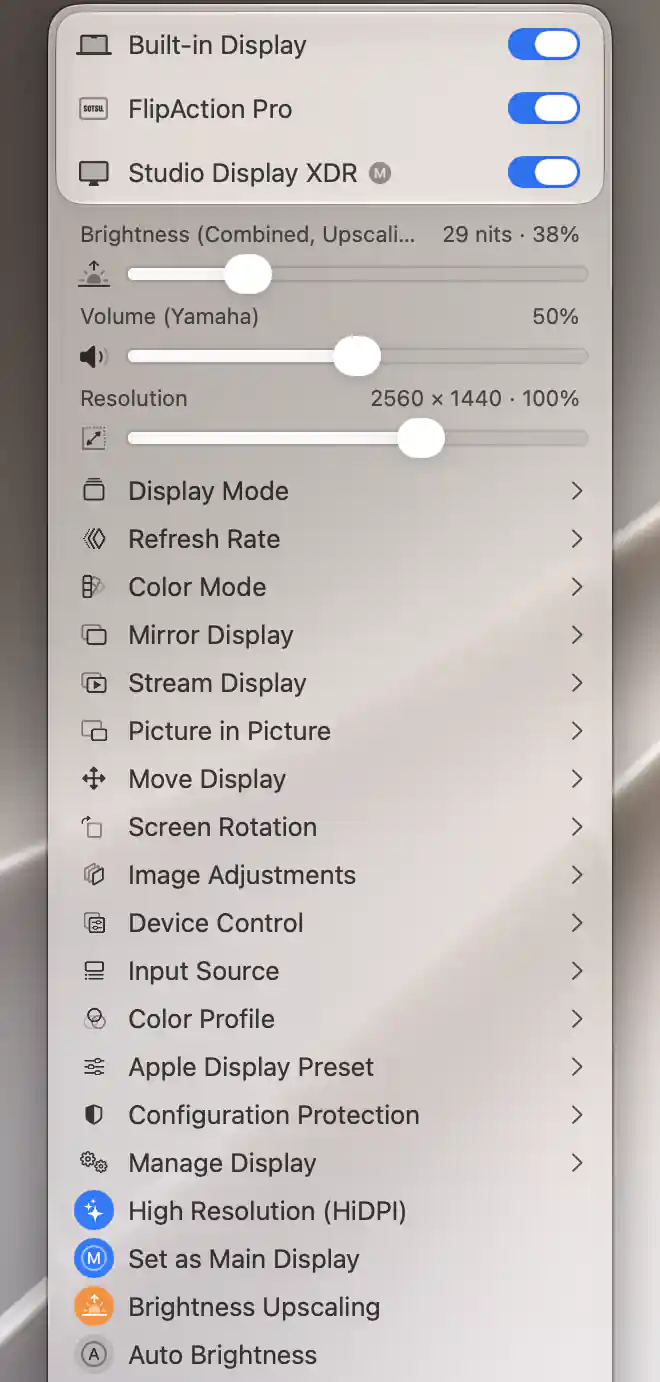
Brightness Upscaling is active for Studio Display XDR; its combined brightness slider uses the software upscaling range.
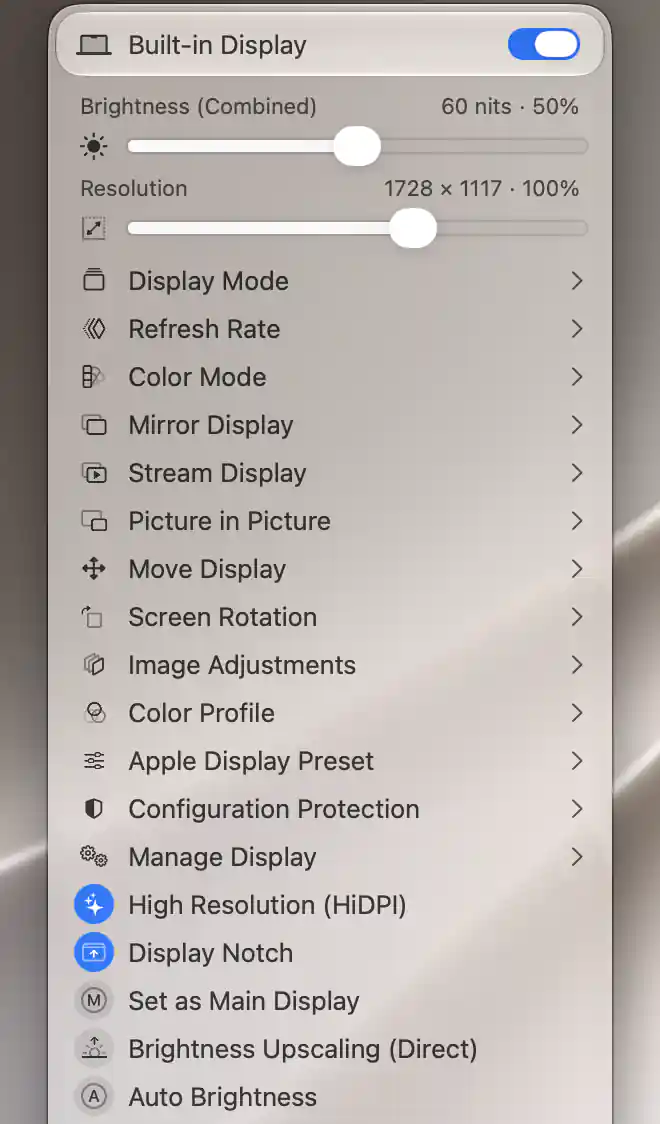
Brightness Upscaling (Direct) is available for the compatible built-in display; direct mode is inactive in this view.
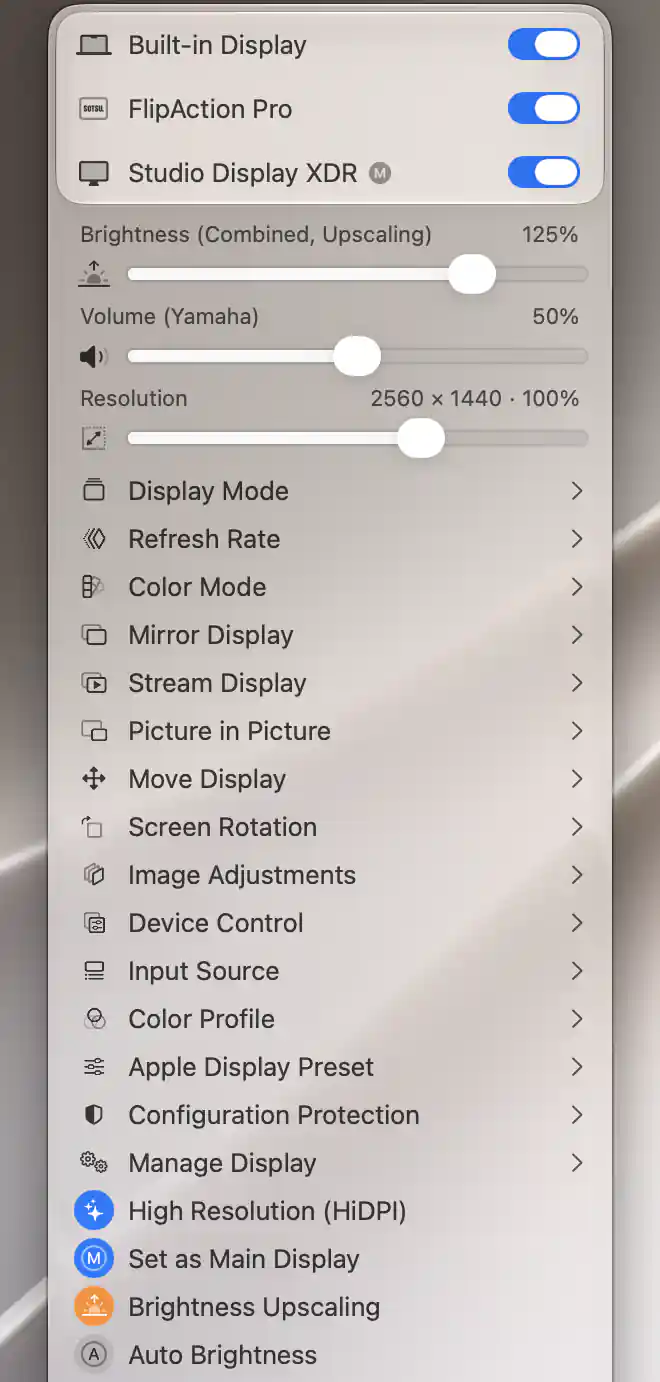
Software upscaling extends the combined brightness slider above 100%; this Studio Display XDR configuration is at 125%.
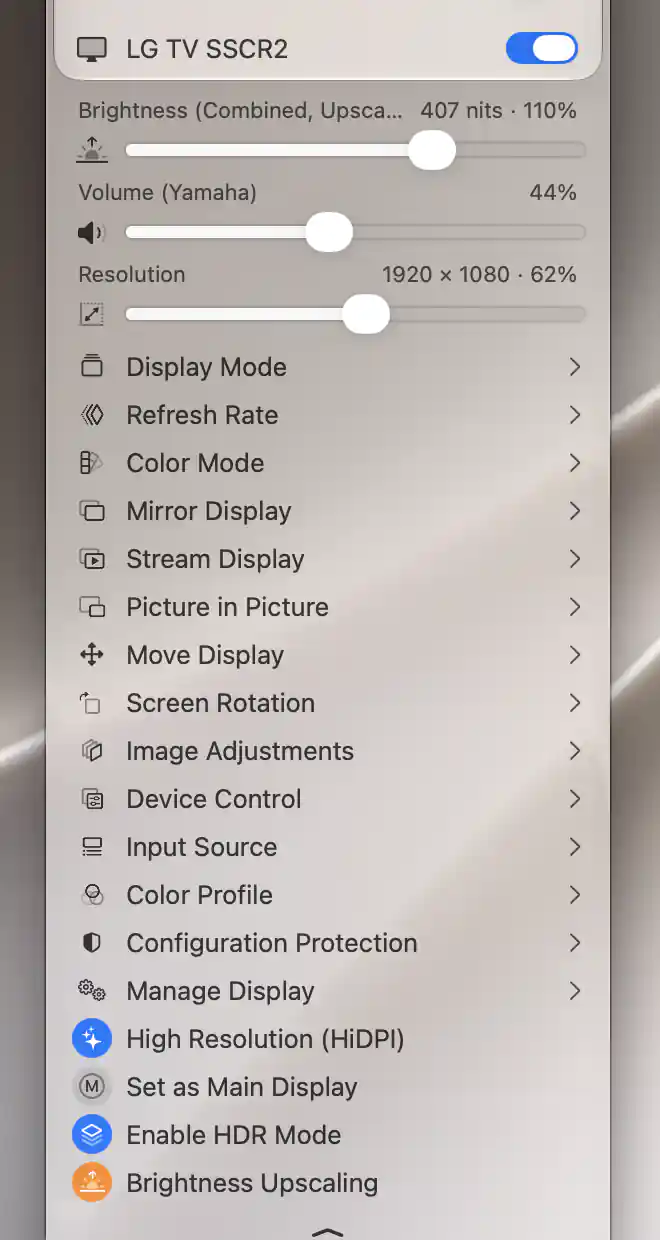
HDR mode and brightness upscaling are active for this external HDR display.
Software upscaling methods
These figures show the current color-table and Metal software upscaling settings.
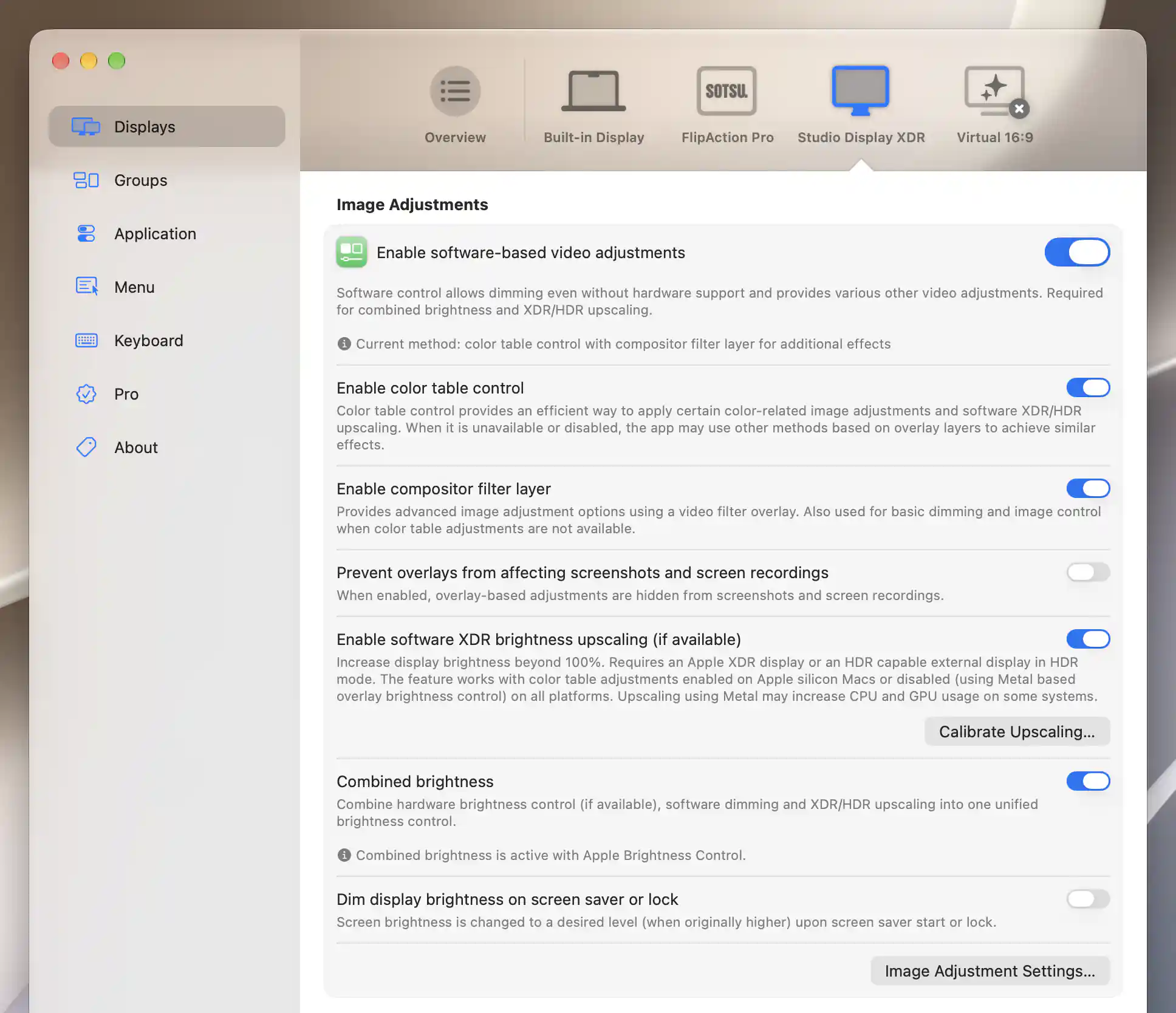
Color-table upscaling, its combined-brightness prerequisites and the calibration entry point are shown together.
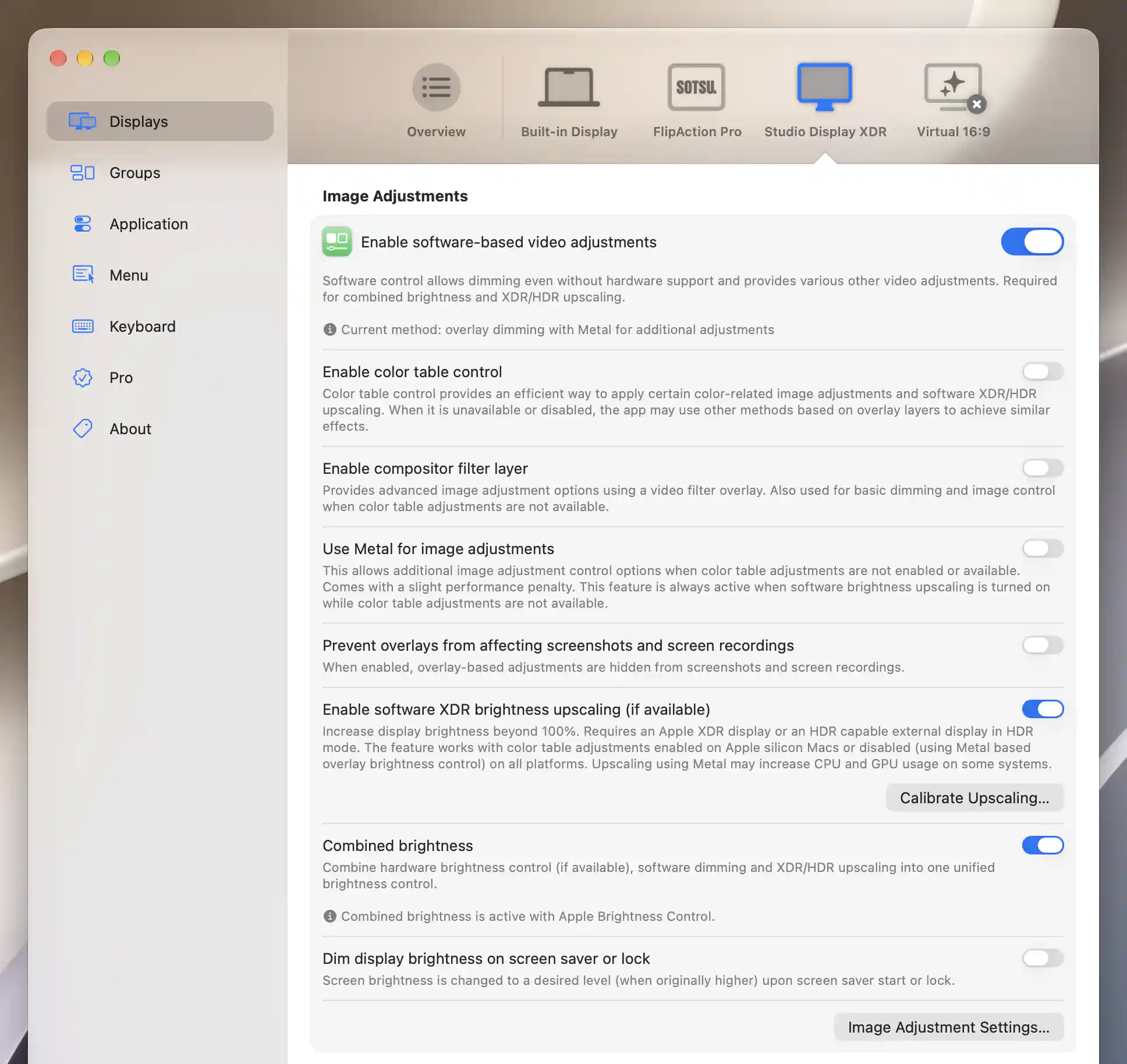
With color-table and compositor adjustments off, software upscaling uses Metal automatically; the extra Metal preference remains off.
Use direct upscaling on a compatible built-in XDR display
- Open Settings > Displays > [built-in display] > Device Control.
- Under Apple brightness settings, enable Allow direct control and XDR upscaling when offered. The feature is marked experimental; confirm that BetterDisplay handles your brightness keys.
- Turn software Brightness Upscaling off first if it is active. Then enable Brightness Upscaling (Direct) in the built-in display's App Menu.
- Adjust the app's brightness slider or configured keys. Use Additional Apple Brightness Settings… to review the direct range in nits if you need to limit it.
You can also select Direct XDR Upscaling under Apple Display Preset when offered. Direct control turns automatic brightness off and saves the previous preset, brightness and auto-brightness state for restoration when it exits.
Direct control requires native Apple brightness, supported XDR presets and an HDR peak above the SDR peak. Capability detection determines whether it appears; architecture alone is not sufficient. It avoids the color-table adjustment that clips HDR, but the panel's own power/thermal behavior still applies.
To leave direct mode, turn Brightness Upscaling (Direct) off; disable Allow direct control and XDR upscaling if you also want to remove its availability. See Device Control for its range and compatibility details.
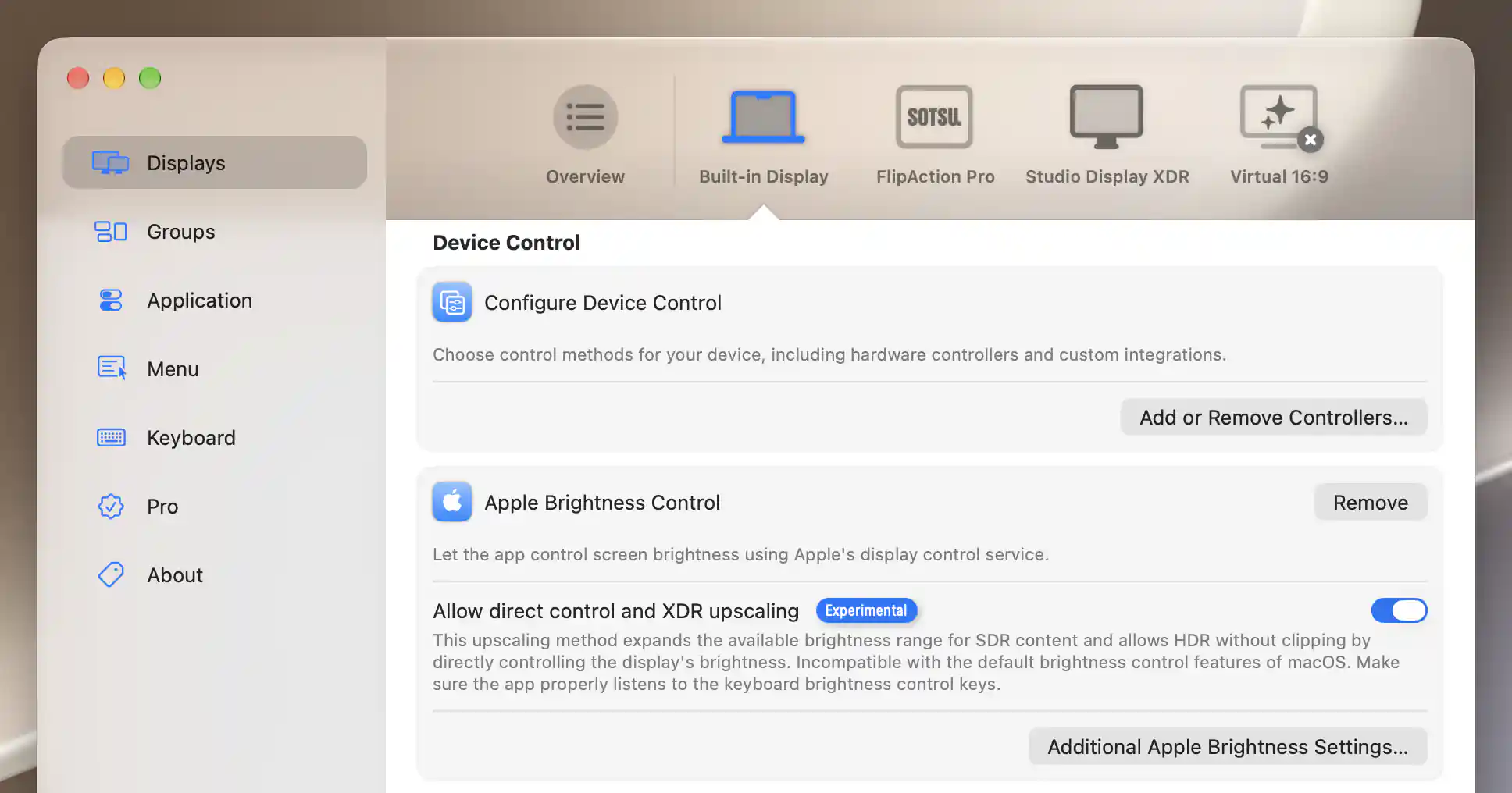
The compatible built-in display allows direct control; the experimental option includes its keyboard compatibility guidance.
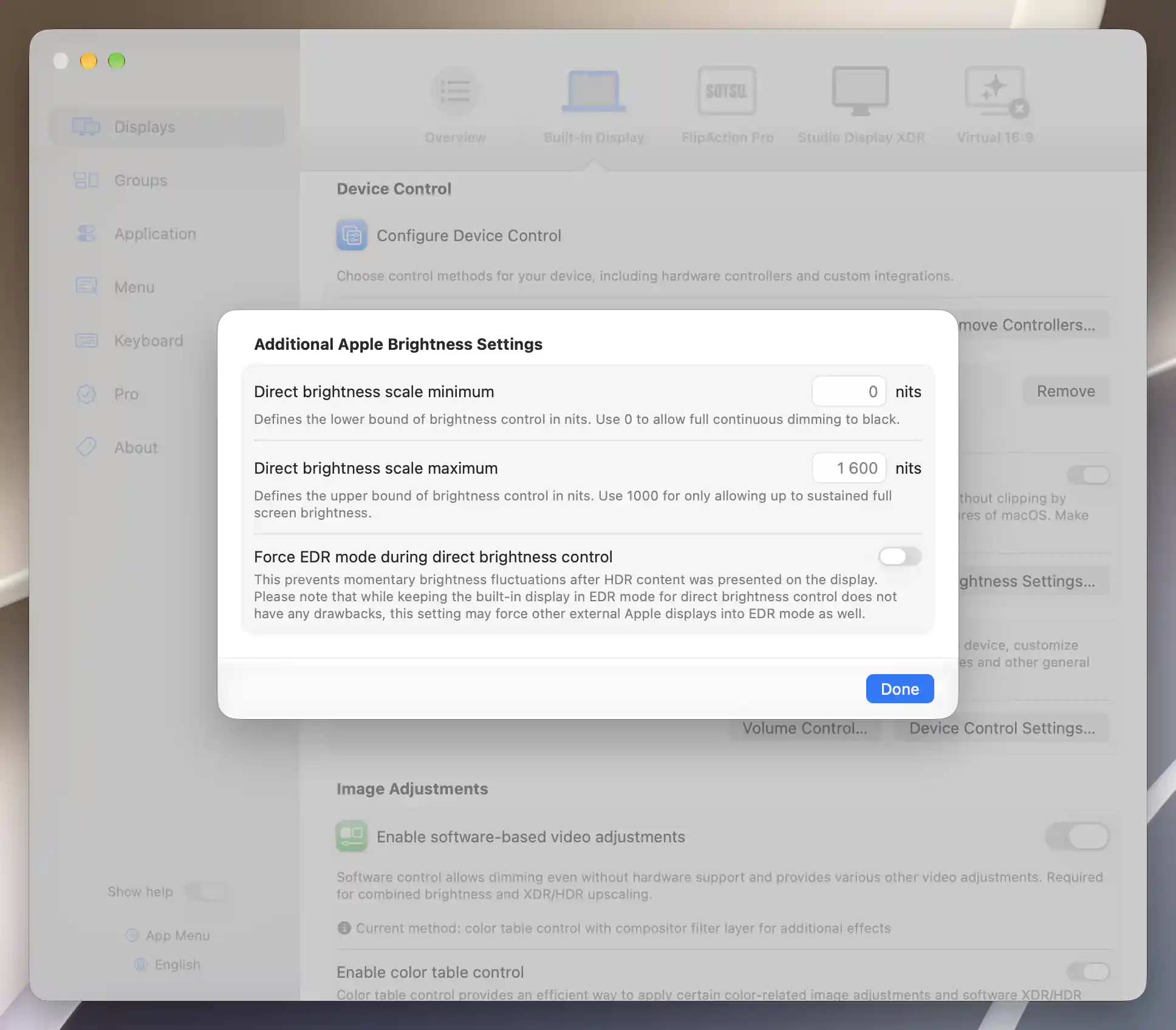
The current direct brightness sheet shows the default range of 0–1600 nits and Force EDR mode off; these values were left unchanged.
Legacy native XDR preset workflow
On supported older macOS installations, Apple Display Preset > BetterDisplay XDR activates the legacy native upscaling preset. The display's Native XDR Upscaling settings can manage automatic activation and its minimum/maximum nits range. Return to the normal Apple preset and disable automatic activation to leave that setup.
macOS 26.3 and later no longer support this legacy workflow. Do not look for the old preset on a system where it is unavailable.
Check the result and preserve HDR content
Ordinary SDR desktop content should become brighter when upscaling is active. Software scales can extend above 100%; a direct or native scale may map its expanded hardware range into 0–100%, so the number alone does not tell you the method or physical brightness.
For accurate HDR viewing on a color-table path, avoid active software upscaling/dimming and other color adjustments. Set software-only brightness to Neutral 100%, or use the combined slider's Min HW to Max HW hardware-only region. Keep unrelated image adjustments neutral as well.
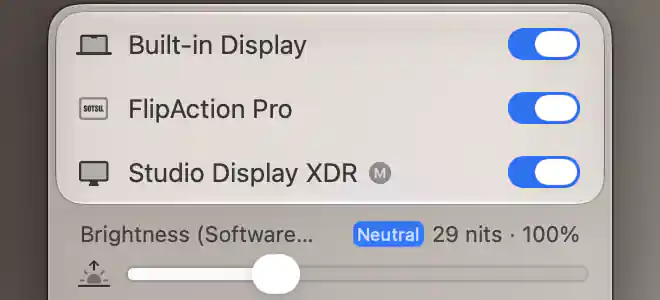
The software-only color-table path marks 100% as Neutral while brightness upscaling remains active.
Recognize hardware-only slider boundaries and keyboard feedback
The combined slider's hardware-only boundaries depend on your configured scale. Under Settings > Displays > Overview > Brightness Upscaling and Dimming Settings…, Insert intermediate keyboard/OSD step at neutral 100% for HDR upscaling helps keyboard users reach neutral on a software-only scale. The old extra-marker preference is not present in the current OSD settings. Use Settings > Keyboard > OSD to choose current feedback and percentage/nits counters, and use the slider to confirm the neutral state.
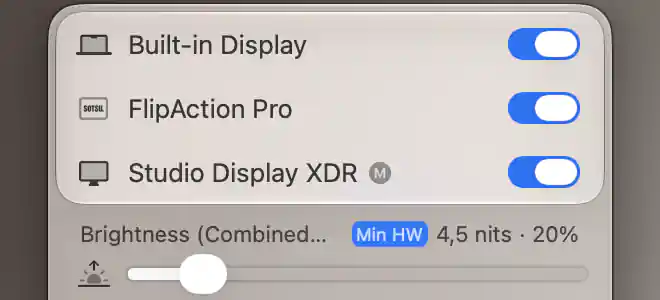
Min HW is 20% for this configuration; the slider is at its lower hardware-only boundary.
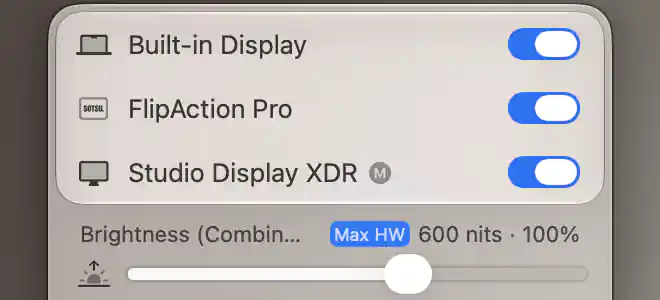
Max HW is 100% for the same configuration; software upscaling begins above this upper hardware-only boundary.
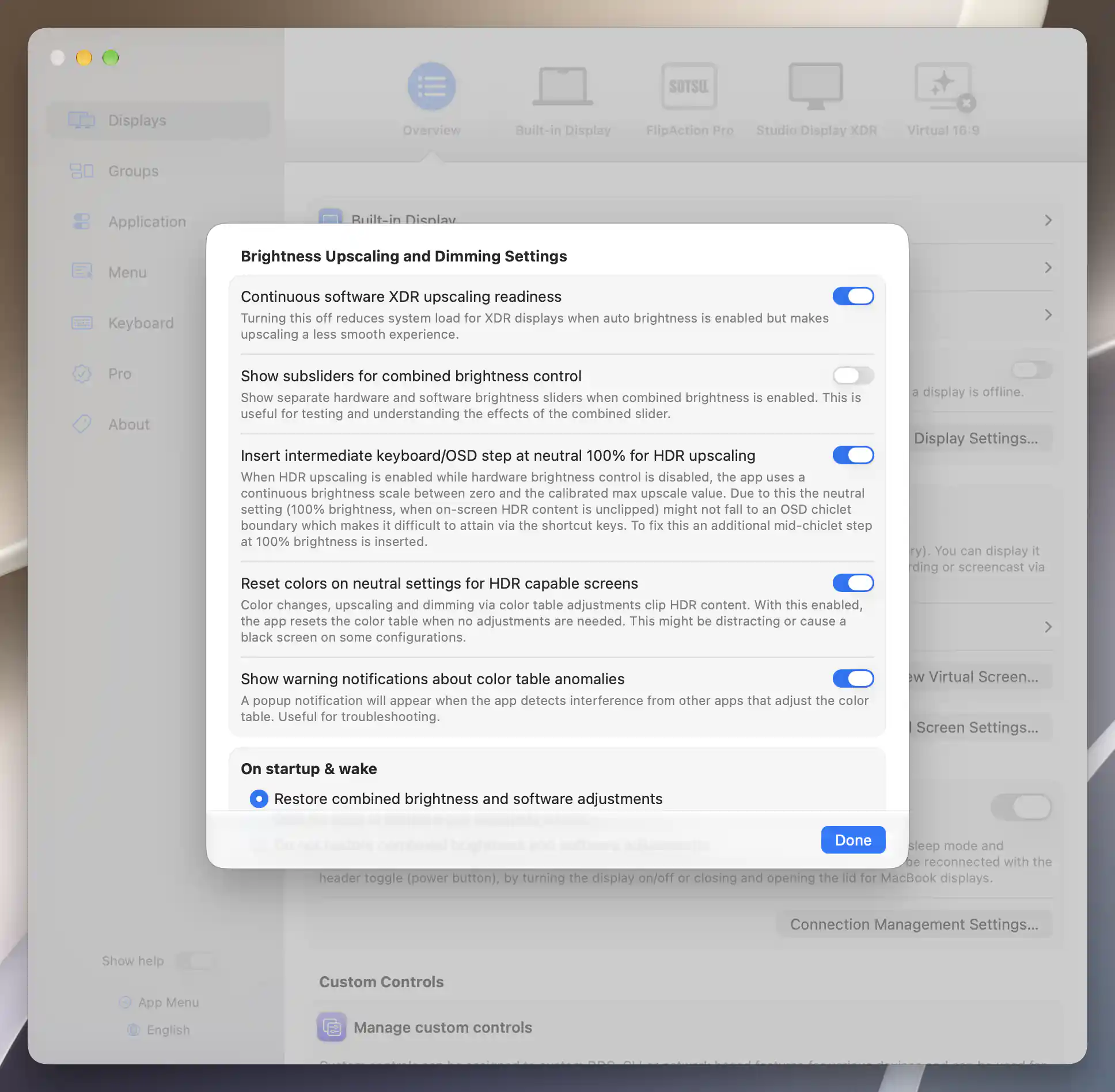
Continuous readiness, the neutral keyboard step and reset-at-neutral preferences are shown together with their explanations.
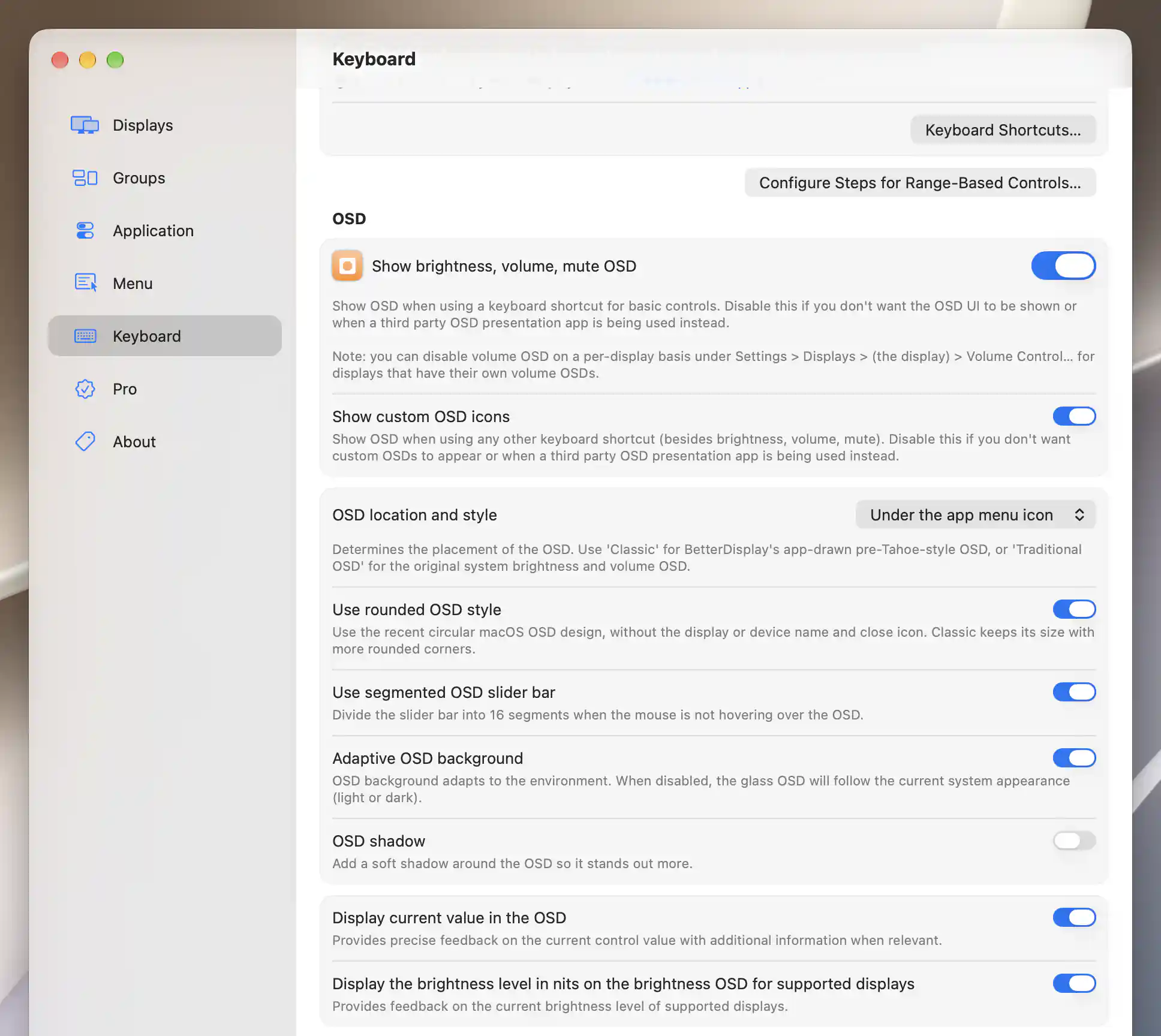
Current brightness feedback and value-display options appear under Keyboard > OSD.
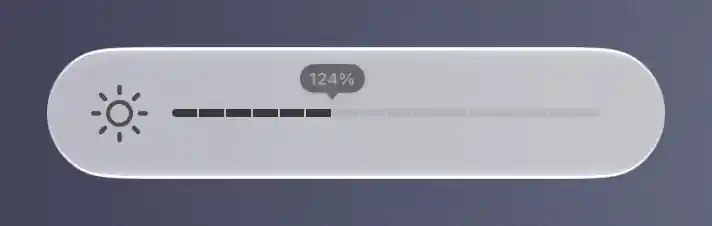
A brightness keyboard adjustment produces the current native OSD and a value of 124% in the software upscaling range.
Reset colors on neutral settings for HDR capable screens, in the shared brightness settings, allows a neutral color-table state to preserve HDR. Resetting may briefly flicker or blank output on some configurations; review the compatibility tradeoff before changing it.
The Metal path does not use the same color-table clipping mechanism, but can still produce overbright HDR on some configurations. Compare actual HDR content on the panel rather than assuming that desktop brightness calibration verifies HDR tone mapping.
Calibrate software upscaling if needed
- With HDR/XDR active and software upscaling enabled, open Settings > Displays > [display] > Image Adjustments > Calibrate Upscaling….
- For an Apple preset-capable XDR display, prefer Set Default - Auto Calibrate so the range follows the available headroom.
- For manual calibration, raise the slider until the near-white face is barely visible. If it disappears even at the lowest level, correct the display's hardware contrast/gamma first as the sheet instructs.
- Choose Save Calibration to keep the limit, or Discard Calibration to leave it unsaved.
Calibration temporarily neutralizes software adjustments and disables Night Shift/True Tone. Exiting restores the saved non-brightness adjustments and those system effects, while software/combined brightness returns to neutral. Discard does not promise to restore your previous brightness value.
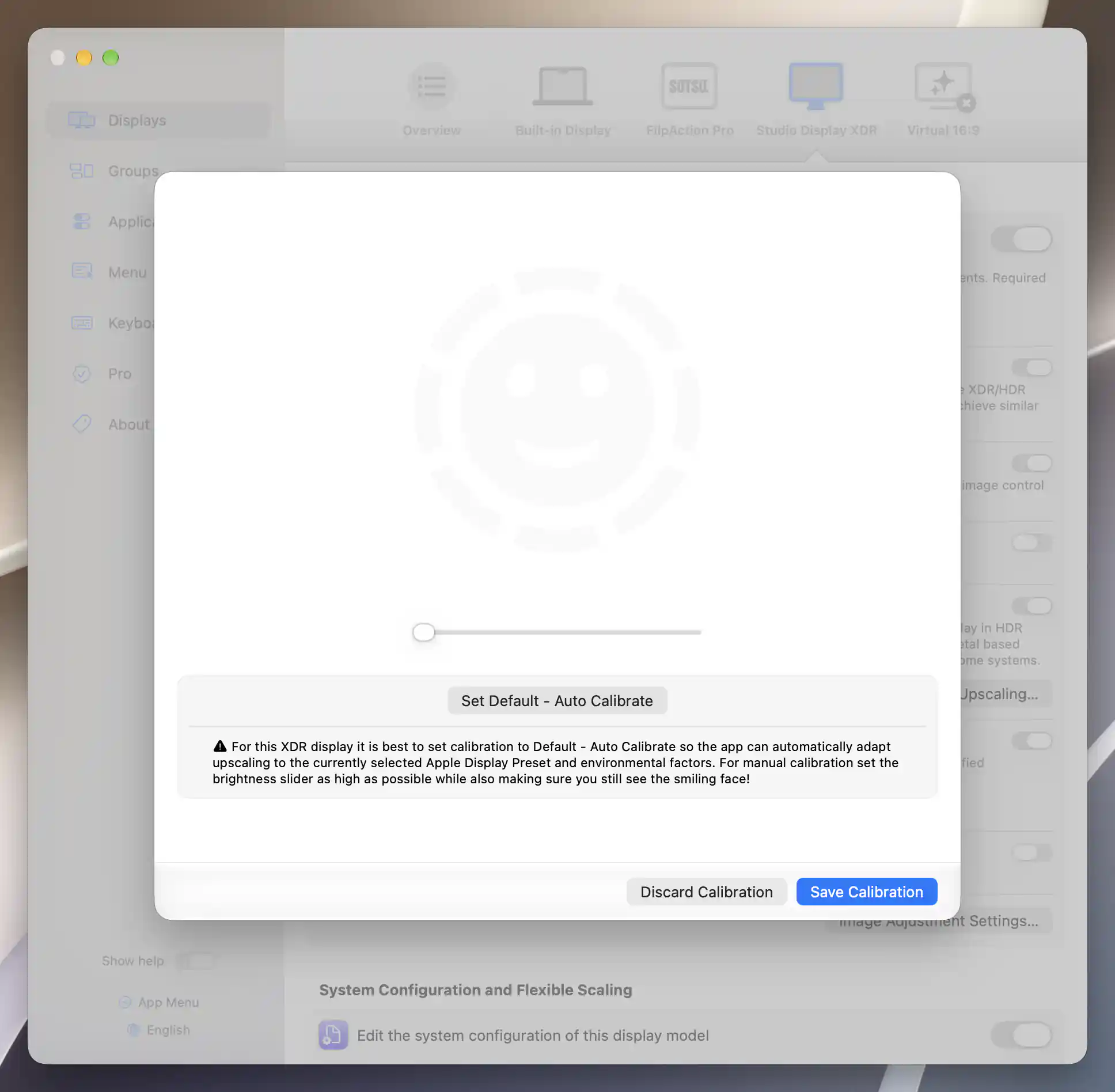
The calibration sheet shows the test face and available actions; this screenshot does not establish panel clipping or measured brightness.
Inspect the actual panel: screenshot pixels cannot establish white clipping or measure nits. Manual software calibration is separate from setting the direct/native hardware range.
Troubleshooting
If upscaling is absent, check the display's HDR/XDR capability, HDR mode, active Pro/trial, and the explicit upscaling switch. On Intel, color-table control must be off for software upscaling. Confirm software video adjustments remain enabled; a hardware-only slider may require the Image Adjustments slider instead.
If brightness falls at the top of the scale with a mostly white image, the panel may be limiting sustained output. Reduce the requested level or direct/native maximum; do not assume a peak rating is available across the whole screen indefinitely.
Software XDR upscaling interacts with automatic brightness and changing EDR headroom. If frequent ambient-light changes cause performance fluctuations, compare the setup with auto brightness off. Continuous software XDR upscaling readiness, under Settings > Displays > Overview > Brightness Upscaling and Dimming Settings…, trades a smoother brightness transition for keeping readiness active. Turning it off can reduce load but make entry into upscaling slower. See readiness and system load before changing it.
Undo the setup
Turn off the active software or direct upscaling action, restore any custom range/calibration and auto-brightness settings you changed, and return ordinary image adjustments to neutral. For the older native method, return to the normal Apple preset and turn off automatic native activation. Restore the external display's HDR mode separately if you changed it for this tutorial.
Related pages
- Image Adjustments and calibration
- Brightness Upscaling and Dimming Settings
- Clipped HDR highlights FAQ
- Device Control
Additional information
This section explains feature access and platform requirements for this tutorial.
Features requiring Pro license
Software HDR/XDR upscaling and calibration, direct built-in XDR control and the legacy native XDR method require Pro. Shared readiness and intermediate neutral-step options also require Pro.
Platform compatibility
Color-table software upscaling requires Apple silicon. The Metal fallback is available on Apple silicon and Intel with suitable HDR/XDR hardware, with performance depending on the GPU. Direct built-in XDR control requires the capabilities described above and does not support external XDR displays. Legacy native XDR preset upscaling requires supported built-in hardware and older macOS; it is unavailable from macOS 26.3. Third-party displays must be in HDR mode.