Image Adjustments
Image Adjustments changes the selected display's software brightness, color and visual effects. You might use it to make an image warmer, adjust its tonal balance or apply a deliberate visual effect. The controls come from the display's active software controllers, so two displays can offer different choices.
Where to find it: App Menu > display > Image Adjustments, usually under more options. Choose the processing methods in Settings > display > Image Adjustments.
An adjustment appears only when an active controller supplies it. If no adjustment can be supplied and software adjustments are disabled, the menu reports Image adjustment controls are unavailable.
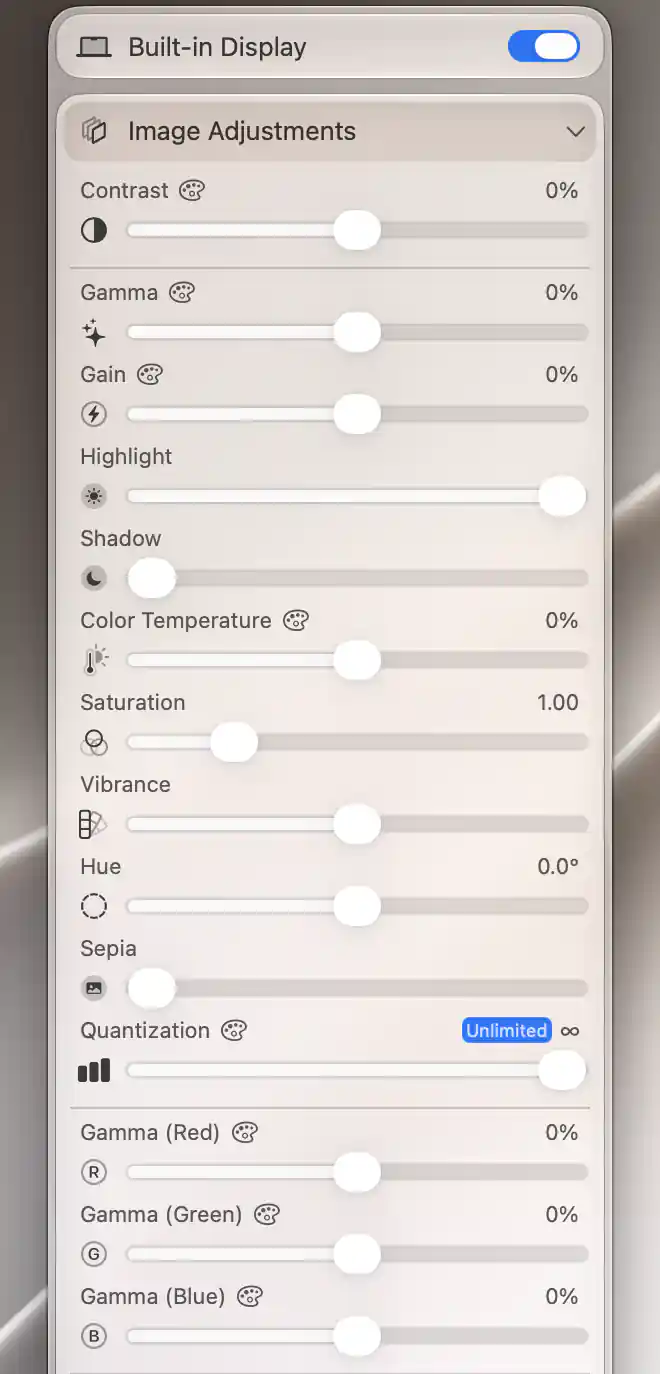
Image Adjustments groups tonal settings and RGB sliders; palette icons identify color-table adjustments.
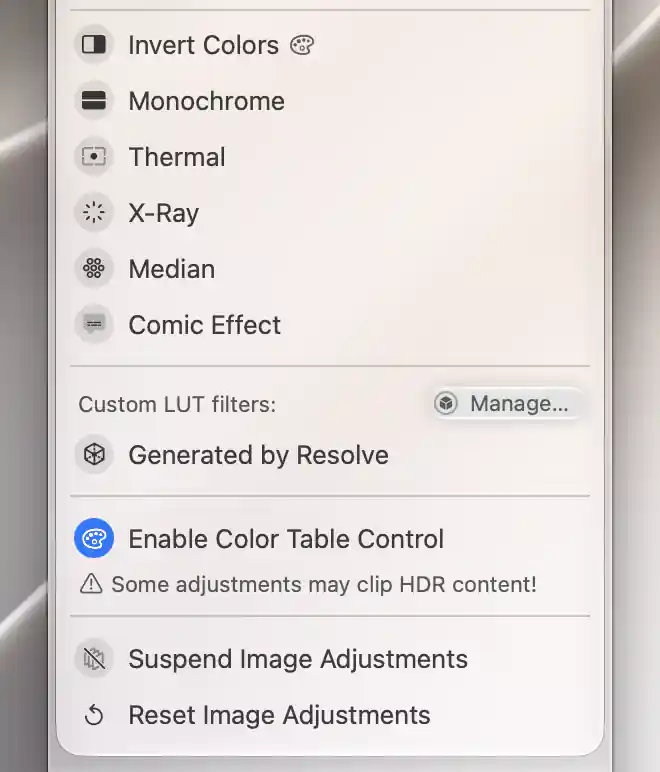
The lower section contains image effects, custom LUT filters, color-table control and Suspend/Reset commands.
Sliders and control groups
Move a slider to apply its adjustment immediately. BetterDisplay keeps the setting, so you can return to the menu to refine it later. Brightness and contrast are omitted here when their sliders already appear in the main device menu; there is still one control for each adjustment.
Software processing changes the image sent to the screen. For example, Brightness (Software) can dim the image or, when configured, upscale its brightness without necessarily changing the monitor's backlight. Color-table controls carry their controller icon. Other effects may use the compositor or an overlay, which is why a different processing method can produce a different set of available controls.
Tone and color
Contrast, Gamma, Gain, Highlight and Shadow shape the tonal range. Gamma changes the tonal curve, while gain scales channel intensity. Highlight and shadow controls emphasize the bright and dark portions respectively. They offer different ways to change an image rather than interchangeable versions of one brightness setting.
Color Temperature, Saturation, Vibrance, Hue and Sepia alter color balance, intensity or tint. Saturation concerns the intensity of color. Color temperature describes a warmer or cooler balance; changing it here is separate from switching on the system's Night Shift.
Quantization reduces the number of tonal steps for a posterized appearance. Separate Gamma (Red/Green/Blue) and Gain (Red/Green/Blue) controls let you adjust individual RGB channels instead of all three together.
Detail and visual effects
The effects fall into a few useful groups:
- Vignette, Pixellate, Crystallize, Hexagonal Pixellate and Pointillize provide shading or geometric effects.
- Edges, Edge Work, CMYK Halftone, Dot Screen, Hatched Screen and Line Screen provide edge or print-pattern effects.
- Noise Reduction, Gaussian Blur, Motion Blur, Unsharp Mask, Sharpness, Bloom and Gloom soften, sharpen or spread image detail and light. They alter rendered content, not the panel's physical focus.
Invert Colors, Monochrome, Thermal, X-Ray, Median and Comic Effect are on/off effects. Select one to enable it and select it again to turn it off. Thermal and X-Ray are decorative treatments of the original image; they do not reveal information that the image did not contain.
Native underscan
Underscan appears separately when a native control is supplied. It changes the image size within the display area. Force-enabling the control in Settings only makes an adjustment attempt possible; it does not establish that the system supports it.
The native control does not read the current underscan setting back from macOS. Its displayed value therefore should not be treated as confirmation of the screen's actual setting. Platform limits are summarized below.
Custom LUT filters and processing method
A Custom LUT filters list lets you enable shared LUT definitions for this display. Think of importing a definition as making it available in the library, and selecting it here as applying it to this display. Importing alone does not apply the filter.
The list requires software adjustments and the compositor layer. When definitions are present, Manage… opens Custom LUT Filters so you can manage that shared collection.
For a worked comparison, apply a custom LUT to a display and a separate preview, then bypass only that trial selection.
Enable Color Table Control changes this display's color-table preference and reconfigures the available controls. It remains subject to global permission, custom-profile protection and the display's capability. Notes explain when color-table control is disabled app-wide, blocked because a connected display uses a custom color profile, or unsupported by this display.
Suspend and reset
Use Suspend Image Adjustments when you want to temporarily bypass the color and effect adjustments without losing their values. It also suppresses enabled custom LUT effects. Turn suspension off to restore them. The suspension preference is remembered, while software brightness remains effective and hardware brightness is not disabled.
Reset Image Adjustments has a different purpose: it returns the active color-table, overlay and compositor controllers to their neutral values and clears this display's enabled LUT assignments. Software brightness is included.
Additional information
This section explains which features require Pro and how availability differs between Mac platforms.
Features requiring Pro license
- Ranged software image adjustments other than Brightness (Software) and Contrast, including software gain and saturation.
- Applying Custom LUT filters.
- Brightness upscaling.
- Group synchronization beyond basic Brightness in the Default Group.
Basic Brightness synchronization in the Default Group does not require Pro. Ordinary software brightness/contrast, the native Underscan slider, on/off effects, processing-method switch, suspension and reset do not have a separate Pro gate here. Standard hardware gain and saturation belong to Device Control and have different requirements.
Platform compatibility
Software adjustments can be available on both Apple silicon and Intel Macs, depending on the display and active processing method. Color-table brightness upscaling requires Apple silicon; Intel software upscaling needs a compatible overlay path.
Native underscan normally uses the supported Intel path. On Apple silicon it is attempted only when force-enabled, without a support guarantee. Native underscan changes are not performed when BetterDisplay runs through Rosetta, and the control does not read the system's current underscan value back on either architecture.