Control Integration
Control Integration lets a familiar BetterDisplay slider, toggle or command run an action you define. Assign a shell script, URL or macOS notification to connect that control to an external tool or device. For controls that have a value or state, you can also configure a read action so the app can learn what the device currently reports.
Where to find it: Settings > Displays > [display] > Device Control > Control Integration > Configure Integration Controls…. Add Control Integration with Add or Remove Controllers… first. The configuration button is disabled when the associated display is disconnected.
This page covers actions sent out from BetterDisplay. To let another tool send command-line, URL or HTTP requests into BetterDisplay, use Settings > Application > App Integration instead.
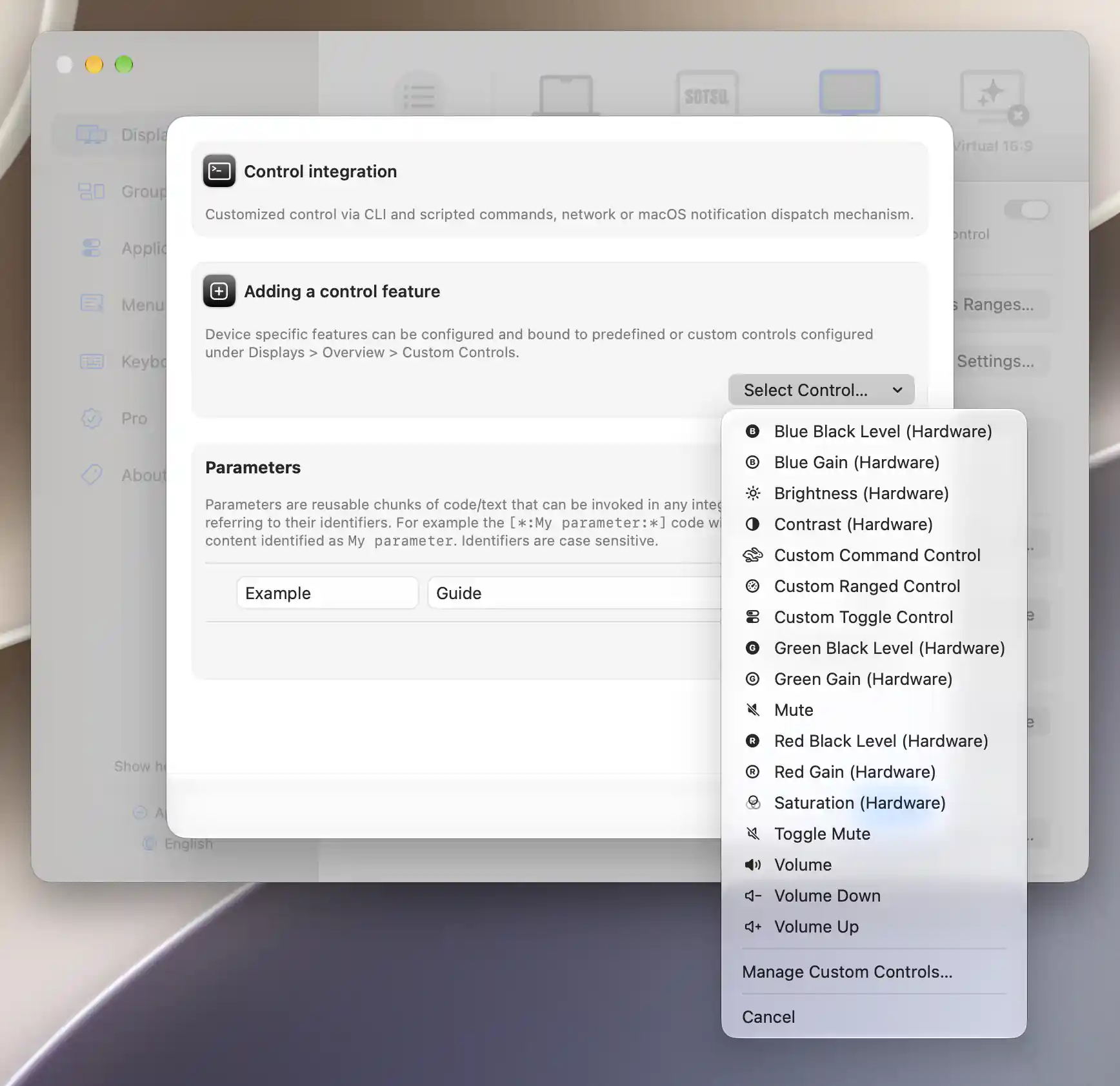
Choose a predefined or custom control to add an integration action.
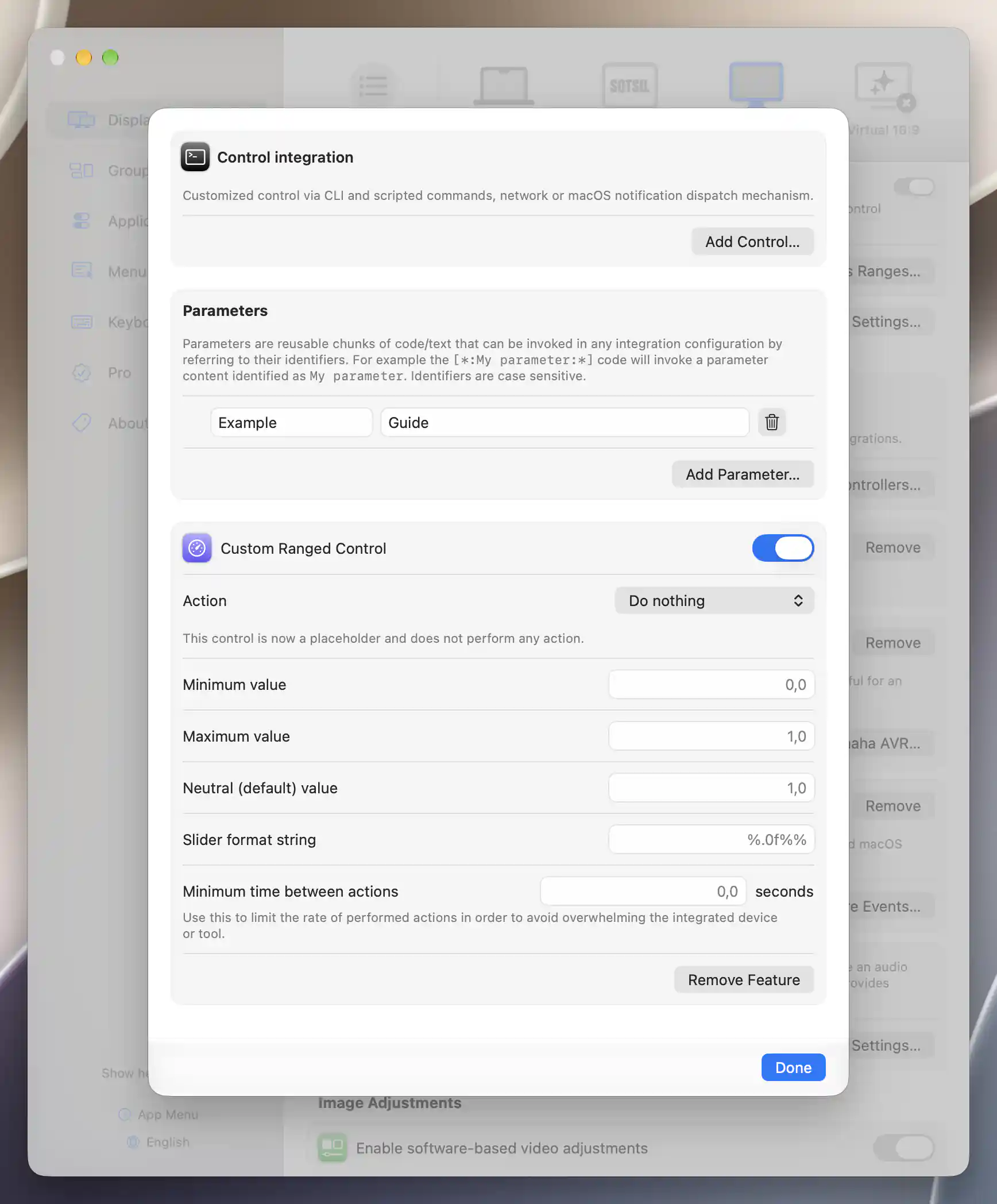
A new custom control starts with Do nothing until an action is configured.
Add, enable and remove a control
Start with Add Control… > Select Control… and choose the display control you want to implement. The list includes supported predefined and custom controls; already added controls are disabled. A newly added control appears first in the editor. Cancel leaves the chooser.
If you need a new kind of control, Manage Custom Controls… opens Displays > Overview > Custom Controls. That manager owns the reusable definition; this sheet assigns its behavior for the selected display. Its return button brings you back when the display remains connected and Control Integration remains enabled.
Each control's header switch enables or disables its integration implementation on this display. You can continue editing the other fields while that implementation is off. A precedence notice means another controller currently supplies the same function. Volume and mute can also show a notice when native audio-device control makes this integration implementation inaccessible.
Removing an assignment or disabling the controller
Remove Feature immediately deletes this display's assignment and its saved feature settings, without confirmation. It leaves the shared custom-control definition intact. By contrast, Remove on the outer Control Integration card disables the entire controller while retaining its saved configuration. Event Integration shares that controller and its parameter list.
Reusable parameters
Parameters let several actions reuse the same text, such as a device address, without repeating it in every action field. Add Parameter… creates an Identifier and Content row. Refer to its content with [*:Identifier:*]; identifiers are case-sensitive. The parameters belong to this display and are shared by its controls and events. The trash button removes a row immediately.
Use distinct, nonempty identifiers and leave VALUE reserved for ranged controls. Missing or duplicated identifier present - this will yield unexpected results! warns about empty, duplicate or reserved identifiers, but does not prevent saving or execution.
Where replacement occurs
Parameters expand in outgoing scripts, URLs and notification payloads, as well as readback scripts and URLs. Notification name remains literal. Boolean expected-return text and extraction regex are also separate literal fields. Ranged controls replace [*:VALUE:*] with the formatted value before expanding ordinary parameters.
Action and execution
Each control starts with Action set to Do nothing. This keeps the app control without sending an external action, giving you a place to begin configuration. Choose a different action to reveal its fields:
- Run shell script shows Shell script (zsh). Despite the label, the current execution environment is Bash, using
/bin/bash -c. Write for Bash or explicitly invoke the shell you need. Successful readback requires exit status zero, and the returned text consists of standard output followed by standard error. - Invoke URL shows URL. HTTP/HTTPS sends a GET request; a 2xx response is treated as success and its UTF-8 body can provide readback. Other schemes open the registered macOS application and return no response body. The sheet has no editors for HTTP method, headers, request body or raw sockets.
- Notification dispatch shows Notification name and Notification payload. It sends a distributed notification to cooperating local software, using the payload as the notification's object string. It does not show a Notification Center banner or return a value.
Blank payloads perform no action, and notification dispatch also needs a nonempty name. Settings save as you edit; closing the sheet does not undo them.
Waiting and repeated requests
Timeout appears for scripts and URLs and defaults to 10 seconds. It limits response waiting where supported, but does not guarantee that a script is killed or its effects undone.
Redundancy filter time interval appears for every active action mode and defaults to 1 second. Within that interval, repeated identical expanded payloads and notification names are skipped. The comparison is shared across this controller's controls and events of the same action type, so separate hooks sending identical content can suppress one another. Set the interval to 0 to disable this filter.
Ranged controls
A ranged control translates a slider position into the number your external action expects. Value multiplier defaults to 100 and Value format string to %.0f. With those defaults, an internal value of 0.42 becomes 42 at [*:VALUE:*]. Successful readback is converted in the opposite direction by dividing by the multiplier, so use a nonzero multiplier.
Minimum value, Maximum value and Neutral (default) value define the internal range and starting neutral point. Their defaults are 0, 1 and 1, and neutral is kept within the configured range.
The slider's displayed text is separate from the outgoing command. Slider format string defaults to %.0f%% and formats the internal value multiplied by 100, independently of the action multiplier. Keep both format strings appropriate for a floating-point numeric value.
Limiting how quickly actions are sent
Minimum time between actions defaults to 0 seconds. With a positive interval, BetterDisplay sends the first change immediately, then retains the newest pending change while limiting later work. This can avoid sending every intermediate position during a drag.
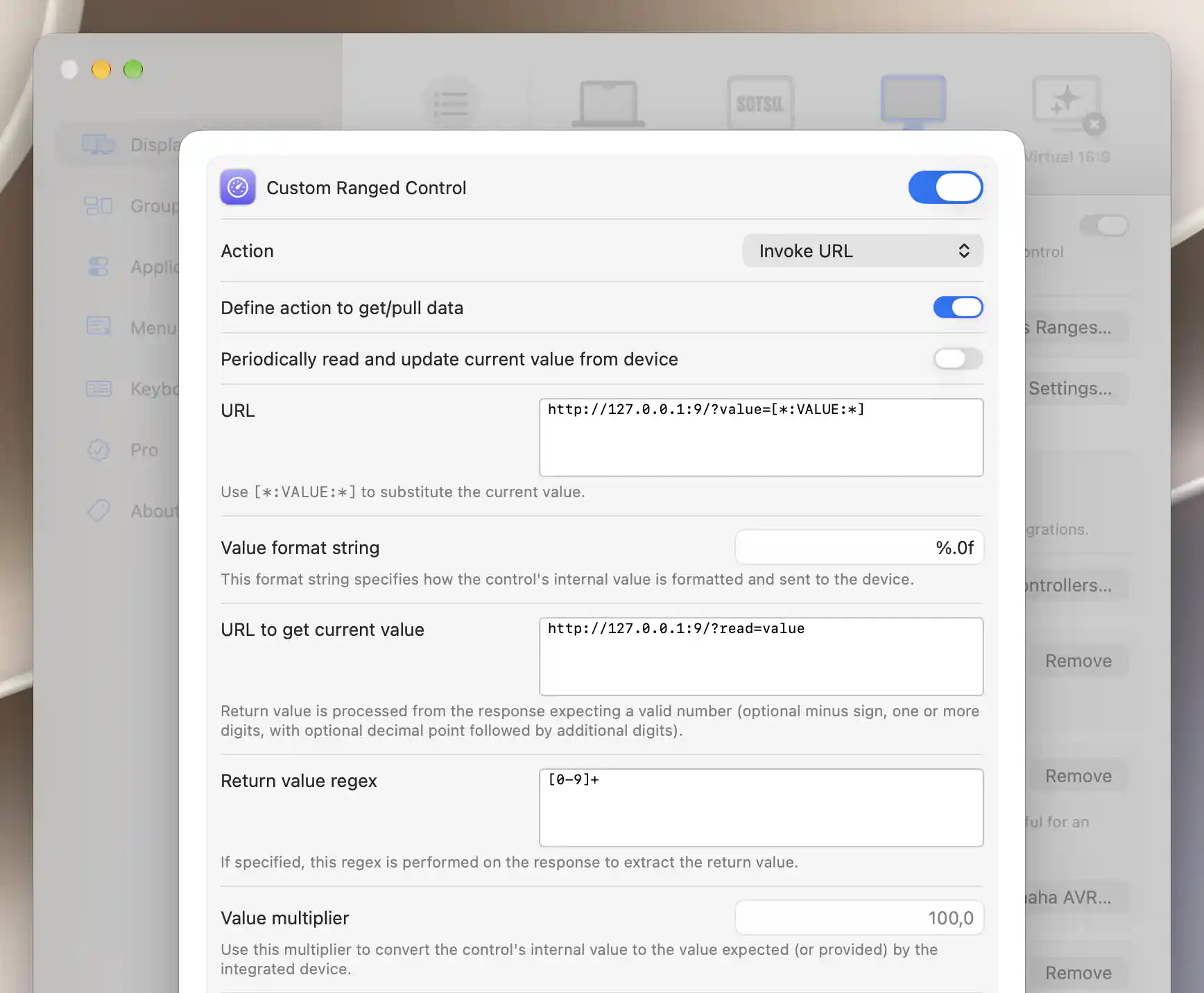
The VALUE token sends the ranged value; optional readback fields parse a numeric response.
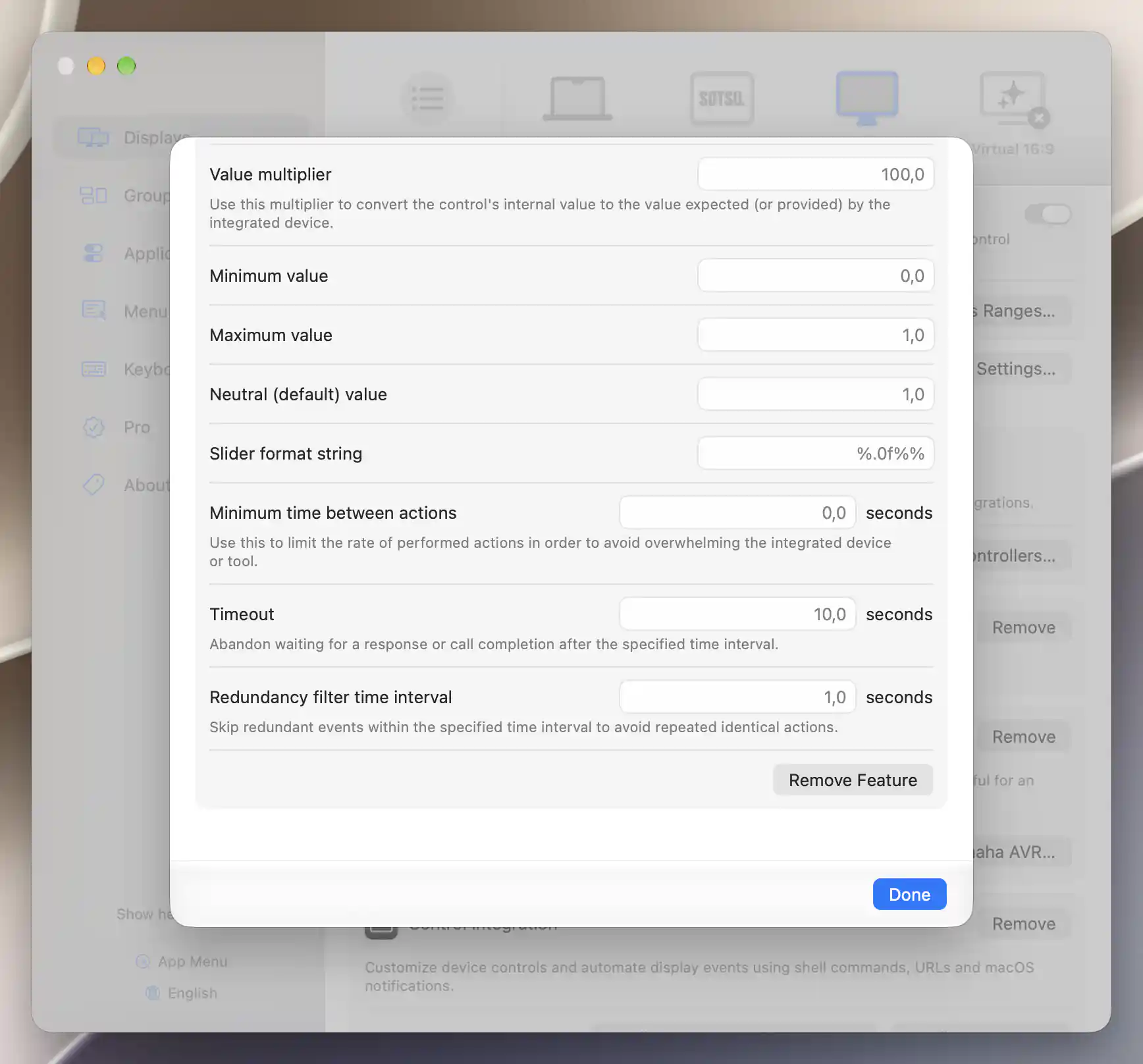
Value limits and action timing are configured independently of the outgoing value format.
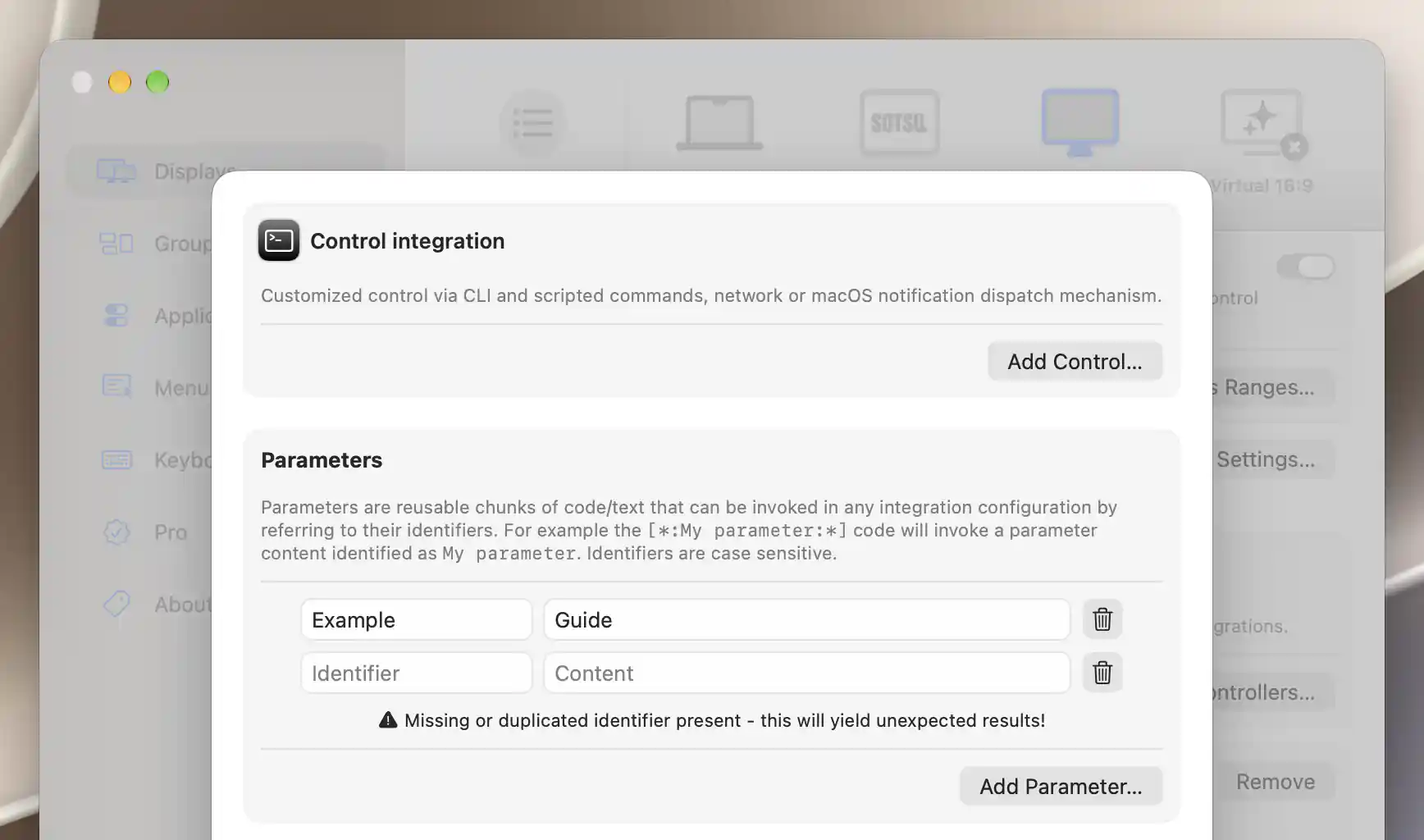
Each reusable parameter needs a unique, nonempty identifier.
Pull values from the device
Readback lets a slider or toggle follow a value reported by the device, including changes made elsewhere. For ranged and Boolean controls using a script or URL, enable Define action to get/pull data to reveal its configuration. Periodically read and update current value from device starts repeated reads. Both switches default to off; Update frequency defaults to 5 seconds and accepts 0.5–3600 seconds. Returned values can also feed synchronization rules that accept external changes.
For a ranged control, enter Script to get current value (zsh) or URL to get current value. BetterDisplay scans the returned text for its first number, then divides that number by the Value multiplier. An unsuccessful action or a response with no number does not establish a new value.
Return value regex can isolate the intended value when a response contains other numbers. The first match is used, taking its first capture group if present or the whole match otherwise. If the regex is invalid or finds no match, the app scans the original response instead. Choose a regular expression with that fallback in mind.
Hiding fields versus stopping reads
Turning Define action to get/pull data off hides its fields, but neither clears their contents nor stops a previously enabled polling preference. Turn periodic updating off before hiding the fields. If the readback script or URL must not run during startup value restoration either, clear that action as well.
The outer Control Settings… startup policy can assume saved/default values, write saved values or read device values; assuming them is the default. Some range, format and timing edits rebuild the controller and can apply this policy again. A read/write policy can therefore perform actions during configuration.
Boolean and command controls
A Boolean control represents an on/off state. Configure separate ON and OFF actions using Shell script (zsh) - ON/OFF, URL to send - ON/OFF, or Notification name - ON/OFF and Notification payload - ON/OFF. Leaving one state's payload blank means that state has no outgoing action. Initial (default) setting is ON starts off and supplies the initial value only when no saved value is available.
With readback enabled, enter Script to get current value (zsh) or URL to get current state, then specify Returned content - ON (exact) and Returned content - OFF (exact). Both expected contents must be nonempty. Exact matching includes the entire combined script output or URL body, including whitespace and trailing newlines.
Treat specified contents as regular expressions, initially off, changes these fields to (regex) and permits matching substrings. If both expressions would match, the ON expression is tested first.
A command control represents an action rather than a value or state. It exposes only the chosen Shell script (zsh), URL, or notification name/payload, with no numeric VALUE substitution or state-readback fields. Timeout and redundancy settings still apply where appropriate.
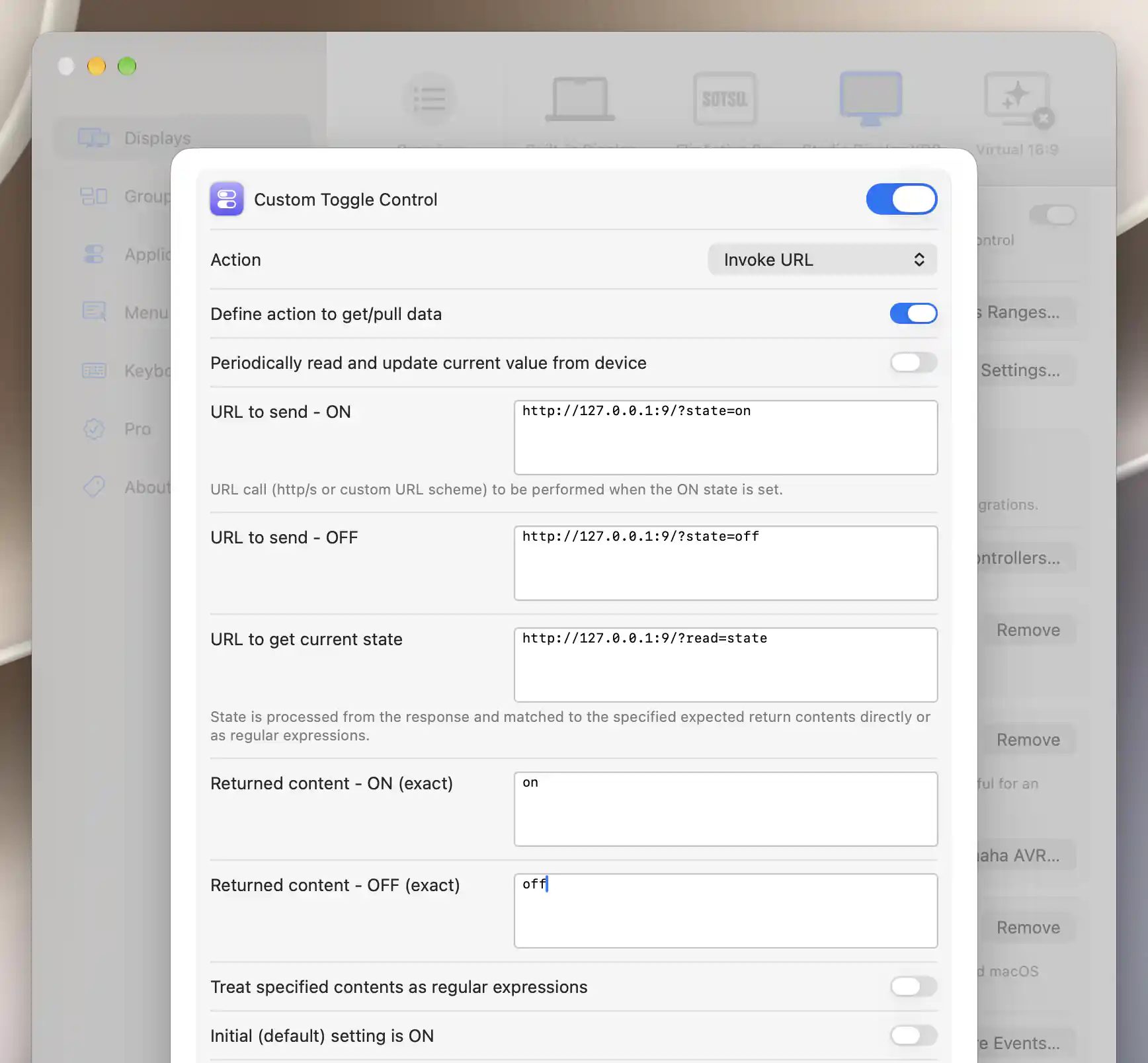
Boolean integrations define separate ON and OFF actions and expected readback responses.
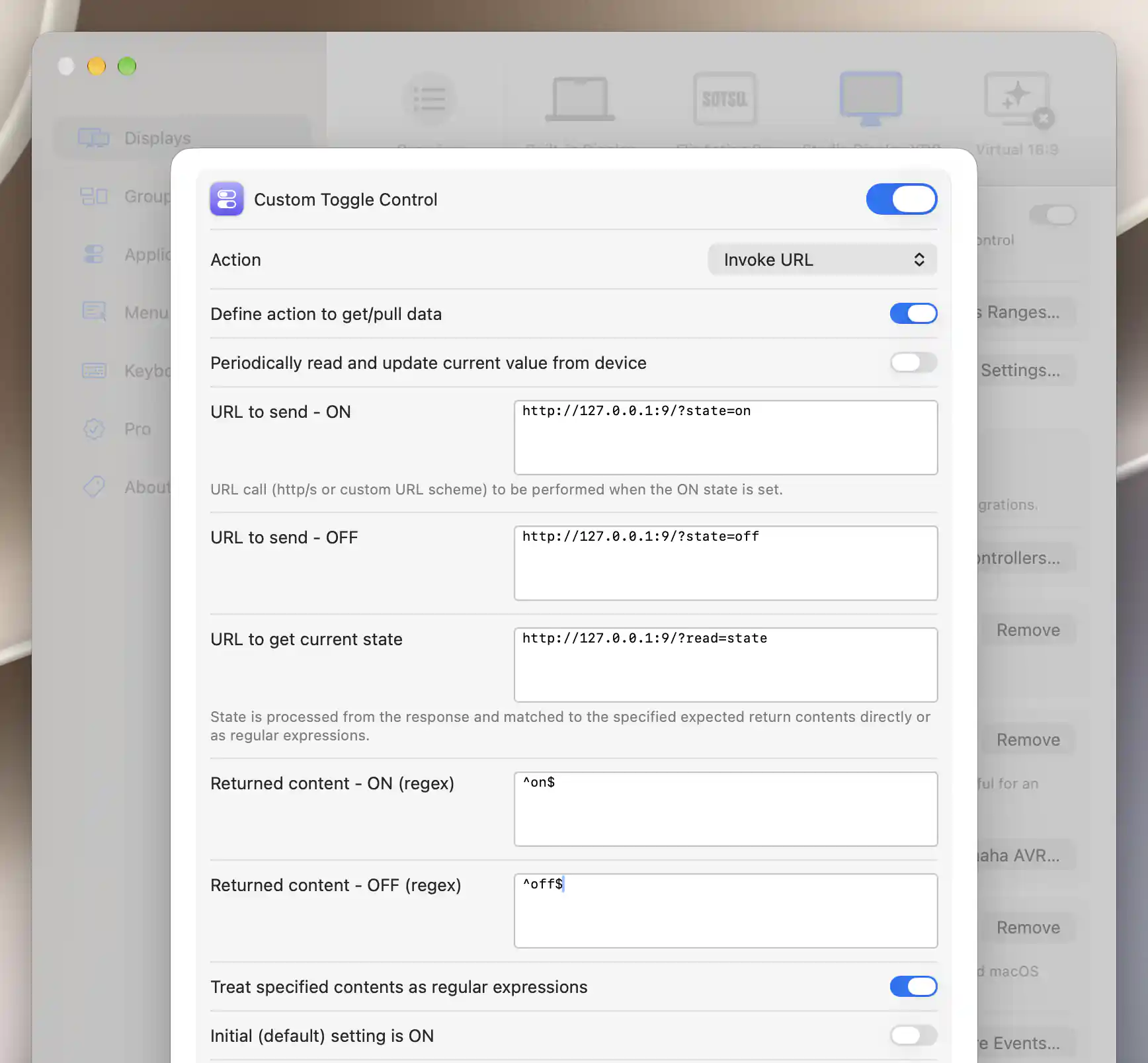
Enable regular expressions when the response needs pattern matching.
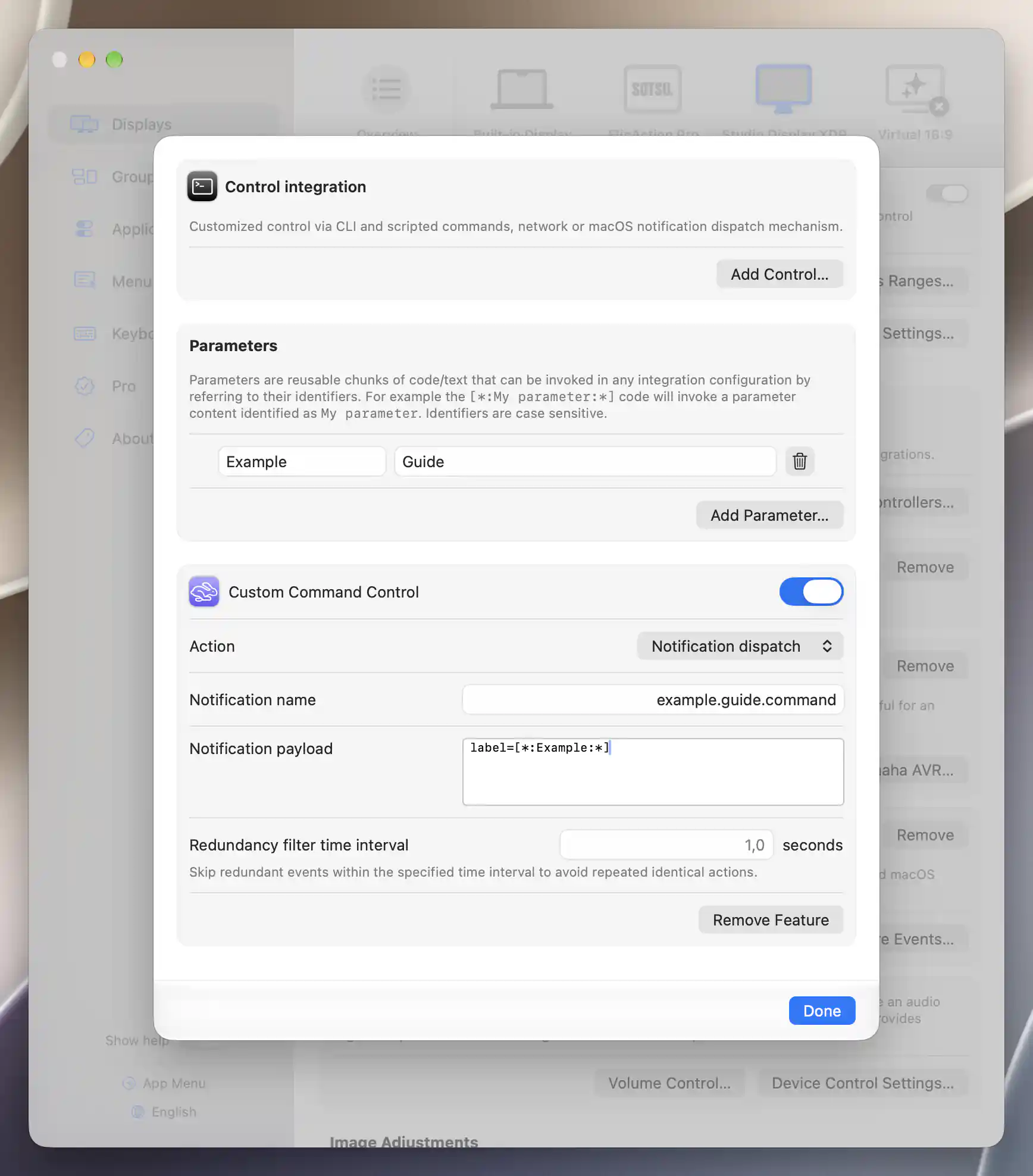
Command controls dispatch an action without maintaining a ranged or Boolean state.
See Event Integration for actions triggered by connection and system power events, and Device Control for controller precedence and shared settings. Volume and mute assignments also follow the display's configured mute/unmute behavior, which can invoke both volume and mute actions.
Additional information
This section explains which features require Pro and how availability differs between Mac platforms.
Features requiring Pro license
- Adding, enabling or editing custom-control integrations and creating their shared custom-control definitions.
- Using the additional integration sliders, toggles and commands in the app menu’s Device Control section. This separate interface requirement also applies when those additional controls use predefined targets.
Predefined display controls can be configured without Pro. The event editor has no separate Pro requirement.
Platform compatibility
All features described on this page are available on both Apple silicon and Intel Macs. Configuration requires the associated display to be connected. Your script, URL handler or receiving software must also be available and support the intended operation; Control Integration does not establish external-device compatibility.