Use your Mac keyboard to control a TV’s volume, power, and input
Use your keyboard to adjust a compatible TV’s volume, toggle mute, choose an input selection and send separate standby and wake commands. This example uses one LG webOS TV through HDMI-CEC: first establish which commands work with the TV’s speakers, then give each action a deliberate keyboard destination.
Before you begin
You need an Apple silicon Mac, a compatible LG webOS TV connected as a physical display, and a supported HDMI command path. Check Apple’s current HDMI-CEC compatibility list for your built-in HDMI port or adapter. Working video and HDMI audio do not establish CEC support, and hardware brightness support does not establish volume support.
- Keep the TV’s physical remote nearby. Use its own speakers for this example; an amplifier or soundbar can receive commands differently. Know the actual HDMI port connected to the Mac and how to return to it with the remote.
- Keep a separate physical desktop visible while changing input or putting the TV into standby. On a MacBook, leave the lid open and built-in display connected. Record, then temporarily turn off Settings > Displays > Overview > Connection Management Settings… > Disconnect built-in display when an external display is connected. Keep other connection safeguards enabled. An independent recovery monitor must remain outside mirroring or streaming relationships with the TV.
- Save the TV’s original input, power state, speaker/output choice, actual volume and mute state, and CEC preference. Record the selected controllers, their settings and any saved values, keyboard options and bindings, macOS audio device used for output and its volume/mute state. Note blank or absent settings separately from displayed defaults.
- Pause only existing synchronization, events, power automation or display rules that would interfere with this test. Record their original destinations and enablement. Input and standby changes can reconfigure desktops: also record current main display, modes and positions separately from any protected targets, and move important windows to the recovery desktop.
The procedures below require BetterDisplay to stay running in your user session. Native media keys need the permission offered by BetterDisplay; the later shell-script Shortcuts have separate Shortcuts permissions. Neither a listening message nor an on-screen volume indicator proves that the TV changed.
Verify the TV and HDMI path
- Turn on the TV and select the Mac’s actual HDMI input using its remote. Enable the TV’s CEC feature after recording its original setting. On models matching LG’s webOS 22/6.0 example, the route is All Settings > General > Devices > HDMI Settings > SIMPLINK (HDMI-CEC) > On. Follow LG’s model-dependent instructions if your menus differ.
- In BetterDisplay, open Settings > Displays > [TV] > Device Control > Add or Remove Controllers…. Select Add beside HDMI-CEC, if it is not already added. Open Configure HDMI-CEC… on its card. The display must be connected to open the sheet.
- Keep Enable volume control and Enable HDMI input selection on. Keep Enable power control off: it enables automatic sleep/wake handling, rather than authorizing the remote’s direct buttons. It starts off because macOS can already send CEC power commands. In Advanced Settings, use Command destination > TV for this speaker test, and leave Manage CEC tunnel state off.
- Use the refresh icon beside HDMI-CEC connection status and wait for the check to finish. A verified result is a useful starting point. Unsupported, unavailable or inactive-tunnel results need transport investigation before this recipe can continue. See CEC connection states. Even a verified result needs the command checks below.
- Set HDMI input count to the actual numbered inputs you intend to expose. The default is 4; the accepted range is 1–15. This generates menu entries, rather than detecting working ports. Record the Mac’s port from the TV itself; a displayed (Mac) suffix is additional information when the address is available.
These settings are saved as you edit them; there is no separate Apply step. The experimental tunnel-management option can cause loss of signal on wake, so it is not part of this setup.
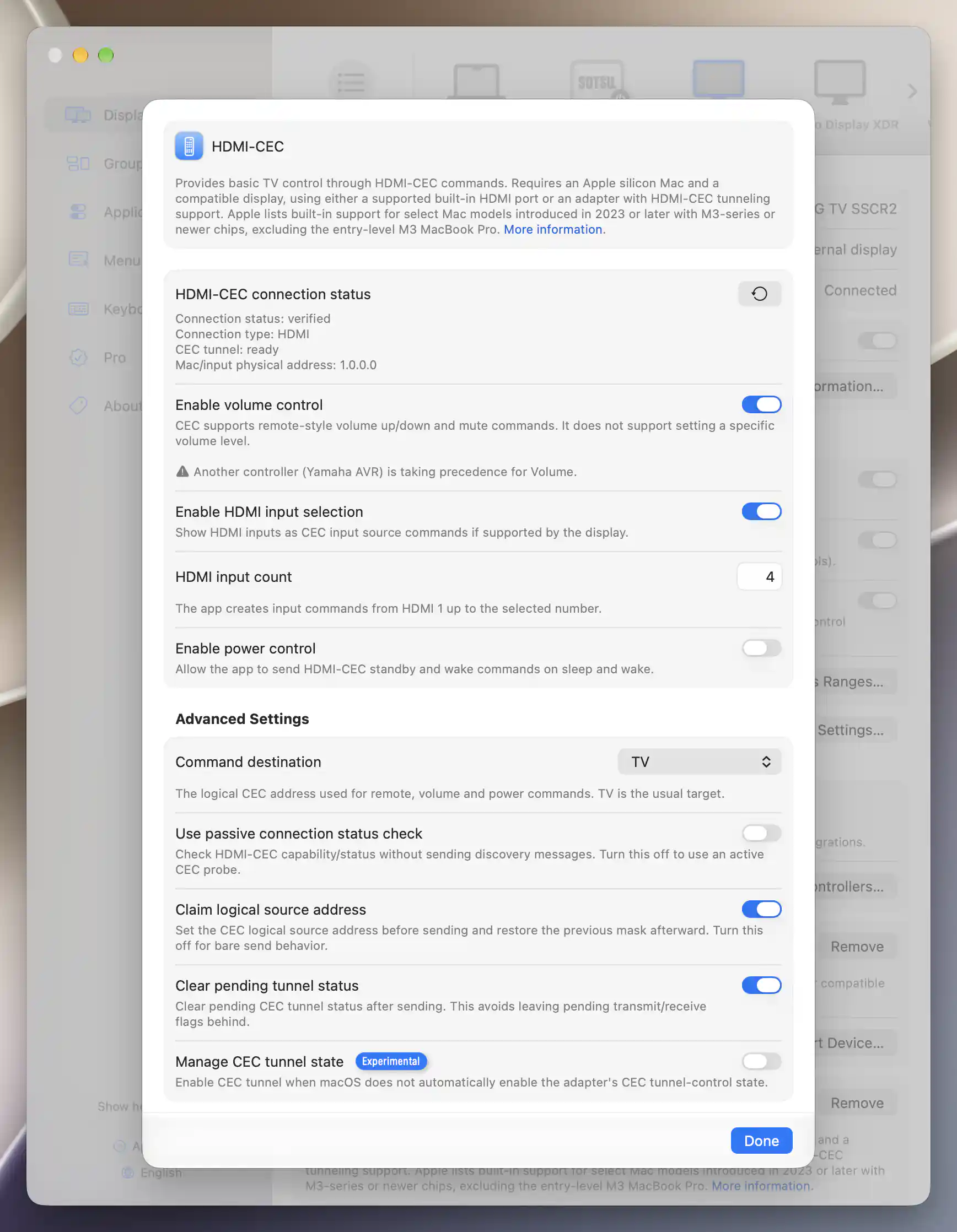
The LG television reports a verified HDMI connection, a ready CEC tunnel and Mac input address 1.0.0.0; experimental tunnel management remains off.
Prove volume, input and power with the remote
- Pause audio. Use the physical remote to establish a suitably quiet TV volume and a known mute state, then resume a quiet test sound through the TV. If needed, select the TV in System Settings > Sound > Output, as described in Apple’s HDMI audio guidance. Record the previous output first. Avoid assuming an app percentage reflects the TV’s actual level.
- Open App Menu > [TV] > Device Control > Show HDMI-CEC Remote. Press volume down once, then volume up once; check the actual audible result and TV feedback. Press mute once and again to verify both directions. CEC supplies relative up/down and mute-toggle commands, with no absolute-volume readback or percentage slider.
- Open App Menu > [TV] > Input Source. Choose a known alternative HDMI port in the CEC list, observe the TV’s actual input, then use the physical remote to return to the Mac. If the command path remains available, also test the CEC entry for the Mac’s actual port. Controller headings separate the lists when several controllers offer inputs. A generated entry is not evidence that that input exists or accepts switching.
- Pause playback and move to the recovery desktop. In the HDMI-CEC remote, use the sleep icon to send standby; check the TV’s actual state. Then try its wake icon separately. These direct buttons remain available independently of Enable power control. If the TV does not return, use its physical remote to turn it on and select the Mac’s HDMI port.
Make volume and mute reach the TV
- Open Settings > Displays > [TV] > General Settings and enable Keyboard control affects this display if needed. It is initially on.
- Open Settings > Displays > [TV] > Device Control > Volume Control…. Keep Associate this display with an audio device that has native volume controls off for direct CEC commands. Check that Controller identifies HDMI-CEC, with up/down volume and toggle mute. If it names another controller, record and disable only the competing method for this TV before testing. For a TV without working DDC, remove its DDC Control assignment through Add or Remove Controllers…; do not infer DDC support from enabled app sliders. Removing a controller keeps its saved configuration.
- Open Settings > Keyboard. Enable Listen to native audio keys, then complete Set up Accessibility Permissions… if offered, or Set up Device Control and Data Access… on macOS 27 and later. Follow the app’s permission sheet and restart BetterDisplay if it reports Accessibility Configured - App Restart Needed. See permission setup.
- Open Native Audio Key Settings…. Under App should assume control over native audio keys when, select There is at least one controllable display connected. This avoids relying on the current audio output having the TV’s name; the default engagement choice requires that name match. Turn Handle devices with native volume control off for this isolated test, and keep Leave mute key under OS control off so BetterDisplay handles mute too.
- Close the sheet. Under Volume Control Affects:, select Screen with the mouse pointer. This destination choice is separate from whether BetterDisplay listens. Keep the TV as an independent extended desktop with no mirror/stream targets, place the pointer on it, and press volume down once. Check the TV’s audible level, then test up and mute/unmute individually. Avoid holding keys during the first test.
Relative TV commands can otherwise be followed by a native macOS audio adjustment. Disabling Handle devices with native volume control prevents that fallback during this test; it also removes that convenience for other outputs until you restore it. Check that only the intended TV responds. Keyboard preferences save immediately, but permission changes can require the restart above.
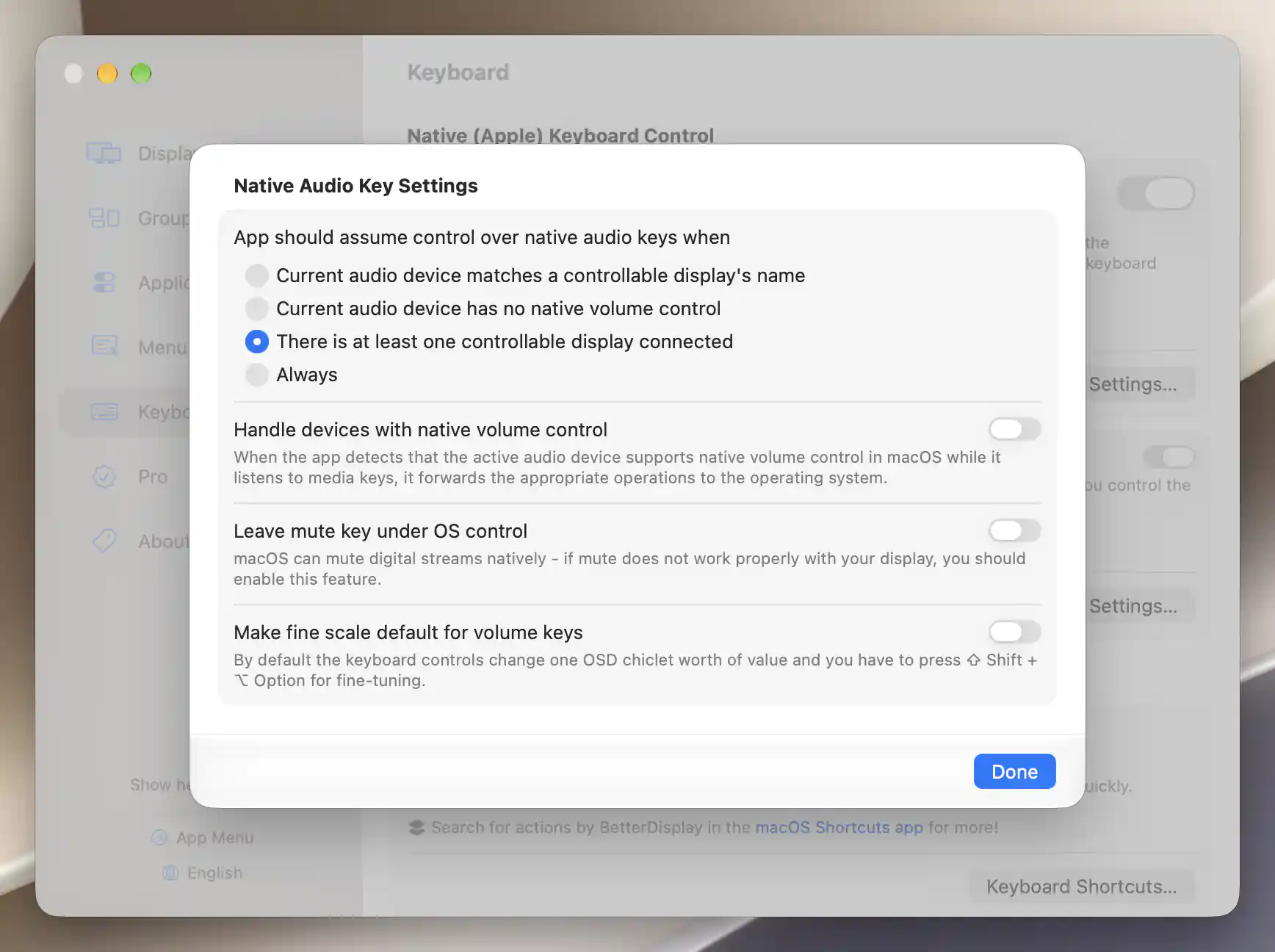
Configure native audio keys for a connected controllable display, with native-audio forwarding off; this session has no connected HDMI-CEC television.
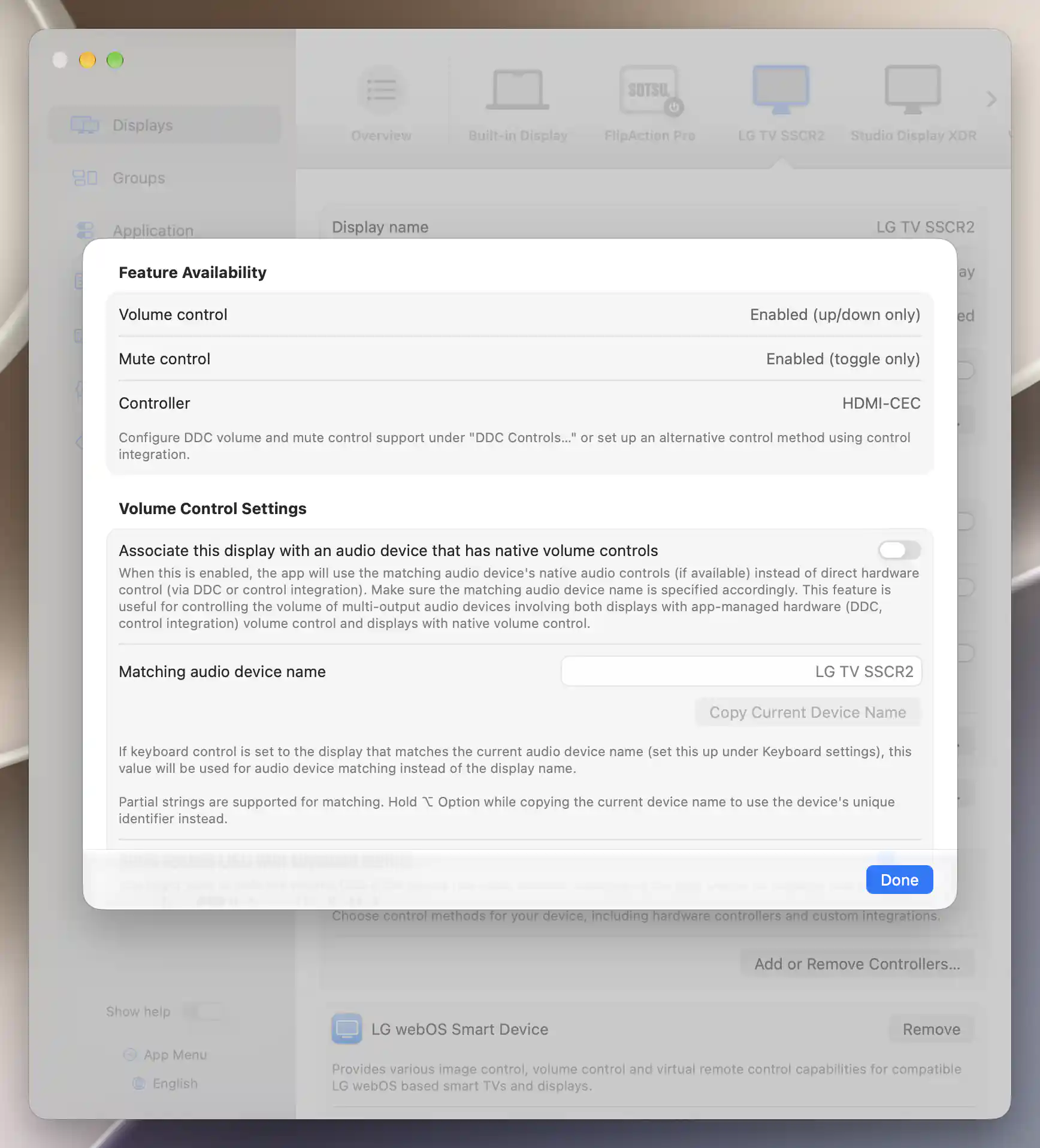
The connected LG television provides HDMI-CEC volume up/down and toggle mute; native audio-device association is off.
Bind known inputs to specific keys
- Open Settings > Keyboard > Custom Keyboard Shortcuts > Keyboard Shortcuts… > Input Source. Choose two unused rows; privately record their full original selections and key bindings, including whether no saved row existed.
- In the first row, use Select Display to choose the actual TV, then Select Input to choose its verified Mac HDMI port with the (HDMI-CEC) controller suffix. Record an unused key combination in that row’s recorder. In the second row, choose the same TV and a separately verified alternative CEC HDMI input, then record a different unused combination.
- Test the alternate-input combination from the visible recovery desktop. Return with the Mac-input combination only if the command path remains usable; otherwise return with the physical remote. Repeat the Mac-input combination while already on that input to check that it stays predictable.
Each row stores a specific display and controller-specific input identifier. Input shortcuts do not use the pointer-based audio destination, and an input from the LG network list is not interchangeable with the same numbered CEC input. An unavailable display or transport can still prevent the action.
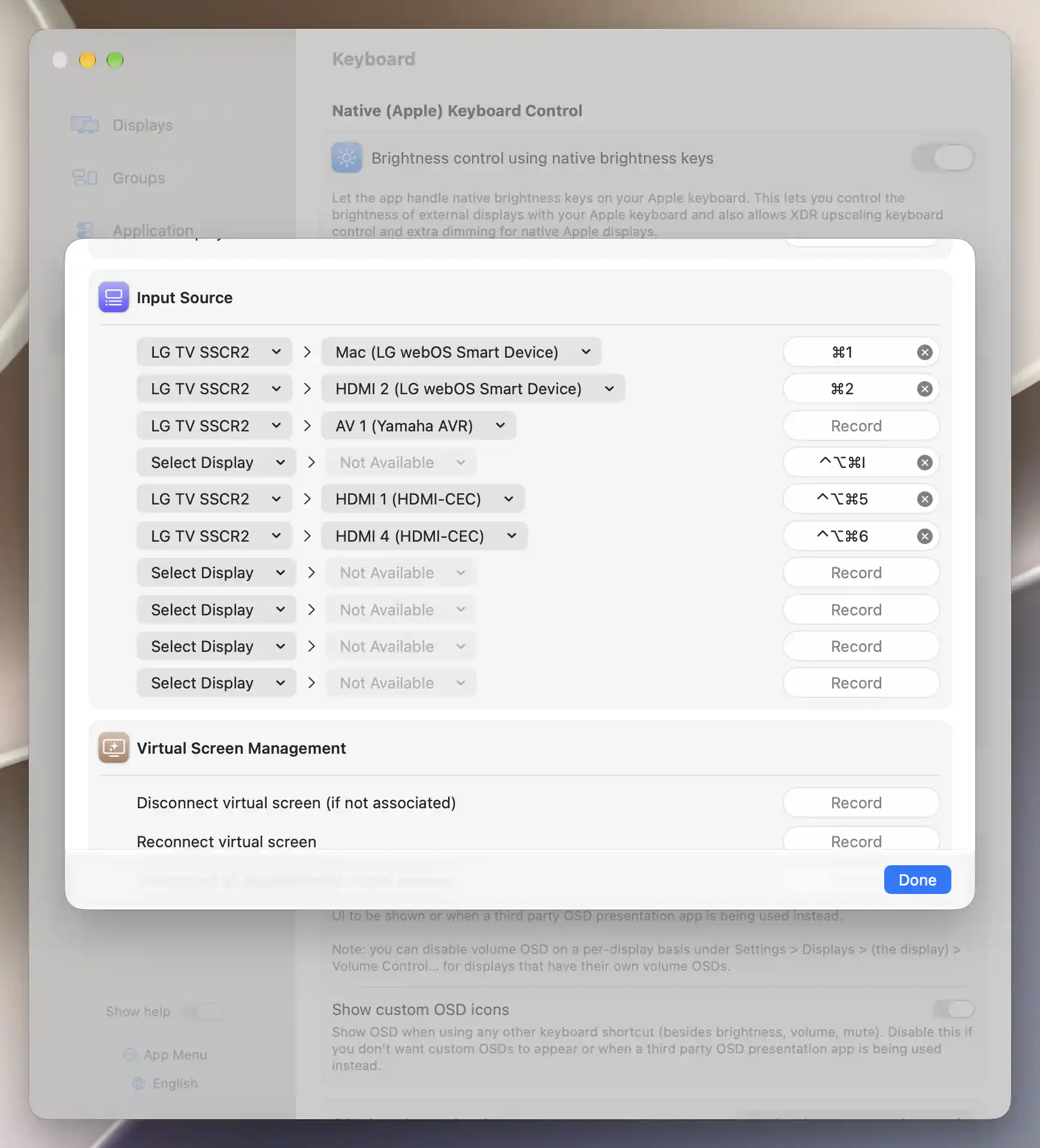
Unused rows bind the LG television’s Mac input on HDMI 1 and alternate HDMI 4 through HDMI-CEC, while existing bindings remain visible.
Add separate standby and wake Shortcuts
Use two named Apple Shortcuts for the already-tested CEC commands. BetterDisplay’s custom Turn display off action sends DDC power, and LG’s screen on/off action blanks or restores the picture; neither is a substitute for this CEC standby/wake pair.
- With the TV connected, open Settings > Displays > [TV] > Display Information… > Identifiers and record its actual Tag ID. This numeric identifier belongs to your BetterDisplay installation. Check Settings > Application > Integration > Enable CLI access and notification based integration; record its original state and enable it if needed.
- In Apple’s Shortcuts app, use the toolbar’s Add button to create a new shortcut. Name it TV Standby and add one Run Shell Script action. Use the standby command below after replacing
ACTUAL_TAG_IDwith the TV’s numeric Tag ID. The example assumes BetterDisplay is installed in/Applications; use your actual installed app’s executable path if different, keeping the path quoted.
"/Applications/BetterDisplay.app/Contents/MacOS/BetterDisplay" perform -tagID=ACTUAL_TAG_ID -sendRemoteKey=standby -specifier=CECController
- Create a second shortcut named TV Wake with one Run Shell Script action, using the same actual path and Tag ID:
"/Applications/BetterDisplay.app/Contents/MacOS/BetterDisplay" perform -tagID=ACTUAL_TAG_ID -sendRemoteKey=wake -specifier=CECController
- If scripts are blocked, record the original setting, then enable Shortcuts > Settings > Advanced > Allow Running Scripts, following Apple’s scripts guidance. Review any per-shortcut privacy request and allow only the access needed by your own two commands. This is separate from BetterDisplay’s native-key permission.
- With playback paused and the recovery desktop visible, run TV Standby from its editor. Check actual standby. Try TV Wake separately; use the remote if the command path has disappeared. A successful script exit indicates request acceptance, rather than confirming the TV’s power state; a script can also finish with a failure.
- Once the observed result is acceptable, open each shortcut’s Details button, select Add Keyboard Shortcut, and assign two different unused combinations. Apple documents keyboard execution; reserved system combinations cannot be overridden. Test each once from the recovery desktop, with BetterDisplay running and the same verified HDMI connection.
The explicit -specifier=CECController keeps these requests on the CEC remote when other remotes are configured. The command does not enable automatic power handling, wake a disconnected TV by network, or restore the Mac’s input automatically. After wake, check the selected input and use your verified Mac-input action or physical remote as needed.
Check the result
With quiet playback through the TV, verify one keypress for volume down/up and mute/unmute. Confirm the TV itself responds and another output’s volume remains unchanged. Test each input combination and the return route, then stop playback and test standby and wake separately. Keep the recovery display visible throughout.
Repeat after a normal reconnect while the TV is on. Confirm that the TV’s identity and controller-specific input selections still match. If standby removes the usable command path, record keyboard wake as unavailable for that state and retain the remote; an app indicator, saved binding or successful script exit cannot establish physical recovery.
Troubleshooting
- Video works but CEC commands do not: check the actual Mac/adapter compatibility, TV CEC preference, current connection status and command destination. Leave experimental tunnel management off while establishing the supported path. See HDMI-CEC settings.
- The virtual remote works but volume keys do not: check native-key permission/restart, listening status, engagement policy, pointer destination and Keyboard control affects this display. Inspect Volume Control… for the actual controller. Restore a quiet test state before trying again.
- Another device changes too: check the native-volume fallback, display/audio association, synchronization and mirror/stream relationships. Target Displays explains related targets. Do not use an on-screen percentage as evidence of the TV’s volume.
- Input or wake stops working after standby: recover using the physical remote and the Mac’s known port, then recheck connection status. A remembered identifier cannot create a command path that the TV or adapter has removed.
- A power Shortcut fails: check the actual installed executable path, replaced numeric Tag ID, running BetterDisplay, CLI-access setting and Shortcuts script permissions. See CLI examples. Do not remove the selector or controller specifier to make a request succeed on an unintended device.
When a network controller is the better fit
If your TV has no supported CEC path, use the model-appropriate Network Controller as a separate setup. The LG webOS controller supports pairing, reported inputs and device-dependent volume modes; Samsung Smart Device sends remote-style volume and mute keys. Their commands and input identifiers differ from this CEC example.
For LG, a saved paired, waiting to connect state can be normal with an on-demand connection. Compare the actual IP address before deleting pairing data or resetting the TV. If waking fails, check the separate Wake-on-LAN path, actual MAC address, model-specific network standby and network reachability. A fixed IP, successful pairing or packet-send message does not guarantee waking. See LG connection troubleshooting.
Undo the test setup
- Pause playback and stop trial keypresses, Shortcuts and other trial triggers. Keep the recovery desktop available. Let already dispatched CEC and native-audio requests finish before restoring hardware values. Use the physical remote to restore a visible, connected TV on the Mac’s input. Remove only the key combinations and Apple Shortcuts you created, or restore any original bindings you temporarily reused.
- Restore the full original input-slot selections and keyboard preferences: native listening, engagement, native-volume fallback, mute ownership and audio destination, plus the TV’s keyboard eligibility and native-audio association. Clearing the selectors can leave an empty saved slot rather than recreate an originally absent record. Preserve the original private record/backup and report that limit if exact absence cannot be restored through the normal UI.
- Restore actual TV volume/mute, speaker output, input and power preferences using the remote, and restore the Mac’s recorded audio output/volume/mute. Restore the CEC sheet’s original settings. If CEC was added only for this test, select Remove on its card after restoration; this disables its assignment while retaining its saved configuration. Restore only other controller assignments changed for this TV.
- While both physical desktops are available, restore original main display, current modes and arrangement, then the affected rules and their saved targets. If the ordinary UI cannot recreate both an original current value and a different protected target independently, leave the affected rule off, preserve the original record/backup and report the precise restoration limit. Do not retarget protection to a different value merely to enable it.
- Restore the built-in auto-disconnect policy only after confirming physical recovery. Restore the TV’s CEC preference and any paused automation to their originals, checking that existing macOS/TV power behavior is still appropriate. Restore CLI access and Shortcuts’ scripts preference if changed solely for the trial and no remaining workflow needs them. Review only the trial shortcuts’ privacy grants; do not reset all shortcuts’ privacy or all BetterDisplay settings.
Permission or controller removal does not restore TV hardware settings automatically. Newly saved defaults are also distinct from previously absent settings: retain your original backup where exact targeted restoration is unavailable. See Apple’s per-shortcut privacy instructions if retaining one of the trial shortcuts with reduced access.
Related pages
- TV Control
- HDMI-CEC and Network Controllers
- Native (Apple) Keyboard Control and Input Source shortcuts
- LG webOS connection troubleshooting
Additional information
This section explains licensing and platform requirements for this workflow.
Features requiring Pro license
The custom Input Source keyboard rows require Pro or an active trial. The HDMI-CEC controller, native audio-key targeting and the CEC remote requests used by the two Apple Shortcuts have no separate Pro requirement. Features used alongside them retain their own requirements.
Platform compatibility
The documented app requires macOS 26.3 or later. This CEC workflow requires Apple silicon, a compatible non-Apple physical display and a supported HDMI command path; it is unavailable through this controller on Intel Macs. LG and Samsung network controllers are available on both architectures with compatible reachable devices, but require their own setup. Native media keys require the offered system permission, and shell-script Shortcuts require scripts to be allowed. Command support and wake behavior remain device- and transport-dependent.